 TutorialKart.com
Docker NGINX
Docker NGINX Tutorial – We shall learn to run NGINX in a Docker Container on Ubuntu. Following is a step by step guide to dockerize NGINX :
NGINX is commonly used inside Docker for serving static web pages, frontend build output, documentation sites, and simple HTML applications. In this tutorial, we first run the official NGINX image as a container, then create a small custom Docker image that copies a web application into the NGINX document root.
What you will build with Docker and NGINX
By the end of this Docker NGINX example, you will have two working setups:
- A basic NGINX container started from the official
nginxDocker image. - A custom Docker image named
nginx-applicationthat serves your ownindex.htmlfile.
The examples use Ubuntu as the Docker host. The same Docker commands also work on other systems where Docker Engine or Docker Desktop is installed, except that you may not need sudo depending on your Docker setup.
1. Install Docker Engine for the NGINX container
Docker is the prerequisite.
Follow the tutorial, Install Docker on Ubuntu, to install docker on your computer with Ubuntu.
After installation, check that Docker is available from the terminal.
docker --version
sudo docker run hello-world
If the test image runs successfully, continue with the NGINX image pull. If your user is already added to the Docker group, you can run the commands without sudo.
2. Pull the official NGINX Docker image from Docker Hub
Run the following command to pull NGINX from Docker Hub to Docker Host.
$ sudo docker pull nginxarjun@arjun-VPCEH26EN:~$ sudo docker pull nginx
[sudo] password for arjun:
Using default tag: latest
latest: Pulling from library/nginx
afeb2bfd31c0: Pull complete
7ff5d10493db: Pull complete
d2562f1ae1d0: Pull complete
Digest: sha256:aa1c5b5f864508ef5ad472c45c8d3b6ba34e5c0fb34aaea24acf4b0cee33187e
Status: Downloaded newer image for nginx:latestThe command above downloads the default NGINX image. If you are using this in production or in a repeatable build, it is usually better to pin a specific tag instead of relying on latest.
docker pull nginx:stableFor this beginner tutorial, the default nginx image is enough because the goal is to understand container startup, port mapping, and static file serving.
3. Run NGINX in Docker with port mapping
Run the following command as root user.
$ docker run --name docker-nginx -p 80:80 -d nginx–name docker-nginx : Name given to the container that is run is docker-nginx
-p 80:80 : the port we are exposing and mapping from local machine port number to that of container, in the format local_machine_port:container_port
-d : Detached mode – Runs the container in background
root@arjun-VPCEH26EN:/home/arjun# docker run --name docker-nginx -p 80:80 -d nginx
26676407c03db63a74b7ccf17796d034bcd2ffd909a568585f3047e2d52d091c
Now the NGINX is running in its default configuration.
If you open a browser and hit the url 0.0.0.0:80, you would get following welcome page from NGINX Web Server.
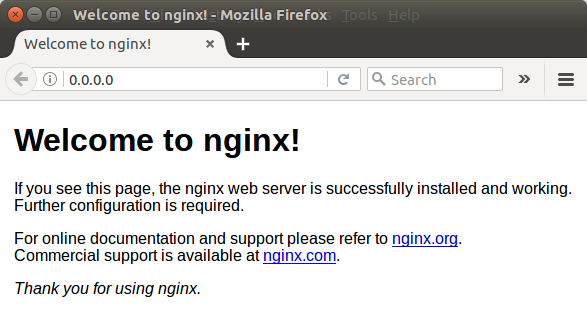
You may also use http://localhost or http://127.0.0.1 from the Docker host machine. The container listens on port 80 internally, and Docker forwards traffic from host port 80 to container port 80.
Check the running Docker NGINX container
Use docker ps to confirm that the NGINX container is running and that the port is mapped correctly.
docker psIf you need to stop and remove this container before running another container with the same name, use the following command.
docker rm -f docker-nginxThis is useful because Docker container names must be unique on the same Docker host. If a stopped container named docker-nginx already exists, a new container with the same name will not start until the old one is removed or renamed.
4. Include a static Web Application in the Docker with NGINX
To include our static Web Application into the Docker Image with NGINX, we shall create a Dockerfile (including commands to build image) and an html file with name index.html (acting as our web application) in a directory named nginx-app.
Create a directory named nginx-app. Inside that directory, place the Dockerfile and index.html file shown below.
mkdir nginx-app
cd nginx-app
FROM nginx
COPY . /usr/share/nginx/htmlThe Dockerfile starts from the NGINX base image and copies the current directory into /usr/share/nginx/html, which is the default location from which the official NGINX image serves static files.
<html>
  <head>
    <title>Docker NGINX Tutorial</title>
  </head>
  <body>
	<h1>NGINX Tutorial - Brought to you by TutorialKart</h1>
	<p>Learn to Dockerize with NGINX and your web application.</p>
	<a href="https://www.tutorialkart.com/docker/docker-tutorial/">Docker Tutorial</a>
	<a href="https://www.tutorialkart.com/nginx/nginx-tutorial/">NGINX Tutorial</a>
  </body>
</html>
Run the following command in Terminal from directory – nginx-app, to create image file.
$ docker build -t nginx-application .root@arjun-VPCEH26EN:/home/arjun/workspace/docker/nginx-app# docker build -t nginx-application .
Sending build context to Docker daemon 3.072kB
Step 1/2 : FROM nginx
---> da5939581ac8
Step 2/2 : COPY . /usr/share/nginx/html
---> ae2c0a239687
Removing intermediate container f90e669aafe9
Successfully built ae2c0a239687
Successfully tagged nginx-application:latestImage file is created successfully.
root@arjun-VPCEH26EN:/home/arjun/workspace/docker/nginx-app# docker images
REPOSITORY          TAG                 IMAGE ID            CREATED             SIZE
nginx-application   latest              ae2c0a239687        2 minutes ago       108MB
nginx               latest              da5939581ac8        7 days ago          108MB
python              latest              26acbad26a2c        7 days ago          690MB
java                8                   d23bdf5b1b1b        8 months ago        643MB
hello-world         latest              c54a2cc56cbb        14 months ago       1.85kB
Run the following command in Terminal from directory, to run the image file in a container.
$ docker run --name docker-nginx -p 80:80 -d nginx-applicationnginx-application – Docker Image file name.
root@arjun-VPCEH26EN:/home/arjun/workspace/docker/nginx-app# docker run --name docker-nginx -p 80:80 -d nginx-application
1a2ddec91961b76b73e19af28db06e658afcbe2a44e3ae01205d55f9d910922f
The container docker-nginx is running.
root@arjun-VPCEH26EN:/home/arjun/workspace/docker/nginx-app# docker ps -a
CONTAINER ID        IMAGE               COMMAND                  CREATED             STATUS              PORTS                NAMES
1a2ddec91961        nginx-application   "nginx -g 'daemon ..."   About an hour ago   Up About an hour    0.0.0.0:80->80/tcp   docker-nginx
Hit the url 0.0.0.0:80/index.html in any of your browser.
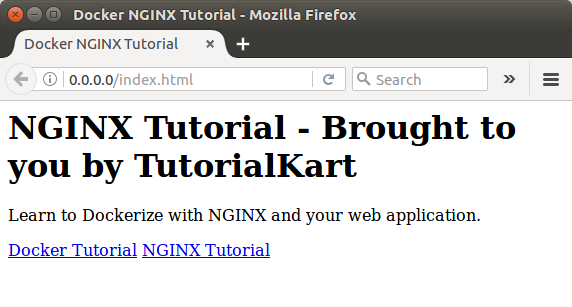
Serve local static files with an NGINX Docker volume
Building a custom image is a clean way to package a static web application. During development, you may prefer to mount a local folder into the NGINX container instead of rebuilding the image after every HTML, CSS, or JavaScript change.
From the directory that contains your index.html file, run the following command.
docker run --name docker-nginx-dev \
  -p 8080:80 \
  -v "$PWD":/usr/share/nginx/html:ro \
  -d nginx
Open http://localhost:8080 in your browser. In this command, the local directory is mounted into the container as read-only using :ro. Host port 8080 is used so that it does not conflict with another process already using port 80.
Add a custom NGINX server block inside Docker
The default NGINX configuration is enough for a simple static page. For a frontend application that uses client-side routing, you may need a custom NGINX configuration that falls back to index.html.
Create a file named default.conf with the following configuration.
server {
    listen 80;
    server_name localhost;

    root /usr/share/nginx/html;
    index index.html;

    location / {
        try_files $uri $uri/ /index.html;
    }
}
Then use a Dockerfile that copies both the static files and the custom NGINX configuration.
FROM nginx
COPY default.conf /etc/nginx/conf.d/default.conf
COPY . /usr/share/nginx/html
When you use this pattern, keep the configuration file and web files in the same build context, or adjust the COPY paths based on your project structure.
Common Docker NGINX errors and fixes
| Issue | Likely reason | Fix |
|---|---|---|
Bind for 0.0.0.0:80 failed | Another process or container is already using port 80. | Stop the other service, remove the old container, or map to another host port such as -p 8080:80. |
Conflict. The container name is already in use | A container named docker-nginx already exists. | Run docker rm -f docker-nginx or use a different container name. |
| Browser shows the default NGINX page instead of your page | Your files were not copied or mounted into /usr/share/nginx/html. | Check the Dockerfile, build context, and container image name used in docker run. |
| Changes to HTML are not visible | The image was built before the latest file change. | Rebuild the image with docker build, or use a bind mount during development. |
| Container exits immediately | The image or custom configuration has an error. | Check logs using docker logs docker-nginx. |
The following commands are useful while debugging Docker NGINX containers.
docker ps -a
docker logs docker-nginx
docker exec -it docker-nginx nginx -t
docker exec -it docker-nginx sh
The nginx -t command checks whether the NGINX configuration inside the container is valid.
Docker NGINX commands used in this tutorial
| Command | Purpose |
|---|---|
docker pull nginx | Downloads the NGINX image to the Docker host. |
docker run --name docker-nginx -p 80:80 -d nginx | Starts the official NGINX image as a background container. |
docker build -t nginx-application . | Builds a custom image from the Dockerfile in the current directory. |
docker images | Lists Docker images available on the host. |
docker ps -a | Lists running and stopped containers. |
docker rm -f docker-nginx | Stops and removes the named container. |
Docker NGINX production notes for static web applications
For local learning, the examples above are enough. For a real deployment, review the following points before publishing an NGINX Docker container.
- Use a specific NGINX image tag instead of depending blindly on
latest. - Keep the Docker image small by copying only the files needed to serve the site.
- Use a
.dockerignorefile to exclude files such as local caches, logs, node modules, and editor folders when they are not needed in the image. - Test the NGINX configuration with
nginx -tbefore deploying. - Use HTTPS termination through a reverse proxy, load balancer, or a properly configured NGINX setup when serving public traffic.
- Use container logs and health checks in the deployment platform so failures are visible.
FAQ on Docker NGINX containers
Can NGINX run inside a Docker container?
Yes. NGINX can run inside a Docker container using the official nginx image. You can start it with docker run, map a host port to container port 80, and access it from a browser.
Where should I copy static files in an NGINX Docker image?
For the official NGINX image, static files are commonly copied to /usr/share/nginx/html. An index.html file in that directory is served as the default page.
Why does Docker NGINX show the default welcome page?
The default welcome page appears when NGINX is still serving the files included in the base image. Check whether your custom files were copied into the image, whether the image was rebuilt, and whether the container was started from the correct image name.
Should I use a Dockerfile or a volume for NGINX static files?
Use a Dockerfile when you want to package and deploy a fixed version of the static site. Use a bind mount or Docker volume during development when you want local file changes to appear without rebuilding the image repeatedly.
How do I remove a Docker NGINX container?
Use docker rm -f docker-nginx to stop and remove a container named docker-nginx. This is often needed before starting another container with the same name.
Editorial QA checklist for this Docker NGINX tutorial
- The tutorial explains both the official NGINX Docker image and a custom NGINX web application image.
- The port mapping
-p 80:80is described ashost_port:container_port. - The NGINX document root
/usr/share/nginx/htmlis named before the custom Dockerfile build. - The tutorial includes a fix for duplicate container names before reusing
docker-nginx. - The troubleshooting section covers port conflicts, stale images, wrong image names, and NGINX configuration testing.
Docker NGINX tutorial summary
In this NGINX Tutorial – Docker NGINX, we have learnt to deploy NGINX with Docker. We pulled the NGINX Docker image, started an NGINX container with port mapping, created a custom Dockerfile, copied a static index.html file into the NGINX document root, built the image, and served the web page from a container.