 TutorialKart.com
Install Dart SDK on Windows
This tutorial explains how to install the Dart SDK on Windows by downloading the official SDK archive, extracting it, adding the SDK’s bin directory to the Windows PATH, and verifying the installation from Command Prompt or PowerShell.
Check Whether Dart Is Already Installed
Before downloading the SDK, open Command Prompt or PowerShell and run the following command:
dart --versionIf Windows displays a Dart SDK version, Dart is already installed and available through PATH. If the command is not recognized, continue with the installation steps below.
Step 1: Download the Dart SDK for Windows
Open the official Dart SDK archive page.
The URL is https://dart.dev/tools/sdk/archive.
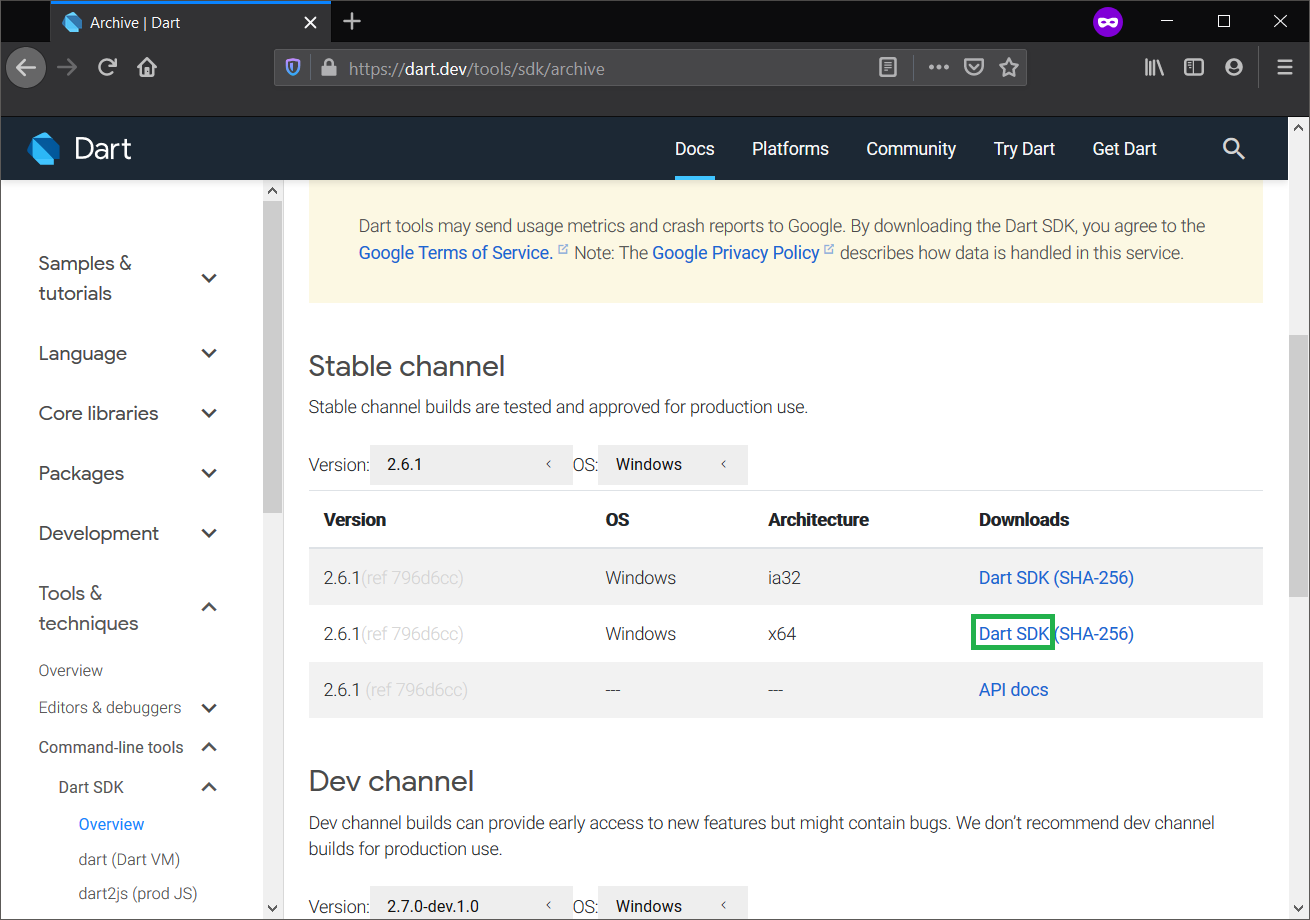
Choose a stable Dart SDK release for Windows and download the ZIP archive that matches your system architecture. Most current Windows computers use the 64-bit x64 package.
The Dart SDK is distributed as a precompiled package, so it does not need to be built from source. After the ZIP file is downloaded, you only need to extract it and configure PATH.
Step 2: Extract the Dart SDK ZIP File
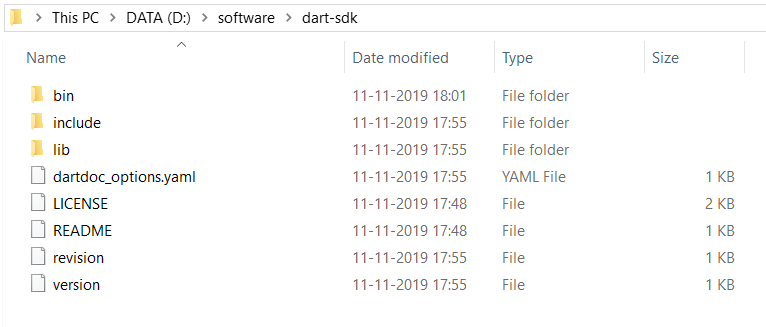
Right-click the downloaded ZIP file, select Extract All, and choose a permanent installation directory. For example, you can extract it to C:\tools\dart-sdk.
Avoid placing the SDK in a temporary download folder because moving or deleting the extracted directory later will break the PATH configuration.
The extracted SDK directory contains folders such as bin, include, and lib. The executable required to run Dart is inside the bin folder.
Step 3: Run Dart from the SDK Bin Directory
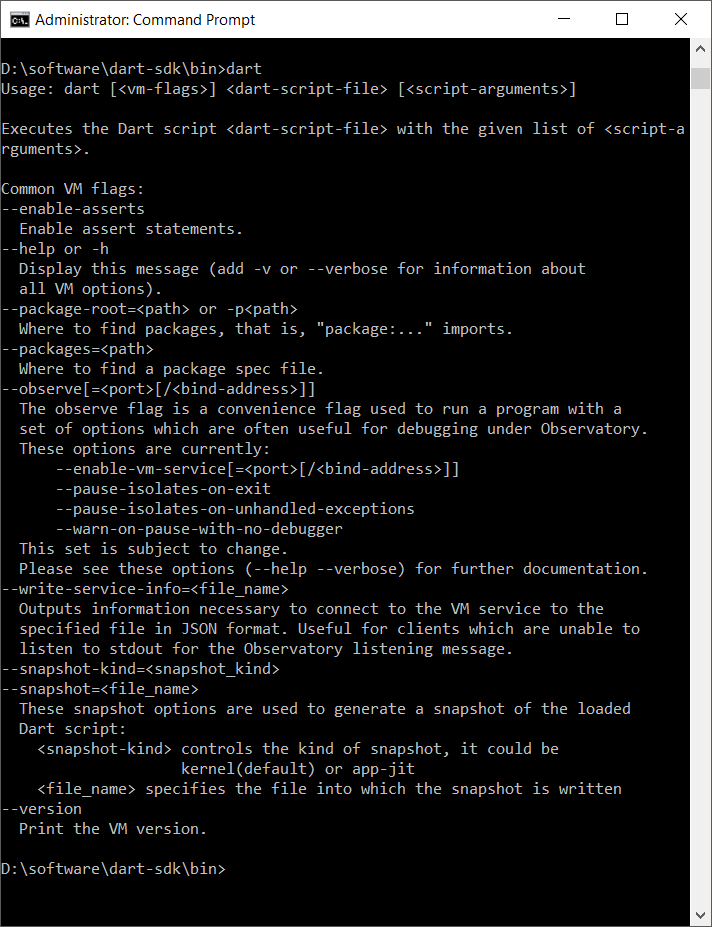
Open Command Prompt and navigate to the bin directory inside the extracted Dart SDK. For an SDK extracted to C:\tools\dart-sdk, run:
cd C:\tools\dart-sdk\bin
dart --version
If Dart is working, the command prints the installed Dart SDK version and system architecture.
Step 4: Add the Dart SDK Bin Directory to Windows PATH
At this point, the dart command works only when you are inside the SDK’s bin directory or when you provide the executable’s full path. Add the Dart SDK bin directory to PATH so that you can run Dart from any directory.
- Open the Windows Start menu and search for environment variables.
- Select Edit the system environment variables.
- In the System Properties window, click Environment Variables.
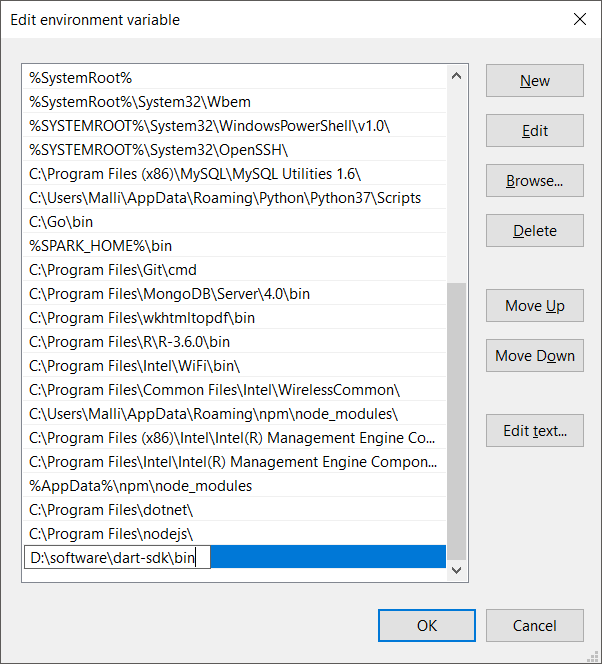
- Under User variables or System variables, select Path and click Edit.
- Click New and enter the full path to the Dart SDK
bindirectory, such asC:\tools\dart-sdk\bin. - Click OK in each open dialog to save the change.
Adding the entry under User variables makes Dart available to the current Windows account. Adding it under System variables can make it available to all users, but administrative permission may be required.
Step 5: Restart the Terminal and Verify Dart
Existing Command Prompt and PowerShell windows do not automatically receive the updated PATH value. Close them and open a new terminal window.
Run the following command from any working directory:
dart --versionYou can also use the Windows where command to confirm which Dart executable is being used:
where dartThe result should point to the dart.exe file inside the SDK directory that you added to PATH.
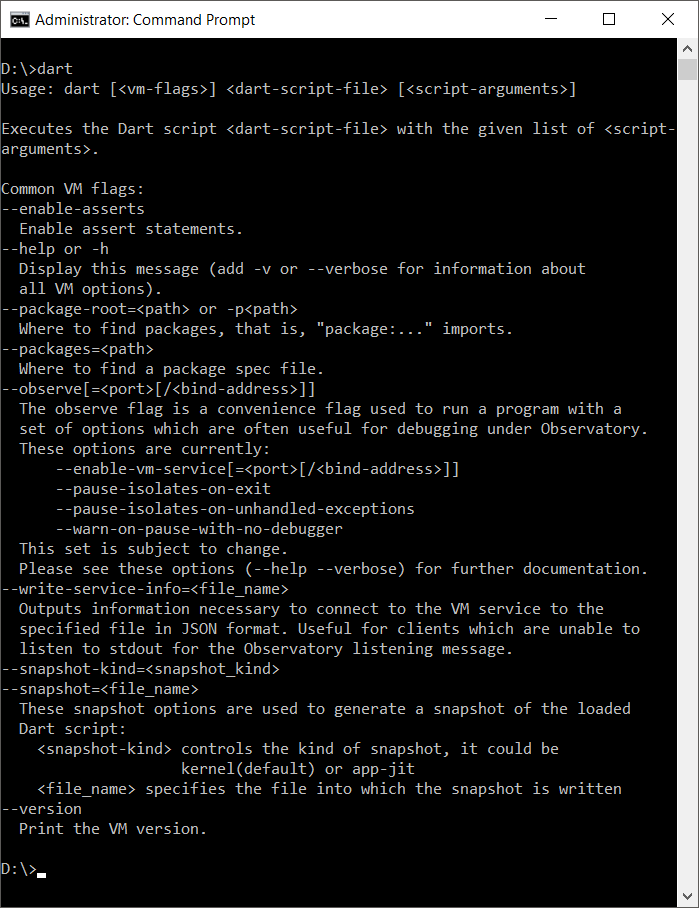
Run a Simple Dart Program on Windows
Create a file named hello.dart and add the following program:
void main() {
  print('Hello, Dart!');
}
Open a terminal in the directory containing the file and run:
dart run hello.dartThe program prints:
Hello, Dart!Fix the “dart Is Not Recognized” Error
If Windows reports that dart is not recognized as an internal or external command, check the following:
- Confirm that the SDK ZIP file was fully extracted.
- Make sure the PATH entry ends with the SDK’s
bindirectory, not only the parent SDK directory. - Verify that
dart.exeexists inside the directory added to PATH. - Close and reopen Command Prompt, PowerShell, Windows Terminal, and any code editor terminals.
- Run
where dartto detect an older or conflicting Dart installation. - Check that the PATH entry does not include unnecessary quotation marks.
Update or Remove a Manually Installed Dart SDK
To update a manually installed SDK, download a newer stable ZIP archive, extract it to a new directory, and update the PATH entry to point to the new bin directory. Verify the version before deleting the previous SDK folder.
To remove Dart, delete its SDK directory and remove the corresponding bin entry from the Windows PATH environment variable. Open a new terminal and run where dart to confirm that no other Dart installation remains.
Dart SDK Installation on Windows: Common Questions
Does the Dart SDK require a separate compiler installation?
No. The Windows SDK archive contains the Dart tools needed to run and compile Dart programs. Extract the archive, configure PATH, and verify the installation with dart --version.
Which Dart SDK folder should be added to PATH?
Add the bin directory inside the extracted SDK folder. For example, if the SDK is stored at C:\tools\dart-sdk, add C:\tools\dart-sdk\bin.
Why does Dart work in one terminal but not another?
A terminal opened before PATH was updated continues to use its old environment settings. Close the terminal and open a new one. Integrated terminals in code editors may require restarting the editor.
Can Dart be installed with Flutter on Windows?
Flutter includes a compatible Dart SDK for Flutter development. A separate standalone Dart installation is generally unnecessary when you only write Flutter applications. A standalone SDK is useful when you want to create and run Dart projects independently of Flutter.
Verify the Completed Dart Installation
The Dart SDK is ready when dart --version works from any directory, where dart points to the intended SDK, and a .dart file runs successfully with dart run. You can continue with the Dart Tutorial to learn Dart programming.