 TutorialKart.com
Create a Database in MySQL
Creating a database in MySQL is the first step before you can create tables, insert rows, and run application queries. A MySQL database is a named container for related database objects such as tables, views, indexes, triggers, and stored routines.
In MySQL, the terms database and schema are commonly used for the same object. That is why MySQL Workbench may show the action as Create Schema, while SQL examples usually use CREATE DATABASE.
This tutorial shows how to create a MySQL database from the command line and from MySQL Workbench. It also explains how to verify the database, select it with USE, choose a character set, avoid duplicate-database errors, and fix common permission issues.
MySQL Database Creation Prerequisites
Before you create a database in MySQL, make sure the server and client access are ready.
- You have MySQL Server installed and running on your system or on a remote host.
- You have a MySQL user account with the
CREATEprivilege for creating databases. - You have access to a MySQL client, such as the MySQL command-line client or MySQL Workbench.
- You know the database name you want to create. For example, this tutorial uses
schoolandnew_school.
If MySQL is already installed but the command is not recognized in your terminal, add the MySQL bin directory to your system path or open the terminal from the MySQL installation directory.
MySQL CREATE DATABASE Syntax
The basic syntax for creating a database in MySQL is:
CREATE DATABASE database_name;A safer form uses IF NOT EXISTS. This prevents an error if a database with the same name already exists.
CREATE DATABASE IF NOT EXISTS database_name;You can also define the default character set and collation when you create the database. This is useful when you want predictable text storage and sorting rules for all tables created inside the database.
CREATE DATABASE database_name
CHARACTER SET utf8mb4
COLLATE utf8mb4_0900_ai_ci;
For most modern applications, utf8mb4 is preferred because it supports a wider range of Unicode characters than MySQL’s older utf8 alias. If your MySQL version or hosting provider uses a different default collation, check the supported collations before running the statement.
MySQL Database Naming Rules to Follow
- Use a clear name such as
school,inventory, orcustomer_app. - Avoid spaces in database names. Use underscores instead.
- Avoid MySQL reserved keywords such as
order,select, ortableas database names. - Use consistent lowercase names, especially when the database may be moved between operating systems.
- If a name contains special characters, enclose it in backticks. It is usually better to choose a simpler name instead.
Creating a MySQL Database Using the Command-Line Interface
Follow these steps to create a database using the MySQL CLI:
Step 1: Connect to the MySQL Server from Terminal
Open your terminal or command prompt, navigate to the mysql location, and login to the MySQL server using the following command:
mysql -u username -pReplace username with your MySQL username. When prompted, enter your password to log in.
In this guide, we will use the root user.
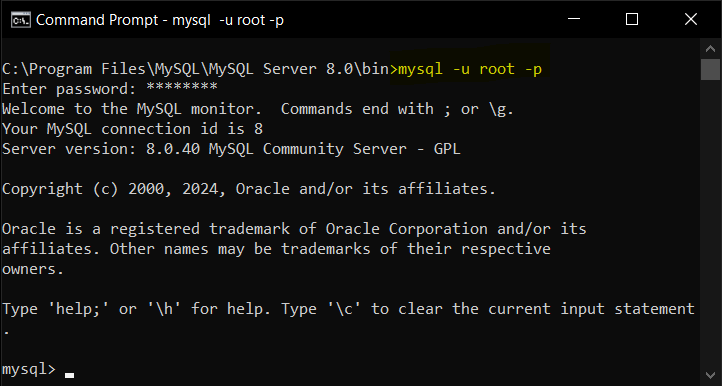
If your MySQL server is on a different machine, include the host name or IP address:
mysql -h host_name -u username -pStep 2: Run CREATE DATABASE for the New MySQL Database
To create a new database, use the CREATE DATABASE statement:
CREATE DATABASE database_name;Replace database_name with the name of your desired database. Database names must be unique within the MySQL instance.
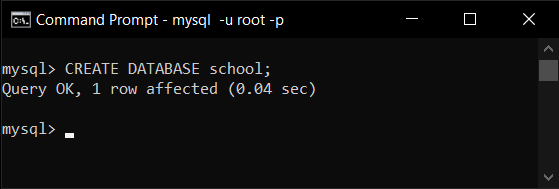
Let us create a database named school.
CREATE DATABASE school;If the database creation is successful, you would see a message “Query OK” as shown in the following screenshot.
To avoid an error when the database already exists, use this form:
CREATE DATABASE IF NOT EXISTS school;You can create the same database with an explicit character set and collation as follows:
CREATE DATABASE IF NOT EXISTS school
CHARACTER SET utf8mb4
COLLATE utf8mb4_0900_ai_ci;
Step 3: Verify the MySQL Database with SHOW DATABASES
To confirm that the database has been created, list all databases:
SHOW DATABASES;The newly created database school should appear in the list.
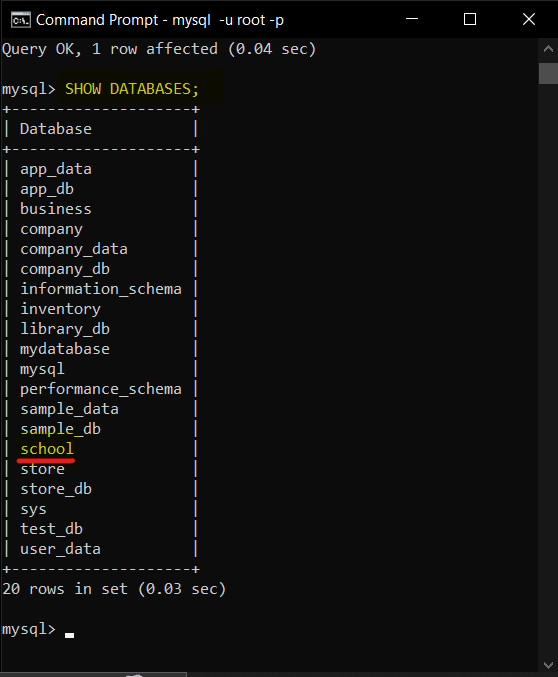
If your MySQL server has many databases, use the LIKE clause to check only the database you created:
SHOW DATABASES LIKE 'school';A typical result is:
+-------------------+
| Database (school) |
+-------------------+
| school            |
+-------------------+
Step 4: Select the MySQL Database with USE
To start working within the new database, select it using the USE statement:
USE database_name;Let us select the school database.
USE school;You can now create tables and perform operations within the selected database.
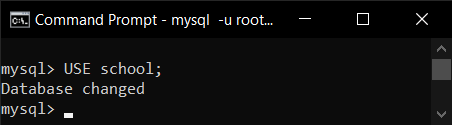
You can confirm the currently selected database with:
SELECT DATABASE();+------------+
| DATABASE() |
+------------+
| school |
+------------+Step 5: Create a Table Inside the New MySQL Database
After selecting the database, create a table to store data. The following example creates a simple students table inside the school database.
CREATE TABLE students (
    student_id INT AUTO_INCREMENT PRIMARY KEY,
    student_name VARCHAR(100) NOT NULL,
    class_name VARCHAR(20),
    admission_date DATE
);
To check whether the table was created, run:
SHOW TABLES;+------------------+
| Tables_in_school |
+------------------+
| students |
+------------------+Creating a MySQL Database Using MySQL Workbench
If you prefer a graphical interface, you can use MySQL Workbench to create a database. In MySQL Workbench, the database appears under the Schemas panel.
Step 1: Launch MySQL Workbench and Open the Server Connection
Open MySQL Workbench on your system.
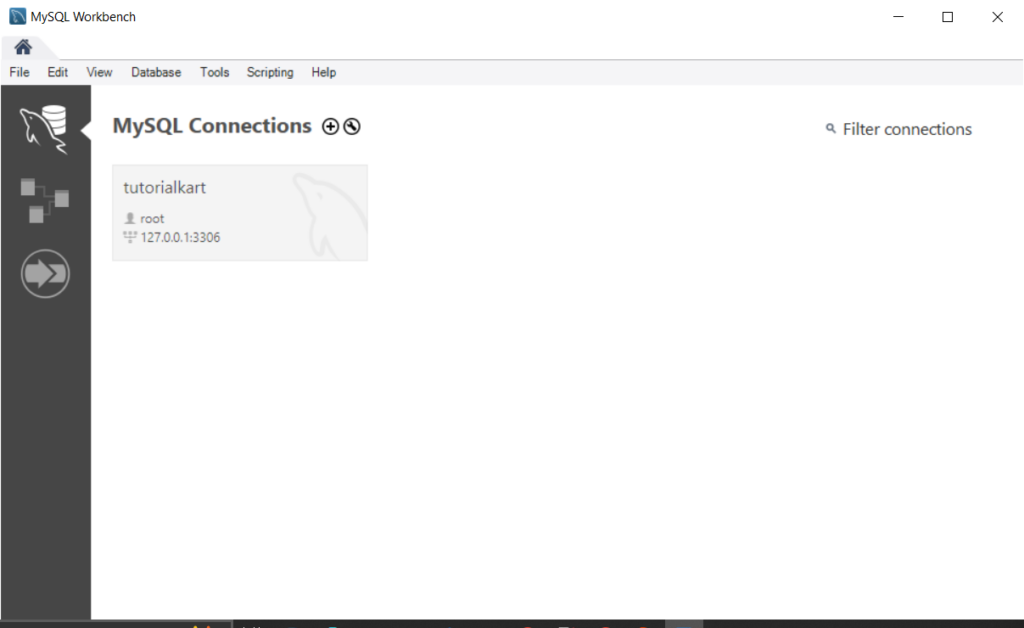
And connect to the MySQL server by clicking on the appropriate connection in the home screen.
In the above screenshot, we have tutorialkart connection. We shall click on it.
Step 2: Open the MySQL Workbench Schemas Panel
In the left-hand navigation panel, right-click on empty area in the “Schemas” tab and select Create Schema.
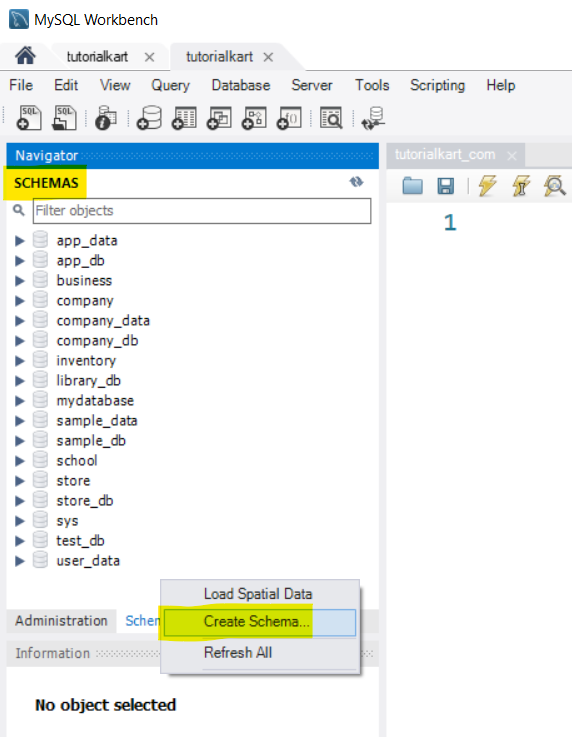
Or, you can also use the quick icon present below the menu.
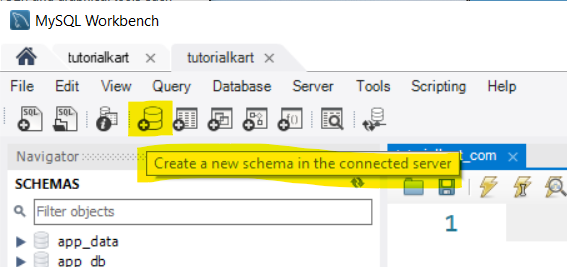
Step 3: Enter the MySQL Schema Name
In the dialog that appears, enter a name for the new schema (database) and click Apply. Let us say that we would like to create new_school database.
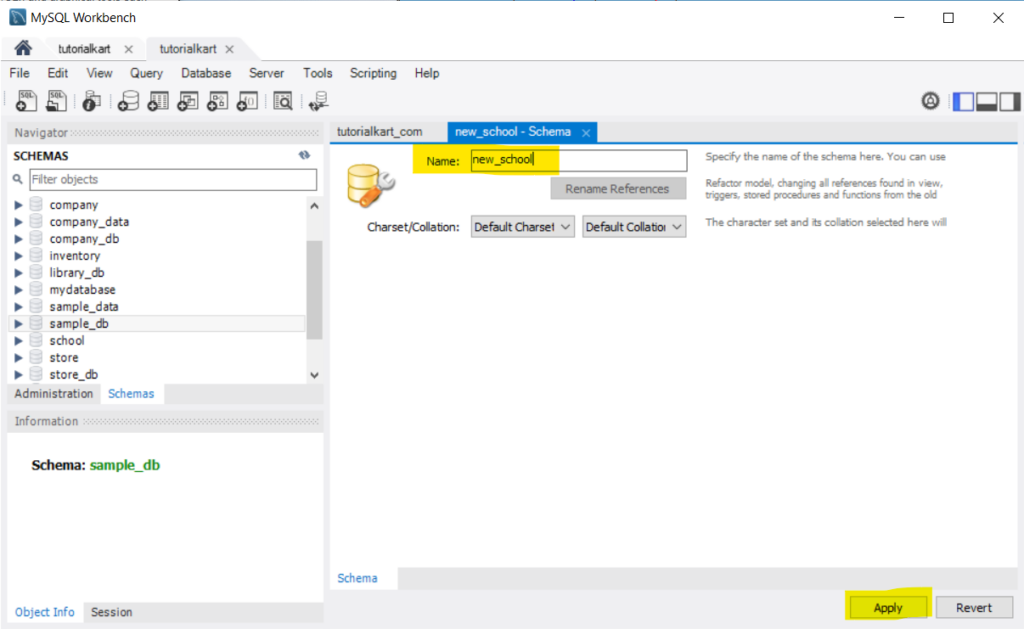
If your application needs a specific character set or collation, choose it in the Workbench schema form before applying the change. Otherwise, MySQL uses the server’s default settings.
Step 4: Review and Execute the Generated CREATE SCHEMA Statement
MySQL Workbench will generate the CREATE SCHEMA statement. Review the SQL code and click Apply to execute it.
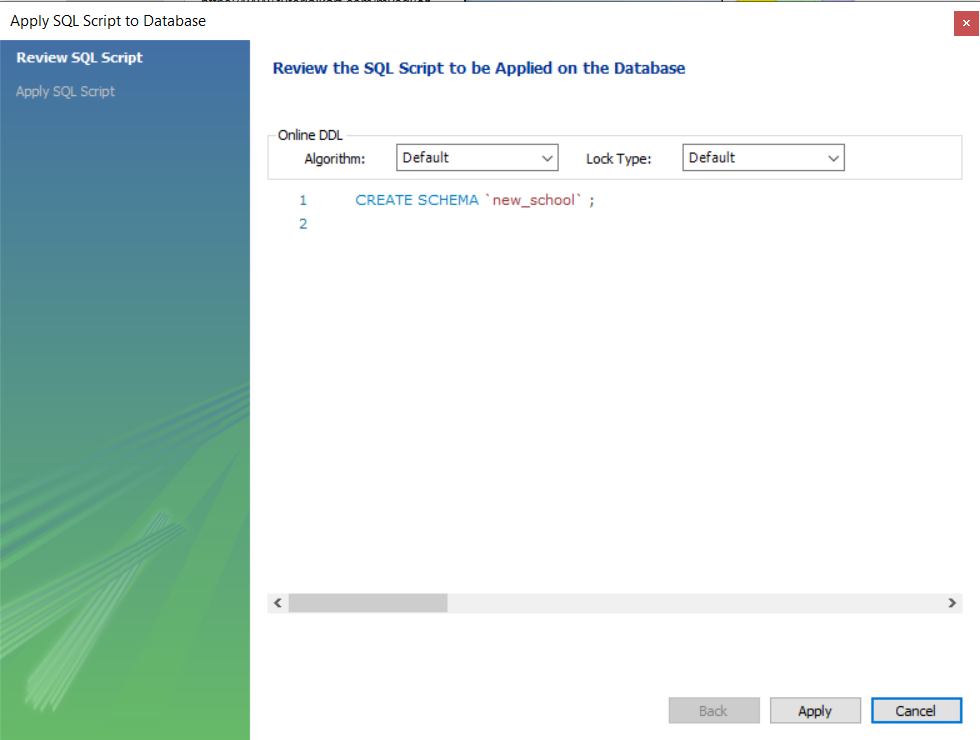
Click Apply.
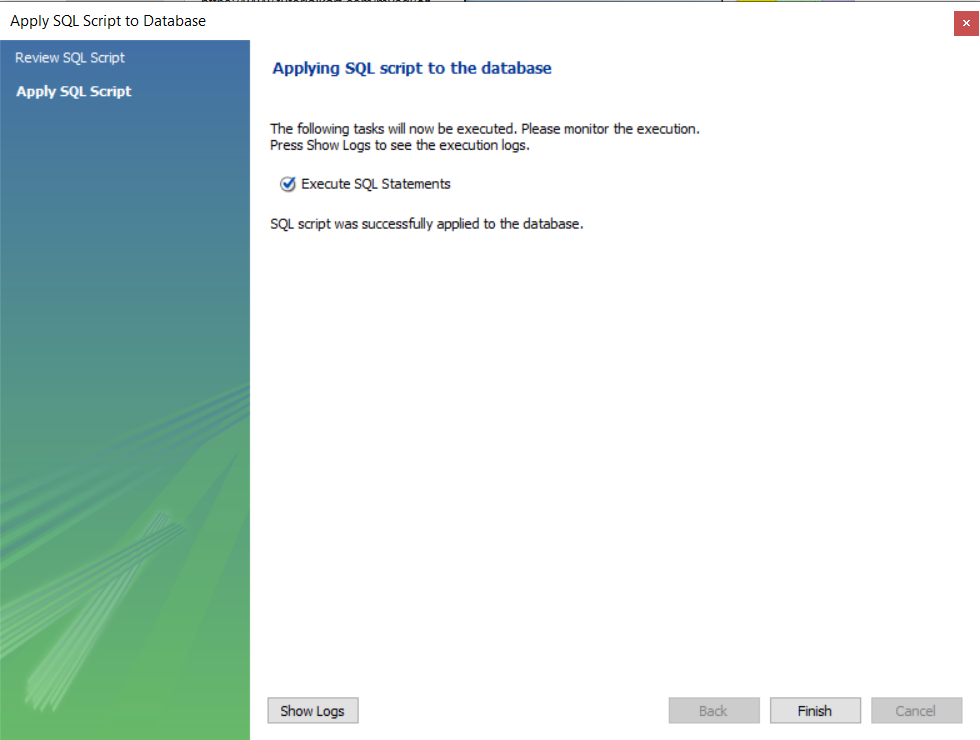
Click Finish.
Step 5: Verify the New Database in MySQL Workbench
Once the operation is successful, the new database will appear in the “Schemas” tab.
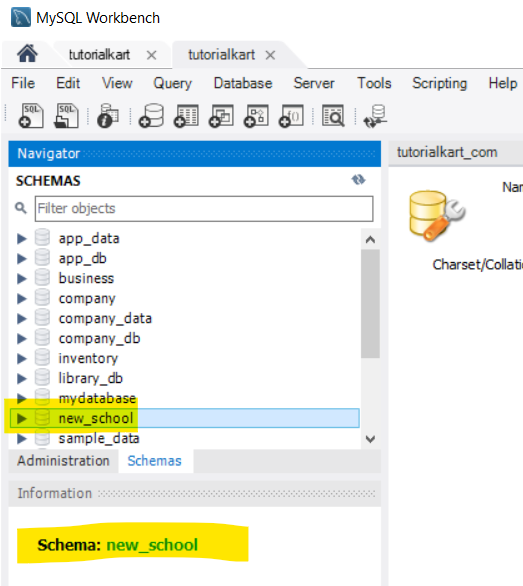
Expand the database to view its structure and start creating tables or performing other operations.
If the schema list does not refresh immediately, right-click inside the Schemas panel and choose Refresh All.
Creating a MySQL Database and User for an Application
For learning on a local system, using the root user may be acceptable. For an application, create a separate MySQL user and grant only the permissions that the application needs.
CREATE DATABASE app_db;
CREATE USER 'app_user'@'localhost' IDENTIFIED BY 'strong_password_here';
GRANT ALL PRIVILEGES ON app_db.* TO 'app_user'@'localhost';
FLUSH PRIVILEGES;
In production, avoid simple passwords and avoid granting global privileges unless they are required. The user in the example can work only with objects inside app_db.
Common MySQL CREATE DATABASE Errors and Fixes
| Error or situation | Likely reason | How to fix it |
|---|---|---|
ERROR 1007 (HY000): Can't create database; database exists | A database with the same name already exists. | Use a different name, drop the existing database only if safe, or use CREATE DATABASE IF NOT EXISTS database_name;. |
ERROR 1044 or access denied | The current MySQL user does not have permission to create a database. | Login with an account that has the CREATE privilege or ask the administrator to grant the permission. |
ERROR 1045 while logging in | The username, password, host, or authentication method is incorrect. | Check the username and password, then retry the mysql -u username -p command. |
| Database is not visible in Workbench | The Schemas panel may not be refreshed, or the database was created on a different connection. | Refresh the Schemas panel and confirm that you are connected to the correct MySQL server. |
| Tables are created in the wrong database | No database was selected, or another database was selected earlier. | Run USE database_name; and verify with SELECT DATABASE(); before creating tables. |
MySQL CREATE DATABASE Reference Links
For additional reference, see the official MySQL documentation on creating a database and the MySQL Community Edition page.
FAQs on Creating a Database in MySQL
How do I create a database in MySQL step by step?
Login to MySQL using mysql -u username -p, run CREATE DATABASE database_name;, verify it with SHOW DATABASES;, and select it with USE database_name;. After that, you can create tables inside the selected database.
What is the difference between CREATE DATABASE and CREATE SCHEMA in MySQL?
In MySQL, CREATE DATABASE and CREATE SCHEMA create the same type of object. MySQL Workbench often uses the word schema in its interface, while command-line examples commonly use database.
How can I create a MySQL database only if it does not already exist?
Use CREATE DATABASE IF NOT EXISTS database_name;. This prevents the duplicate database error and is useful in setup scripts that may run more than once.
Why am I getting access denied while creating a MySQL database?
You may be logged in with a MySQL user that does not have the CREATE privilege. Use an account with the required permission or ask the database administrator to grant database creation access.
How do I choose a MySQL database after creating it?
Run USE database_name;. For example, USE school; selects the school database for the current session. You can confirm the selected database with SELECT DATABASE();.
Editorial QA Checklist for This MySQL Database Tutorial
- Confirms that
CREATE DATABASE,SHOW DATABASES,USE, andSELECT DATABASE()examples are syntactically valid MySQL statements. - Explains the MySQL database and schema wording clearly without treating them as separate objects in MySQL.
- Includes both command-line and MySQL Workbench steps for creating a database.
- Mentions duplicate database handling with
IF NOT EXISTSand permission issues with theCREATEprivilege. - Keeps example names consistent:
schoolfor CLI examples andnew_schoolfor the Workbench walkthrough.