 TutorialKart.com
Docker Java Example
This Docker Java example shows how to build a Docker image for a simple Java application, run the Java program inside a container, save the image as a tar file, and load the same image on another computer.
We shall learn following items in this Docker Java Example :
- Build a Docker Image with Java Application
- Run the Docker Image with Java Application
- Save the Docker image to a tar file
- Copy the docker image to another computer and run it
Files required for this Docker Java image example
The example uses two files in one directory: HelloWorld.java and Dockerfile. Keep both files in the same folder before running the Docker build command.
java-application/
├── Dockerfile
└── HelloWorld.java
Build Docker Image with Java Application
1 Create a directory for Java application Docker files
A separate directory is useful to organise docker applications. For this Java Example, create a directory somewhere with name of your choice. We shall use the name java-application
mkdir java-application
cd java-application
2 Create the HelloWorld Java application
Create a simple Java File, in the directory java-application, with name HelloWorld.java containing the following content.
public class HelloWorld {
    public static void main(String[] args) {
        System.out.println("HelloWorld from Java Application running in Docker.");
    }
}
The public class name is HelloWorld, so the file name should be HelloWorld.java. If the file name and public class name do not match, Java compilation fails.
3 Create Dockerfile for Java compilation and execution
Create a file with name Dockerfile. Dockerfile contains instructions to prepare Docker image with our Java Application.
Following is the content of Dockerfile.
FROM java:8
RUN javac HelloWorld.java
CMD ["java", "HelloWorld"]
This Dockerfile selects a Java base image, compiles HelloWorld.java while building the image, and runs the HelloWorld class when a container starts.
For new Java Docker images: the older java:8 image in the original example may not be the best choice for a new project. A clearer modern pattern is to copy the Java file into a working directory and use a maintained JDK image that matches your project version.
FROM eclipse-temurin:17-jdk
WORKDIR /app
COPY HelloWorld.java .
RUN javac HelloWorld.java
CMD ["java", "HelloWorld"]
Use either the original Dockerfile for following the old screenshot-based example, or the modern Dockerfile for a new Java 17 test project. Do not keep both Dockerfile versions in the same file.
4 Verify contents of java-application directory
java-application$ ls
Dockerfile  Hello.java
For this tutorial, the Java source file should be named HelloWorld.java. If your directory shows Hello.java, rename the file or change the public class name to match the file name.
mv Hello.java HelloWorld.java5 Build the Java application Docker image
Login as root user. Navigate into java-application directory and run the following command. Instructions in the Dockerfile are executed.
$ docker build -t java-application .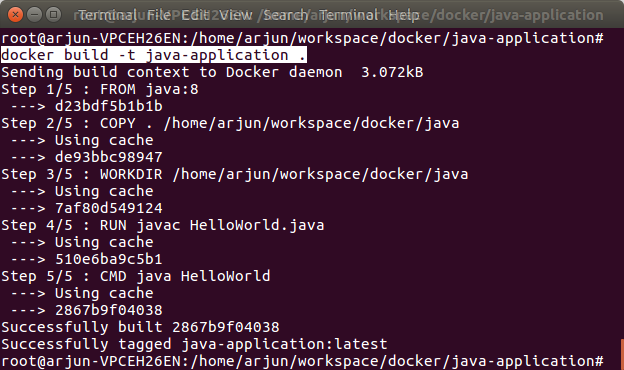
Please observe that there is dot (.) at the end of the command. Docker image is successfully built.
The dot tells Docker to use the current directory as the build context. In this example, Docker can find the Dockerfile and the Java source file because both are in the current directory.
6 Check the generated Java Docker image
To display available docker images, run the following command.
$ sudo docker images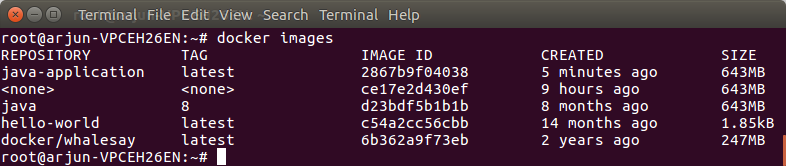
You should see an image named java-application. To filter the list and show only this image, run:
docker images java-applicationRun Docker Java Example
Run the following command to run the java-application Docker image in a container.
$ sudo docker run java-application
The Java Application has run, and the print statement could be seen in the console.
The container stops after printing the message because this Java program ends as soon as the main() method completes. This is expected for a command-line Java program.
HelloWorld from Java Application running in Docker.Use a multi-stage Dockerfile for a smaller Java runtime image
The simple Dockerfile is easy to understand, but it keeps the compile and run steps in one image. A multi-stage Dockerfile uses a JDK stage to compile the Java file and a JRE stage to run the compiled class.
FROM eclipse-temurin:17-jdk AS build
WORKDIR /src
COPY HelloWorld.java .
RUN javac HelloWorld.java

FROM eclipse-temurin:17-jre
WORKDIR /app
COPY --from=build /src/HelloWorld.class .
CMD ["java", "HelloWorld"]
This pattern is more useful for real Java applications because the final image does not need the full build environment.
Add .dockerignore for cleaner Java Docker builds
A .dockerignore file prevents unnecessary local files from being sent to the Docker build context. For Java projects, it is common to ignore compiled classes, build folders, IDE folders, and Git metadata.
*.class
*.jar
.git
.idea
.vscode
target
build
Save Docker Image to a tar file
Save the Docker Image file to a tar file, so that the image file could be copied to other machines through disk storage devices like pen-drive, etc.
Run the following command to save Docker image as a tar file.
$ docker save -o /home/arjun/workspace/docker/java-application.tar java-applicationSaving might take few seconds. Wait for the command to complete.

You can also save the image to a tar file in the current directory.
docker save -o java-application.tar java-application:latestCopy and Run the Docker Image file in another machine
You may copy the Docker image tar file to another computer.
Run the following command to load the Docker image into the Docker.
$ docker load -i /home/arjun/workspace/java-application.tarReplace /home/arjun/workspace/java-application.tar with your file location.
root@arjun-VPCEH26EN:/home/arjun/workspace/docker# docker load -i /home/arjun/workspace/java-application.tar
cae669473e3f: Loading layer [==================================================>]  5.632kB/5.632kB
e2a73a5de6c4: Loading layer [==================================================>]  5.632kB/5.632kB
Loaded image: java-application:latest
root@arjun-VPCEH26EN:/home/arjun/workspace/docker#
You may run the image using the same command we used to run the image file after building.
$ sudo docker run java-applicationTroubleshooting Docker Java application image errors
| Error or symptom | Likely reason | Fix |
|---|---|---|
javac: file not found: HelloWorld.java | The source file is not in the Docker build context or was not copied into the image. | Keep HelloWorld.java beside the Dockerfile. In a Dockerfile that uses WORKDIR, add COPY HelloWorld.java .. |
Could not find or load main class HelloWorld | The class name, file name, or compiled class location does not match the run command. | Use public class HelloWorld, save it as HelloWorld.java, and run java HelloWorld. |
| Container prints output and exits | The Java program is a short command-line program. | No fix is needed. The container exits when the Java process ends. |
Docker Java image command reference
| Task | Command |
|---|---|
| Build the Java Docker image | docker build -t java-application . |
| List Docker images | docker images |
| Run the Java container | docker run java-application |
| Save image as tar | docker save -o java-application.tar java-application:latest |
| Load image from tar | docker load -i java-application.tar |
Docker Java Example FAQs
Which Java base image should I use in a Dockerfile?
Use a JDK image when the Dockerfile compiles Java source code. Use a JRE runtime image when the application is already compiled and only needs to run. Choose the Java version that matches your application.
Why is there a dot at the end of docker build?
The dot in docker build -t java-application . sets the current directory as the build context. Docker reads the Dockerfile and project files from this context.
Why does the Java Docker container stop immediately?
The container stops because the example Java program prints one line and then exits. A container runs only while its main process is running.
Do I need Maven or Gradle for this Docker Java example?
No. This example uses one Java file and compiles it with javac. Maven or Gradle is useful for larger Java projects with dependencies, tests, and packaged JAR files.
When should I use docker save for a Java image?
Use docker save when you need to move the image as a file, especially for offline transfer. For regular deployment, a container registry is usually easier to manage.
Editorial QA checklist for Docker Java application example
- The Java file name and public class name both use HelloWorld.
- The Docker build command includes the final dot for the build context.
- The tutorial explains that a command-line Java container exits after the program finishes.
- The image transfer section clearly separates
docker save,docker load, anddocker run.
Conclusion for Docker image with Java application
In this Docker Tutorial – Docker Java Example, we have learnt to build a Docker Image with Java Application and also how to save the image to a file and transfer it to other computers or servers.
The same workflow can be used for larger Java applications: create the Java project, write a Dockerfile, build the image, test it with docker run, and then distribute the image through a tar file or a container registry.