 TutorialKart.com
We shall learn to install docker framework on Ubuntu.
Install Docker on Ubuntu
This tutorial explains how to install Docker on Ubuntu using the current Docker apt repository method, verify the installation with hello-world, enable common post-install options, and understand which older installation commands are now legacy. If you are setting up a new Ubuntu system, use the updated method first.
Docker Engine is the server-side runtime used to build and run containers. Docker Desktop for Linux is a separate desktop application that bundles Docker Engine with a GUI and additional tools. On an Ubuntu server, VPS, cloud instance, or terminal-only machine, Docker Engine is usually the correct choice.
Ubuntu Requirements Before Installing Docker Engine
Before installing Docker Engine on Ubuntu, confirm that your system is a supported 64-bit Ubuntu installation and that you have a user account with sudo access. Docker’s official Ubuntu installation page is the best reference for the latest supported Ubuntu releases and architectures: Docker Engine installation on Ubuntu.
- Use a 64-bit Ubuntu system.
- Use a supported architecture such as
x86_64/amd64,arm64,armhf,s390x, orppc64le. - Use a regular shell session with internet access.
- Run commands with
sudounless you have already configured Docker for non-root usage. - Be careful on production servers because Docker changes networking rules and published container ports can affect firewall behavior.
Check the Ubuntu release, codename, architecture, and kernel version with the following commands.
lsb_release -a
. /etc/os-release && echo "$VERSION_CODENAME"
dpkg --print-architecture
uname -r
For a quick kernel and architecture check, the older command below is still useful.
$ uname -a
Linux arjun-VPCEH26EN 4.4.0-82-generic #105-Ubuntu SMP Tue Jun 20 15:23:02 UTC 2017 x86_64 x86_64 x86_64 GNU/Linux
where
_64 mean 64 bit linux distribution.
4.4.0-82-generic mean linux kernel version 4.4 (>3.10).
Remove Conflicting Docker Packages on Ubuntu
Ubuntu repositories and older tutorials may refer to packages such as docker.io, docker-compose, podman-docker, containerd, or runc. These can conflict with the official Docker packages. It is safe if apt says that some of these packages are not installed.
sudo apt remove $(dpkg --get-selections docker.io docker-compose docker-compose-v2 docker-doc podman-docker containerd runc | cut -f1)This command removes conflicting package names, but it does not automatically remove Docker images, containers, volumes, or networks stored under Docker’s data directory.
Install Docker on Ubuntu Using the Official Apt Repository
The recommended installation method is to add Docker’s official GPG key, configure Docker’s apt source, update package indexes, and install the Docker packages. This method keeps future upgrades manageable through apt.
Step 1: Update Ubuntu apt packages and install required tools
sudo apt update
sudo apt install ca-certificates curl
Step 2: Add Docker’s official GPG key on Ubuntu
sudo install -m 0755 -d /etc/apt/keyrings
sudo curl -fsSL https://download.docker.com/linux/ubuntu/gpg -o /etc/apt/keyrings/docker.asc
sudo chmod a+r /etc/apt/keyrings/docker.asc
This modern keyring method replaces older apt-key examples. Avoid using old apt-key adv commands for new Docker installations.
Step 3: Add Docker apt source for your Ubuntu codename
sudo tee /etc/apt/sources.list.d/docker.sources <<EOF
Types: deb
URIs: https://download.docker.com/linux/ubuntu
Suites: $(. /etc/os-release && echo "${UBUNTU_CODENAME:-$VERSION_CODENAME}")
Components: stable
Architectures: $(dpkg --print-architecture)
Signed-By: /etc/apt/keyrings/docker.asc
EOF

sudo apt update
The command reads your Ubuntu codename from /etc/os-release, so you do not need to manually replace xenial, jammy, noble, or another codename in the source file.
Step 4: Install Docker Engine, CLI, containerd, Buildx, and Compose plugin
sudo apt install docker-ce docker-ce-cli containerd.io docker-buildx-plugin docker-compose-pluginThe package names matter. The current official package set uses docker-ce and docker-ce-cli, not the older docker-engine package name.
Step 5: Verify Docker Engine service on Ubuntu
sudo systemctl status docker
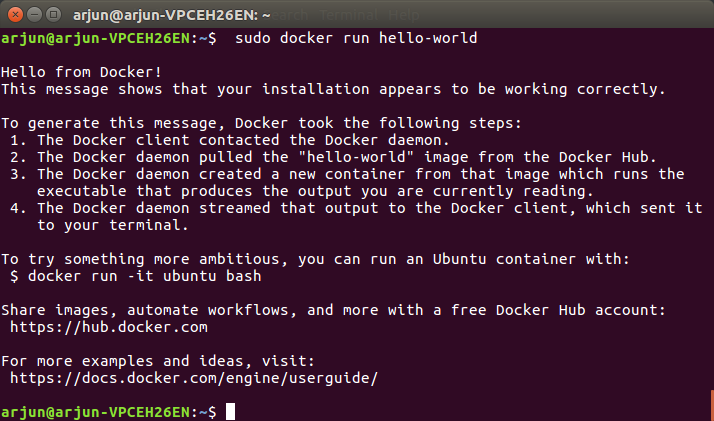
sudo docker run hello-world
The hello-world container downloads a small test image, runs it, prints a confirmation message, and exits. If that command succeeds, Docker Engine is installed and running.
Check Docker Version and Docker Compose Version on Ubuntu
After installation, check the Docker client, Docker server, Buildx, and Compose plugin versions. The modern Compose command is docker compose with a space, because Compose is installed as a Docker CLI plugin.
docker --version
sudo docker version
docker buildx version
docker compose version
If docker compose version works, you do not need the old standalone docker-compose binary for normal Compose workflows.
Run Docker on Ubuntu Without Typing sudo Every Time
By default, Docker commands often require sudo because the Docker daemon is accessed through a Unix socket owned by root. You can add your user to the docker group, but do this only on systems where you understand the security implication: membership in the Docker group effectively grants root-level control over the machine.
sudo groupadd docker
sudo usermod -aG docker $USER
newgrp docker
docker run hello-world
If groupadd says the group already exists, continue with the usermod command. Log out and log back in, or restart the machine, if the new group membership is not applied immediately.
Start Docker Automatically on Ubuntu Boot
On many Debian-based systems, Docker starts automatically after installation. If you want to explicitly enable Docker and containerd at boot, use systemctl.
sudo systemctl enable docker.service
sudo systemctl enable containerd.service
To start Docker manually after a reboot or service failure, use:
sudo systemctl start docker
sudo systemctl status docker
Install a Specific Docker Version on Ubuntu
For production systems, you may prefer a specific Docker version instead of the newest package available at install time. First list available versions, then install the exact version string you choose.
apt list --all-versions docker-ce

VERSION_STRING=<copy-version-from-list>
sudo apt install docker-ce=$VERSION_STRING docker-ce-cli=$VERSION_STRING containerd.io docker-buildx-plugin docker-compose-plugin
Replace <copy-version-from-list> with an actual version returned by apt list --all-versions docker-ce. Do not copy a sample version from an unrelated Ubuntu release.
Why apt install docker.io Is Different From Docker CE on Ubuntu
Many Ubuntu users try sudo apt install docker.io because it looks simple. That package comes from Ubuntu’s repositories, while docker-ce comes from Docker’s official repository. For a tutorial that follows Docker’s official installation path, use docker-ce, docker-ce-cli, containerd.io, docker-buildx-plugin, and docker-compose-plugin.
| Package or command | Use in current Ubuntu Docker setup |
|---|---|
docker-ce | Official Docker Engine package from Docker’s apt repository. |
docker-ce-cli | Docker command-line client package. |
containerd.io | Container runtime dependency bundled for Docker Engine. |
docker-buildx-plugin | Buildx plugin used for modern Docker image builds. |
docker-compose-plugin | Modern Compose plugin used with docker compose. |
docker-engine | Older package name used in legacy tutorials. |
docker.io | Ubuntu repository package; not the same installation path as Docker’s official apt repository. |
Troubleshooting Docker Installation Errors on Ubuntu
If Docker does not install or start correctly, check the exact package source, service status, and daemon logs before reinstalling the system.
| Ubuntu Docker issue | Useful check | Likely fix |
|---|---|---|
Unable to locate package docker-ce | cat /etc/apt/sources.list.d/docker.sources | Recreate Docker’s apt source and run sudo apt update. |
Cannot connect to the Docker daemon | sudo systemctl status docker | Start Docker with sudo systemctl start docker and inspect logs if it fails. |
Permission denied while running docker | groups | Use sudo docker ... or add your user to the docker group. |
docker compose not found | docker compose version | Install docker-compose-plugin. |
| Port already in use | sudo ss -tulpn | grep :PORT | Stop the conflicting service or map the container to another host port. |
Common follow-up tutorials are available here: Docker Commands, Docker Architecture, and [Solved] ERROR: Cannot connect to the Docker Daemon.
Uninstall Docker Engine From Ubuntu
To remove Docker Engine packages from Ubuntu, purge the Docker packages. This removes the installed packages, but it does not remove all images, containers, volumes, or custom Docker data automatically.
sudo apt purge docker-ce docker-ce-cli containerd.io docker-buildx-plugin docker-compose-plugin docker-ce-rootless-extrasIf you are intentionally deleting all Docker data from the machine, remove Docker’s data directories. This is destructive, so use it only when you are sure that you do not need existing containers, images, or volumes.
sudo rm -rf /var/lib/docker
sudo rm -rf /var/lib/containerd
Legacy Docker Installation Notes for Older Ubuntu Tutorials
The following older commands are preserved for readers maintaining legacy Ubuntu 16.04-era systems or comparing older Docker tutorials. For a new Ubuntu installation, prefer the current download.docker.com repository method shown above. The older dockerproject.org repository, apt-key flow, and docker-engine package name should not be used as the primary path for a new installation.
Update Ubuntu apt sources
To update Ubuntu apt sources, open a Terminal and run the following command:
$ sudo apt-get updateInstall CA certificates
To install CA certificates, run the following apt-get install command.
$ sudo apt-get install apt-transport-https ca-certificatesAdd new GPG key
After installing CA certificates, we need to add a new GPG key. Run the following apt-key command.
$ sudo apt-key adv --keyserver hkp://ha.pool.sks-keyservers.net:80 --recv-keys 58118E89F3A912897C070ADBF76221572C52609D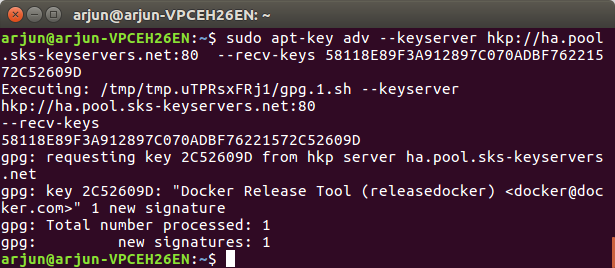
We need to make an entry for your Operating System in docker.list file. To make the entry, run the following command in Terminal.
$ echo "<REPO>" | sudo tee /etc/apt/sources.list.d/docker.listAnd add the following line in /etc/apt/sources.list.d/docker.list
deb https://apt.dockerproject.org/repo ubuntu-xenial mainTo know the ubuntu version you computer is running on, run the following command in terminal.
$ lsb_release -aNo LSB modules are available.
Distributor ID: Ubuntu
Description: Ubuntu 16.04.3 LTS
Release: 16.04
Codename: xenial
Please observe the Release and Codename.
Following is the mapping for ubuntu versions :
| Ubuntu Version | Name |
|---|---|
| 12.04 | ubuntu-precise |
| 14.04 | ubuntu-trusty |
| 14.10 | ubuntu-utopic |
| 15.04 | ubuntu-vivid |
| 15.10 | ubuntu-wily |
| 16.04 | ubuntu-xenial |
| 16.10 | ubuntu-yakkety |
| 17.04 | ubuntu-zesty |
Use vi or nano editor to edit /etc/apt/sources.list.d/docker.list. The following command opens the docker.list file using nano editor.
$ sudo nano /etc/apt/sources.list.d/docker.listNow we need to update apt packages index once again.
$ sudo apt-get updateMake a quick check if apt is referring to correct repository for docker. Run the following apt-cache command.
$ apt-cache policy docker-engineWhen you run the command, some text is echoed back to the screen. In that, verify if the Installed mentioned in the output is matching the Ubuntu version we added in the list.
$ apt-cache policy docker-engine
docker-engine:
  Installed: 1.12.3-0~xenial
  Candidate: 17.05.0~ce-0~ubuntu-xenial
  Version table:
     17.05.0~ce-0~ubuntu-xenial 500
        500 https://apt.dockerproject.org/repo ubuntu-xenial/main amd64 Packages
     17.04.0~ce-0~ubuntu-xenial 500
        500 https://apt.dockerproject.org/repo ubuntu-xenial/main amd64 Packages
     17.03.1~ce-0~ubuntu-xenial 500
        500 https://apt.dockerproject.org/repo ubuntu-xenial/main amd64 Packages
     17.03.0~ce-0~ubuntu-xenial 500
        500 https://apt.dockerproject.org/repo ubuntu-xenial/main amd64 Packages
     1.13.1-0~ubuntu-xenial 500
        500 https://apt.dockerproject.org/repo ubuntu-xenial/main amd64 Packages
     1.13.0-0~ubuntu-xenial 500
        500 https://apt.dockerproject.org/repo ubuntu-xenial/main amd64 Packages
     1.12.6-0~ubuntu-xenial 500
        500 https://apt.dockerproject.org/repo ubuntu-xenial/main amd64 Packages
     1.12.5-0~ubuntu-xenial 500
        500 https://apt.dockerproject.org/repo ubuntu-xenial/main amd64 Packages
     1.12.4-0~ubuntu-xenial 500
        500 https://apt.dockerproject.org/repo ubuntu-xenial/main amd64 Packages
 *** 1.12.3-0~xenial 500
        500 https://apt.dockerproject.org/repo ubuntu-xenial/main amd64 Packages
        100 /var/lib/dpkg/status
     1.12.2-0~xenial 500
        500 https://apt.dockerproject.org/repo ubuntu-xenial/main amd64 Packages
     1.12.1-0~xenial 500
        500 https://apt.dockerproject.org/repo ubuntu-xenial/main amd64 Packages
     1.12.0-0~xenial 500
        500 https://apt.dockerproject.org/repo ubuntu-xenial/main amd64 Packages
     1.11.2-0~xenial 500
        500 https://apt.dockerproject.org/repo ubuntu-xenial/main amd64 Packages
     1.11.1-0~xenial 500
        500 https://apt.dockerproject.org/repo ubuntu-xenial/main amd64 Packages
     1.11.0-0~xenial 500
        500 https://apt.dockerproject.org/repo ubuntu-xenial/main amd64 Packages
Now, we will install the recommended packages for your linux version.
$ sudo apt-get install linux-image-extra-$(uname -r) linux-image-extra-virtualEverything we have done until now is getting the environment ready for installing docker. To install latest Docker version, run the following apt-get command.
$ sudo apt-get install docker-engineThe docker engine is successfully installed. Now, we shall start the Docker daemon.
$ sudo service docker startThe docker demon will be up and running. There will be a hello-world application that comes along with docker installation. We can run that hello-world application, and check if the docker is installed successfully.
$ sudo docker run hello-worldInstall Docker on Ubuntu FAQs
Should I install docker.io or docker-ce on Ubuntu?
For Docker’s official installation path, install docker-ce from Docker’s apt repository. The docker.io package is provided through Ubuntu repositories and may differ from Docker’s official package set.
Why is apt-key not used in the updated Docker Ubuntu installation?
The modern Docker installation uses a keyring file under /etc/apt/keyrings and a signed apt source. Older apt-key adv examples are kept only for legacy context and should not be the preferred method for a new Ubuntu setup.
How do I check if Docker is installed correctly on Ubuntu?
Run sudo docker run hello-world. If Docker downloads the test image, starts the container, prints the confirmation message, and exits, the installation is working. You can also run sudo systemctl status docker to check the Docker service.
How can I run Docker commands without sudo on Ubuntu?
Add your user to the docker group with sudo usermod -aG docker $USER, then log out and log back in. Use this only when appropriate, because Docker group membership gives powerful control over the host machine.
What is the difference between Docker Engine and Docker Desktop on Ubuntu?
Docker Engine is the runtime and CLI package commonly installed on servers and terminal-based Ubuntu systems. Docker Desktop for Linux is a desktop application that includes Docker Engine, a GUI, and additional developer tools.
Editorial QA Checklist for Install Docker on Ubuntu
- Does the tutorial clearly separate the current Docker apt repository method from the older
dockerproject.organddocker-enginemethod? - Are all new command blocks using PrismJS-compatible classes such as
language-bash? - Are existing image URLs and legacy code blocks preserved without changing their commands?
- Does the tutorial explain why
docker.io,docker-ce, anddocker-compose-pluginare different? - Does the troubleshooting section cover package source errors, daemon status, sudo permissions, Compose plugin checks, and port conflicts?
- Does the uninstall section warn before deleting Docker data directories?
Conclusion: Docker Engine Installed on Ubuntu
In this Docker Tutorial – Install Docker on Ubuntu, we have successfully installed docker on Ubuntu.
For a new system, the practical path is: remove conflicting packages, add Docker’s official GPG key and apt source, install docker-ce packages, verify with hello-world, and then decide whether your user should be added to the docker group. After this setup, continue with Docker commands, Dockerfile examples, and Docker Compose basics.