 TutorialKart.com
In this tutorial, you will learn how to set up personnel actions, also called personnel action types, in SAP HR / SAP HCM. Personnel action types control HR events such as hiring, transfer, organizational reassignment, retirement, and termination. They are used when HR users execute actions for an employee, usually through transaction PA40.
This configuration is maintained in SAP Customizing and stores the action type settings in table T529A. Before creating a new action type, confirm the business event, employment status, functional character, infogroup, and required employee master data screens.
Personnel action types in SAP HR and where they are used
A personnel action type represents a specific HR process. When the action is executed for an employee, SAP creates or updates personnel administration infotypes such as Actions, Organizational Assignment, Personal Data, Addresses, Planned Working Time, Basic Pay, and other screens assigned through the infogroup.
Common examples of personnel actions in SAP HR include:
- Hiring – creates a new employee record and assigns active employment status.
- Transfer – changes personnel area, employee group, employee subgroup, position, or organizational assignment.
- Promotion – updates position, job, grade, pay, or related employee attributes based on business design.
- Termination – withdraws the employee and updates employment status.
- Retirement – changes the employee status to retiree where the process is configured separately.
Navigation to set up personnel action types in SAP HR
Navigation
| SAP R/3 Role Menu | Define personnel action types |
| Table | T529A |
| SAP Path | Personnel Management => Personnel administration (PA) => Customizing Procedures => Actions => set up personnel actions. |
| Common execution transaction | PA40 – Personnel Actions |
| Customizing transaction | SPRO |
You can also review SAP Learning material on configuring and executing personnel actions from the official SAP Learning site: Configuring Personnel Actions and Executing Personnel Actions.
How to set up personnel action types in SAP
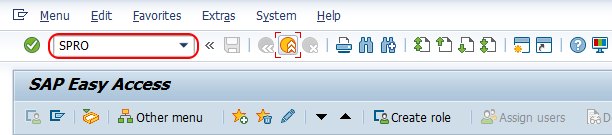
Step 1 : – Execute tcode “SPRO” from SAP command field.
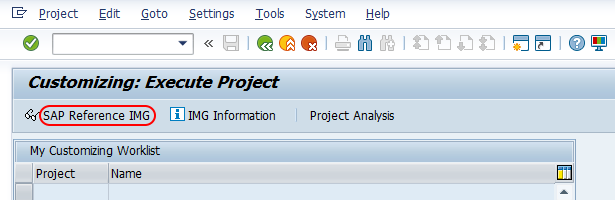
Step 2 : – Choose “Display SAP reference IMG”
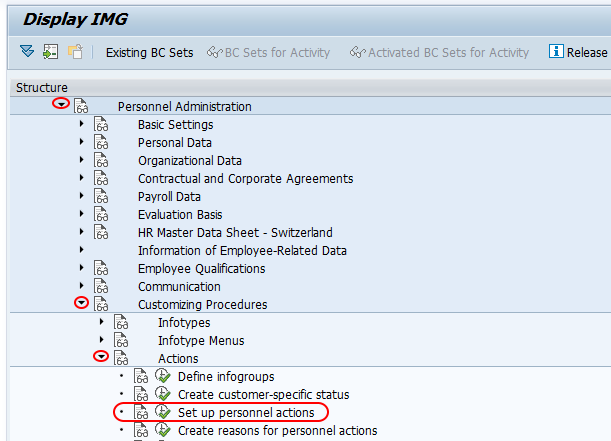
Step 3 : – From display IMG screen, follow the navigation path as PM > PA > Customizing procedures => Actions => and choose img activity “Set up personnel actions”.
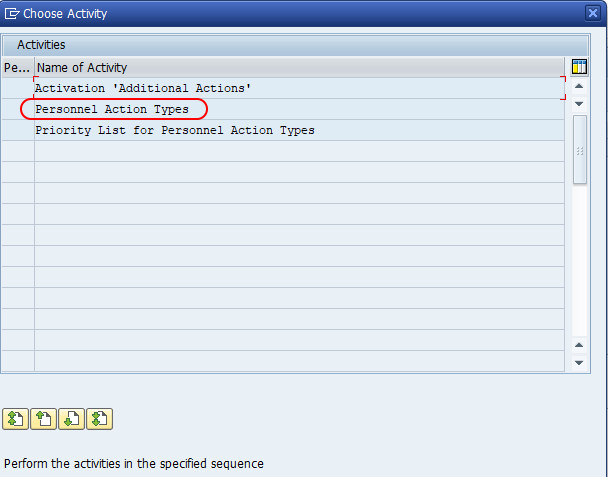
Step 4 : – On choose activity screen, displays the three types of activities. i.e.
- Activation ‘Additional Actions’
- Personnel action types
- Priority list of personnel action types.
Choose personnel action types
Step 5 : – From change view “Personnel Action Types” screen, choose new entries option for creating a new personnel action type in SAP.

Step 6 : – From new entries personal action types screen, enter the following details.
Action Type key for a new SAP HR personnel action
Action Type : – Enter the 2 digits alphanumeric key that defines as personnel action type in SAP.
Use a clear custom key range based on your project standards. For example, a customer-specific action type for promotion can use a two-character key such as ZP, if that naming approach is allowed in your system.
Name of Action Type shown to SAP HR users
Name of Action Type : – Enter the descriptive name of an action type.
The name should be easy for HR users to identify in PA40. For example, use names such as Hiring, Transfer, Promotion, Retirement, or Termination instead of short internal abbreviations.
Functional character for SAP personnel action behavior
FC : – FC stand for functional character, and the available values are
- 1 – Initial Hiring
- 7 – Initial hiring and transfer of data from recruitment
- 8 – Activation of per. assignment for global employees (Host)
- 9 – Activation of per. assignment for global employees (Home)
- 0 – Other Actions
Select the functional character according to the real HR process. Hiring actions usually need a hiring-related functional character, while transfers, promotions, and most change actions normally use the value for other actions.
Employment status update during SAP HR personnel actions
Employment : – Update the employment status for action type and values are
- 0 – Withdrawn/ Termination/ Resignation, Transfer, etc.
- 1 – Inactive
- 2 – Retiree
- 3- Active
The employment status is important because it affects whether the employee is treated as active, inactive, withdrawn, or retired. For example, a hiring action should normally result in active status, while a termination action should result in withdrawn status.
Special payment status for personnel action types
Special Payment : – Special payment status specifies how an employee is getting payment.
- 0 – No payment
- 1 – Standard payment
- 2 – Special payment
Choose the value based on how the action should influence payment processing in your SAP HR design. For many regular employee actions, standard payment is used, but the exact value must match the payroll and personnel administration configuration used by your organization.
Personnel area, position, employee group, and employee subgroup checks
Activate check fields inputs for personnel area, position, employee group, employee subgroup.
These check fields help control whether important organizational values are checked or entered during the action. Use them carefully for actions that change the employee’s organizational assignment, such as hiring, transfer, promotion, or reassignment.
Infogroup key assignment for SAP HR action screens
IG : – Update the infogroup key – TH.
The infogroup determines the sequence of infotypes shown when the personnel action is executed. For example, a hiring action may need more infotypes than a transfer action. Use the infogroup that has been configured for the required action screen sequence in your client.
Country reassignment setting for cross-country personnel actions
Country reassignment : -Action country reassignment action field for country transfer.
Use this setting only when the personnel action is designed for a country reassignment or international transfer scenario. For normal domestic actions, leave it according to your project design and SAP HR country grouping requirements.
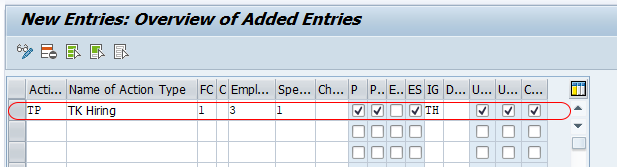
Press enter and click on save button and save the configured personnel action types in SAP.
Sample SAP HR personnel action type settings
The exact values depend on your client configuration. The following examples show how action type settings are commonly understood during configuration review.
| Personnel action type | Typical purpose | Employment status result | Configuration point to verify |
|---|---|---|---|
| Hiring | Create a new employee record | Active | Functional character and full hiring infogroup |
| Transfer | Move employee to another org unit, position, personnel area, or subgroup | Usually Active | Organizational assignment and check fields |
| Promotion | Change position, grade, pay, or job-related assignment | Usually Active | Infogroup sequence and pay-related infotypes |
| Retirement | Move employee to retiree status | Retiree | Status value and downstream payroll rules |
| Termination | Withdraw employee from active employment | Withdrawn | Termination status, date logic, and leaving-related infotypes |
Priority list of personnel action types in SAP HR
The activity Priority list of personnel action types is used when multiple action types can be relevant in the same period or when the system needs to determine an order for action handling. After defining new action types, review whether they need to be included in the priority list based on your business process.
For example, if a termination and another personnel change are entered for the same employee within a close date range, the priority setup can help ensure that the more business-critical action is processed correctly according to your SAP HR rules.
Additional Actions activation in SAP HR personnel administration
The Activation ‘Additional Actions’ activity controls whether more than one personnel action can be stored for an employee on the same date. This is useful when the business needs to record more than one HR event on the same day, such as a transfer and a pay change.
Do not activate or change this setting without reviewing the impact with the SAP HR functional team. It can affect how action records are stored and how employee history is interpreted.
Testing a new personnel action type in SAP HR
After saving the personnel action type, test it in a development or quality system before moving the configuration to production. Use a test employee or a test personnel number where allowed by your project process.
- Open transaction PA40 and check whether the new personnel action appears in the action menu.
- Execute the action with a valid start date.
- Verify that the correct infotype sequence appears from the assigned infogroup.
- Check whether employment status is updated correctly in the Actions infotype.
- Confirm whether personnel area, employee group, employee subgroup, and position checks work as expected.
- Save the action and review the employee master data for consistency.
Common mistakes while configuring SAP personnel action types
- Using the wrong employment status: A termination action should not leave the employee active unless the process is intentionally designed that way.
- Assigning an incomplete infogroup: If required infotypes are missing, HR users may not capture all necessary data during PA40 execution.
- Choosing an unclear action type name: A confusing name can lead users to select the wrong action.
- Ignoring priority list settings: New action types may behave unexpectedly when multiple actions are processed.
- Changing production configuration without testing: Personnel action configuration directly affects employee master data and should be tested first.
SAP HR personnel action types QA checklist
Use this checklist before releasing a new personnel action type configuration:
- The action type key is unique and follows the project naming standard.
- The action type name is clear for HR users in PA40.
- The functional character matches the HR process.
- The employment status is correct for hiring, transfer, retirement, or termination.
- The special payment status is aligned with payroll and personnel administration requirements.
- The required personnel area, position, employee group, and employee subgroup checks are enabled where needed.
- The assigned infogroup contains the required infotypes in the correct order.
- The action appears correctly in PA40 after configuration.
- The action has been tested with a sample employee record in a non-production system.
FAQs on personnel action types in SAP HR
What is a personnel action type in SAP HR?
A personnel action type in SAP HR is a configuration object that represents an HR event such as hiring, transfer, promotion, retirement, or termination. It controls how the action is identified and how employee master data is processed during the action.
Which table stores personnel action types in SAP HR?
Personnel action type settings are stored in table T529A. You can maintain them through SPRO under Personnel Management > Personnel Administration > Customizing Procedures > Actions > Set up personnel actions.
Which transaction is used to execute personnel actions in SAP HR?
Transaction PA40 is commonly used to execute personnel actions for employees. The actions shown in PA40 depend on the configured action types and related settings.
Why is the infogroup important for a personnel action type?
The infogroup controls the sequence of infotypes displayed when the action is executed. If the infogroup is incomplete or incorrect, HR users may miss required employee data screens during the personnel action.
Can more than one personnel action be recorded on the same date in SAP HR?
Yes, this can be supported when Additional Actions is activated and configured correctly. The setting should be reviewed carefully because it affects how multiple HR events are stored for the same employee and date.
Successfully we have define personnel actions in SAP HR.