 TutorialKart.com
Development mode in Salesforce enables the Visualforce development editor in the browser. It is mainly useful when a developer is building or testing Visualforce pages and wants to see the page preview and page markup from the same browser window. It can also help while checking the view state.
This setting is a user preference. Enabling Development Mode for one Salesforce user does not automatically enable it for all users in the org. Also, this setting is related to Visualforce development; it is not the same as Windows Developer Mode, Android Developer Options, or Salesforce Developer Console.
What Salesforce Development Mode Does for Visualforce Pages
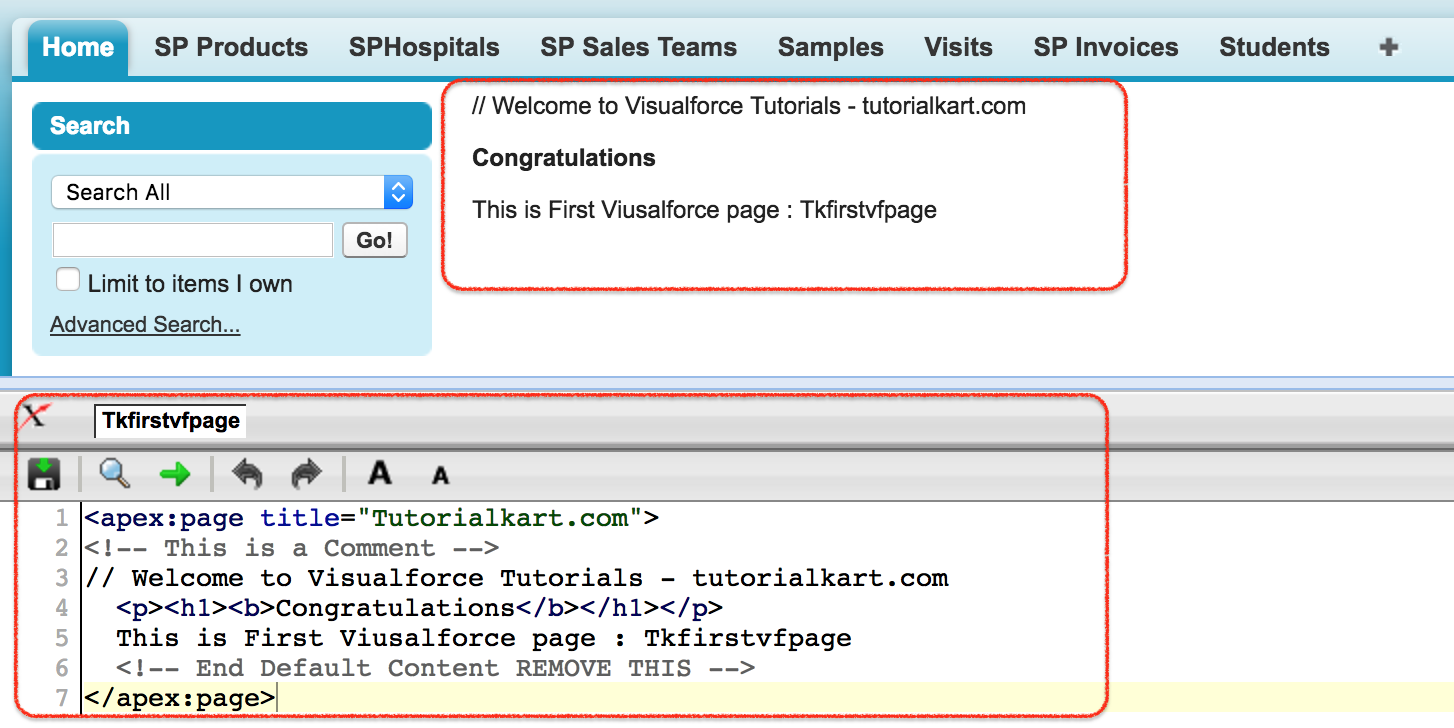
When Development Mode is enabled, Salesforce can display a Visualforce editor area at the bottom of a Visualforce page preview. The developer can edit the page markup, save changes, and check the result without moving between many screens. Depending on the Visualforce page and user permissions, the toolbar can also provide access to related development tools such as page markup, controller information, and view state inspection.
Development Mode is most useful for learning and small Visualforce changes. For larger Salesforce development work, use a proper development process with source control, sandboxes, deployment tools, and testing before changes are moved to production.
Enable Development Mode in Salesforce User Settings
Following is a step by step process to enable Salesforce development mode.
1. Navigate to Name | Personal Advanced user.
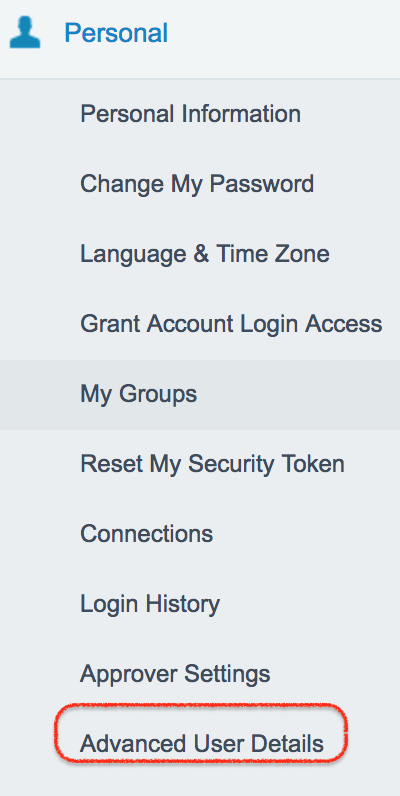
In Salesforce Classic, the setting is available from the personal user settings area. In Lightning Experience, open Setup, search for Users, open the required user record, and edit the advanced user details if your permissions allow it.
2. In advanced user details, you can edit assignments, create new groups, create new queues, and access Salesforce login history details like login time, source IP, login type, login URL, and location. To enable Salesforce Development Mode, click on the Edit button.

3. Go to the user details section and select the Development Mode checkbox. If the checkbox is not visible, check whether you are on the correct user detail page and whether your profile or permission set allows access to the required setup area.
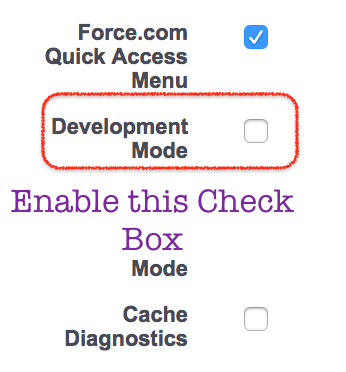
4. Click on the Save button. After saving, open or preview a Visualforce page to confirm that the development editor appears.
How to Check Whether Salesforce Development Mode Is Enabled
To check development mode in Salesforce, follow these steps.
1. Navigate to Setup | Build | Visualforce pages.
2. Create a new Visualforce page and quick save the page. You can use a small test page if you are learning Development Mode in a sandbox or developer org.
<apex:page>
    <h1>Salesforce Development Mode Test</h1>
    <p>This Visualforce page is used to check whether Development Mode is enabled.</p>
</apex:page>
3. Click on the Preview button and the result will open in a new window.
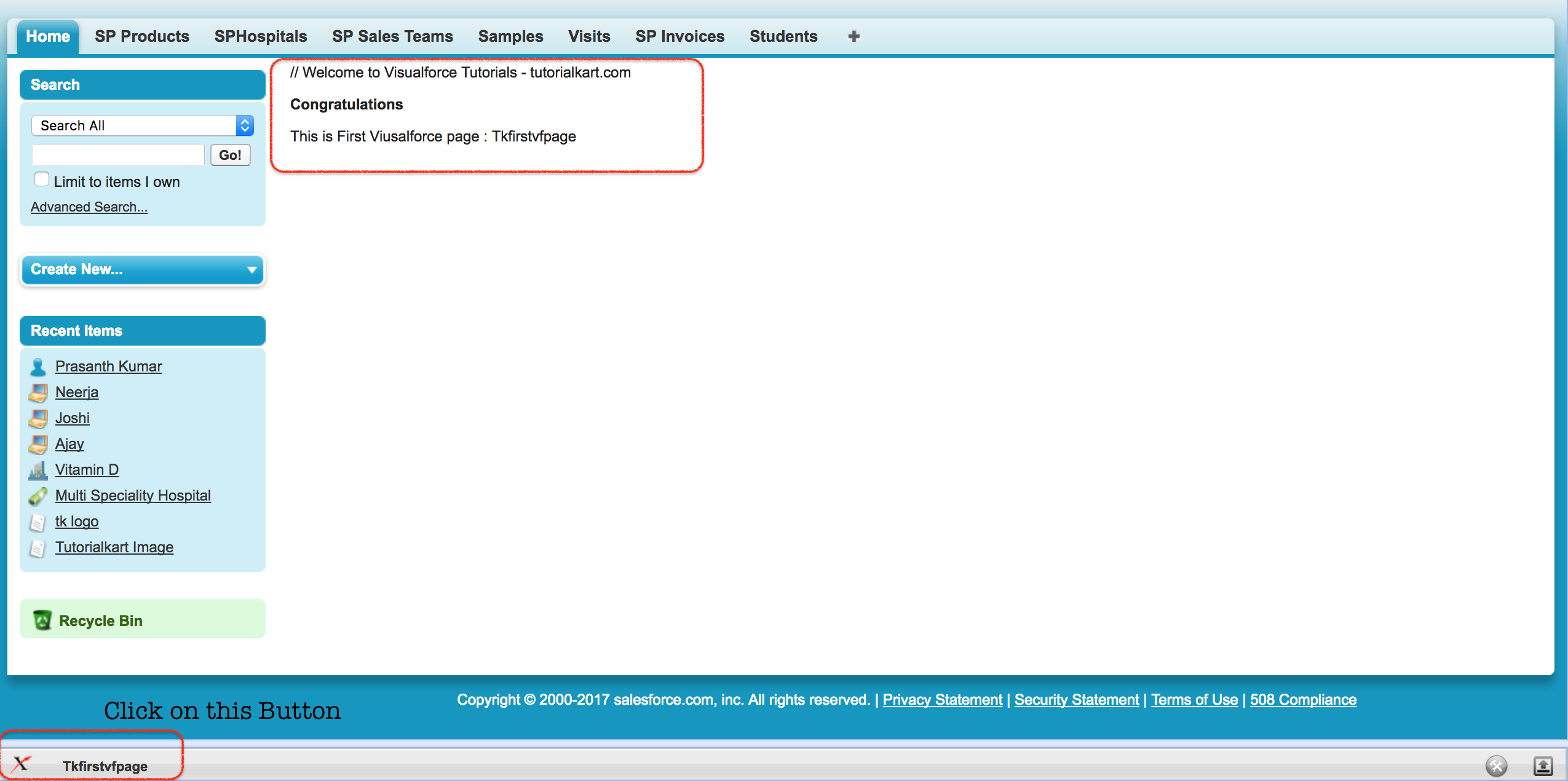
4. Click and drag the editor bar if it is collapsed or too small. Now the Visualforce page code and the result will be displayed as shown below.
Development Mode, Developer Console, and Visualforce Editor Differences
Salesforce uses several development tools, and they are not the same setting. Understanding the difference helps avoid confusion when searching for “developer mode” or “development mode”.
| Salesforce tool or setting | What it is used for | Where it is usually opened |
|---|---|---|
| Development Mode | Shows the Visualforce development editor in the browser while previewing Visualforce pages. | User settings or advanced user details. |
| Visualforce Pages setup | Create, edit, clone, delete, and preview Visualforce pages. | Setup search for Visualforce Pages. |
| Developer Console | Run SOQL, inspect logs, execute Apex, and work with Apex and other metadata in supported orgs. | Gear icon or user menu, depending on Salesforce UI and permissions. |
| View State Inspector | Inspect the Visualforce view state and identify page state size issues. | Available while working with Visualforce pages when supported and enabled. |
What is ViewState in Salesforce Visualforce?
ViewState in Salesforce holds the state of a Visualforce page, including component state, field values, and controller state that must be preserved between requests. Salesforce development tools can help a user inspect the contents of the view state. Visualforce page performance depends partly on managing the view state efficiently.
As a simple practice, avoid storing unnecessary large objects in a Visualforce controller, use transient variables where the data does not need to be preserved between requests, and keep page components focused on the data that the user actually needs.
Common Problems When Salesforce Development Mode Is Not Showing
- The setting was enabled for the wrong user: Development Mode is user-specific. Confirm that it is enabled for the same user who is previewing the Visualforce page.
- The page is not a Visualforce page: Development Mode applies to Visualforce pages. It does not add the same editor to Lightning App Builder pages, Lightning Web Components, or standard record pages.
- Browser window is too small: The editor area may be collapsed or difficult to see. Try expanding the lower toolbar area in the Visualforce preview.
- User permissions are insufficient: A user may need appropriate setup and development permissions to edit Visualforce pages or access development tools.
- The org has a controlled deployment process: In production, editing directly in the browser may be restricted by governance rules even if the user can view pages.
When to Use Salesforce Development Mode Safely
Use Salesforce Development Mode mainly for learning Visualforce, making small page changes in a sandbox, checking page output, and reviewing view state behavior. Do not use it as a replacement for a proper release process. Business-critical Visualforce changes should be developed in a sandbox, reviewed, tested, and deployed using the approved deployment method for the org.
If you are working in a live Salesforce org, avoid quick edits unless your team has approved that process. A small Visualforce markup change can still affect users, page actions, controller behavior, validation messages, and page performance.
Official Salesforce References for Visualforce Development Mode
For release-specific behavior, check Salesforce documentation because setup labels and navigation can differ between Salesforce Classic, Lightning Experience, editions, and enabled features.
- Salesforce Help: Development Mode
- Salesforce Developers: Visualforce edit toolbar
- Salesforce Help: Open the Developer Console
FAQs on Enabling Development Mode in Salesforce
How do I turn on Development Mode in Salesforce?
Open the user detail or advanced user detail page, click Edit, select the Development Mode checkbox, and save the user record. The exact navigation can vary between Salesforce Classic and Lightning Experience.
Is Salesforce Development Mode the same as Developer Console?
No. Development Mode is a user setting for the Visualforce in-browser editor. Developer Console is a separate Salesforce tool used for logs, SOQL, Apex execution, and development work depending on permissions.
Can Salesforce Development Mode be enabled in a live production org?
It may be available in a production org if the user has the required permissions, but direct page editing in production should be avoided unless it follows the organization’s approved change process.
Why is the Visualforce Development Mode editor not appearing?
Check that Development Mode is enabled for the current user, the page being previewed is a Visualforce page, the editor area is not collapsed, and the user has the required permissions to view or edit Visualforce pages.
Does Salesforce Development Mode apply to Lightning Web Components?
No. Development Mode is for Visualforce page editing in the browser. Lightning Web Components are normally developed using Salesforce DX, source files, and deployment tools rather than the Visualforce Development Mode editor.
QA Checklist for This Salesforce Development Mode Tutorial
- Confirm that the article explains Development Mode as a Visualforce-related user setting.
- Check that it does not confuse Salesforce Development Mode with Windows Developer Mode or Android Developer Options.
- Verify that the existing screenshots and links are still present and unchanged.
- Check that the Visualforce sample uses the correct WordPress PrismJS language class.
- Confirm that Developer Console is described as separate from Development Mode.
- Verify that production editing is described cautiously and not recommended as a normal release process.
- Check that the FAQs are specific to Salesforce Development Mode and Visualforce.