 TutorialKart.com
Basic Kotlin Program: Hello World in a .kt File
In our previous tutorial, we have learned to create a Kotlin Project in IntelliJ IDEA. In this tutorial, we shall write a basic Kotlin program and run it. Also, a detailed discussion about the typical structure of a Kotlin program and components present in it are provided.
A Kotlin Hello World program is a good first example because it shows the source file extension, the main function, a function body, a comment, and output to the standard console. Kotlin supports top-level functions, so this first program does not need a class wrapper around main.
Kotlin supports procedural programming in addition to Object-Oriented Programming(Classes and Methods). Using the following basic Kotlin program example, we shall make some useful observations.
HelloWorld.kt example for a first Kotlin program
Consider the following Kotlin program
HelloWorld.kt
/**
 * Kotlin Program
 */
fun main(args: Array<String>) {
    println("Hello World!")
}
Run the above program. If you are using IntelliJ IDEA, you may right click on the code and click on ‘Run’ menu item as shown below.
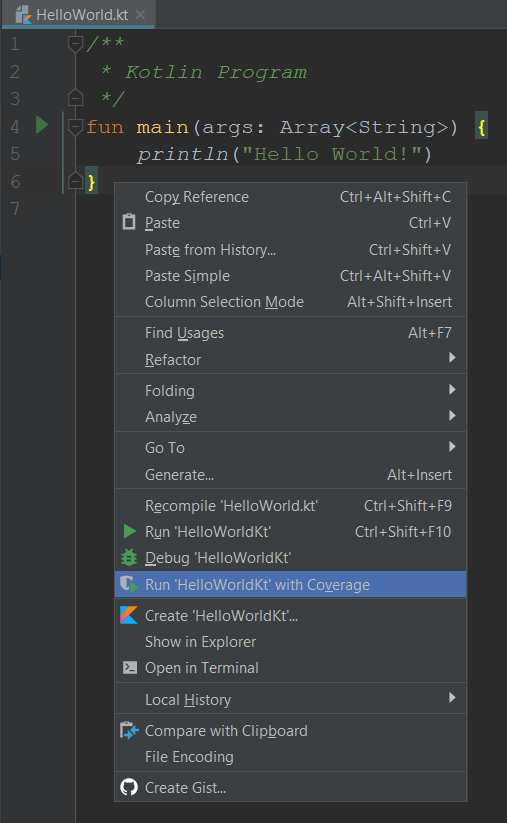
When the program is run, you will get the following output printed in the Run window.
Output
Hello World!Let us together make out some observations from the above three lines of Kotlin code:
Kotlin .kt source file used by HelloWorld.kt
We write the whole program in a Kotlin File. The extension of this file is .kt. You can run this Kotlin program in your IDE, once the Kotlin setup in your IDE is successful.
The file name HelloWorld.kt is descriptive, but Kotlin does not require the file name to match a class name for this example because the program uses a top-level main function. In larger applications, a Kotlin file may also contain a package declaration, imports, classes, and other functions.
Kotlin comments in the Hello World program
/**
 * Kotlin Program
 */
The first three lines in the HelloWorld.kt, is a multiple line comment. Comments are ignored for execution.
Kotlin also supports single-line comments with //. The comment style used in this example starts with /**, which is commonly used for documentation comments, but here it simply describes the program.
Kotlin main function as the program entry point
fun main( ) {

}
The keyword “fun” is used to define a function. You can have multiple functions in a Kotlin program.
We have defined only one function, i.e., “main” in HelloWorld.kt.
Since main is the entry point for a Kotlin program, the statements inside the main function are executed, when you run this Hello World Kotlin program.
For a simple first program, you may also write the entry point without command-line arguments.
fun main() {
    println("Hello World!")
}
Both forms are valid for a basic Kotlin program. Use fun main() when you do not need command-line values. Use the form with arguments when the program has to read values passed from the command line.
Command-line arguments in Kotlin main
(args: Array<String>)The entry “main” function can accept Array of Strings as an input (arguments) to the function, which are the inputs to the Kotlin program.
The argument’s type is specified after the variable name separated by a colon.
In args: Array<String>, args is the parameter name and Array<String> is the type. The square-bracket-like generic notation tells Kotlin that the array stores strings.
Curly braces and the Kotlin function body
{

}
The function body is enclosed in curly brackets.
The statement inside the body is executed from top to bottom. In this program, there is only one executable statement:
println("Hello World!")println() prints the given value and then moves the cursor to a new line. If you use print() instead, Kotlin prints the value without automatically adding a new line.
There is no semicolon at the end of println() statement to denote the end of a statement. Kotlin compiler can make out the end of a statement with a new line or semicolon. So, the semicolon is an optional means of ending a statement in Kotlin.
Running HelloWorld.kt from the terminal
If Kotlin is installed and available in your command line, you can compile and run the same HelloWorld.kt file from a terminal. The following command creates a runnable JAR file and then executes it.
kotlinc HelloWorld.kt -include-runtime -d HelloWorld.jar
java -jar HelloWorld.jar
The terminal output is the same as the IDE output.
Hello World!Adding one variable to the Kotlin Hello World program
After the basic output statement works, you can try a small change with a read-only variable and a string template.
fun main() {
    val message = "Hello World!"
    println(message)
}
The keyword val creates a read-only local variable. Kotlin can infer the type of message as String because the assigned value is a string.
fun main() {
    val language = "Kotlin"
    println("Hello from $language")
}
In the second example, $language is a string template. Kotlin replaces it with the value stored in the variable.
Hello from KotlinCommon mistakes in a first Kotlin Hello World program
If the first Kotlin program does not run, check these points before changing the project configuration.
- Missing main function: A Kotlin console program needs a valid
mainfunction as the entry point. - Wrong file type: Save the source file with the
.ktextension, for example HelloWorld.kt. - Changed quote characters: Use normal double quotes around
"Hello World!". Curly quotes copied from formatted text can cause errors. - Unmatched braces: The opening
{and closing}braces ofmainmust match. - Compiler not configured: If the IDE cannot run Kotlin code, check that the Kotlin project setup is complete.
Kotlin references for the first Hello World program
For further reading, see the official Kotlin basic syntax overview at kotlinlang.org, the JetBrains guide to creating a first Kotlin application at jetbrains.com, and the Android Developers Kotlin first program codelab at developer.android.com.
Frequently asked questions on Kotlin Hello World
What is the correct main function for a Kotlin Hello World program?
For a simple Kotlin Hello World program, use fun main() and place println("Hello World!") inside its braces. The older and still valid form fun main(args: Array<String>) is useful when you want to receive command-line arguments.
Do I need a class to write Hello World in Kotlin?
No. A basic Kotlin program can use a top-level main function directly in a .kt file. Unlike Java, this first example does not need a class that wraps the entry point.
Why is there no semicolon after println in Kotlin?
Kotlin usually identifies the end of a statement from the line break. A semicolon is optional in most ordinary Kotlin statements, so println("Hello World!") is commonly written without one.
Can I run the same Kotlin Hello World program in Android Studio?
Yes, if you create a Kotlin/JVM or suitable learning project. Android app projects also use Kotlin, but an Android screen is usually built through app components or Compose UI instead of only printing to a console.
What does println do in the Kotlin Hello World example?
println() writes the given text to standard output and then adds a new line. In this example, it prints Hello World! in the IDE Run window or terminal.
Editorial QA checklist for this Kotlin Hello World tutorial
- The page shows a complete HelloWorld.kt program and its output.
- The existing IntelliJ IDEA screenshot and earlier TutorialKart links remain unchanged.
- The tutorial explains both
fun main()andfun main(args: Array<String>)without implying that arguments are required for every first program. - The explanation covers
.ktfiles, comments,println(), braces, optional semicolons, and common beginner mistakes. - New code examples use PrismJS-compatible language classes, and terminal output blocks use the
outputclass.
Conclusion: structure of a basic Kotlin program
This is just an introduction to the basic Hello World program in Kotlin, and the different concepts used to create this program. Going forward, we shall go through the above discussed, and many other concepts in detail.
Concluding this Kotlin Tutorial – Basic Kotlin Program Example, we have learned about the basic building blocks and structure of a Kotlin Program. In our next tutorial, we shall look into different ways of converting Java Files to Kotlin Files.