 TutorialKart.com
What is Apex Scheduler?
Apex Scheduler is the Salesforce feature used to run Apex code at a specified time or at a repeated interval. It is useful for scheduled cleanup jobs, nightly data processing, sending reminders, refreshing summary records, or starting a Batch Apex job outside business hours.
Salesforce schedules (delay execution) the Apex class for execution at the specified time to run using Apex Scheduler. To take an advantage of Apex Scheduler, first we must write Apex class with Schedulable interface.
Apex Scheduler invokes the Apex class to run at specific time. Anybody who want to schedule the schedule their class, they must have to implement schedulable interface.
In practical terms, an Apex Scheduler class does three things: it implements the Schedulable interface, defines the required execute() method, and is scheduled either from Setup or by using System.schedule() with a Salesforce CRON expression.
What is Schedulable Interface?
The class the implements this interface can be scheduled to run at different intervals. This Scheduled interface has several methods they are
public void execute(SchedulableContext SC)The Schedulable interface has one required method: execute(SchedulableContext sc). Salesforce calls this method when the scheduled job fires. The original sample below shows the basic idea of a scheduled class; the corrected version after it uses the exact interface name and context type.
Example
public class MySchedule implements schedule {
	public void execute(ScheduableContext SC) {
		Account a =new Account(Name='Prasanth');
		insert a;
	}
}
Correct Apex Scheduler Class Syntax with SchedulableContext
A production scheduled Apex class should use implements Schedulable and the correct SchedulableContext parameter. The example below inserts one Account only to show the syntax; real scheduled jobs should be bulk-safe and should avoid unnecessary DML when no data has changed.
public class MySchedule implements Schedulable {
    public void execute(SchedulableContext sc) {
        Account a = new Account(Name = 'Prasanth');
        insert a;
    }
}
Apex Scheduler will run in systemcontext, which means all the classes are executed whether the user has permission or not. We can monitor and stop the execution of Apex scheduler job using Salesforce user Interface from setup.
Scheduled Apex runs in system mode. However, the job is still associated with the user who scheduled it, and that user must have the required permissions to schedule Apex. Keep security and data access in mind when the scheduled code updates records or calls other classes.
Schedule Apex from Salesforce Setup UI
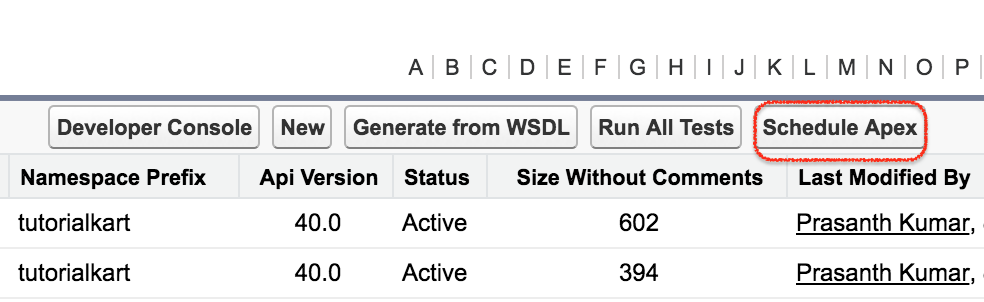
- Navigate to Setup | Apex Class | Click Schedule Apex.
- Enter Job name and select Apex class from the lookup.
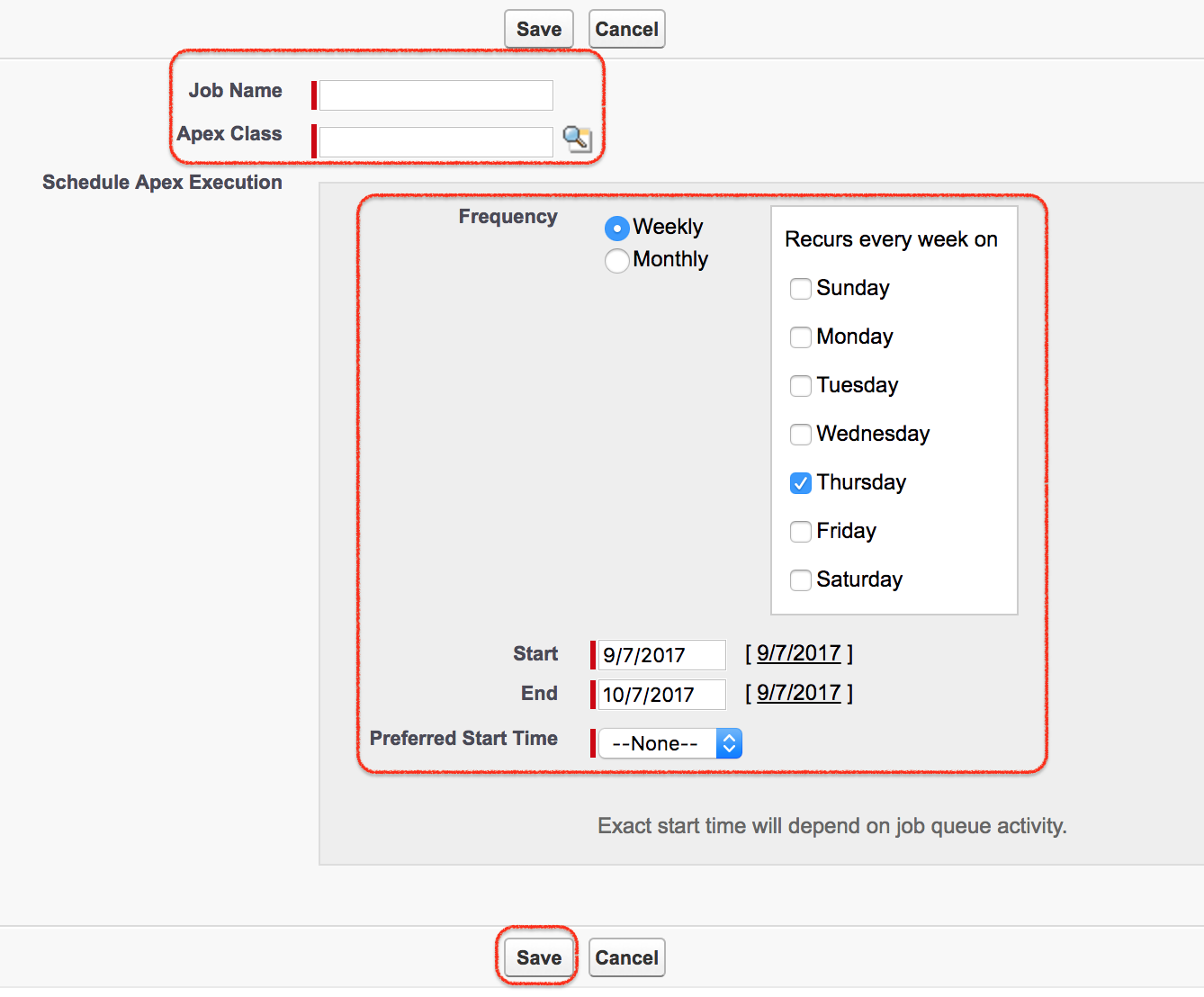
- Select Weekly or Monthly for the frequency and set the frequency desired.
- Select the start and end dates, and a preferred start time.
- Click Save.
The Setup option is suitable when an administrator wants to schedule a known Apex class without writing anonymous Apex. For more flexible schedules, developers usually use System.schedule() and a CRON expression.
Apex Scheduler : System.Schedule() method.
When we implement Schedulable interface, we must use System.Schedulable method to execute the class. System.Schedule() takes 3 parameters they are
- Name of the scheduled job.
- Expression that is used to represent time and date of the operation.
- The object of the class which you want to execute.
The correct method name is System.schedule(). It returns the scheduled job ID, which is the ID of the related CronTrigger record.
String jobName = 'Daily Account Scheduler';
String cronExp = '0 0 2 * * ?';
Id scheduledJobId = System.schedule(jobName, cronExp, new MySchedule());
The example above schedules MySchedule to run every day at 2:00 AM in the time zone of the user who schedules the job.
Salesforce CRON Expression Format for Scheduled Apex
A Salesforce Scheduled Apex CRON expression uses seconds, minutes, hours, day of month, month, day of week, and an optional year. If you specify a value for day of month, use ? for day of week. If you specify a value for day of week, use ? for day of month.
***Seconds*** Minutes Hours Day_of_month Month Day_of_week Optional_yearExample :- Write an expression to schedule an operation to 8th September at 12:30 PM. The schedule expression will be as follows
'0 30 12 10 9'As shown above, the expression is written in the form of “Seconds, minutes, hours, day of month, month, day of the week, optional year”.
| Seconds | minutes | Hours | Day-Month | Month | Day-Week | Optional Year |
| 0 | 30 | 12 | 10 | 9 | 0 | 2017 |
For Salesforce, use a complete CRON expression with either day of month or day of week set to ?. For example, to run at 12:30 PM on September 8, 2026, use the following expression:
String cronExp = '0 30 12 8 9 ? 2026';Useful Scheduled Apex CRON Examples
| Schedule requirement | Salesforce CRON expression | Meaning |
|---|---|---|
| Run every day at 2:00 AM | 0 0 2 * * ? | Any day of month, any month, no specific day of week. |
| Run every Monday at 9:00 AM | 0 0 9 ? * MON | No specific day of month, every Monday. |
| Run on the 1st day of every month at 1:00 AM | 0 0 1 1 * ? | Day 1 of every month. |
| Run on September 8, 2026 at 12:30 PM | 0 30 12 8 9 ? 2026 | Specific date and year. |
How to implement Apex Scheduler ?
To implement Apex Scheduler follow the steps given below.
- Create an object for the class which has implemented the schedulable interface.
- Create the time frame.
- Invoke the System.Schedule method with job name, schedule object and time frame.
The following version shows the same implementation flow in a cleaner order. It creates the scheduler instance, prepares the CRON expression, and then schedules the job.
MySchedule scheduler = new MySchedule();
String cronExp = '0 0 2 * * ?';
String jobName = 'Daily Account Scheduler';

Id jobId = System.schedule(jobName, cronExp, scheduler);
Scheduling Batch Apex from an Apex Scheduler Class
A common use of Apex Scheduler is to start a Batch Apex job at a fixed time. Keep the scheduler class small and place the large data-processing logic inside the batch class.
public class NightlyBatchScheduler implements Schedulable {
    public void execute(SchedulableContext sc) {
        Database.executeBatch(new NightlyAccountBatch(), 200);
    }
}
This pattern is easier to maintain because the scheduled class controls timing, while the Batch Apex class controls record processing and scope size.
Schedulable Apex Limitations.
- We can schedule only 100 jobs at a time.
- Maximum number of Apex schedule jobs in 24 hours is 2,50,000.
- Synchronous Web service callouts are not supported in schedulable Apex.
When designing Scheduled Apex, remember these practical limits and behaviors:
- You can have only 100 scheduled Apex jobs at one time in an org.
- The maximum number of scheduled Apex executions in a 24-hour period is 250,000.
- Use care when scheduling Apex from a trigger, because repeated trigger execution can create too many scheduled jobs.
- Synchronous web service callouts are not supported directly in Scheduled Apex. Use a supported asynchronous callout pattern, such as a future method with
callout=true, a Queueable Apex design that allows callouts, or Batch Apex where appropriate. - Monitor scheduled jobs from Setup using Scheduled Jobs, Apex Jobs, and related CronTrigger information when troubleshooting.
Testing Scheduled Apex with Test.startTest and Test.stopTest
A Scheduled Apex test should schedule the job inside Test.startTest() and force execution with Test.stopTest(). The test data should be created in the test method and should not depend on existing org records.
@IsTest
private class MyScheduleTest {
    @IsTest
    static void schedulesAndRunsJob() {
        Test.startTest();

        String cronExp = '0 0 2 * * ?';
        Id jobId = System.schedule(
            'Test Daily Account Scheduler',
            cronExp,
            new MySchedule()
        );

        Test.stopTest();

        System.assertNotEquals(null, jobId);
    }
}
Apex Scheduler Best Practices for Reliable Jobs
- Keep the scheduled class small: use it to start the work, not to hold all processing logic.
- Use Batch Apex for large record volumes: schedule a batch job when the work can exceed normal transaction limits.
- Avoid scheduling from triggers unless controlled: a bulk data load can fire the trigger many times and create too many scheduled jobs.
- Use clear job names: include the business process and frequency so admins can identify jobs in Setup.
- Choose CRON expressions carefully: test the schedule in a sandbox before using it in production.
- Check existing scheduled jobs: review Scheduled Jobs and Apex Jobs before deploying a new scheduler.
Official Salesforce References for Apex Scheduler
- Salesforce Apex Developer Guide: Apex Scheduler
- Trailhead: Schedule Jobs Using the Apex Scheduler
- Salesforce Apex Developer Guide: Execution Governors and Limits
FAQ on Apex Scheduler Syntax and Methods
What interface is required for Apex Scheduler?
An Apex class must implement the Schedulable interface. The class must define the required execute(SchedulableContext sc) method.
What are the three parameters of System.schedule in Salesforce?
System.schedule() takes the scheduled job name, the Salesforce CRON expression, and an instance of the class that implements Schedulable.
Can Apex Scheduler run Batch Apex?
Yes. A scheduled class can call Database.executeBatch() from its execute() method. This is a common pattern for nightly or weekly processing of large record volumes.
How many Scheduled Apex jobs can be active at one time?
Salesforce allows 100 scheduled Apex jobs at one time in an org. Check Scheduled Jobs in Setup before adding new recurring jobs.
Which time zone does a Scheduled Apex CRON expression use?
The schedule runs based on the time zone of the user who schedules the job. This matters when different admins work in different time zones.
QA Checklist for This Apex Scheduler Tutorial
- Verify that every new Apex Scheduler example uses
implements SchedulableandSchedulableContext. - Check that every Salesforce CRON expression has seconds, minutes, hours, day of month, month, day of week, and optional year where needed.
- Confirm that day of month and day of week are not both specific values in the same CRON expression.
- Ensure the article explains both Setup-based scheduling and
System.schedule(). - Confirm Scheduled Apex limits are checked against current Salesforce official documentation before production use.