 TutorialKart.com
Router Transformation in Informatica is an active transformation used to split one incoming data pipeline into multiple output groups. It is commonly used when the same source rows must be loaded into different target tables or files based on business rules, such as department, region, hire date, status, or transaction type.
A router is often described as an advanced form of filter transformation because it can evaluate several conditions inside one transformation. A filter transformation keeps only the rows that satisfy one condition, while a router transformation can send matching rows to user-defined groups and send unmatched rows to the default group.
In this tutorial, we create a PowerCenter mapping that reads the EMPLOYEES source table and routes rows to multiple target tables using three router groups: Sales, Non Sales, and Rookie. The same design can also be adapted for dynamic target files, exception handling, and multi-branch loading patterns.
What Router Transformation Does in Informatica PowerCenter
Router Transformation receives rows from a single input group and evaluates each row against one or more group filter conditions. If a row satisfies a user-defined group condition, the row is passed through that output group. If the row does not satisfy any user-defined group condition, it is passed to the default group.
A row can be sent to more than one user-defined group when more than one group condition evaluates to true. This is an important difference from an either-or decision tree. If you need each row to go to only one target, write mutually exclusive conditions or add additional logic to control the routing order.
Router input group, user-defined groups, and default group
Router Transformation can be created with the following group structure:
- Input group: Receives the incoming rows from the source pipeline. A router has one input group.
- User-defined output groups: Contain the filter conditions that decide which rows are sent to each output branch.
- Default output group: Receives rows that do not satisfy any user-defined group condition.
Router Transformation mapping diagram for multiple targets
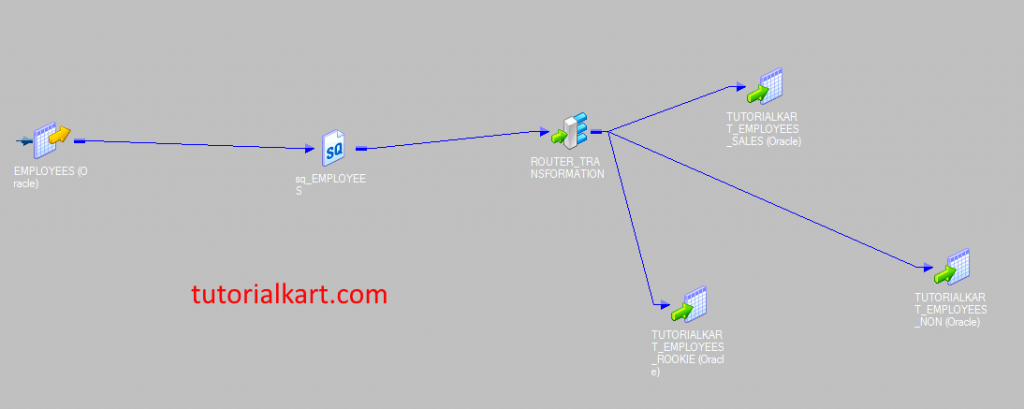
The mapping diagram shows one source pipeline entering a router transformation and then leaving through multiple output groups. Each output group can be connected to a different target definition. This avoids reading the same source several times for separate filter transformations.
Router Transformation vs Filter Transformation in Informatica
Router Transformation has an advantage over using multiple filter transformations because the source row is read once into the router input group and evaluated against multiple group conditions. With separate filters, the same source pipeline may need repeated branching and repeated condition maintenance.
| Filter Transformation | Router Transformation |
| Tests one condition in one transformation. | Tests multiple group conditions in one transformation. |
| Usually passes matching rows to one output branch. | Can pass rows to multiple output groups and multiple targets. |
| Rejected rows are not automatically available as a separate output branch. | Rows that fail all user-defined groups can be captured through the default group. |
| Best for simple include-or-exclude logic. | Best for splitting the same source into several logical outputs. |
Example Mapping: Route EMPLOYEES Rows to Three Target Tables
In this Informatica tutorial, we create a mapping where rows from the EMPLOYEES source table are routed to three target tables. The groups are based on the JOB_ID column and the difference between session start time and hire date.
- Source table: EMPLOYEES.
- Target tables: TUTORIALKART_EMPLOYEES_SALES, TUTORIALKART_EMPLOYEES_NON_SALES, TUTORIALKART_EMPLOYEES_ROOKIE.
The router group conditions used in this mapping are:
Sales group:
JOB_ID = 'ST_CLERK'

Non Sales group:
JOB_ID = 'FI_ACCOUNT' OR JOB_ID = 'IT_PROG' OR JOB_ID = 'FI_MGR'

Rookie group:
DATE_DIFF(SESSSTARTTIME, HIRE_DATE, 'dd') > 730
The DATE_DIFF(SESSSTARTTIME, HIRE_DATE, ‘dd’) > 730 condition routes employees whose hire date is more than 730 days before the session start time. If your business meaning of Rookie is “new employee,” use the opposite date condition, such as less than or equal to 730 days, and name the group accordingly.
Create source and target definitions before adding the router
To create router transformation in Informatica, first create a mapping. Before creating the mapping, import the source and target tables using Source Analyzer and Target Designer.
Creating Source Definition.
Connect to Informatica Repository service by proving Informatica admin console credentials. Source definition (source table) can be created using Source analyzer. Open Informatica PowerCenter Designer | Tools | Source Analyzer and import source table into Workspace.
Creating Target definition.
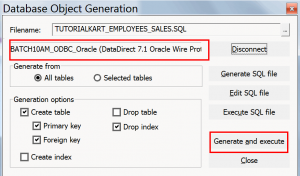
Target definition(target table) can be created using Target Designer. Open target designer and create target table TUTORIALKART_EMPLOYEES_SALES, TUTORIALKART_EMPLOYEES_NON_SALES, TUTORIALKART_EMPLOYEES_ROOKIE.
Create the PowerCenter mapping for Router Transformation
To create new mapping in Informatica PowerCenter, navigate to Mapping designer available in tools and click on create option. A new window will be opened, enter mapping name and click on OK button.
Now, drag and drop source definition from source folder to Mapping workspace. Source qualifier is created automatically by designer.
Creating Router Transformation in Informatica 10.0.1
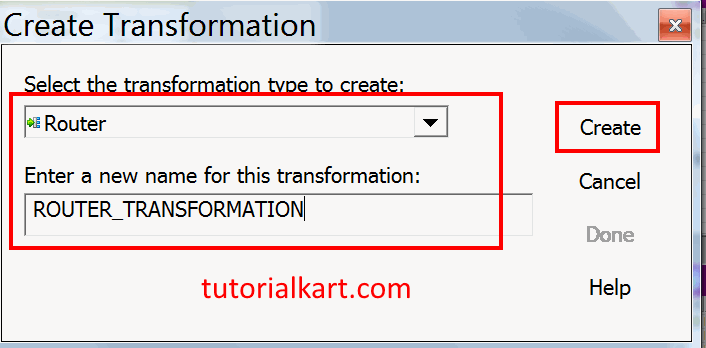
To create router transformation in Informatica, go to transformation tab and select create option. Now a new window will be opened, enter unique name and click on OK button.
- Select required ports in source qualifier and drop those ports in Router transformation, connect the source definition with transformation using link column icon in the tool bar.
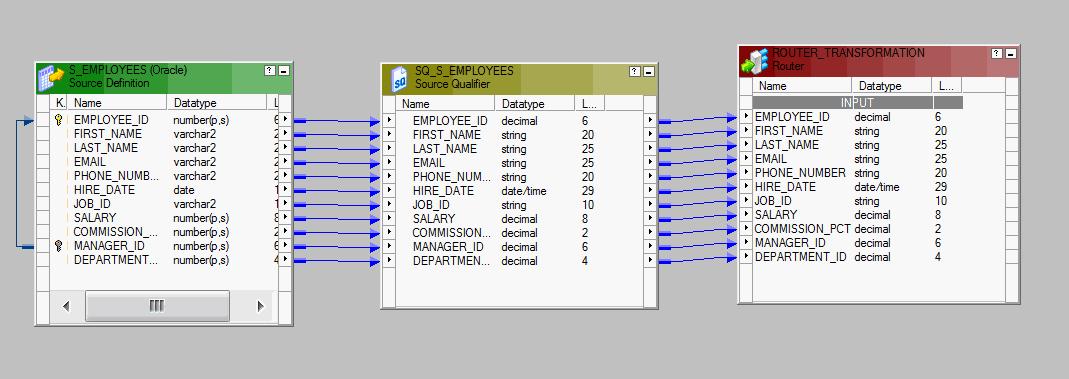
To add groups in router transformation, double click on header and select groups tab to add new groups.
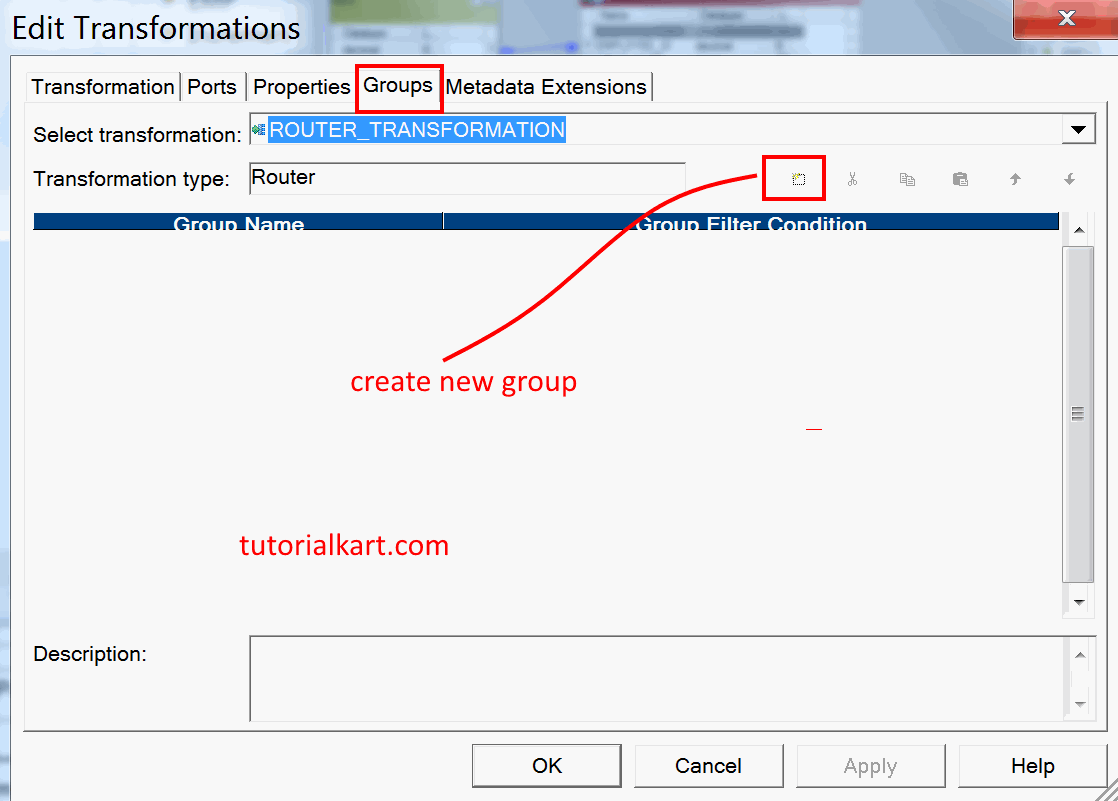
- Ignore default group and add three new groups and add filter condition as shown below.
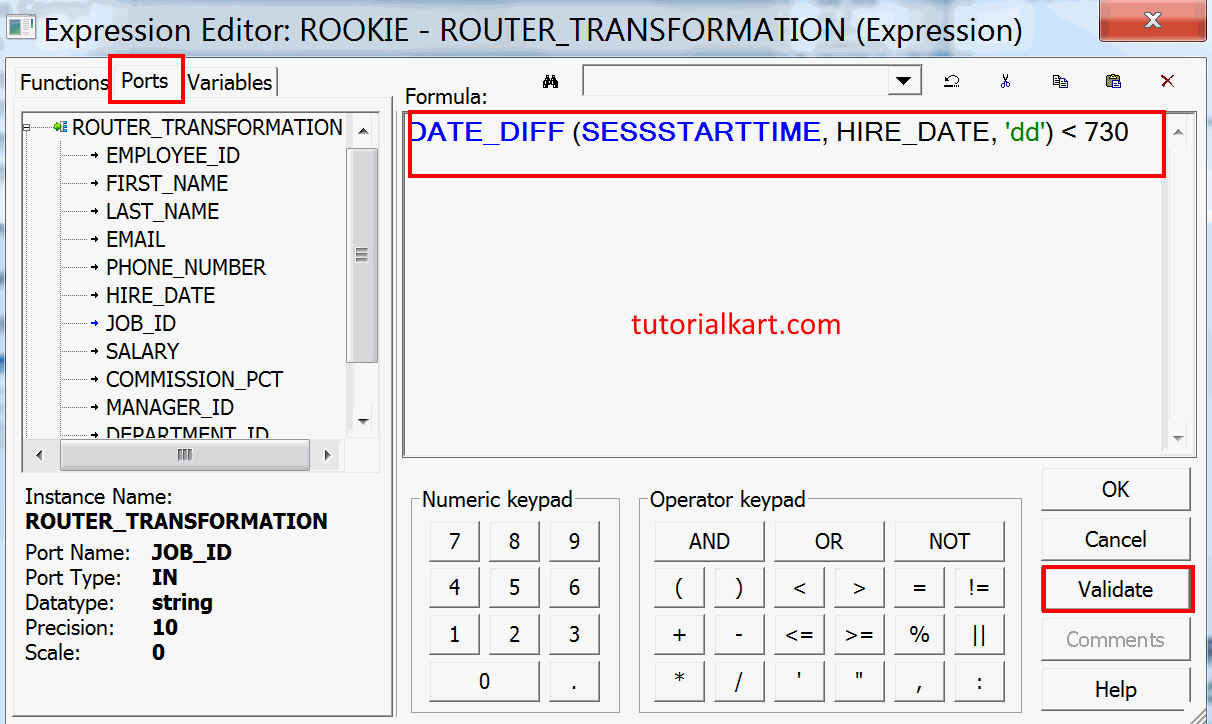
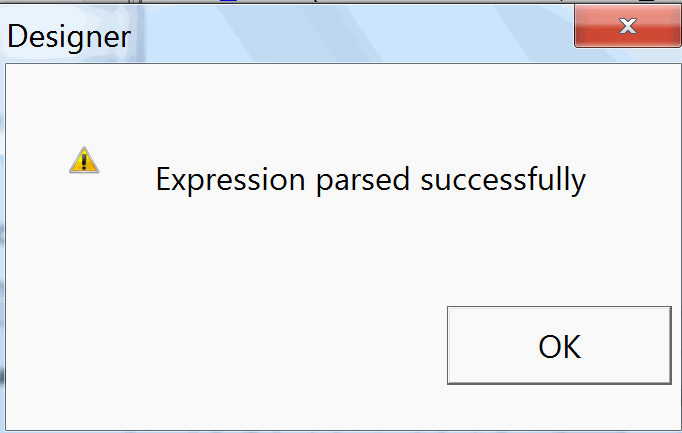
- Click on validate button to check entered condition is valid or not.
- Enter group filter condition for sales, non sales and rookie groups as shown below.
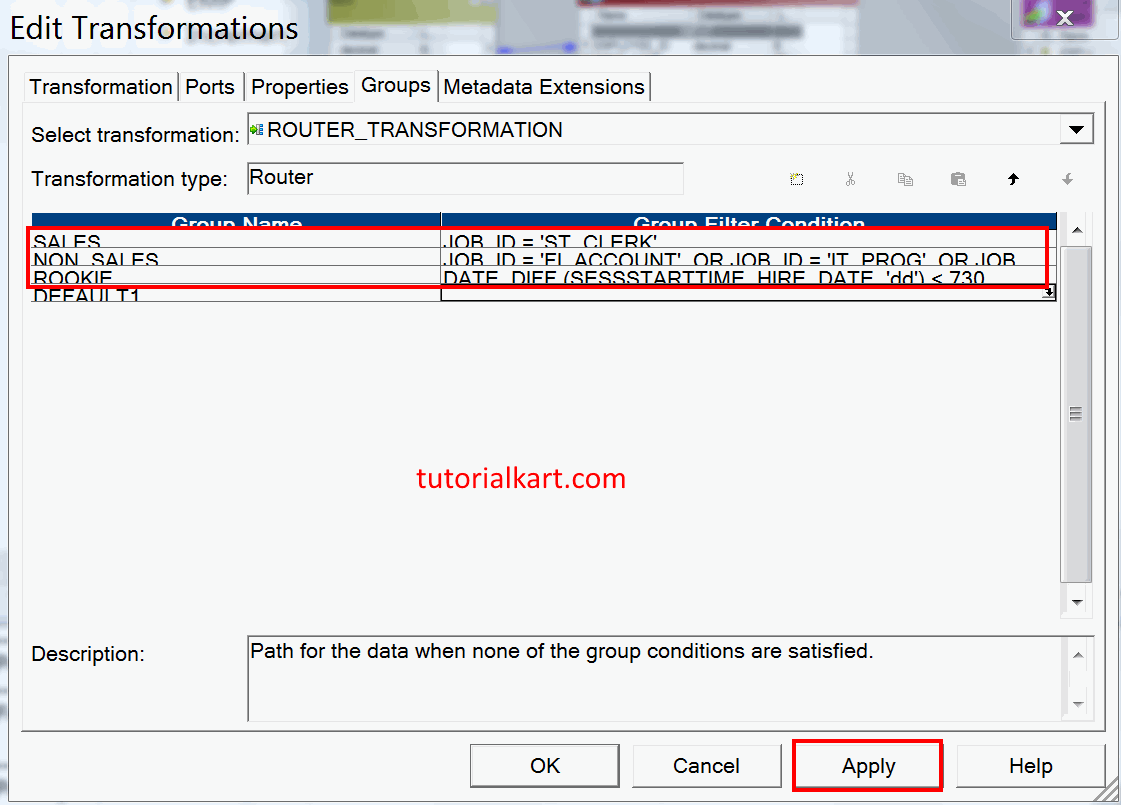
- Click on Apply button and Ok.
Now add all three target definition tables to the mapping and link the target definition from the corresponding groups in router transformation as shown below.
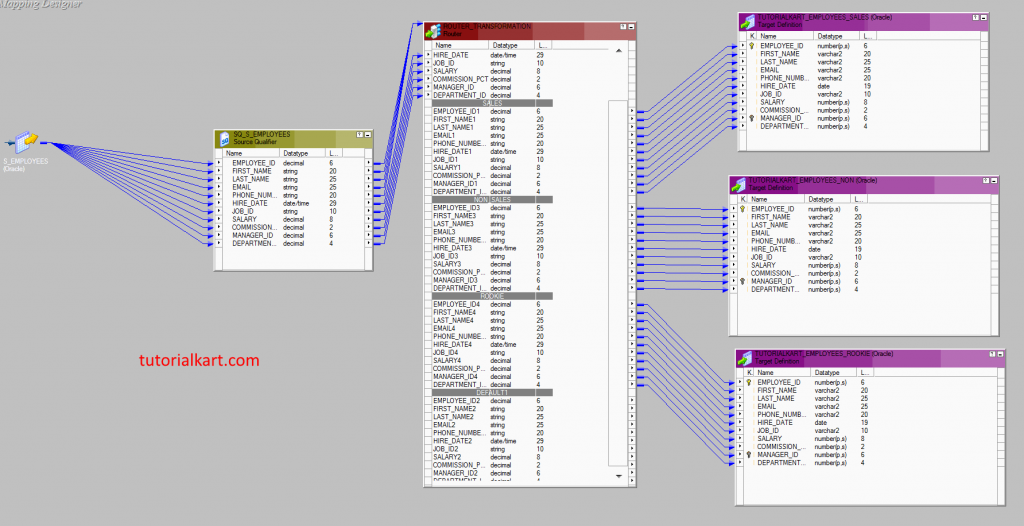
- Save the Mapping.
Run the Router Transformation Mapping in Workflow Manager
After creating the mapping successfully, create and run a workflow. Open Informatica PowerCenter Workflow Manager and create a new workflow for the router mapping.
Creating Session.
A session task must be created for our mapping, go to tasks tab and select create option. Enter name and click on Done.
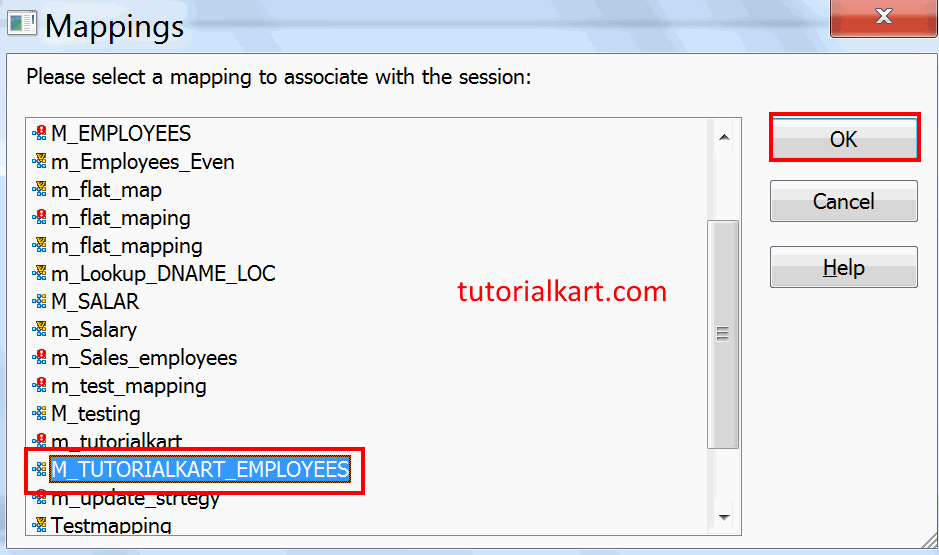
- Select a mapping to associate with the session, here we selected M_TUTORIALKART_EMPLOYEES .
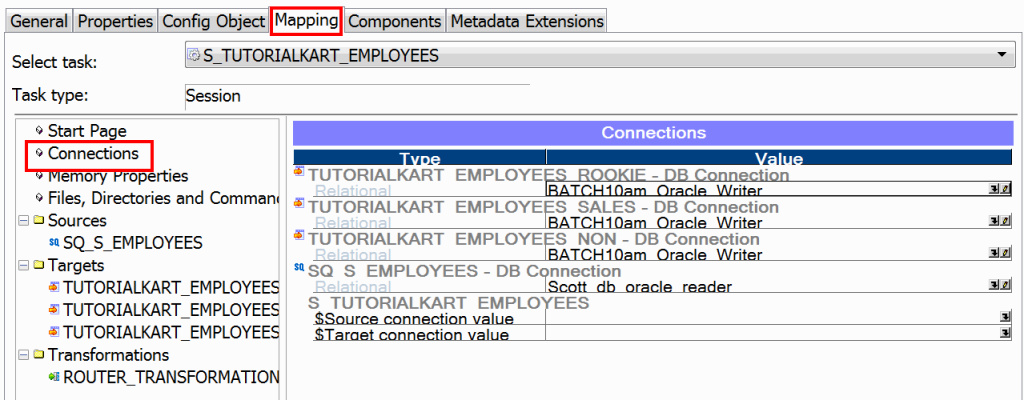
Next, we must configure session connections by editing session. Double click on session, navigate to Mapping tab and select connections.
- Click on down arrow and select relational database connections for sources and targets as shown below.
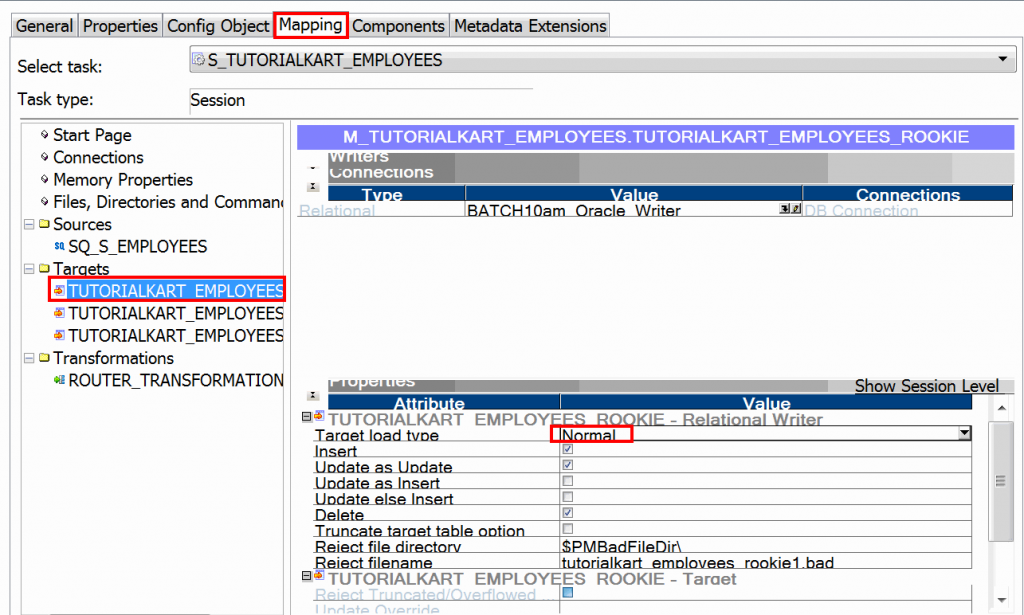
- Under Properties, the Target load type should be defaulted to Normal.
- Click OK to close the Edit Tasks dialog box.
- Link Start to session as shown below.
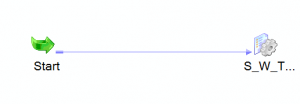
- Save the workflow and click on run workflow.
Monitor row counts for each Router output group
To monitor the status of the workflow, open Informatica PowerCenter Workflow Monitor and check whether the session succeeds. Review source rows, target load counts, rejected rows, and any session log messages related to expression evaluation or target connection failures.

Handling unmatched rows with the Router default group
The default group is useful when you want to capture rows that do not meet any business condition. For example, an employee row with a JOB_ID other than ST_CLERK, FI_ACCOUNT, IT_PROG, or FI_MGR will not match the Sales or Non Sales groups. If it also fails the date condition, the row can be sent through the default group.
You can connect the default group to an exception table or a flat file target. This makes the mapping easier to audit because unmatched rows are not silently dropped. If the unmatched rows are not required, you can leave the default group unconnected, but that should be a deliberate design decision.
Router Transformation rules to check before validating the mapping
- Use clear group names such as SALES, NON_SALES, ROOKIE, or DEFAULT_REJECTS so the mapping is easy to read later.
- Validate every group filter condition from the Groups tab before saving the mapping.
- Make conditions mutually exclusive if each row must go to only one target.
- Connect only the ports required by each target table to reduce confusion during field mapping.
- Check target load counts in Workflow Monitor to confirm that each router branch received the expected rows.
Informatica Router Transformation FAQs
What does Router Transformation do in Informatica?
Router Transformation splits one incoming pipeline into multiple output groups based on group filter conditions. Matching rows are passed to user-defined groups, and rows that do not match any user-defined group can be passed to the default group.
Can one row go to more than one Router group in Informatica?
Yes. If a row satisfies more than one user-defined group condition, the router can send that row through more than one output group. Use mutually exclusive conditions when the mapping must load each row into only one target.
What is the difference between Router and Filter Transformation?
A filter transformation tests one condition and passes only matching rows. A router transformation tests multiple conditions in one transformation and can route rows to multiple targets, including a default group for unmatched rows.
How do I generate multiple target files using Router Transformation?
Create separate router output groups for the file categories, connect each group to a separate target instance, and configure the session target properties for each output. If file names must be dynamic, add the required file name expression logic in the target/session design rather than inside the router condition alone.
Why should the Router default group be connected to a target?
Connecting the default group helps capture rows that do not match any user-defined condition. This is useful for auditing, troubleshooting, and checking whether the mapping conditions need to be updated.
Router Transformation editorial QA checklist
- The article clearly explains that Router Transformation is active and can split a single pipeline into multiple output groups.
- The tutorial states that rows can match multiple router groups unless conditions are written to be mutually exclusive.
- The EMPLOYEES example includes the source table, target tables, and router group conditions used in the mapping.
- The workflow steps mention session creation, connection configuration, target load type, workflow execution, and monitoring.
- The FAQ answers cover router purpose, router vs filter, multiple target files, and the default group behavior.