 TutorialKart.com
Configuring Informatica Client and Domain in PowerCenter Repository Manager
In this Informatica tutorial, we will configure the Informatica client and domain so that PowerCenter Repository Manager can discover and connect to the PowerCenter Repository Service. This step is usually done after you complete the server-side setup and create the Informatica PowerCenter Repository Service.
Informatica PowerCenter uses a repository to store metadata such as mappings, sessions, workflows, folders, users, shortcuts, and connection objects. The PowerCenter Repository Service manages this repository and handles metadata transactions between the repository database and PowerCenter client tools.
When you configure a domain in the client, you are telling Repository Manager how to reach the Informatica domain gateway. After the domain is added, Repository Manager can list the repository services available in that domain, and you can connect with a valid user name and password.
Details required before configuring the Informatica domain
Before opening Repository Manager, keep the following details ready. These values are defined during Informatica server installation and domain setup.
| Required value | What it means | Example |
|---|---|---|
| Domain name | Name of the Informatica domain that contains the Repository Service. | Domain_Tutorialkart |
| Gateway host | Host name or IP address of the machine that runs the gateway node. | localhost or server hostname |
| Gateway port | Domain gateway port configured during server installation. | 6005, or the custom port used in your setup |
| Repository Service name | Name of the PowerCenter Repository Service to add in the client. | PowerCenterRepositoryService |
| Login credentials | User name, password, and security domain used to connect to the repository. | Administrator / Native |
The exact domain name, host, and port must match the server configuration. If the client is installed on a different Windows machine, make sure the gateway host is reachable from that machine and the gateway port is not blocked by a firewall.
Domain Name  : Domain_Tutorialkart
Gateway Host : localhost
Gateway Port : 6005
Open PowerCenter Repository Manager from the Informatica client
To open Informatica PowerCenter Repository Manager in Windows, click Start button | All programs | Informatica 10.1.0 | Client | PowerCenter Client | PowerCenter Repository Manager.
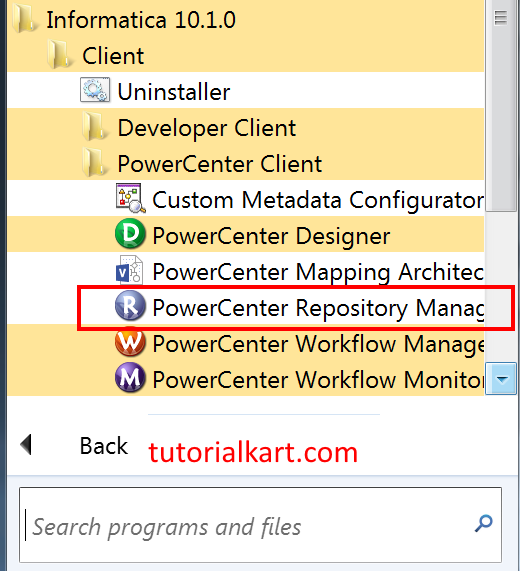
Repository Manager opens without an active repository connection. First, add the Informatica domain so that the client can display the available repository services.
- Go to the Repository menu in the top menu bar.
- Click Configure Domains.
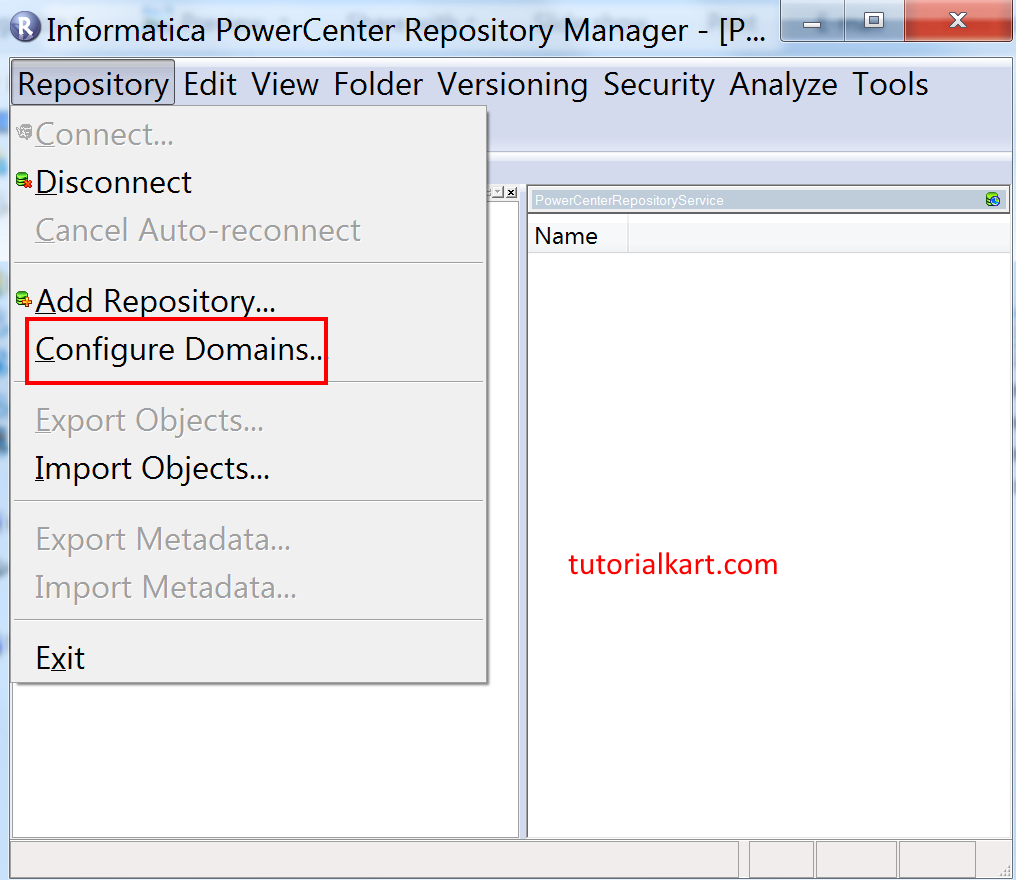
Add the Informatica domain name, gateway host, and gateway port
The Configure Domains window appears. Click the add button or the square icon on the left side to create a new domain entry in the client.
- Enter the Domain name.
- Enter the Gateway Host.
- Enter the Gateway port. This is the port assigned during Informatica server installation.
- Click OK to save the domain connection settings.
Repository Manager uses these values to contact the Informatica gateway. If the details are correct, the domain is added to the client configuration and the repositories available under that domain are shown.
Select the PowerCenter Repository Service from the configured domain
After the domain is added, Repository Manager displays the repository services that are available in the domain. Select the check box for the required repository service, such as Tutorialkart or PowerCenterRepositoryService, and add it to the local client view.
- Select the repository service check box.
- Click OK to add the repository to Repository Manager.
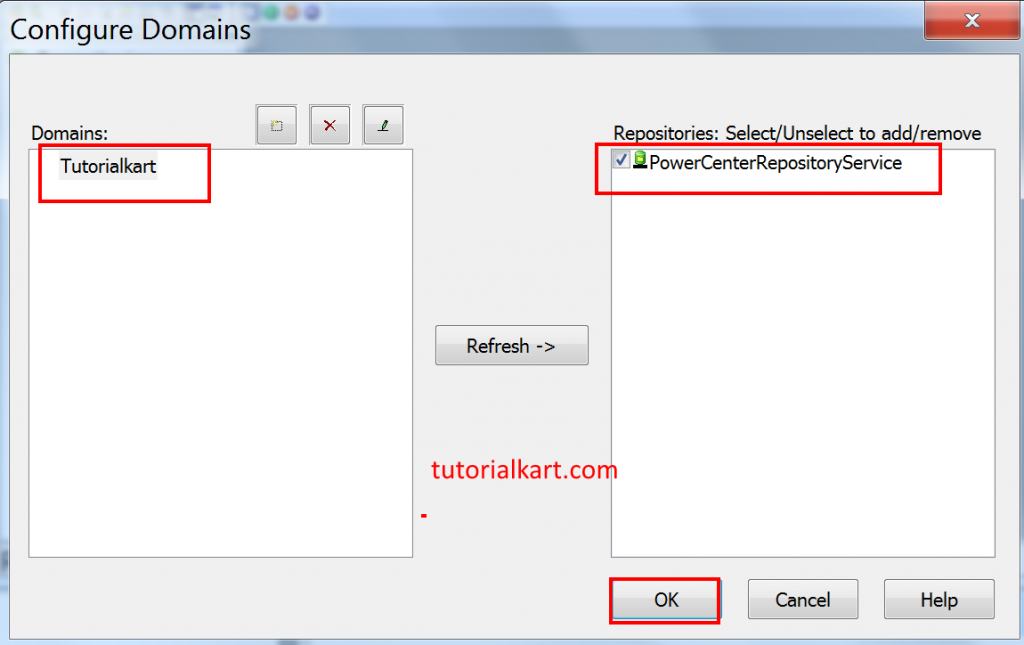
The PowerCenter Repository Service is now added to Repository Manager. Adding the repository does not mean that you are logged in; it only makes the repository visible in the client. The next step is to connect to it with valid credentials.
How to connect to the PowerCenter Repository Service?
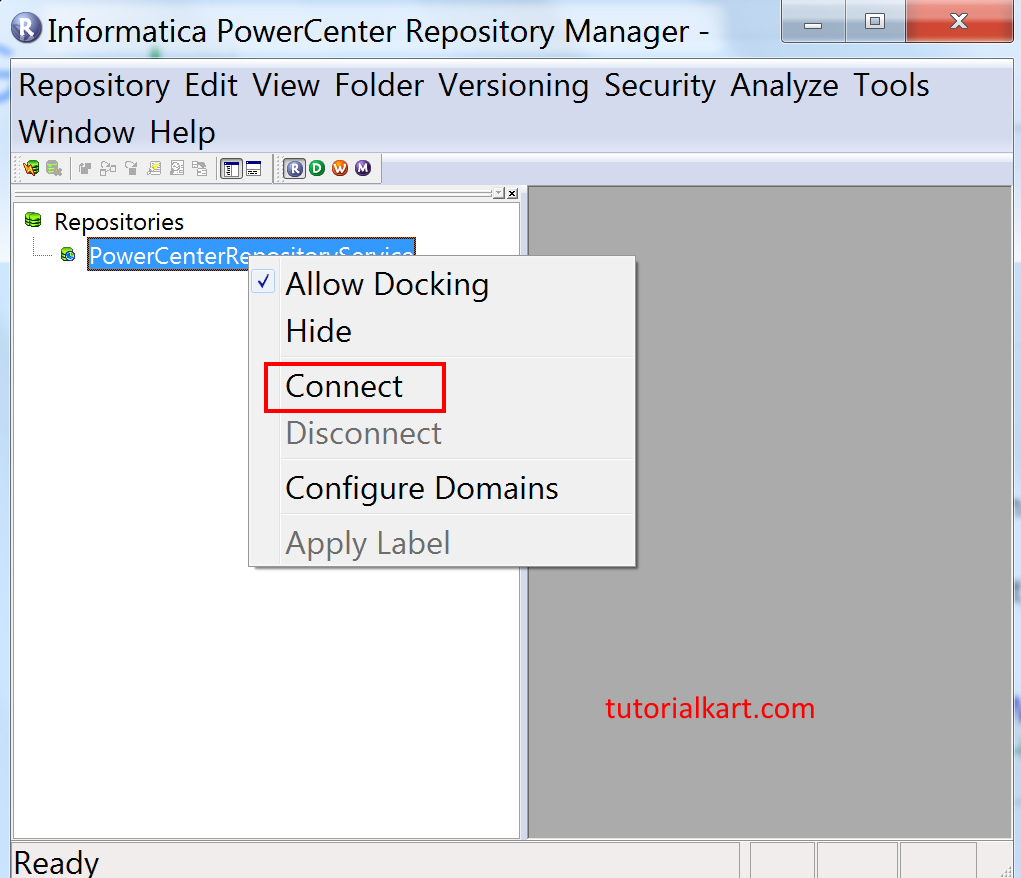
To connect to the PowerCenter Repository Service, right-click the repository name and click Connect.
The Connect to Repository window opens. Enter the repository user name and password. If your setup uses Informatica native authentication, select or enter Native as the security domain. If your organization uses LDAP or another security domain, use the value provided by your administrator.
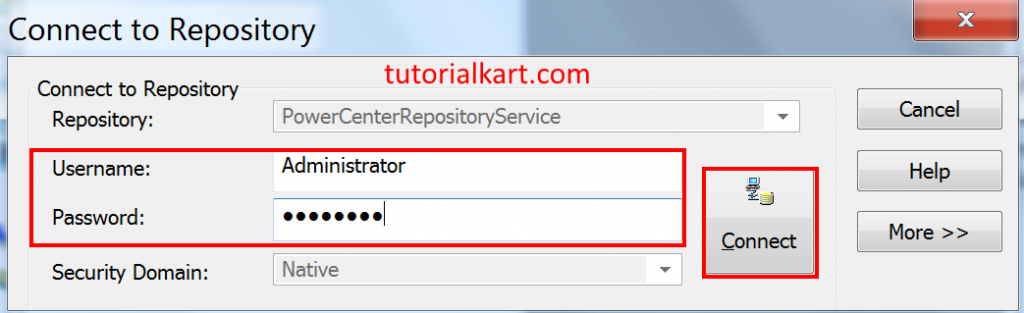
- Enter the user name and password.
- Verify the security domain if the field is shown.
- Click the Connect button.
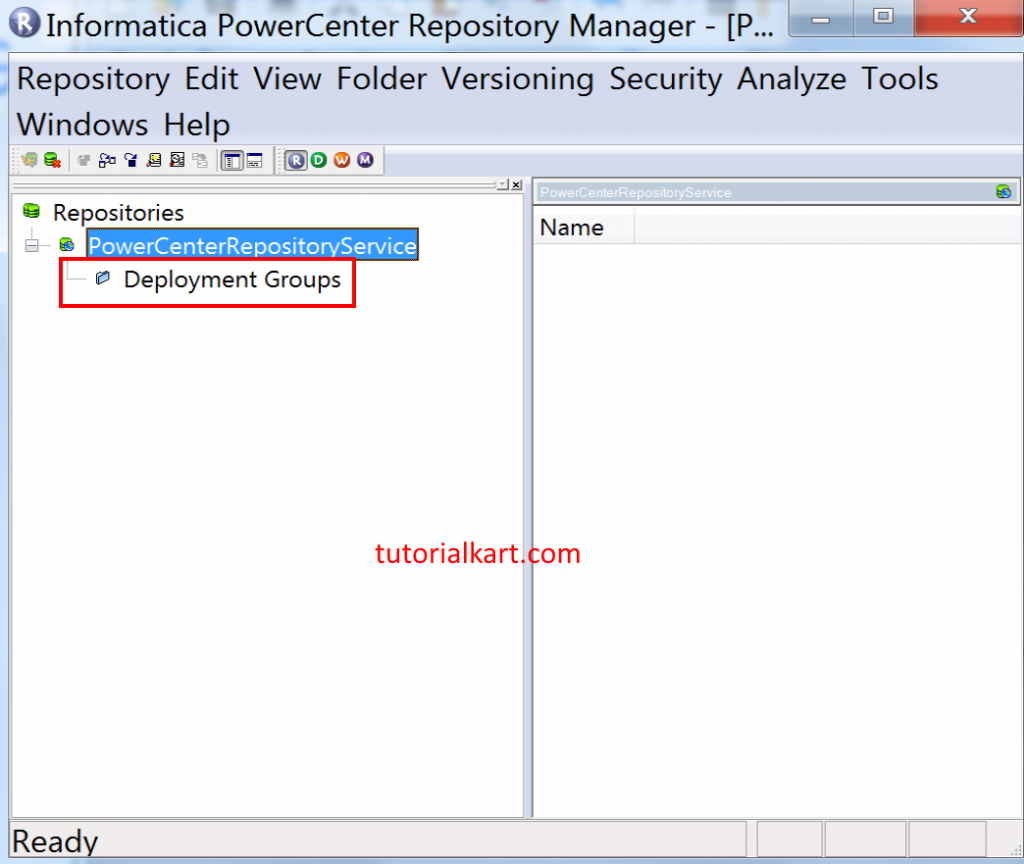
After a successful login, Repository Manager displays the repository folders and objects for which the user has access. If no folders are visible, verify that the user has repository privileges and folder permissions.
Informatica client domain configuration errors and quick checks
If Repository Manager cannot add the domain or connect to the repository, check the gateway details first. Most connection issues happen when the domain name, host, or port in the client does not match the server configuration.
PCSF_46002: Failed to communicate with the domain
PCSF_46007: No gateway connectivity is provided for domain
PCSF_46008: Cannot connect to domain- Wrong gateway host: Use the real server host name or IP address. Do not use localhost unless the client and server are on the same machine.
- Wrong gateway port: Confirm the domain gateway port from the Informatica Administrator or installation notes.
- Domain service is down: Make sure Informatica services are running on the server.
- Firewall or network issue: Test whether the Windows client machine can reach the server and gateway port.
- Repository Service is disabled: In Informatica Administrator, verify that the Repository Service is enabled and running.
- Incorrect credentials: Recheck the user name, password, and security domain.
For environments where domain details are stored in a domains.infa file or where domain gateway information is updated outside Repository Manager, refer to Informatica documentation or your administrator before changing local client configuration files.
What is a domain in Informatica PowerCenter?
An Informatica domain is the administrative unit that contains nodes and application services. A node represents a machine in the domain. Services such as the PowerCenter Repository Service and Integration Service run inside the domain. The gateway node receives client requests and routes them to the correct service.
In simple terms, Repository Manager does not connect directly to a repository database first. It connects through the Informatica domain, discovers the Repository Service, and then opens the repository metadata through that service.
Repository Service, Integration Service, session, and workflow in this setup
While configuring the client and domain, it is useful to understand how the main PowerCenter components relate to each other.
- Repository Service: Manages metadata stored in the PowerCenter repository.
- Integration Service: Runs workflows and sessions to move and transform data.
- Session: A task that runs a mapping.
- Workflow: A group of tasks arranged in the required execution order.
Repository Manager mainly uses the Repository Service. Workflow Manager and Workflow Monitor also need a valid domain and repository connection when you create, run, or monitor workflows.
Editorial QA checklist for this Informatica client and domain setup
- Confirm that the tutorial uses the same Informatica version as the screenshots, or clearly mention version differences.
- Verify that the domain name, gateway host, and gateway port examples are not copied into production without replacing them with real server values.
- Check whether the Repository Service is running before testing the Repository Manager connection.
- Confirm that the user has permission to access Repository Manager and the required repository folders.
- Retest the connection from a separate client machine if the server and client are not installed on the same computer.
FAQs on configuring Informatica Client and Domain
What are the main details needed to configure a domain in Informatica Repository Manager?
You need the Informatica domain name, gateway host, gateway port, repository service name, and valid login credentials. These details are normally available from the Informatica server installation or Informatica Administrator.
What is the gateway host in Informatica domain configuration?
The gateway host is the server or node that receives client requests for the Informatica domain. If the PowerCenter client is installed on a different machine, enter the actual server hostname or IP address instead of localhost.
Why is my PowerCenter Repository Service not visible after adding the domain?
The Repository Service may be disabled, the domain details may be incorrect, or the user may not have enough permissions. Check the Repository Service status in Informatica Administrator and verify the domain gateway host and port.
Can one PowerCenter client connect to multiple Informatica domains?
Yes. Repository Manager can store multiple domain entries. Add each domain with its own domain name, gateway host, and gateway port, and then select the required repository service when you connect.
What is the difference between adding a repository and connecting to a repository?
Adding a repository makes the Repository Service visible in the client. Connecting to a repository logs in to that service with a user name, password, and security domain so that you can browse and manage repository objects.
Conclusion: Informatica Repository Manager domain connection
In this tutorial, we configured the Informatica client domain settings in PowerCenter Repository Manager, added the Repository Service, and connected to it using repository credentials. In the next Informatica tutorial, we will learn how to create a new user in Informatica PowerCenter, create folders, edit folders, delete folders, provide folder access to users, and manage user passwords.