 TutorialKart.com
Update Strategy Transformation in Informatica
Update Strategy Transformation is an active and connected transformation in Informatica PowerCenter. It is used to flag rows as insert, update, delete, or reject before the Integration Service writes data to a target table. When the mapping needs row-by-row database actions, the session is usually configured to treat source rows as Data Driven.
Use Update Strategy Transformation when the same mapping can send different rows to different target operations. For example, a new employee record may be inserted, an existing employee salary may be updated, and a record that does not meet business rules may be rejected. Because update and delete operations must identify the target row, the target table should contain a reliable key, usually a Primary key.
Update strategy transformation is used mostly with lookup transformation, the row from the source qualifier is compared with row from lookup transformation and then the row is flagged to Insert (or) update a record in target table. To maintain history or a source table, then for every change in the source records we must insert a new record in the target table using update strategy transformation.
Example :- Our target table, T_CUSTOMERS contains customer data and when a customer address is changed we can update the new address in the table but if the requirement is to maintain both address (last and updated address) then we have to create a new row containing the updated address and preserve the original address with the old customer address.
Where Update Strategy fits in an Informatica mapping
A common mapping pattern is Source Qualifier → Lookup → Expression → Router → Update Strategy → Target. The lookup checks whether the source row already exists in the target. The expression identifies whether the row is new or changed. The router separates insert and update flows. The Update Strategy transformation then marks the row with the correct database operation.
In Informatica transformations, we can set the Update strategy at two different levels.
Session level : Configuring at session level instructs the integration service to treat all rows in the same way Insert (or) Update (or) Delete (or) use instructions coded in the session mapping to flag for different database operations.
Mapping Level : Use update strategy transformation to flag rows for Insert, update, delete or reject records.
Flagging rows in mapping with Update Strategy Transformation
We have to flag each row for inserting, updating, deleting or rejecting a record in target table. The constants and their numeric equivalents for each data base operation are given below.
| Update Strategy constant | Numeric value | How the row is handled |
|---|---|---|
DD_INSERT | 0 | Flags the row for insert into the target. |
DD_UPDATE | 1 | Flags the row for update in the target. |
DD_DELETE | 2 | Flags the row for delete from the target. |
DD_REJECT | 3 | Rejects the row from the target load. |
Using the named constants makes the mapping easier to read than using only numeric values. For example, DD_UPDATE is clearer than 1 when another developer reviews the mapping.
Update Strategy expression for insert, update, delete, and reject
Update strategy expression is used to flag a row by assigning constant numeric values like 0, 1, 2, 3 . To check update strategy expression, navigate to properties tab in the Update Strategy transformation. Update strategy expression uses IIF or DECODES function.
Example : IIF (department-id = 10, DD-UPDATE, DD-INSERT).
In real mappings, the expression usually checks lookup results and change flags. A row that is not found in the target can be marked for insert, while a row found in the target with different attribute values can be marked for update.
IIF(ISNULL(EMPKEY), DD_INSERT,
    IIF(CHANGED_RECORD = 'TRUE', DD_UPDATE, DD_REJECT))
The above expression is only a simple demonstration. In a production mapping, use the exact business conditions needed for your target load and handle null comparisons carefully.
Update Strategy Transformation rules to check before building the mapping
- Use a target key for update and delete operations so Informatica can identify the row to change.
- Set the session property Treat Source Rows As to Data Driven when the mapping uses Update Strategy flags.
- Confirm that the target instance allows the required operation, such as insert, update, or delete.
- Use Lookup transformation when the mapping must compare source rows with existing target rows.
- Use Expression and Router transformations to separate new rows, changed rows, unchanged rows, and rejected rows clearly.
How to create Update Strategy Transformation
In this Informatica tutorial, we are going to learn about creating update strategy transformation. Before creating transformation, let us create a target table with name SCD1. Go to SQL Plus / SQL developer create target table as shown below.
CREATE TABLE SCD1
(
EmpKey NUMBER(5) PRIMARY KEY,
EmpNo NUMBER(5),
Ename VARCHAR2(30),
Job VARCHAR2(30),
Sal NUMBER(5),
Deptno Number
) ;
Here, EmpKey is the target primary key and EmpNo is the employee number used to check whether the employee already exists. The example updates changed job and salary values and inserts new employee rows.
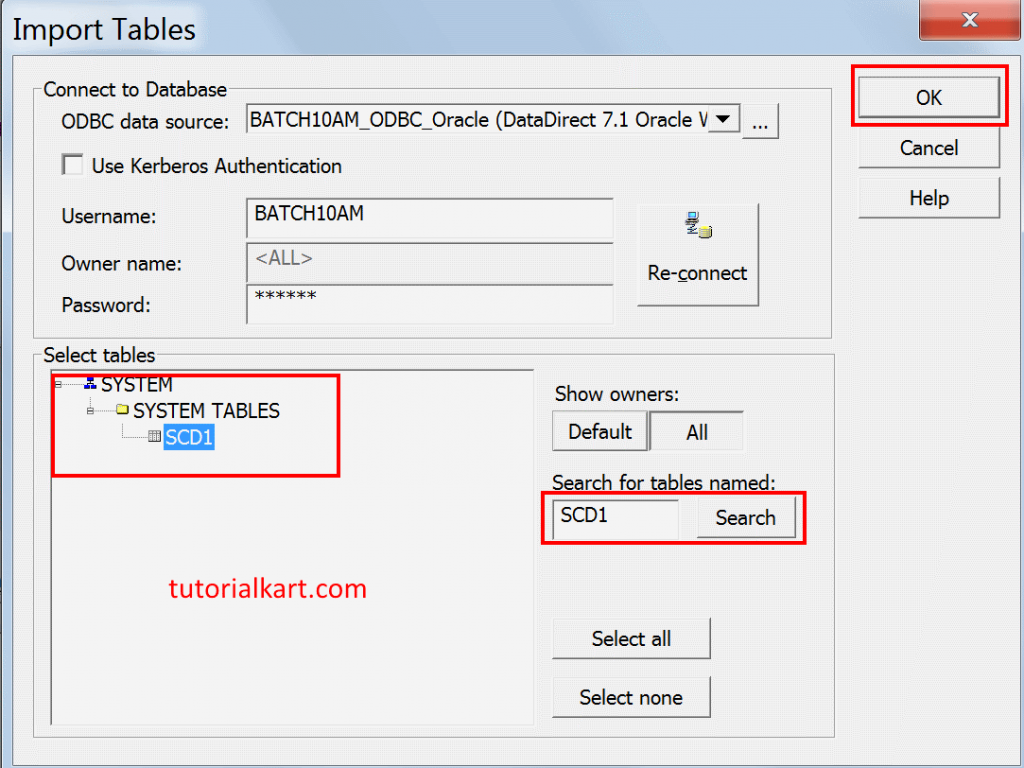
- Import the target table in to Informatica by select the Target Designer from tools in PowerCenter Designer.
- Select your target table and click on Ok button.
Creating mapping for update strategy transformation
- To create mapping, Go to mappings menu | Click on Create | Enter the name as m_update_strategy.
- Click on Ok, drag and drop source EMP table and target table into the mapping window workspace.
Keep the mapping name descriptive. For this example, names such as m_SCD1_JOB_SAL or m_update_strategy make it clear that the mapping handles inserts and updates for employee job and salary changes.
Lookup Transformation to identify existing target records
In update strategy transformation, we have to create Lookup transformation, Expression Transformation and Router Transformation.
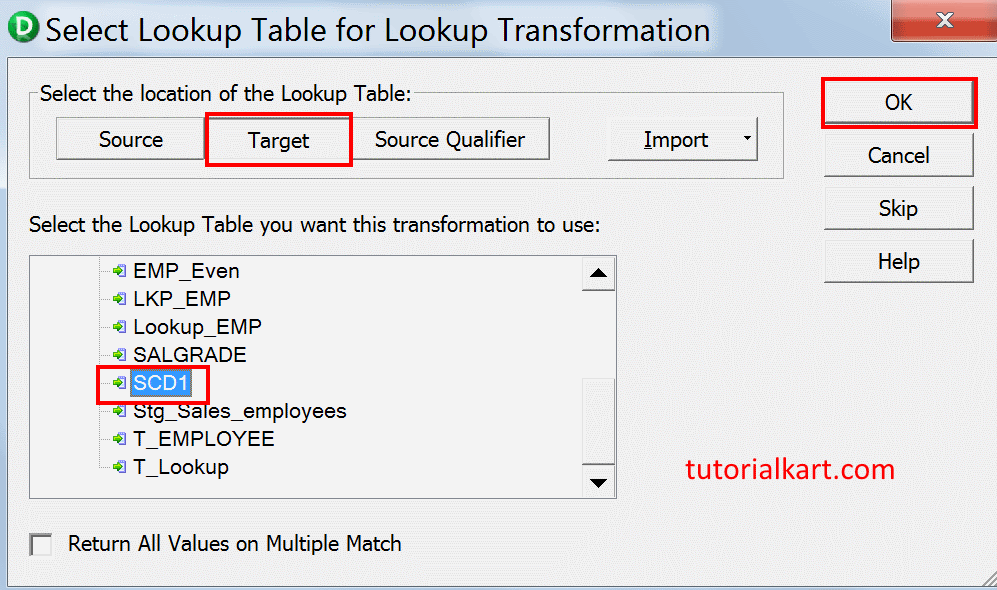
- To create, Go to Transformations menu | click on Create | select the transformation type as LookUp and name it as LKP_RECORD_AVAILABILITY.
- Select target SCD1 and click on OK.
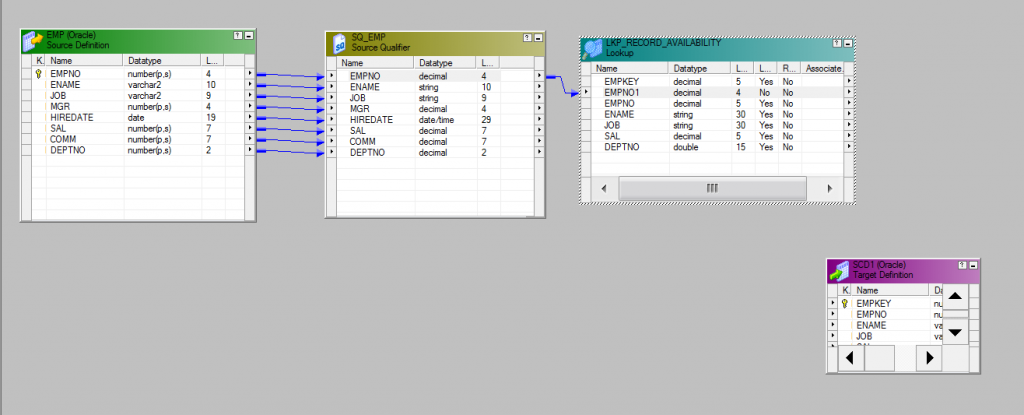
- Drag and drop EmpNo port form SQ_EMP to LookUp transformation table.
- Rename EMPNO1 to IN_EMPNO
Double click on Lookup transformation table and click on Conditions tab. To add New Condition, click on new condition icon and enter the Condition as shown below.
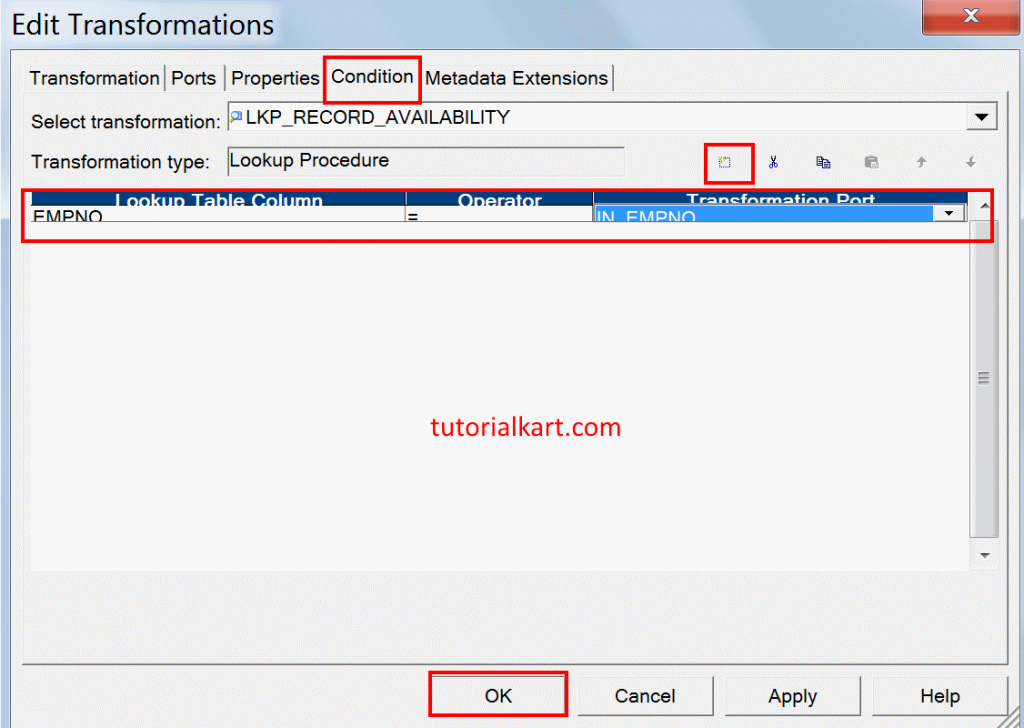
- Click on Ok.
The lookup output should return the target key and the target values needed for comparison. In this example, EmpKey, previous Job, and previous Sal are used later to decide whether the incoming row is new or changed.
Expression Transformation to mark new and changed records
Now we have to create expression transformation, to create Go to Transformations menu | click on Create | select type as Expression and enter name for expression transformation as EXP_Calculate_new_Changed.
- Drag and drop Empno, Ename, Job, Sal,Deptno from Source Qualifier Transformation to Expression Transformation and from the LookUp transformation , drag and drop EmpKey , Job, Sal to Expression
transformation.
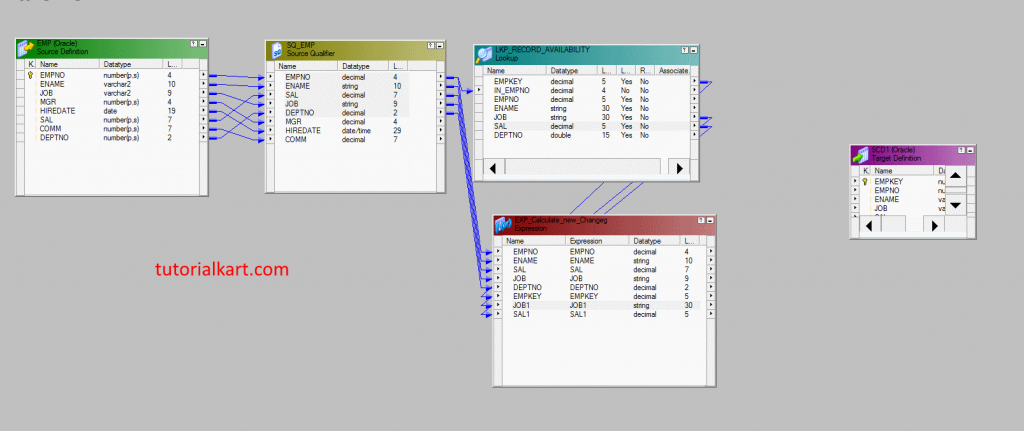
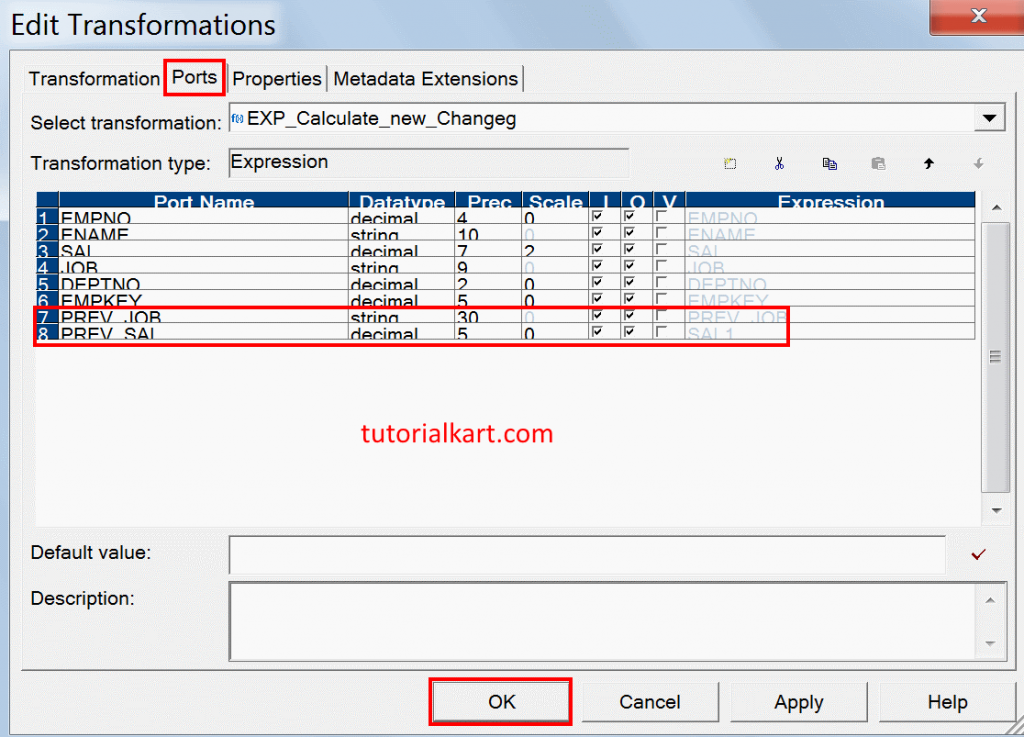
- Rename Job1 as prev_job and sal1 as prev_sal by editing expression transformation as shown below.
- Click on Ok.
Double click on Expression Transformation | click on Ports tab | click on Add a new Port icon twice to create two new ports. Rename the new two ports as NEW_RECORD and CHANGED_RECORD and the two must be only output port only.
- For NEW_RECORD add IIF(ISNULL(EMPKEY) ‘TRUE’, ‘FALSE’).
- For CHANGED_RECORD add IIF((NOT ISNULL(EMPKEY) AND (JOB != PREV_JOB) OR
(SAL != PREV_SAL)),‘TRUE’,’FALSE’) - Click on OK button.
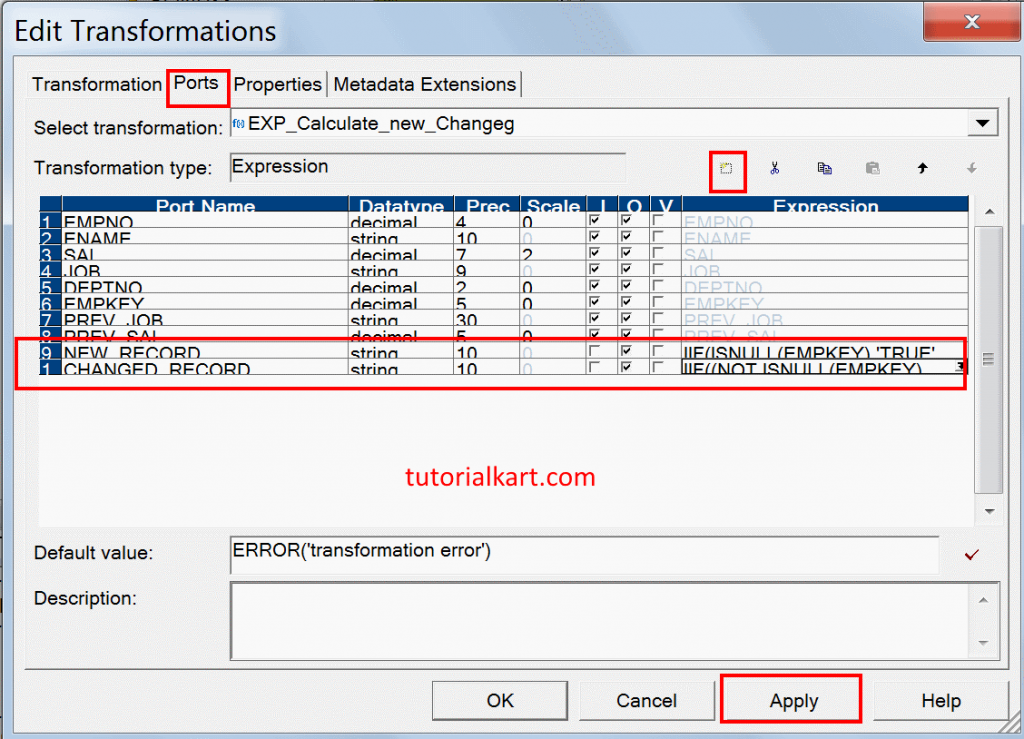
A safer expression should group the conditions clearly so that OR does not change the intended logic. For example, check that the employee exists first, then check the columns that indicate a change.
NEW_RECORD:
IIF(ISNULL(EMPKEY), 'TRUE', 'FALSE')

CHANGED_RECORD:
IIF(
  NOT ISNULL(EMPKEY)
  AND (JOB != PREV_JOB OR SAL != PREV_SAL),
  'TRUE',
  'FALSE'
)
Router Transformation groups for new and changed records
Router Transformation must be added to implement update strategy transformation. To add click on transformation | Create and enter name for the transformation.
- Drag and drop all the ports from Expression Transformation to Router Transformation.
Double click on Router transformation to add new groups. To create new groups, click on Groups tab | click on Add a New Group icon twice to create two groups.
- For NEW_RECORD enter NEW_RECORD=’TRUE’.
- For CHANGED_RECORD enter CHANGED_RECORD=’TRUE’.
- Click on OK.
Drag and drop ports of EMPNO1, ENAME1, JOB1, SAL1 ,DEPTNO1 from
NEW_RECORD group into Expression Transformation and Drag and drop all the above Five ports from Expression Transformation to Update Strategy transformation and the mapping will be appeared as shown below.
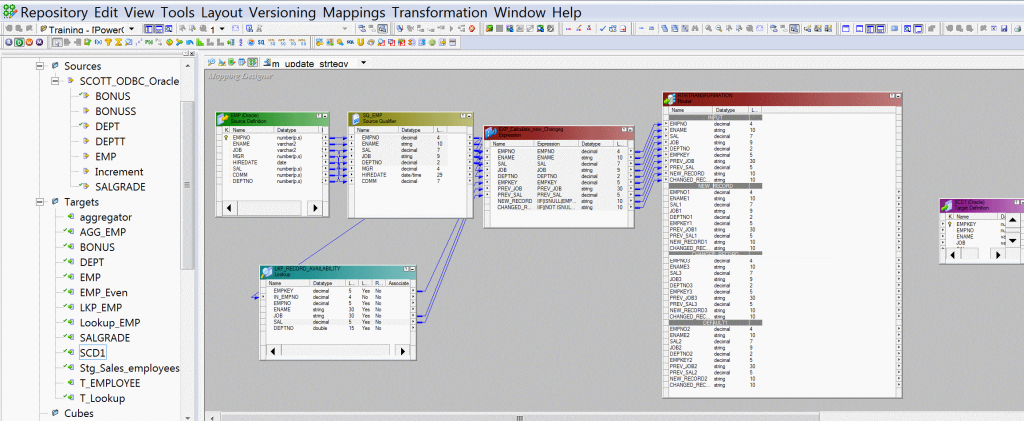
Double click on Update Strategy Transformation to add Strategy expression in properties. To add click on Properties tab | Enter Update Strategy expression as 0 or DD_INSERT.
- Add Sequence generator transformation to connect NEXTVAL port from Sequence Generator Transformation to EMPKEY of target table.
- Drop Update Strategy, Expression transformations into the above Mapping Workspace and from the Router Transformation , drag and drop the ports EMPKEY3, EMPNO3, ENAME3, JOB3, SAL3 ,DEPTNO3 of Changed_RECORD group into Expression Transformation.
- Drag and drop all the ports from Expression Transformation to Update Strategy Transformation.
Add new update strategy transformation and name the transformation as UPD_CHANGED_RECORD and double click on Update Strategy Transformation to add strategy expression. To add click on Properties tab | set the “Update Strategy Expression” value as 1 or DD_UPDATE.
- Click on Ok.
Now add second target table in mapping workspace by copy and paste the target table into the mapping workspace, for the purpose of Updated Record flow and connect all the Ports from Update Strategy Transformation to another Target. Finally the mapping will be appeared as shown below.
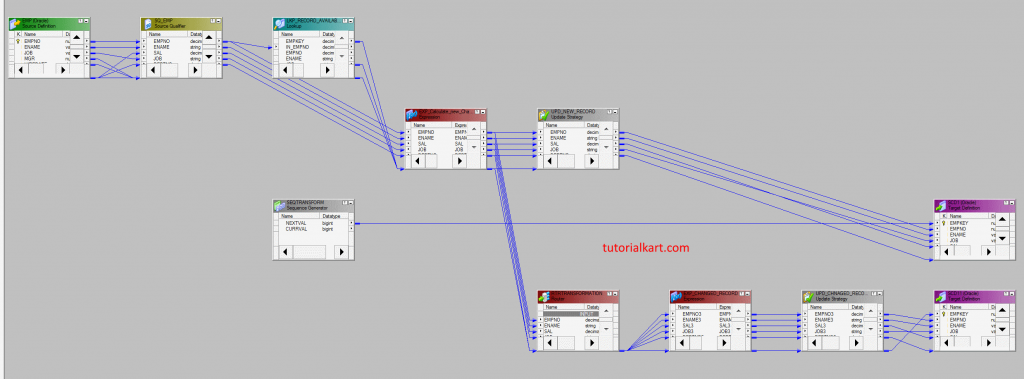
- Save the Transformation.
Target load setting for Update Strategy in Informatica session
The mapping can flag rows correctly only when the session is configured to obey those flags. In the session properties, set Treat Source Rows As to Data Driven. Also verify the target load options so the target accepts the required insert, update, and delete operations.
| Requirement | Session or target setting to verify |
|---|---|
| Rows must be inserted and updated in the same session | Set Treat Source Rows As to Data Driven. |
Rows flagged with DD_UPDATE must update existing target rows | Enable update behavior for the target and confirm key columns are mapped correctly. |
Rows flagged with DD_DELETE must delete target rows | Enable delete behavior only when the business requirement allows deletion. |
| Rejected rows must be excluded from target load | Use DD_REJECT in the strategy expression and review rejected-row handling in session logs. |
Creating Workflow
Workflow in Informatica can be created using Informatica PowerCenter Workflow manager. To create, go to Workflow Manager tool | create a Workflow with the name of w_SCD1 and create a Session with the name of s_m_SCD1_JOB_SAL and map this task to ourabove Mapping m_SCD1_JOB_SAL.
- Click on Ok.
- Connect Task and Workflow using Link Task.
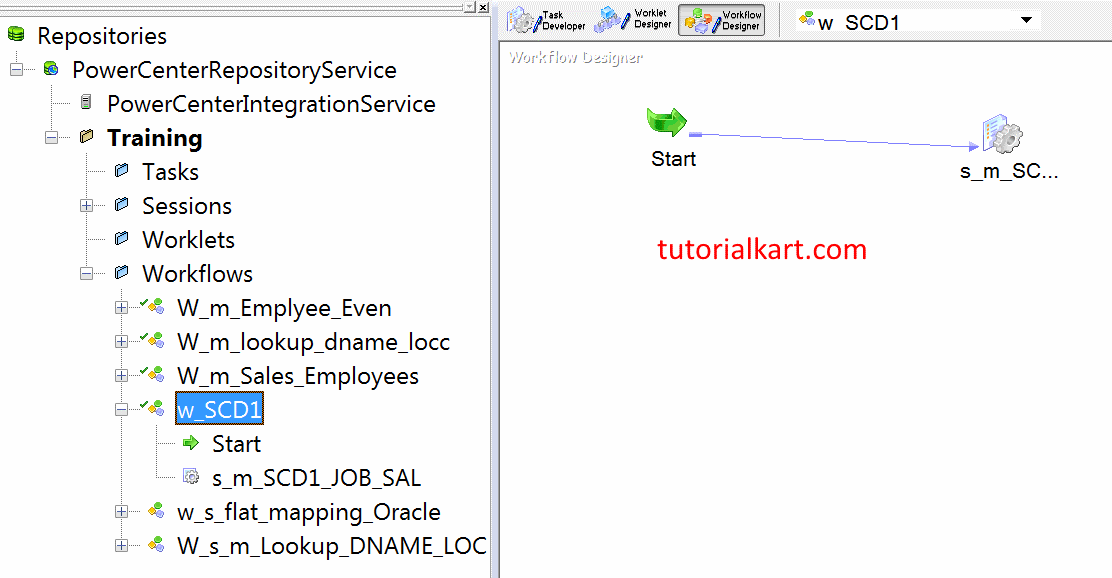
- Double click on Session, click on Mapping tab | select SQ_EMP and set that to SOURCE connection.
- Select Target and set that to TARGET connection.
- Select Lookup transformation and set that to TARGET connection.
- Click on Properties tab and set the Treat Source Rows as Data Driven .
- click on Ok.
Finally save the workflow and click on Start workflow. To monitor workflow, open Informatica PowerCenter Workflow monitor.
How to update target records without Update Strategy Transformation
Some mappings can update the target without an explicit Update Strategy transformation by setting the session to treat all rows as update or by using target update override logic. This works when all rows follow the same database operation. It is not suitable when the same pipeline must insert some rows, update some rows, delete some rows, and reject some rows based on row-level conditions.
Use Update Strategy Transformation when row-level control is required. Use session-level settings only when the entire session can safely treat all rows in the same way.
Common errors in Informatica Update Strategy mappings
- Session not set to Data Driven: The mapping flags rows, but the session may not follow those row-level flags.
- Missing target key: Update or delete rows can fail when the target row cannot be identified.
- Unclear IIF condition grouping: Use parentheses around
ANDandORconditions to avoid wrong update decisions. - Lookup returns unexpected nulls: Validate lookup condition ports and cache behavior before relying on
ISNULL(). - Unchanged rows sent for update: Add a clear unchanged-row path or reject path so the session does not perform unnecessary updates.
FAQs on Update Strategy Transformation in Informatica
Is Update Strategy Transformation active or passive?
Update Strategy Transformation is an active transformation. It can change how rows are processed because it flags rows for insert, update, delete, or reject operations.
How many options are available in an Update Strategy expression?
There are four common row-operation options: DD_INSERT, DD_UPDATE, DD_DELETE, and DD_REJECT. Their numeric values are 0, 1, 2, and 3 respectively.
Can we update the target without Update Strategy Transformation in Informatica?
Yes, when all rows should be handled in the same way, you can use session-level target settings such as treating source rows as update. Use Update Strategy Transformation when different rows in the same mapping need different operations.
Why is Lookup Transformation commonly used with Update Strategy?
Lookup Transformation is commonly used because the mapping must know whether a source row already exists in the target. The lookup result helps decide whether the row should be inserted as new, updated as changed, or ignored or rejected.
Why should the target table have a primary key for Update Strategy?
A primary key or another reliable key helps Informatica identify the exact target row for update and delete operations. Without a key, target updates can fail or affect the wrong rows.
Editorial QA checklist for this Informatica Update Strategy tutorial
- Confirm that the tutorial explains Update Strategy as an active and connected transformation.
- Verify that the four constants
DD_INSERT,DD_UPDATE,DD_DELETE, andDD_REJECTare mapped to 0, 1, 2, and 3. - Check that the workflow section tells readers to set Treat Source Rows As to Data Driven.
- Review the lookup, expression, router, and update strategy flow so each transformation has a clear purpose.
- Ensure code and expression blocks use correct PrismJS classes such as
language-sqlandlanguage-plaintext syntax.