 TutorialKart.com
Apex Form Component in Visualforce
Apex Form Component refers to the Visualforce <apex:form> component. It creates an HTML form in a Visualforce page and allows input components, command buttons, command links, and controller actions to participate in a page postback. In practice, every editable Visualforce section that saves, updates, or cancels Salesforce data should have the required input and action components inside an <apex:form> tag.
The component is usually used with Visualforce input components such as <apex:inputField>, <apex:inputText>, <apex:selectList>, and action components such as <apex:commandButton>. The form body decides what the user sees, which values are submitted, and which controller method runs when the user clicks a button.
What the Visualforce apex:form Component Does
The <apex:form> component wraps the part of a Visualforce page that must be submitted to Salesforce. When a user clicks an <apex:commandButton> or <apex:commandLink> inside the form, Visualforce sends the values from that form to the server, updates the controller state, runs the specified action, and then rerenders the resulting page or section.
- Use
<apex:form>for Visualforce pages that contain editable fields. - Place command buttons and command links inside the same form as the inputs they submit.
- Avoid unnecessary multiple forms on one page. If a page has multiple forms, only the submitted form sends its values.
- Keep output-only content outside the form when it does not need to be submitted.
For the official component reference, see Salesforce Developer documentation for the Visualforce apex:form component.
Apex Form Component Attributes for Visualforce Pages
The following attributes are commonly used with the Apex form component. Attribute names are case-sensitive in Visualforce markup, so use them exactly as shown.
| Attribute | Purpose in <apex:form> |
|---|---|
accept | Specifies content types that the server can handle for form submission. It is rarely needed in basic Salesforce data-entry forms. |
acceptcharset | Specifies a comma-separated list of character encodings that the server can process. |
enctype | Specifies how form data is encoded. Use the correct encoding when the form includes file upload behavior. |
forceSSL | Indicates that the form should be submitted using SSL. Modern Salesforce pages normally run over HTTPS, but older Visualforce examples may still show this attribute. |
id | Gives the form a Visualforce component ID that can be referenced by rerendering, JavaScript, or CSS selectors. |
onclick | Runs JavaScript when the user clicks the generated form area. |
ondblclick | Runs JavaScript when the user double-clicks the generated form area. |
onsubmit | Runs JavaScript when the form is submitted. This is useful for client-side validation before the server action runs. |
prependId | Controls whether the form ID is prepended to the generated IDs of child components. The default behavior helps avoid duplicate HTML IDs. |
rendered | Conditionally displays or hides the form based on a Boolean expression. |
style | Adds inline CSS to the generated HTML form. |
styleClass | Adds a CSS class to the generated HTML form. |
target | Sets the target browsing context for form submission, such as _blank, _self, _parent, or _top. |
Basic Syntax for the Visualforce apex:form Component
The smallest useful form contains at least one input component and one action component. The action can call a standard controller method such as save or a custom Apex controller method.
<apex:form id="contactForm">
    <apex:pageMessages />

    <apex:inputField value="{!Contact.LastName}" />
    <apex:inputField value="{!Contact.Email}" />

    <apex:commandButton value="Save" action="{!save}" />
</apex:form>
Visualforce Page Example Using apex:form for Contact Create and Edit
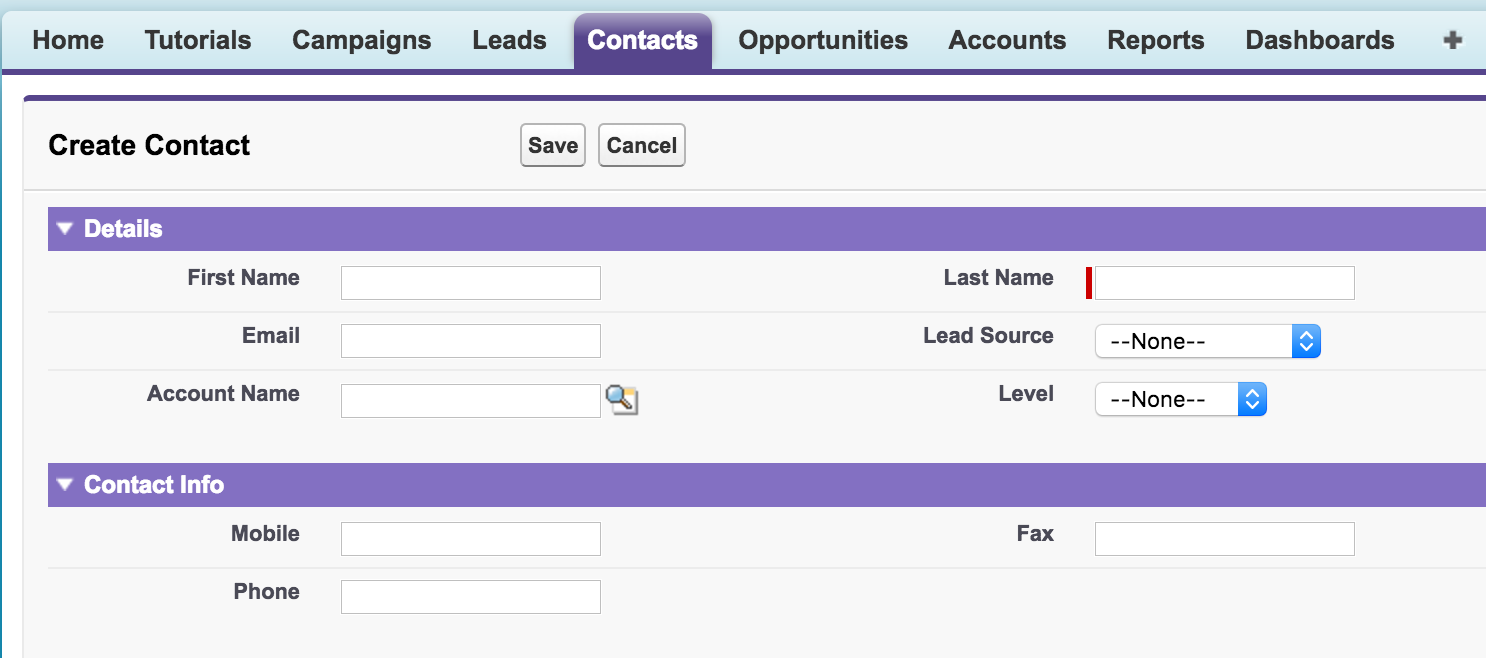
The following Visualforce page uses the Contact standard controller. The same form can create a new Contact when no record ID is supplied, or edit an existing Contact when the page is opened with a Contact record ID.
<apex:page standardController="contact" sidebar="false">
    <apex:form >
        <apex:pageBlock mode="detail" title="{!if($CurrentPage.parameters.id == null,
                                       'Create Contact', 'Edit Contact')}">
            <apex:pageBlockButtons >
                <apex:commandButton value="Save" action="{!Save}"/>
                <apex:commandButton value="Cancel" action="{!Cancel}"/>
            </apex:pageBlockButtons>
                <apex:pageBlockSection Title="Details">
                <apex:inputField value="{!contact.firstname}"/>
                <apex:inputField value="{!contact.lastname}"/>
                <apex:inputField value="{!contact.Email}"/>
                <apex:inputField value="{!contact.Leadsource}"/>
                <apex:inputField value="{!contact.Accountid}"/>
                <apex:inputField value="{!contact.Level__c}"/>
                </apex:pageBlockSection>
            <apex:pageBlockSection Title="Contact Info">
                <apex:inputField value="{!contact.mobilephone}"/>
                <apex:inputField value="{!contact.Fax}"/>
                <apex:inputField value="{!contact.Phone}"/>
            </apex:pageBlockSection>

        </apex:pageBlock>
    </apex:form>
</apex:page>
Rendered Contact Form Output from the Apex Form Component
How apex:form Submits Values to a Standard Controller
In the example above, the standardController="contact" attribute gives the page access to the Contact record and standard actions such as save and cancel. Each <apex:inputField> is bound to a Contact field. When the user clicks Save, the form submits the current field values, the standard controller validates the record, and Salesforce either saves the Contact or displays validation errors.
For production Visualforce pages, it is a good practice to include <apex:pageMessages> or <apex:messages> inside the form so that validation errors, required-field messages, and controller messages are visible to the user after submission.
Using HTML Pass-Through Attributes with apex:form
Apex Form component supports HTML pass-through attributes using the “html-” prefix. Pass-through attributes are attached to the generated <form> tag. You can add arbitrary attributes to many Visualforce components that are “passed through” to the rendered HTML. This is useful, for example, when using Visualforce with JavaScript frameworks, such as jQuery Mobile, AngularJS, and Knockout, which use data-* or other attributes as hooks to activate framework functions.
For example, a pass-through attribute such as html-data-form-name becomes a data-form-name attribute on the rendered HTML form.
<apex:form id="accountForm" html-data-form-name="account-edit">
    <apex:commandButton value="Save" action="{!save}" />
</apex:form>
Common Mistakes When Working with the Apex Form Component
- Placing command buttons outside the form: An
<apex:commandButton>that submits data should be inside the same<apex:form>as the fields it submits. - Using too many forms on one page: Multiple forms can be valid, but they can also cause missing field values because only one form is submitted at a time.
- Forgetting page messages: Without
<apex:pageMessages>, users may not clearly see validation or controller errors. - Disabling
prependIdwithout a reason: SettingprependId="false"can make JavaScript selectors easier, but it can also create duplicate IDs on complex pages. - Expecting output components to submit data: Components such as
<apex:outputText>display values but do not collect user input.
Apex Form Component, ApexComponent Object, and Oracle APEX Forms Are Different
The phrase “Apex form component” can be confusing because it may appear in different technical contexts. In Visualforce, <apex:form> is a page component used to submit user input. The Salesforce ApexComponent object is different; it represents a saved Visualforce component definition in metadata and API contexts. Oracle APEX forms are also unrelated to Salesforce Visualforce forms.
Frequently Asked Questions About apex:form in Visualforce
What is an Apex form component in Salesforce Visualforce?
An Apex form component is the Visualforce <apex:form> tag. It creates a form section that can submit user-entered values to a Salesforce standard controller or custom Apex controller.
What are the main components inside a Visualforce form?
A typical Visualforce form contains input components such as <apex:inputField>, message components such as <apex:pageMessages>, layout components such as <apex:pageBlock>, and action components such as <apex:commandButton>.
How do you create a form in Apex?
You usually do not create the form in an Apex class. You create the form in a Visualforce page using <apex:form>, bind fields to a standard or custom controller, and call controller actions from command buttons or command links.
Can a Visualforce page have more than one apex:form tag?
Yes, a Visualforce page can contain more than one form when the page design requires it. However, only the submitted form sends its values, so related fields and buttons should usually stay inside the same form.
When should prependId be set to false in apex:form?
Set prependId="false" only when you have a clear need for predictable generated HTML IDs, usually for JavaScript or CSS integration. In most Visualforce pages, the default ID-prefixing behavior is safer because it reduces duplicate ID problems.
Editorial QA Checklist for an apex:form Visualforce Tutorial
- Confirm that every input component that must be saved is inside the same
<apex:form>as the Save button. - Check that the tutorial explains how the form works with a standard controller or custom Apex controller action.
- Verify that examples include user-facing error messages through
<apex:pageMessages>or an equivalent message component. - Review any JavaScript examples for generated Visualforce ID behavior, especially when
prependIdis mentioned. - Make sure the article clearly separates Salesforce Visualforce
<apex:form>from Oracle APEX forms and the SalesforceApexComponentmetadata object.