 TutorialKart.com
Create Module in Node.js
A Node.js module is a separate JavaScript file or package that contains reusable code. You can place functions, objects, classes, or constants in one file and use them in another file with require() in CommonJS or import in ES modules. This keeps application logic easier to read, test, and maintain.
Most common tasks in Node.js can be handled with built-in modules such as fs, http, and path. When your application has its own business logic, it is better to create your own local Node.js module instead of keeping all code in one long file.
In this Node.js Tutorial, we shall learn how to create a Node.js module, export functions from it, include it in another Node.js file, and run the example from the command line.
How to Create a Local Node.js Module?
A local Node.js module can be created by writing JavaScript code in a separate .js file and exporting the values that should be available outside that file. In older and still widely used Node.js projects, this is commonly done with the CommonJS module system.
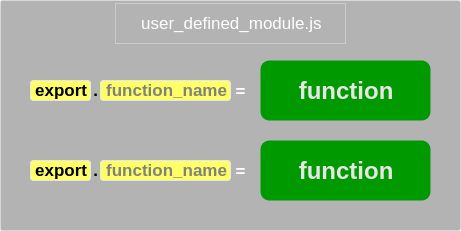
The syntax to define a function in Node.js module is
exports.<function_name> = function (argument_1, argument_2, .. argument_N) {
    /** function body */
};- exports – is a keyword which tells Node.js that the function is available outside the module.
- function_name – is the function name using which we can access this function in other programs.
CommonJS exports and require syntax in Node.js modules
In a CommonJS module, exports and module.exports control what another file receives when it uses require(). Use exports.name when you want to export several named functions. Use module.exports when you want to export one main function, class, or object.
// Export multiple named functions
exports.add = function (a, b) {
    return a + b;
};

exports.subtract = function (a, b) {
    return a - b;
};

// Export one object
module.exports = {
    add,
    subtract
};
When requiring a local module, start the path with ./ for the current folder or ../ for the parent folder. Without the relative path, Node.js looks for a built-in module or a package in node_modules.
const calculator = require('./calculator');Calculator – Example Node.js Module
Following is an example where we create a Calculator Node.js Module with functions add, subtract and multiply. And use the Calculator module in another Node.js file.
calculator.js
// Returns addition of two numbers
exports.add = function (a, b) {
    return a+b;
};

// Returns difference of two numbers
exports.subtract = function (a, b) {
    return a-b;
};

// Returns product of two numbers
exports.multiply = function (a, b) {
    return a*b;
};
moduleExample.js
var calculator = require('./calculator');

var a=10, b=5;

console.log("Addition : "+calculator.add(a,b));
console.log("Subtraction : "+calculator.subtract(a,b));
console.log("Multiplication : "+calculator.multiply(a,b));
Output
$ node moduleExample.js
Addition : 15
Subtraction : 5
Multiplication : 50
Run the custom Node.js module from the terminal
Place calculator.js and moduleExample.js in the same folder. Then run the main file with the node command.
node moduleExample.jsThe file that you run directly is the entry file. The calculator file is the local module that is loaded by the entry file.
Create a Node.js module with module.exports
The same calculator module can also be written by defining functions first and exporting them at the end. This style is useful when you want the export list to be visible in one place.
function add(a, b) {
    return a + b;
}

function subtract(a, b) {
    return a - b;
}

function multiply(a, b) {
    return a * b;
}

module.exports = {
    add,
    subtract,
    multiply
};
The usage remains the same because the required module still exposes an object with add, subtract, and multiply functions.
const calculator = require('./calculator');

console.log(calculator.add(10, 5));
Create a folder-based Node.js module with package.json
For a larger local module, create a folder with an entry file and a package.json file. The main field tells Node.js which file should be loaded when the folder is required.
my-app/
├── app.js
└── calculator/
    ├── index.js
    └── package.json
calculator/package.json
{
  "name": "calculator",
  "version": "1.0.0",
  "main": "index.js"
}
app.js
const calculator = require('./calculator');

console.log(calculator.multiply(10, 5));
CommonJS module and ES module difference in Node.js
Node.js supports both CommonJS and ES modules. The examples above use CommonJS because it matches the traditional require() style used in many Node.js tutorials and existing projects. ES modules use export and import syntax.
| Module style | Export syntax | Import syntax | Common file setup |
|---|---|---|---|
| CommonJS | module.exports or exports.name | require('./file') | .js files in default CommonJS projects |
| ES module | export | import | .mjs files or "type": "module" in package.json |
A small ES module example is shown below.
// calculator.mjs
export function add(a, b) {
    return a + b;
}

// app.mjs
import { add } from './calculator.mjs';

console.log(add(10, 5));
How to turn a local Node.js module into an npm package
A local module is used inside one project. An npm package is a module prepared with metadata so it can be installed and reused like a package. At minimum, it needs a package.json file with a package name, version, and entry file.
mkdir simple-calculator
cd simple-calculator
npm init -y
After this, place your module code in the entry file listed in package.json. For public publishing, follow the npm package naming, login, and publishing rules described in the official npm documentation for creating Node.js modules.
Common mistakes while creating a Node.js module
- Using
require('calculator')for a local file instead ofrequire('./calculator'). - Forgetting to export the function before using it in another file.
- Mixing CommonJS
require()and ES moduleimportsyntax without configuring the project. - Changing
exportsdirectly, such asexports = add, instead of usingmodule.exports = add. - Keeping unrelated code in one module instead of splitting it by responsibility.
QA checklist for a Create Module in Node.js tutorial
- The module file exports every function used by the main file.
- The main file uses the correct relative path in
require(). - Command-line examples use
node fileName.jsand match the shown output. - CommonJS examples are not mixed with ES module syntax unless the difference is explained.
- The npm package section distinguishes a local module from a publishable npm package.
FAQs on creating Node.js modules
How do I create a local Node.js module?
Create a separate .js file, write the functions or values in it, export them with exports or module.exports, and load the file from another JavaScript file using require('./fileName').
What is the difference between exports and module.exports in Node.js?
exports.name is convenient for exporting multiple named values. module.exports is used when you want to export one complete object, function, or class from the module.
Why does require(‘./calculator’) need ./ in Node.js?
The ./ tells Node.js to load a local file from the current folder. Without it, Node.js searches for a built-in module or an installed package in node_modules.
How do I create an npm module?
Create a folder for the package, run npm init or npm init -y, add your module entry file, and define the package metadata in package.json. Publishing to npm requires an npm account and should follow npm’s official package publishing rules.
Should I use CommonJS or ES modules in Node.js?
Use CommonJS when working with older Node.js code that uses require(). Use ES modules when the project is configured for import and export syntax, such as by using .mjs files or setting "type": "module" in package.json.
Conclusion
In this Node.js Tutorial, we have learnt how to create a Node.js module, export functions from it, and include the module in another Node.js file with an example. For simple project code, a local module with exports or module.exports is enough. For reusable package code, add a package.json file and follow the npm module structure.