 TutorialKart.com
Node.js Example Application
In our previous tutorial, we have successfully installed Node.js. Now it is time to write a simple Node.js application and climb the learning curve.
In this tutorial, we shall look into an example Node.js Application where we shall build an HTTP Server; and understand some of the basic components that go into making of a Node.js Application.
This example uses the built-in http module, so you do not need Express, npm packages, or a database to get started. You will create a JavaScript file, start it with the node command, open the application in a browser, and then review how the server receives a request and sends a response.
What this Node.js example application will build
The application in this tutorial is a small HTTP server that listens on port 8087. When a browser visits http://localhost:8087/, the server returns a simple HTML response.
- Runtime: Node.js
- Module used: built-in
httpmodule - Application type: local HTTP server
- Response: a short HTML message
- URL to test:
http://localhost:8087/
This is a useful first Node.js application because it shows the request-response model used by web applications and APIs.
Example – Node.js HTTP Server
We shall create a basic HTTP server listening on a port.
You may use any text editor of your choice to create a script file with extension .js .
Create a file with the name node-js-example.js and copy the following content to it.
// include http module in the file
var http = require('http');
// create a server listening on 8087
http.createServer(function (req, res) {
	// write the response and send it to the client
	res.writeHead(200, {'Content-Type': 'text/html'});
	res.write('Node.js says hello!');
	res.end();
}).listen(8087);
Once you have created the file, you may run it using node program from command line interface or terminal.
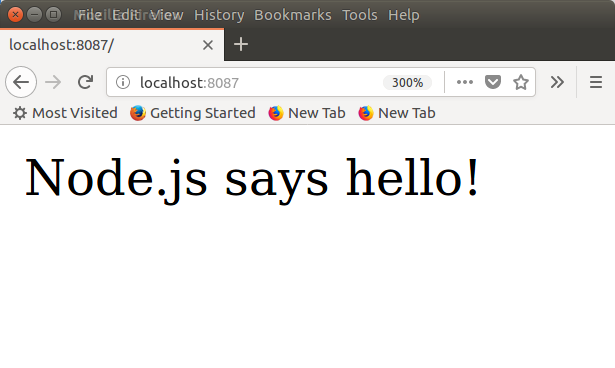
~$ node node-js-example.jsIf you see nothing echoed back to the terminal, it is working fine, and a HTTP server has been started listening at port 8087. Now open any of the browser and hit the url http://localhost:8087/ to see the server responding with html page containing content Node.js says hello! .
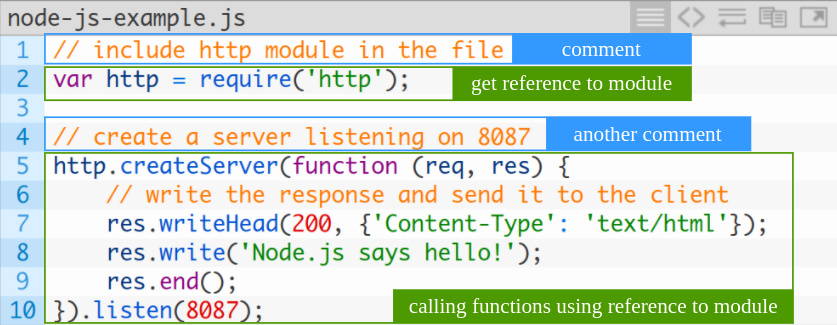
Let us look into the two lines of code that we have written in this example.
How the Node.js HTTP server example works
The first line loads Node.js built-in http module. This module provides the functions needed to create an HTTP server without installing any external package.
The http.createServer() function accepts a callback function. Node.js calls this callback each time the server receives an HTTP request.
reqrepresents the incoming request. It contains details such as the request URL, method, and headers.resrepresents the outgoing response. You use it to set the response status, headers, and body.res.writeHead(200, {'Content-Type': 'text/html'})sends the HTTP status code and content type.res.write('Node.js says hello!')writes content to the response body.res.end()finishes the response, so the browser knows that the server has completed sending data..listen(8087)starts the server on port8087.
Until you stop the process, Node.js keeps the server running and waits for new requests. To stop the local server from the terminal, press Ctrl + C.
Run the Node.js example application from the terminal
Open a terminal in the folder where node-js-example.js is saved. Then run the file with the node command.
node node-js-example.jsThe command does not print a message because the sample program does not include a console.log() statement. The application is still running in the background of the terminal session and listening for HTTP requests.
You can test it in a browser by opening this URL.
http://localhost:8087/You can also test the same local server from another terminal using curl.
curl http://localhost:8087/Output
Node.js says hello!Add a startup message to the Node.js HTTP server
The previous example starts correctly, but it does not print anything in the terminal. In practical scripts, a small startup message makes it easier to know which port the server is using.
node-js-example-with-log.js
const http = require('http');

const port = 8087;

const server = http.createServer(function (req, res) {
  res.writeHead(200, { 'Content-Type': 'text/html' });
  res.write('Node.js says hello!');
  res.end();
});

server.listen(port, function () {
  console.log(`Server running at http://localhost:${port}/`);
});
Run the updated file.
node node-js-example-with-log.jsOutput
Server running at http://localhost:8087/This version keeps the same application behavior, but it gives a clear terminal message after the server starts.
Handle different URLs in a Node.js example application
A web application usually responds differently for different URLs. The following example checks req.url and returns a different response for the home page, an about page, and unknown paths.
node-js-routes-example.js
const http = require('http');

const port = 8087;

const server = http.createServer(function (req, res) {
  if (req.url === '/') {
    res.writeHead(200, { 'Content-Type': 'text/html' });
    res.end('<h1>Home Page</h1>');
    return;
  }

  if (req.url === '/about') {
    res.writeHead(200, { 'Content-Type': 'text/html' });
    res.end('<h1>About Page</h1>');
    return;
  }

  res.writeHead(404, { 'Content-Type': 'text/html' });
  res.end('<h1>Page Not Found</h1>');
});

server.listen(port, function () {
  console.log(`Server running at http://localhost:${port}/`);
});
Run the file and open these URLs in the browser.
http://localhost:8087/http://localhost:8087/abouthttp://localhost:8087/contact
The first two paths return normal responses. The /contact path returns a 404 response because that route is not handled in the code.
Return JSON from a Node.js HTTP server example
Node.js is often used for APIs. To return JSON, set the content type to application/json and send a JSON string as the response body.
node-js-json-example.js
const http = require('http');

const port = 8087;

const server = http.createServer(function (req, res) {
  const data = {
    message: 'Node.js says hello!',
    path: req.url
  };

  res.writeHead(200, { 'Content-Type': 'application/json' });
  res.end(JSON.stringify(data));
});

server.listen(port, function () {
  console.log(`Server running at http://localhost:${port}/`);
});
Run the file and test it with curl.
curl http://localhost:8087/apiOutput
{"message":"Node.js says hello!","path":"/api"}This pattern is the starting point for building simple APIs before moving to a routing framework such as Express.
Use a configurable port in the Node.js example application
Instead of hard-coding a port, many Node.js applications read the port from an environment variable. This allows the same application to run locally and on a hosting platform that assigns a port.
node-js-port-example.js
const http = require('http');

const port = process.env.PORT || 8087;

const server = http.createServer(function (req, res) {
  res.writeHead(200, { 'Content-Type': 'text/html' });
  res.end('Node.js server is running.');
});

server.listen(port, function () {
  console.log(`Server running on port ${port}`);
});
Run the application with the default port.
node node-js-port-example.jsOr pass a different port from the command line.
PORT=3000 node node-js-port-example.jsOn Windows Command Prompt, use the following form.
set PORT=3000 && node node-js-port-example.jsFix common errors in this Node.js HTTP server example
If the example application does not open in the browser, check these common issues first.
- Command not found: If the terminal says
nodeis not recognized, install Node.js or check whether Node.js is added to the system path. - Wrong folder: Run the command from the folder where the JavaScript file is saved, or provide the full file path.
- Port already in use: If port
8087is already used by another process, change the port number in the script. - Browser cannot connect: Make sure the Node.js process is still running in the terminal.
- Response does not update: Stop the server with
Ctrl + Cand start it again after changing the code.
Where this first Node.js example application fits in real projects
The sample application in this tutorial is intentionally small. Real Node.js applications usually add routing, validation, static files, templates, databases, authentication, logging, and error handling. However, the core idea remains the same: Node.js receives a request, runs JavaScript code on the server, and sends a response.
After you understand this HTTP server example, the next common step is to build the same type of application with Express, add multiple routes, and separate code into different files.
Editorial QA checklist for this Node.js example application
- Confirms that the example uses the built-in Node.js
httpmodule and does not require external packages. - Shows how to run the JavaScript file with the
nodecommand. - Explains why the terminal may stay blank while the server is running.
- Includes the exact localhost URL and port needed to test the application.
- Explains the purpose of
req,res,writeHead(),end(), andlisten(). - Includes troubleshooting guidance for port conflicts and server restart issues.
Node.js example application FAQs
What is a simple Node.js example application for beginners?
A simple beginner-friendly Node.js application is an HTTP server created with the built-in http module. It listens on a local port and returns a response such as Node.js says hello! when opened in a browser.
Do I need Express for this Node.js HTTP server example?
No. This tutorial uses the built-in http module, so no Express installation is required. Express is useful later when you need easier routing, middleware, and larger application structure.
Why does the Node.js example application show no output in the terminal?
The first example does not contain a console.log() statement. If the command keeps running without an error, the server is likely active. Open http://localhost:8087/ in a browser to test it.
How do I stop the Node.js server running on localhost?
Go to the terminal where the server is running and press Ctrl + C. This stops the Node.js process and releases the port.
Can a Node.js example application return JSON instead of HTML?
Yes. Set the response header to Content-Type: application/json and send a JSON string using JSON.stringify(). This is the basic pattern used by many Node.js API examples.
Node.js example application summary
This is just a mere example on how to get started with Node.js. In our subsequent tutorials, we shall learn about these concepts in details.
You have created a small Node.js HTTP server, started it from the terminal, tested it in a browser, and reviewed the main parts of the request-response flow. The same foundation is used when building larger Node.js applications and APIs.