 TutorialKart.com
JavaFX Label Control
The JavaFX Label control displays non-editable text, an image, or both inside a JavaFX scene. It is commonly used for field descriptions, status messages, headings, and short instructions.
A label is represented by the javafx.scene.control.Label class. Unlike a button, a label does not perform an action when the user clicks it unless you explicitly add an event handler.
Create a JavaFX Label with Text
Pass the text to the Label constructor to create a label with an initial value.
Label label = new Label("TutorialKart");You have to import javafx.scene.control.Label to use JavaFX Label.
You can also create an empty label and assign its text later with the setText() method.
Label label = new Label();
label.setText("TutorialKart");
JavaFX Label Constructors
The Label class provides constructors for an empty label, a text label, and a label containing both text and a graphic.
| Constructor | Description |
|---|---|
Label() | Creates an empty label. |
Label(String text) | Creates a label containing the specified text. |
Label(String text, Node graphic) | Creates a label containing text and a JavaFX node used as its graphic. |
JavaFX Label Example with Text
In the following JavaFX application, a label is created and added to a TilePane. The pane is then placed in a scene and displayed in the application window.
JavaFxLabelTutorial.java
import javafx.application.Application;
import javafx.scene.Scene;
import javafx.scene.control.Label;
import javafx.scene.layout.TilePane;
import javafx.stage.Stage;

public class JavaFxLabelTutorial extends Application {

    public static void main(String[] args) {
        launch(args);
    }

    @Override
    public void start(Stage primaryStage) {
        try {
            // set title
            primaryStage.setTitle("JavaFX Label - tutorialkart.com");

            //javafx label
            Label label = new Label("TutorialKart");

            // tile pane
            TilePane tilePane = new TilePane();

            // add label to the tile pane
            tilePane.getChildren().add(label);

            //set up scene
            Scene scene = new Scene(tilePane, 400, 100);
            primaryStage.setScene(scene);
            primaryStage.show();
        } catch(Exception e) {
            e.printStackTrace();
        }
    }
}
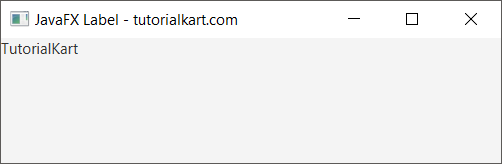
Run this application and you should see a Label with the string “TutorialKart” in the window, as shown below.
JavaFX Label Example with Text and Image
The JavaFX Label constructor can accept an ImageView as its second argument. The image view becomes the label’s graphic, allowing the control to display text and an image together.
In the following application, an image is loaded from images/camera2.png, placed in an ImageView, and passed to the label constructor. The relative path is resolved from the application’s current working directory.
JavaFxLabelTutorial2.java
import java.io.FileInputStream;

import javafx.application.Application;
import javafx.scene.Scene;
import javafx.scene.control.Label;
import javafx.scene.image.Image;
import javafx.scene.image.ImageView;
import javafx.scene.layout.TilePane;
import javafx.stage.Stage;

public class JavaFxLabelTutorial2 extends Application {

    public static void main(String[] args) {
        launch(args);
    }

    @Override
    public void start(Stage primaryStage) {
        try {
            // set title
            primaryStage.setTitle("JavaFX Label - tutorialkart.com");

            //image
            FileInputStream input = new FileInputStream("images/camera2.png");
            Image image = new Image(input);
            ImageView imageView = new ImageView(image);

            //javafx label
            Label label = new Label("TutorialKart", imageView);

            // tile pane
            TilePane tilePane = new TilePane();

            // add label to the tile pane
            tilePane.getChildren().add(label);

            //set up scene
            Scene scene = new Scene(tilePane, 400, 100);
            primaryStage.setScene(scene);
            primaryStage.show();
        } catch(Exception e) {
            e.printStackTrace();
        }
    }
}
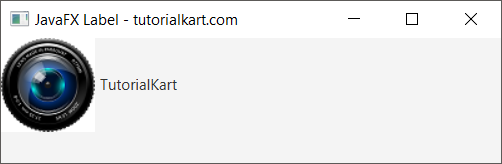
Run this application and you should see a Label with the text “TutorialKart” and the image before the text in the window, as shown below.
Change JavaFX Label Text at Runtime
Use setText() when the label must show a new value after it has been created. Use getText() to read its current text.
Label statusLabel = new Label("Waiting");

statusLabel.setText("Completed");
String currentText = statusLabel.getText();
JavaFX scene graph changes should be performed on the JavaFX Application Thread. When a background task produces a value, update the label through an appropriate JavaFX concurrency mechanism such as Platform.runLater() or a bound task property.
Wrap Long Text in a JavaFX Label
A label displays its content on one line by default. Enable text wrapping and give the label a preferred width when it needs to display a longer message.
Label message = new Label(
        "This label wraps its text when it reaches the preferred width."
);
message.setWrapText(true);
message.setPrefWidth(240);
If the available space is too small and wrapping is disabled, you can use setTextOverrun() to control how overflowing text is represented.
Position the Image Relative to JavaFX Label Text
The setContentDisplay() method controls where a label’s graphic appears relative to its text. The graphic may be placed on the left, right, top, or bottom.
import javafx.scene.control.ContentDisplay;

label.setContentDisplay(ContentDisplay.RIGHT);
label.setGraphicTextGap(10);
setGraphicTextGap() sets the space between the graphic and the label text.
Style a JavaFX Label with CSS
You can apply a style class to a label and define its appearance in a JavaFX CSS file. This keeps presentation rules separate from application logic.
Label headingLabel = new Label("Account Details");
headingLabel.getStyleClass().add("section-label");
The corresponding CSS rule can set properties such as font size, font weight, text color, padding, and background color.
.section-label {
    -fx-font-size: 18px;
    -fx-font-weight: bold;
    -fx-padding: 8px;
}
Associate a JavaFX Label with an Input Control
When a label describes an input control, use setLabelFor() to associate the two nodes. You can also place an underscore before a character and enable mnemonic parsing to create a keyboard mnemonic.
import javafx.scene.control.TextField;

TextField nameField = new TextField();
Label nameLabel = new Label("_Name:");

nameLabel.setMnemonicParsing(true);
nameLabel.setLabelFor(nameField);
The exact key combination used to activate a mnemonic depends on the operating system. Associating labels with controls also gives the interface clearer structural information.
Frequently Used JavaFX Label Methods
| Method | Purpose |
|---|---|
setText(String) | Changes the displayed text. |
getText() | Returns the current text. |
setGraphic(Node) | Adds or replaces the label’s graphic. |
setWrapText(boolean) | Enables or disables text wrapping. |
setContentDisplay(ContentDisplay) | Positions the graphic relative to the text. |
setGraphicTextGap(double) | Sets the gap between text and graphic. |
setLabelFor(Node) | Associates the label with another control. |
JavaFX Label Questions
How is a JavaFX Label different from a Text control?
Label is a JavaFX control designed for short text and optional graphics. It supports control features such as CSS styling, mnemonics, and association with another node. Text is a scene graph shape intended primarily for displaying text.
Can a JavaFX Label display both text and an image?
Yes. Pass an ImageView or another JavaFX Node to the two-argument constructor, or assign it later with setGraphic().
How do I make JavaFX Label text wrap?
Call setWrapText(true) and ensure that the label has a constrained width, such as a preferred width or a width determined by its parent layout.
Why is my JavaFX Label image not displayed?
Check that the image path is correct, the resource is available at runtime, and the created ImageView is assigned to the label. For application resources, loading the image from the classpath is usually more reliable than depending on the current working directory.
JavaFX Label Tutorial Summary
In this JavaFX Tutorial, we learned how to create a JavaFX Label, display text and an image, change label text, wrap long content, position a graphic, apply CSS, and associate a label with an input control.