 TutorialKart.com
In SAP Controlling, cost center categories are used to classify cost centers by their business function, such as production, administration, finance, sales, logistics, or quality. The cost center category helps SAP determine which planning and posting options are relevant for a cost center, including quantity planning, revenue planning, actual revenue posting, and commitment management.
SAP delivers standard cost center categories. In most implementations, consultants first review the standard categories and use them where they match the organization structure. If a company needs its own classification, new cost center categories can be defined in customizing. After postings are made to a cost center, avoid changing the assigned category because it can affect reporting, planning behaviour, and historical consistency.
Cost center category meaning in SAP CO
A cost center is an organizational unit where costs are collected and monitored. A cost center category is the classification assigned to that cost center. For example, a company may create cost centers for Finance, Stores, Sales, Production, and HR. Each of these cost centers can be assigned a category that describes the nature of work performed by that department.
Cost center categories are useful because they make cost center master data more structured. They also support reporting and planning decisions in Cost Center Accounting. For example, a production cost center may need quantity planning and activity-related planning, while an administration cost center may mainly collect overhead expenses.
Cost center categories used in this SAP configuration
Here we are going to use the following cost center categories as per our requirements.
| CC | Name | Qty | ActRev | PlnRev | Cmmt |
| A | Finance & Costing | ? | ? | ||
| F | Production | ? | ? | ? | ? |
| G | Logistics (Purchase) | ? | ? | ? | |
| L | Management (HR) | ? | ? | ||
| M | Material (Stores) | ? | ? | ||
| Q | Quality | ? | ? | ||
| T | Transportation | ? | ? | ||
| V | Sales | ? | ? | ? | |
| W | Administration | ? | ? |
In the above table, the category key is a one-character identifier. The columns such as Qty, ActRev, PlnRev, and Cmmt represent settings that can be selected depending on whether the category should support quantity entry, actual revenues, planned revenues, and commitments. The exact selection should be based on the company’s controlling design.
How to create cost center categories in SAP using OKA2
New cost center categories can be created in SAP Controlling by using either the SAP menu path or the transaction code. You are allowed to create a cost center category with a single-character key only, so choose the category code carefully before transporting it to other systems.
SAP transaction code : – OKA2
SAP IMG path : – Controlling > Cost Center Accounting > Master Data > Cost centers > Define cost center categories.
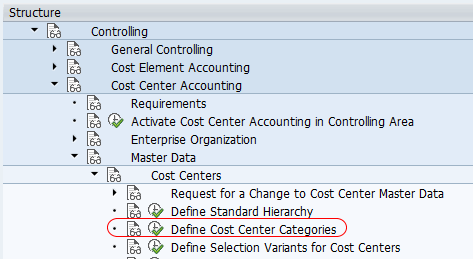
Step 1 : – Enter tcode “OKA2” in the SAP command field and press enter to continue.

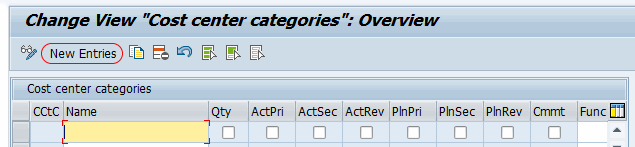
Step 2 : – On change view cost center category overview screen, list of cost center categories displays with detailed information. You can use this category as per your requirements or if you want to create new cost center category as per business requirements, click on new entries button as shown below.
Step 3 : – On new entries screen, update the following details.
- CCtC : – Enter a key that identifies the name of cost center category in SAP.
- Check the required parameters as per client requirements.
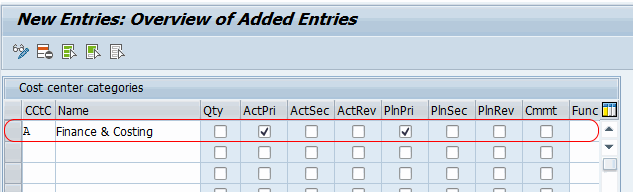
Click on the save button, choose the customizing request, and save the configured details.
Successfully we have created new cost center categories in SAP system.
Important fields while defining cost center category in SAP
While creating or changing a cost center category, maintain only those options that are required for the category. The settings should match how the cost center is expected to be used in accounting and planning.
| Field | Use in SAP cost center category |
|---|---|
| CCtC | One-character key for the cost center category. |
| Name | Description of the category, such as Production, Sales, Administration, or Finance. |
| Qty | Used when quantity-based planning or posting is relevant for the cost center category. |
| ActRev | Used when actual revenue posting is allowed for cost centers assigned to this category. |
| PlnRev | Used when revenue planning is required for the cost center category. |
| Cmmt | Used when commitments are relevant for cost centers in this category. |
Do not select every option by default. For example, a sales-related cost center may need revenue-related settings, while a pure administration cost center may not need quantity planning or revenue planning. The correct settings depend on the controlling process followed by the organization.
Cost center category assignment in cost center master data
Defining a cost center category in OKA2 only creates the category in customizing. To use it, the category must be assigned in the cost center master record. When creating or changing a cost center, select the appropriate category based on the department or function represented by the cost center.
For example, a production department cost center can be assigned to the Production category, while an HR department cost center can be assigned to the Management or HR-related category. This assignment helps users analyse costs by type of responsibility center and improves consistency in cost center reporting.
Checking postings and reports after cost center category setup
After assigning cost center categories, postings and reports can be reviewed in SAP CO. For line item analysis, many SAP users use KSB1 to display cost center actual line items. For cost center reporting, S_ALR_87013611 is commonly used to display cost centers with actual, plan, and variance values, depending on the system configuration and report selection.
These reporting transactions do not create cost center categories. They are used after master data and postings exist. OKA2 is the customizing transaction used for defining the cost center category itself.
Common mistakes in SAP cost center category configuration
- Creating too many categories: Use a new cost center category only when it gives a clear reporting or planning benefit.
- Changing category after postings: Avoid category changes after transactions are posted to the cost center.
- Using unclear one-character keys: Choose keys that are easy for users and consultants to understand.
- Selecting unnecessary planning options: Enable quantity, revenue, or commitment settings only when the business process needs them.
- Ignoring naming consistency: Keep category descriptions aligned with the organization’s cost center naming structure.
FAQ on define cost center categories in SAP
How to create a cost center category in SAP?
Use transaction code OKA2 or follow the IMG path Controlling > Cost Center Accounting > Master Data > Cost centers > Define cost center categories. Choose New Entries, enter the one-character category key, maintain the description and required indicators, then save the entry in a customizing request.
What is the difference between cost center and cost center category in SAP?
A cost center is the organizational unit where costs are collected. A cost center category is the classification assigned to that cost center. For example, Finance Department may be a cost center, while Finance & Costing may be its cost center category.
Can we change cost center category after postings in SAP?
In general, you should not change the category after postings are made to the cost center. Changing it later can create inconsistency in planning, reporting, and analysis. If a change is unavoidable, review the impact with the SAP CO consultant or project lead before updating master data.
What is SAP transaction code S_ALR_87013611 used for?
S_ALR_87013611 is used for cost center reporting, commonly to analyse cost centers with actual, plan, and variance values. It is a reporting transaction and is different from OKA2, which is used to define cost center categories.
What is KSB1 used for in SAP CO?
KSB1 is used to display actual cost line items for cost centers. It helps users analyse detailed postings after transactions have been recorded against cost centers.
Editorial QA checklist for SAP cost center category tutorial
- Confirm that OKA2 is shown as the transaction for defining cost center categories.
- Check that the IMG path matches the SAP Controlling menu shown in the screenshots.
- Ensure the category key is described as a single-character cost center category key.
- Verify that reporting transactions such as KSB1 and S_ALR_87013611 are not confused with configuration transaction OKA2.
- Review whether the selected Qty, ActRev, PlnRev, and Cmmt indicators match the client’s controlling requirements before saving the customizing request.