 TutorialKart.com
How to convert a Lead in Dynamics 365?
In this Microsoft Dynamics 365 tutorial, we are going to learn about how to convert a Lead in Dynamics 365 to a qualified lead or to a disqualified lead.
In Dynamics 365 Sales, a lead is usually the first sales record for a person or company that may buy from your business. When the lead has enough information and meets your qualification rules, you can qualify it. Qualifying a lead closes the lead record and creates, or connects to, sales records such as an account, contact, and opportunity. If the lead is not worth pursuing, you can disqualify it and keep the closed record for reporting and audit history.
The exact command names and screen layout can vary slightly depending on whether your organization uses Sales Hub, a customized sales app, or older Dynamics 365 navigation. The lead conversion idea is the same: open the lead, review the qualification details, then choose Qualify or Disqualify from the command bar.
When should a Dynamics 365 lead be converted to an opportunity?
A Dynamics 365 lead should be converted when it is no longer just an unverified inquiry. Many sales teams qualify a lead only after the salesperson confirms basic fit, contact details, buying interest, expected need, and next action. Your organization may also require checks such as budget validation, credit review, territory assignment, or product interest before a lead becomes an opportunity.
Lead conversion should not be used only to clean up the lead list. If the lead is not ready but may become active later, update the lead and schedule a follow-up activity. If the lead is invalid, unreachable, duplicated, or not interested, use the disqualification process instead of qualifying it.
How to convert a lead to Qualified?
- To convert a lead, Navigate to Dynamics 365 | Sales | Leads (Select your lead) | Click on Qualify.
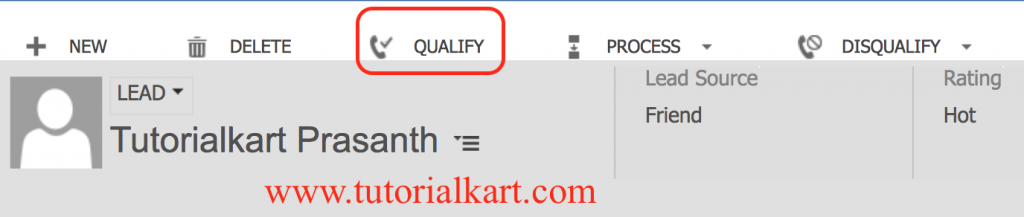
- Now go to your Leads the Status will be changed to Qualified as shown below.

To convert a lead, select the Qualify or Disqualify option from the navigation bar. When you select Qualify, the Duplicate Warning dialog may open if triggered by your business process flow and the lead is converted to an opportunity.
In the modern Dynamics 365 Sales interface, you can also qualify a lead from Sales Hub > Leads. Open the required lead record, check the business process flow stage, confirm the required fields, and select Qualify on the command bar. If duplicate detection is enabled, review the duplicate warning before continuing so that you do not create unnecessary account or contact records.
What records are created when a Dynamics 365 lead is qualified?
Lead conversion in Microsoft Dynamics CRM enables you to quickly create the necessary customer records in Microsoft Dynamics365 by automatically creating an account, a contact, or an opportunity from the existing information on the lead.
- Account: created or linked when the lead represents a company or organization.
- Contact: created or linked when the lead contains a person who can be contacted.
- Opportunity: created when the lead has a sales possibility that should be tracked through the sales pipeline.
The values copied from the lead depend on your fields, mappings, lead source data, and any custom automation configured by your administrator. Some organizations customize the qualification process so that only selected records are created or so that users must choose an existing account or contact before the lead becomes an opportunity.
- When a lead is converted (either qualified or disqualified), the original lead record status is changed to indicate the new status of the lead, and the lead is closed. When a lead is closed, no further edits can be made to it unless it is reactivated.
How to disqualify a Dynamics 365 lead that should not become an opportunity
Not every lead should become an opportunity. To close a lead without converting it, open the lead record and choose Disqualify. Select the most accurate reason, such as cannot contact, no longer interested, lost, canceled, or any custom reason used by your organization. This keeps the lead out of the active lead list while still preserving the history for reports and future review.
Use disqualification when the lead has clearly failed your sales qualification rules. For example, a lead may have an invalid phone number, may not match the products you sell, may already be handled through another record, or may have confirmed that they are not interested. Choosing a clear disqualification reason helps managers understand why leads are dropping out before the opportunity stage.
Lead qualification checklist before clicking Qualify in Dynamics 365
- Confirm that the lead has a valid name, company, email address, phone number, or another contact method required by your sales process.
- Check whether the lead is a duplicate of an existing lead, contact, account, or opportunity.
- Review the lead source, campaign, topic, product interest, owner, and territory before conversion.
- Complete any required business process flow fields so the qualification command can run without errors.
- Decide whether the lead should create a new account/contact or connect to existing customer records.
- Add notes or activities that explain why the lead was qualified or disqualified.
Reactivating and Viewing Closed Leads
You can reactivate any closed lead by opening the closed lead and selecting Reactivate Lead from the navigation bar. Any activities remain with the lead, regardless of whether it is active or deactivated.
You can view closed leads and their conversion status from the leads interface by selecting Closed Leads. You can reactivate any lead by opening it and selecting Reactivate Lead from the navigation menu, as explained earlier. Closed leads can be an important auditing tool for an organization because they can be analyzed to get a look at the effectiveness of your sales team and to determine which campaigns created how many leads.
After reactivation, review the lead carefully before qualifying it again. Reactivating a lead does not mean that the related opportunity, account, or contact should automatically be changed. If related records were already created, check them first so that the same prospect is not tracked in multiple places.
Common problems when converting leads in Dynamics 365 Sales
| Problem | What to check |
|---|---|
| Qualify button is not visible | Check the lead status, security role, app command bar customizations, and whether the record is already closed. |
| Duplicate warning appears | Review the matching records and choose whether to continue, cancel, or use an existing account/contact. |
| Opportunity is not created as expected | Check your lead qualification settings, custom plugins, Power Automate flows, business rules, and required fields. |
| Lead cannot be edited after conversion | This is expected for closed leads. Reactivate the lead only when you need to update or reprocess it. |
| Wrong owner or territory after qualification | Review lead ownership, assignment rules, record routing, and any automation that runs during qualification. |
Difference between qualified and disqualified leads in Dynamics 365
| Lead result | Meaning in Dynamics 365 | Typical next step |
|---|---|---|
| Qualified lead | The lead has met your sales qualification criteria and is closed as qualified. | Work the related opportunity and maintain the account/contact details. |
| Disqualified lead | The lead should not move forward in the active sales process. | Use the disqualification reason for reporting, cleanup, and future analysis. |
| Reactivated lead | A previously closed lead has been opened again for review or correction. | Update the lead, then qualify or disqualify it again if needed. |
FAQs on converting leads in Dynamics 365
How do I turn a lead into an opportunity in Dynamics 365?
Open the lead record from the Leads area and select Qualify. Dynamics 365 closes the lead as qualified and creates or connects the related sales records, including the opportunity, based on your organization’s lead qualification setup.
What is the difference between qualifying and converting a lead in Dynamics 365?
In Dynamics 365 Sales, qualifying is the action used to convert a lead into the next sales records. In everyday language, users often say “convert a lead” when they mean “qualify a lead.”
Can I convert a lead without creating a new account in Dynamics 365?
It depends on your system configuration and the data selected during qualification. Many implementations allow the lead to be linked to an existing account or contact instead of creating unnecessary duplicates.
Can a disqualified lead be converted later?
Yes. A closed lead can be reactivated, reviewed, and then qualified if it later meets your sales rules. Before doing this, check whether related records already exist so that you do not create duplicates.
Why is the Qualify command missing on a Dynamics 365 lead?
The lead may already be closed, your role may not have the required permissions, the command bar may be customized, or required process conditions may not be met. Ask your Dynamics 365 administrator to review security roles, lead status, and app customizations.