 TutorialKart.com
What is an Opportunity in Dynamics 365?
Opportunities in Microsoft Dynamics 365 provide insight into potential upcoming sales and, when used in conjunction with the Sales Pipeline report can be used to forecast revenue by date, probability, and potential revenue.
Opportunities are closely to quotes, orders, and invoices because they use the base information found on the originating opportunity when they are being created. In addition, opportunities are commonly created from leads and contain the base information from the originating lead.
Opportunities are created when “an opportunity” to make a sale is found for an existing customer. Although opportunities do not require the existence of a customer record, you can easily create a new account or contact record to associate with an opportunity if the customer is new. By doing this, however, you skip the step of creating leads and then converting them to customers and opportunities. This might be how your business works. Perhaps your sales cycle is very quick, and leads are not something that you cultivate. However, if you generally have potential customers, consider using leads to qualify them and then using opportunities to build potential sales around them.
In practical sales work, an opportunity is used after there is a real sales possibility to track. A lead usually represents an unqualified person or company. An opportunity represents a qualified deal that can be managed through stages, estimated revenue, close date, products, stakeholders, activities, quotes, and orders.
Lead vs opportunity in Dynamics 365 Sales
The difference between a lead and an opportunity in Dynamics 365 is important because both records serve different purposes in the sales process. Use a lead when the prospect still needs qualification. Use an opportunity when the sales team has enough information to work a possible deal.
| Record | Use it when | Typical next step |
|---|---|---|
| Lead | You have an inquiry, campaign response, website form submission, or unverified prospect. | Qualify, disqualify, or continue nurturing the lead. |
| Opportunity | You have a potential sale that should be tracked in the pipeline. | Work the opportunity through sales stages, add products, create quotes, and close it as won or lost. |
| Account or Contact | You know the company or person involved in the sales relationship. | Link the customer record to the opportunity and maintain customer history. |
If your organization uses a lead qualification process, the opportunity is usually created by qualifying a lead. If your sales team already knows the customer and the deal, you can create the opportunity directly from the Opportunities area, from an account, or from a contact.
How to create new Opportunity in Dynamics 365?
To create new Opportunity in Microsoft Dynamics 365, navigate to Dynamics 365 | Sales | Opportunities | New.
- Click on New to create opportunity.
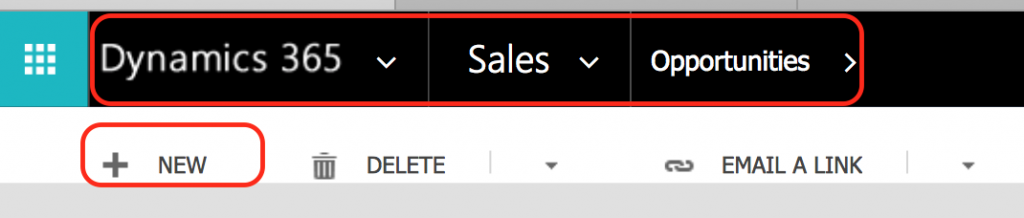
In the modern Dynamics 365 Sales Hub, the path is usually Sales Hub > Opportunities > New. The screen may look different if your administrator has customized the app, form, command bar, or business process flow. The basic action is the same: open the Opportunities table, select New, enter the required sales details, and save the record.
When creating Opportunity in Microsoft Dynamics 365, Topic, Account and Currency fields are required.
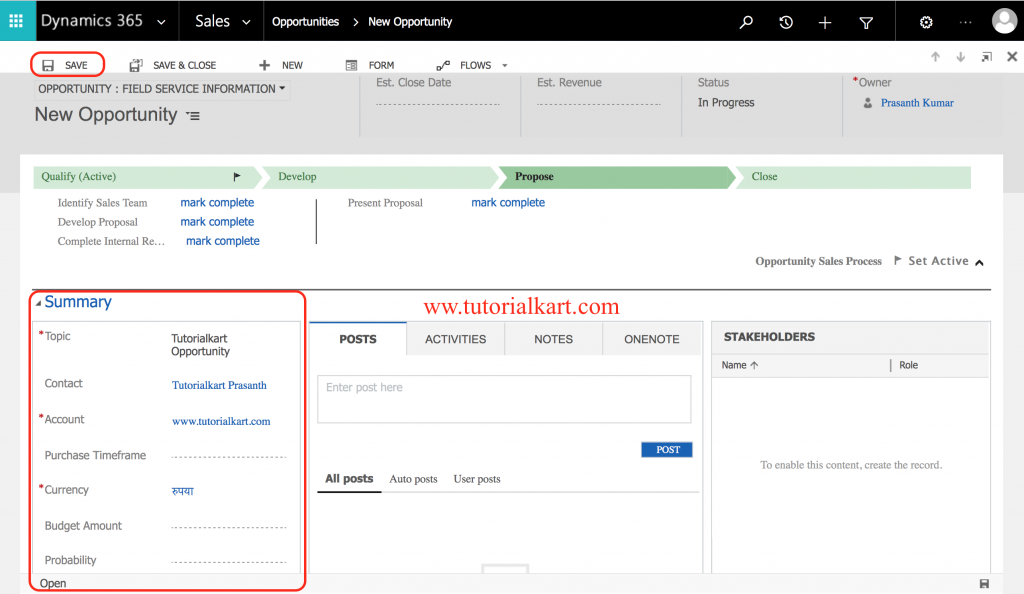
- Click on Save button to Save Opportunity.
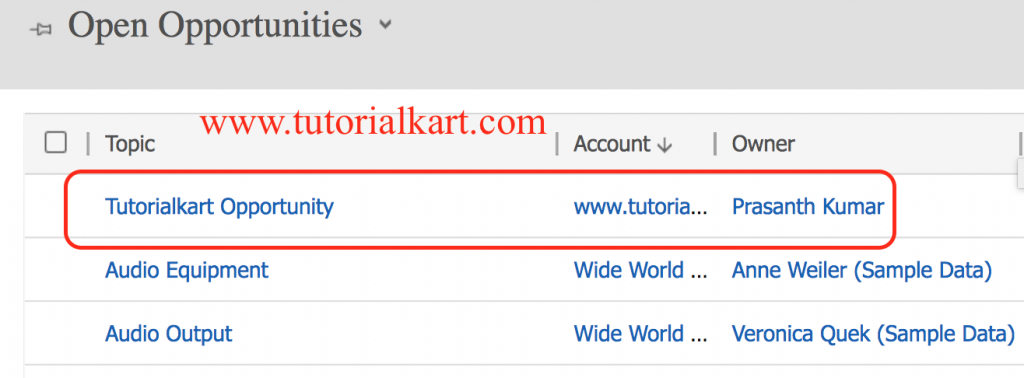
Important fields on a new Dynamics 365 opportunity
The exact required fields depend on your Dynamics 365 configuration, but most opportunity forms include a small set of fields that sales users should complete carefully. These fields affect pipeline reports, forecasts, ownership, and later records such as quotes and orders.
| Opportunity field | What to enter | Why it matters |
|---|---|---|
| Topic | A short name for the possible sale, such as product name, project name, or customer requirement. | Helps users identify the opportunity in views, reports, and activities. |
| Account or Potential Customer | The customer organization or person linked to the deal. | Connects the opportunity with customer history and later sales documents. |
| Currency | The currency used for revenue and product pricing. | Keeps estimated revenue and pipeline values consistent. |
| Estimated Revenue | The expected value of the opportunity, if known. | Supports pipeline forecasting and sales analysis. |
| Estimated Close Date | The likely date by which the deal may close. | Helps forecast revenue by period and prioritize follow-up. |
| Owner | The salesperson or team responsible for the opportunity. | Controls responsibility, visibility, and sales accountability. |
Do not create an opportunity with only the minimum fields unless your process allows it. A vague opportunity record may appear in the pipeline, but it will not help with forecasting, follow-up, or quote creation. Add enough detail for another sales user or manager to understand the deal without asking for the full background.
Creating a Dynamics 365 opportunity from an existing lead, account, or contact
You do not always have to create an opportunity from the Opportunities list. Dynamics 365 Sales supports different entry points depending on where the sales conversation starts.
- From a lead: qualify the lead when it meets your sales qualification rules. Dynamics 365 can create the related opportunity and carry forward useful lead details.
- From an account: open the customer account and create a new related opportunity when the possible sale belongs to an existing company.
- From a contact: open the contact and create a related opportunity when the deal is tied to a specific person.
- Directly from Opportunities: use this when the deal is already known and does not need a lead qualification step.
For clean data, avoid creating a direct opportunity if there is already an active lead for the same prospect and same requirement. First check whether the lead should be qualified, updated, or disqualified. This prevents duplicate pipeline records and makes reporting easier.
Opportunity sales process stages in Dynamics 365
After an opportunity is saved, sales users normally work it through the opportunity business process flow. A common process includes stages such as qualify, develop, propose, and close. Your organization may rename, add, or remove stages depending on the sales method used.
- Qualify: confirm that the opportunity is worth pursuing and has the correct customer details.
- Develop: understand the requirement, stakeholders, budget, timeline, and decision process.
- Propose: prepare the offer, add products, create quotes, and handle customer questions.
- Close: mark the opportunity as won or lost and record the outcome for reporting.
The business process flow is not just a visual guide. It can also remind users to complete key fields before moving to the next stage. If a field is required by your process, complete it before trying to advance the opportunity.
Opportunity creation checklist for Dynamics 365 sales users
- Check whether the opportunity should come from a qualified lead instead of being created manually.
- Search for existing accounts, contacts, leads, and opportunities before creating a new record.
- Use a clear opportunity topic that describes the customer and sales requirement.
- Confirm the correct account, contact, owner, currency, estimated revenue, and estimated close date.
- Add notes, tasks, phone calls, or appointments that explain the next sales action.
- Update the opportunity stage only when the required sales information is available.
- Review related products and price list settings before creating a quote from the opportunity.
Common issues when creating an opportunity in Dynamics 365
| Issue | Likely reason | What to check |
|---|---|---|
| New button is missing | The user may not have create permission for opportunities. | Ask an administrator to review the security role and app access. |
| Required field error appears | A required field on the opportunity form or business process flow is empty. | Complete fields such as Topic, Account or Potential Customer, Currency, and any custom required fields. |
| Wrong currency is shown | The selected customer, price list, or default user settings may influence currency. | Confirm currency before adding products or creating quotes. |
| Duplicate opportunity is created | The same deal may already exist under another lead, account, or owner. | Search existing records and review duplicate detection warnings. |
| Opportunity does not appear in pipeline reports | Report filters may exclude the owner, date, status, stage, or business unit. | Check opportunity owner, status, estimated close date, and report filter criteria. |
FAQs on creating opportunities in Dynamics 365
What is an opportunity in Dynamics 365?
An opportunity in Dynamics 365 is a sales record used to track a possible deal. It stores customer details, estimated revenue, expected close date, sales stage, activities, products, quotes, and the final won or lost outcome.
What comes first in Dynamics 365, lead or opportunity?
In a typical sales process, the lead comes first. After the lead is qualified, an opportunity is created. However, some teams create opportunities directly when the customer and deal are already known.
Can I create a Dynamics 365 opportunity without a lead?
Yes. You can create an opportunity directly from the Opportunities area or from an existing account or contact. This is useful when the sales possibility is already qualified and does not need a separate lead record.
Which fields are required when creating an opportunity in Dynamics 365?
Common required fields include Topic, Account or Potential Customer, and Currency. Your organization may add more required fields through form customization, business rules, or the opportunity business process flow.
Can an opportunity be converted into a quote in Dynamics 365?
Yes. After the opportunity has enough sales and product information, users can create a quote from it. The quote can then be used in the later sales process, depending on how your Dynamics 365 environment is configured.
Conclusion
In this Microsoft Dynamics 365 tutorial, we have learned how to create new Opportunity in Dynamics 365 and in our next upcoming Dynamics 365 tutorial, we will learn how to add product to an opportunity.
A good opportunity record should clearly show the customer, sales requirement, expected value, close date, owner, and next action. Before creating a new opportunity, check whether it should be created from a qualified lead or linked to an existing account or contact. This keeps the Dynamics 365 sales pipeline easier to manage and report on.