 TutorialKart.com
What are Web Resources in Dynamics 365?
Web Resources in Dynamics 365 are files stored inside the Dynamics 365 / Dataverse database and used to extend model-driven apps. They can be JavaScript files, HTML pages, CSS files, images, XML files, XSL files, and other supported file types. After a web resource is added to a solution, it can be referenced by name from forms, command buttons, dashboards, site map areas, or other custom components.
For example, a JavaScript web resource can validate fields on a form, an image web resource can be used as an icon, and an HTML web resource can display a custom page inside Dynamics 365. Web resources run within the Dynamics 365 web application security context, so they should be designed for client-side customization and should not be used as a replacement for server-side business logic.
Supported Dynamics 365 Web Resource File Types
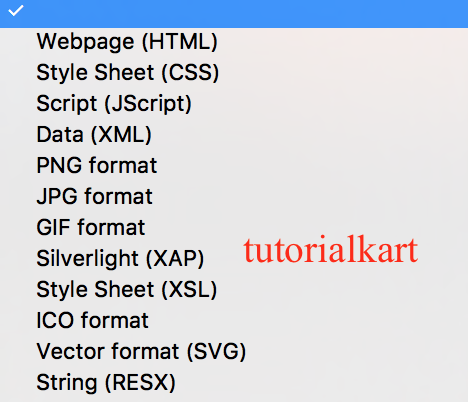
Dynamics 365 web resources are limited to specific file extensions. The commonly used file types are listed below.
| File Type | File name extension |
| Webpage (HTML) | .htm, .html |
| Style Sheet(CSS) | .css |
| Script(Jscript, JavaScript) | .js |
| Data (XML) | .xml |
| Image (PNG, JPG, GIF) | .png, .jpg, .gif. |
| Silverlight (XAP) | .xap |
| StyleSheet(XSL) | .xsl, .xslt |
| Image (ICO) | .ico |
In current Dynamics 365 and Power Apps projects, JavaScript, HTML, CSS, image, and XML web resources are the most common. Silverlight web resources are legacy and should not be chosen for new customizations.
Where Dynamics 365 Web Resources Are Used
Web resources are mainly used when a model-driven app needs client-side behavior or reusable static files. Typical uses include:
- Form scripting: JavaScript files that run on form load, field change, or save events.
- Custom HTML pages: HTML web resources shown in forms, dashboards, or app navigation.
- Images and icons: PNG, JPG, GIF, or ICO files used in buttons, custom pages, or other UI elements.
- Styling for HTML web resources: CSS files used by custom HTML pages.
- Data or transformation files: XML, XSL, and XSLT files used by custom client-side components.
How to Create a Web Resource in Dynamics 365 Classic Solution Explorer
The screenshots below show the classic customization area. This path is still useful for understanding older Dynamics 365 environments and many on-premises or legacy tutorials. In modern model-driven apps, the same concept is handled through solutions in Power Apps maker portal.
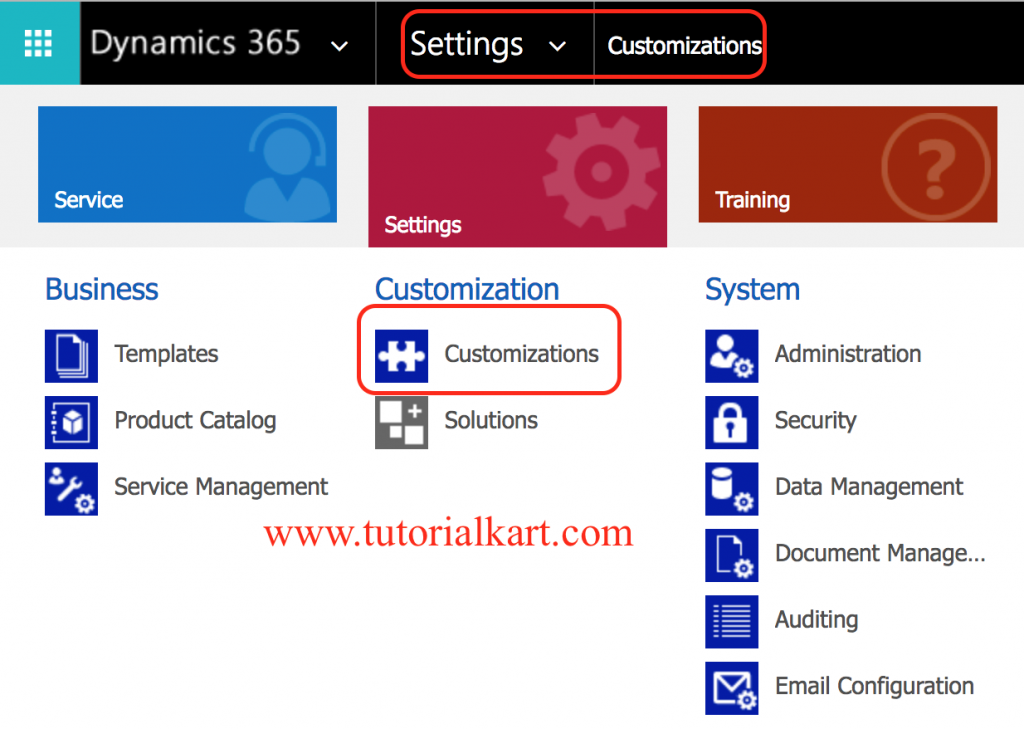
To create Web Resource in Dynamics 365, navigate to Settings | Customizations | Customize the System.
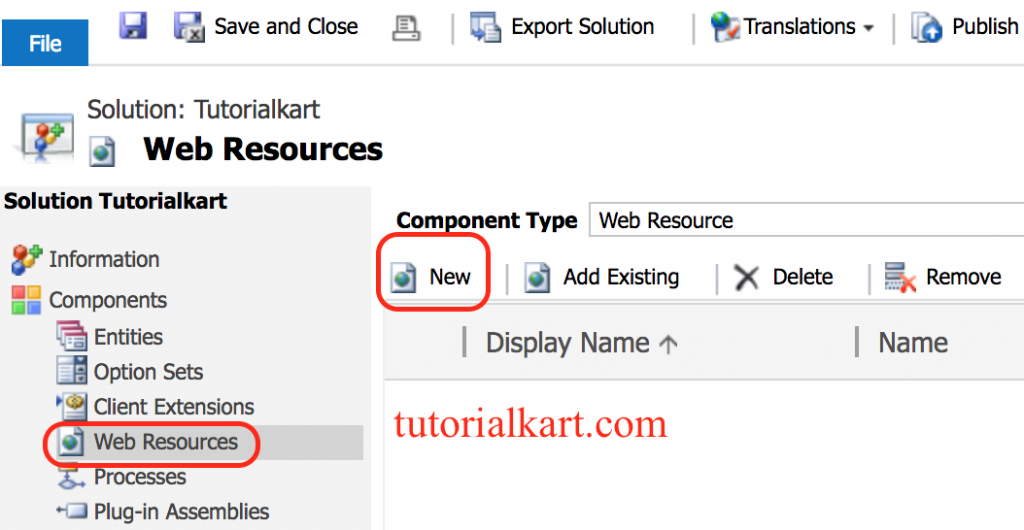
- Now go to Components | Web Resources | Click on New button as shown below.
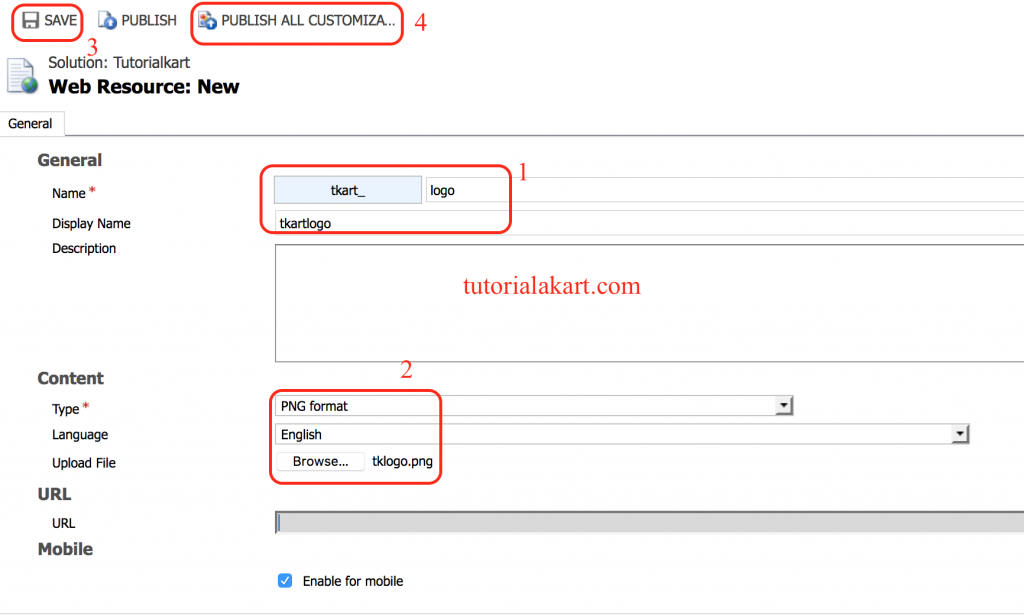
- Enter Name, Display Name, Description, Type, Language in the Web Resource form.
- Now select the image file and click on upload button. After making changes, choose Save button and finally click on Publish button.
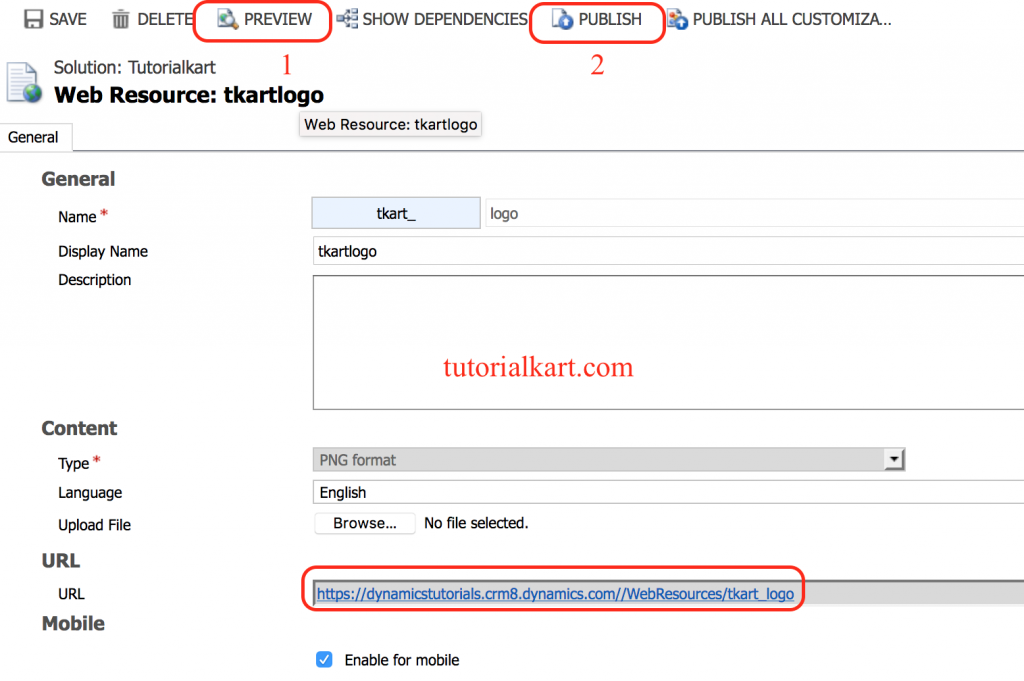
In this example, we have uploaded Image type (PNG) to Dynamics 365 database. Web resources represent files that can be used to extend the Dynamics 365 web application such as html files, JavaScript, and CSS, and several image formats.
How to Add a Dynamics 365 Web Resource in a Solution
For a managed development process, create web resources inside a solution rather than directly in the default customization area. This keeps JavaScript files, images, and HTML pages easier to export, import, and deploy between development, test, and production environments.
- Open the solution that should contain the customization.
- Add or create a new web resource.
- Choose the correct resource type, such as Script (JavaScript), Webpage (HTML), Style Sheet (CSS), or Image (PNG/JPG/GIF/ICO).
- Upload the file and enter a clear display name and description.
- Save the web resource.
- Publish the customization so that users can access the latest version.
Dynamics 365 Web Resource Naming and Publishing Tips
A web resource is referenced by its name, so naming should be planned carefully. A common approach is to use a publisher prefix and a folder-like naming pattern.
| Web resource purpose | Example name |
| Account form JavaScript | new_/scripts/accountForm.js |
| Reusable contact validation script | new_/scripts/contactValidation.js |
| HTML help panel | new_/html/accountHelp.html |
| CSS used by HTML web resource | new_/css/customPanel.css |
| Image used as an icon | new_/images/customerIcon.png |
After uploading or editing a web resource, always save and publish it. If the latest JavaScript or image does not appear immediately, clear the browser cache or reload the app in a new session because client-side resources may be cached.
Example JavaScript Web Resource for a Dynamics 365 Form
The following example shows a simple JavaScript web resource function that checks a form field value. The function can be registered on a form event such as OnLoad, OnChange, or OnSave.
function validateAccountName(executionContext) {
    var formContext = executionContext.getFormContext();
    var accountName = formContext.getAttribute("name").getValue();

    if (!accountName) {
        formContext.ui.setFormNotification(
            "Account Name is required before saving this record.",
            "ERROR",
            "account_name_required"
        );
    } else {
        formContext.ui.clearFormNotification("account_name_required");
    }
}
When registering JavaScript in Dynamics 365, pass the execution context to the function. This allows the script to work with the current form context instead of depending on deprecated global form references.
Using Dynamics 365 Web API Calls in a JavaScript Web Resource
JavaScript web resources can call the Dynamics 365 Web API for supported client-side operations. The example below retrieves an account record by ID. In real projects, handle errors clearly and check security roles, field-level security, and record access before assuming data will be available to every user.
function loadAccountDetails(accountId) {
    Xrm.WebApi.retrieveRecord("account", accountId, "?$select=name,accountnumber")
        .then(function (result) {
            console.log("Account Name: " + result.name);
            console.log("Account Number: " + result.accountnumber);
        })
        .catch(function (error) {
            console.log(error.message);
        });
}
Use Web API calls carefully in form scripts. Keep the script focused, avoid unnecessary calls on every field change, and prefer asynchronous code so that the form remains responsive.
How to Increase Web Resource and Email File Size in Dynamics 365
By default, the limit size of web resource, email attachment and note attachment file size in Microsoft Dynamics 365 is 5MB (5,120kB). And the problem will arise when we want to upload a file of more than 5MB size. Therefore we have to Increase Web Resource and Email file size in Dynamics 365. Follow the steps given below.
- Navigate to Settings | Administration | System Settings.
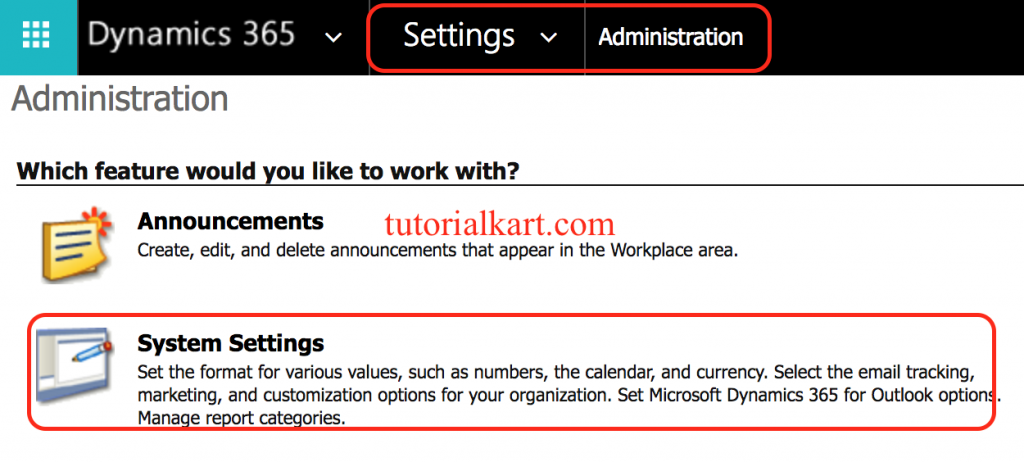
- Now go to Email tab and browse to Set file limit for attachments. We can increase file size limit upto 32 MB.
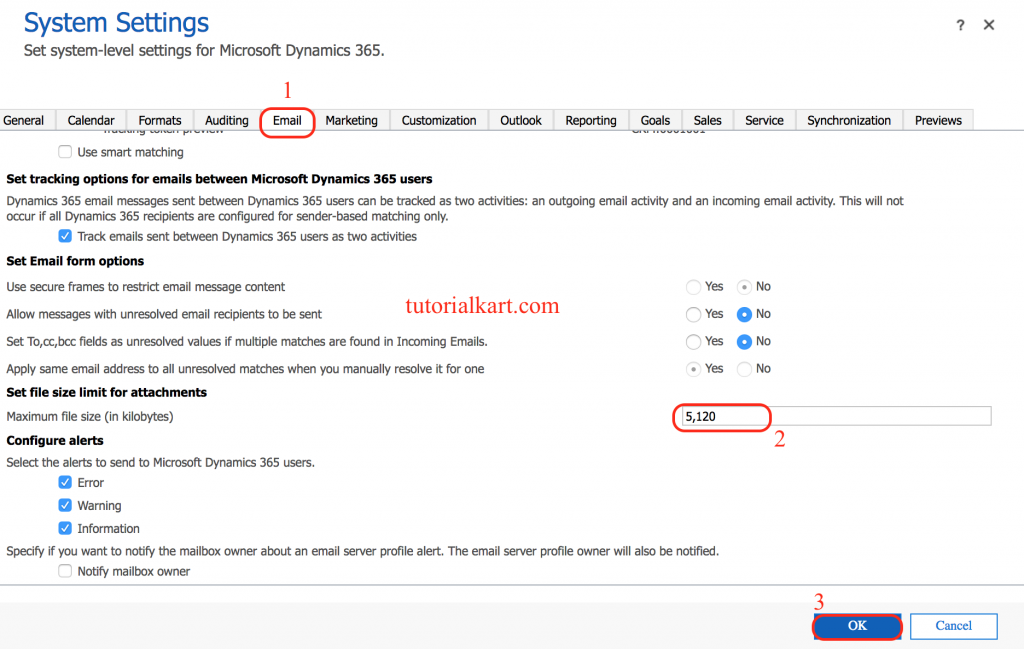
- Click on Ok button after making changes.
Keep web resources as small as practical even when the environment allows a larger upload. Large JavaScript, HTML, or image files can slow down form loading and may make troubleshooting harder.
Common Issues While Working with Dynamics 365 Web Resources
| Issue | Likely cause | What to check |
| JavaScript function does not run | Function not registered correctly on the form event | Check the library name, function name, event registration, and execution context option. |
| Old script still appears after upload | Browser or app cache | Publish the web resource, clear cache, and reload the app. |
| Image web resource is not displayed | Wrong file type, name, or reference path | Confirm the file extension, resource name, and published status. |
| Web API call fails | Permission, wrong table name, wrong record ID, or query issue | Check user security, table logical name, selected columns, and browser console error. |
| HTML web resource layout looks broken | Missing CSS reference or unsupported assumptions about page size | Check CSS links, responsive layout, and whether the page is opened inside a form or standalone window. |
Dynamics 365 Web Resources FAQ
What is an example of a web resource in Dynamics 365?
An example of a web resource in Dynamics 365 is a JavaScript file used on the Account form to validate fields or show notifications. Another common example is a PNG image uploaded as an icon for a custom button or page.
What is meant by web resources in Dynamics 365?
Web resources are supported static files stored in Dynamics 365 / Dataverse and made available to model-driven apps. They help developers add client-side scripts, custom HTML pages, styles, and images without storing those files on a separate web server.
Can JavaScript web resources call the Dynamics 365 Web API?
Yes. JavaScript web resources can use supported client APIs such as Xrm.WebApi to retrieve, create, update, or delete Dataverse records, subject to the current user’s permissions and the rules of the model-driven app.
Do Dynamics 365 web resources need to be published?
Yes. After creating or updating a web resource, publish the customization. Until publishing is completed, users may continue to see the previous version or may not see the new resource at all.
Should a Dynamics 365 web resource be added to a solution?
Yes, web resources should be added to a solution for most development work. This makes it easier to move customizations between environments and to keep related scripts, images, and HTML files together.
Editorial QA Checklist for Dynamics 365 Web Resource Tutorials
- Confirm that the tutorial explains web resources as files stored in Dynamics 365 / Dataverse, not as external website files.
- Check that supported file types are listed accurately and that legacy options such as Silverlight are not recommended for new work.
- Verify that JavaScript examples use execution context and form context instead of deprecated form scripting patterns.
- Make sure the tutorial tells users to save and publish the web resource after upload or update.
- Check that any file size guidance is tied to the Dynamics 365 environment settings and does not encourage unnecessarily large client-side files.