 TutorialKart.com
What is Solution Package in Microsoft Dynamics CRM?
A solution package in Microsoft Dynamics CRM, now commonly discussed in Dynamics 365 Customer Engagement and Microsoft Dataverse, is a container used to group customizations and components so they can be exported from one environment and imported into another. It is used to move configuration, user interface changes, processes, security items, web resources, and other supported components in a controlled way.
Solution package in Microsoft Dynamics CRM is a container of all customizations and components, which allows users to export customisations and reimport them into other environments. It extends the core functionality of the platform through grouped sets of features. Solutions in Dynamics CRM are one of the most important concepts for administrators, customizers, and developers because most application changes should be packaged and transported through solutions instead of being recreated manually.
- Solutions that contain only Dynamics CRM-specific configuration or features can be imported directly into Dynamics CRM using the default solution management framework and the interface provided.
- Complex solutions that contain both Dynamics CRM solution components and external components may need additional deployment steps outside the normal solution import process.
For official reference, Microsoft describes solutions as the mechanism used to package and distribute extensions in Dynamics 365 Customer Engagement. You can also review the Microsoft Learn documentation on introduction to solutions and packaging and distributing extensions using solutions.
Why Solution Packages are Used in Microsoft Dynamics CRM
In a real Dynamics CRM project, changes are usually made in a development or sandbox environment first. After review and testing, those changes are moved to another environment such as test, UAT, training, or production. A solution package makes this movement easier because related components are grouped into one exportable ZIP file.
- Deployment: move customizations from development to test or production.
- Packaging: keep related entities, forms, views, processes, and web resources together.
- Version control planning: track changes by solution version, publisher, and package history.
- Distribution: share a completed set of customizations as a managed solution.
- Maintenance: update, patch, or remove packaged functionality more safely than manual changes.
Managed and Unmanaged Solutions in Dynamics 365 CRM
Customizers and developers use solutions to author, package, and maintain units of software that extend the functionality of Microsoft Dynamics 365. Solutions are of two main types: managed solutions and unmanaged solutions.
- A managed solution is a completed solution that is intended to be distributed and installed. It is normally used for production deployment or for distributing finished functionality.
- An unmanaged solution is one that is still under development or is not intended to be distributed. It is normally used in development environments where customizers need to continue editing components.
| Solution Type | Common Use | Typical Environment |
|---|---|---|
| Unmanaged Solution | Building and editing customizations | Development or sandbox |
| Managed Solution | Installing completed functionality | Test, UAT, or production |
| Default Solution | Viewing or editing all customizable components in an environment | Used carefully by administrators and customizers |
As a general practice, create and edit customizations in an unmanaged solution during development. Export the solution as managed when the changes are ready to be installed in another environment where direct editing is not expected.
Components of Solution Package
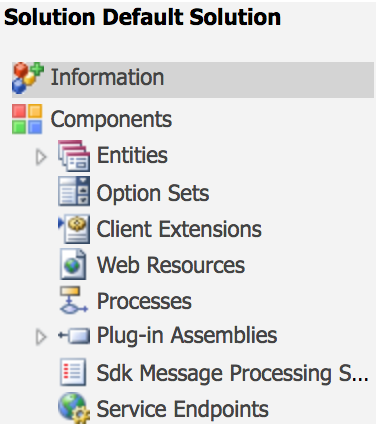
Solutions are comprised of a few core components. These components are created using the customization tools available or the APIs provided. A solution can include schema changes, user interface elements, analytics items, templates, security configuration, automation, and code-related components.
- Solution Schemes are definitions of system entities, attributes, and relationships. They also include definition of Global Option Sets.
- User Interface Elements are items such as the Application Ribbon, the Site Map, Entity Ribbons, the definition of Entity Forms as well as web resources.
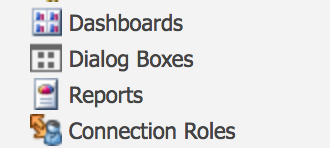
- Analytics elements include things such as Graphs, Dashboards, and Reports.
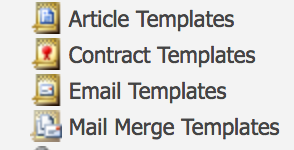
- Templates are definitions used for Mail-Merge, E-mails, Contracts, and Knowledge Base Articles.
- Security Model definitions include the various Security Roles as well as the definition of Field Level Security profiles.
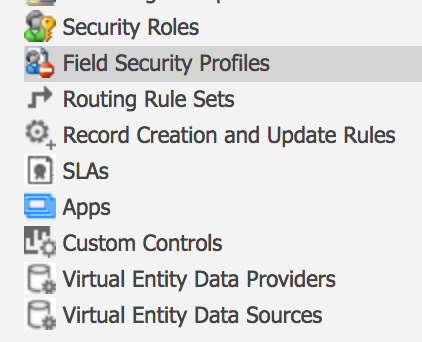
- Processes and Code elements include the definition of Processes as well as custom code elements. We will not cover custom code elements in this book, but we will have a look at the various Process types later on.
Common Dynamics CRM Solution Components to Check Before Export
Before exporting a solution package, review the components included in the solution. Missing components are a common reason for import errors or incomplete behavior in the target environment. For example, if a form uses a web resource, process, security role, or related table that is not present in the target environment, the solution may need those dependencies added.
- Tables or entities: fields, relationships, views, forms, charts, and business rules.
- App and navigation items: model-driven apps, sitemap changes, ribbons, and command elements.
- Automation: workflows, business process flows, cloud flows where applicable, and process-related configuration.
- Code and web resources: JavaScript, HTML, images, plug-ins, assemblies, and other supported extensions.
- Security: security roles, field security profiles, and related access configuration.
- Reports and dashboards: dashboards, charts, reports, and analytics-related assets.
How to Export Solution Components?
All these solution components Microsoft Dynamics CRM are available to be included in all solutions and can be exported as a ZIP file. Opening such a solution file shows XML files and supporting package content. Let us learn how to export solution components.
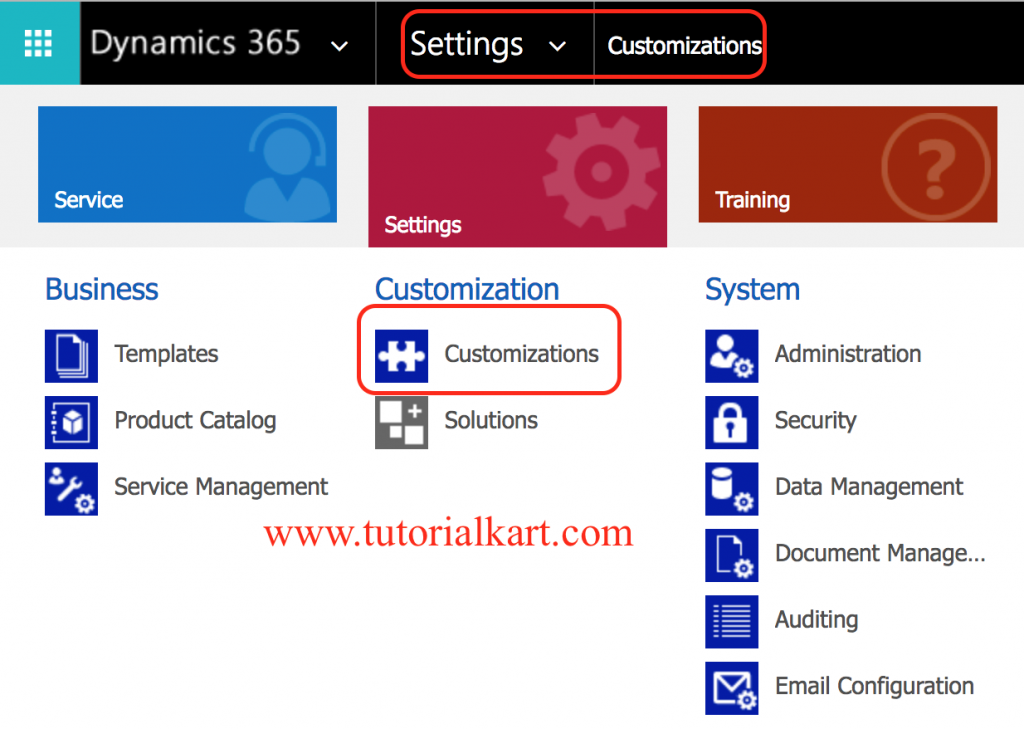
- Login to Microsoft Dynamics 365, and navigate to Settings | Customization.
- Now click on Customize the System as shown below.
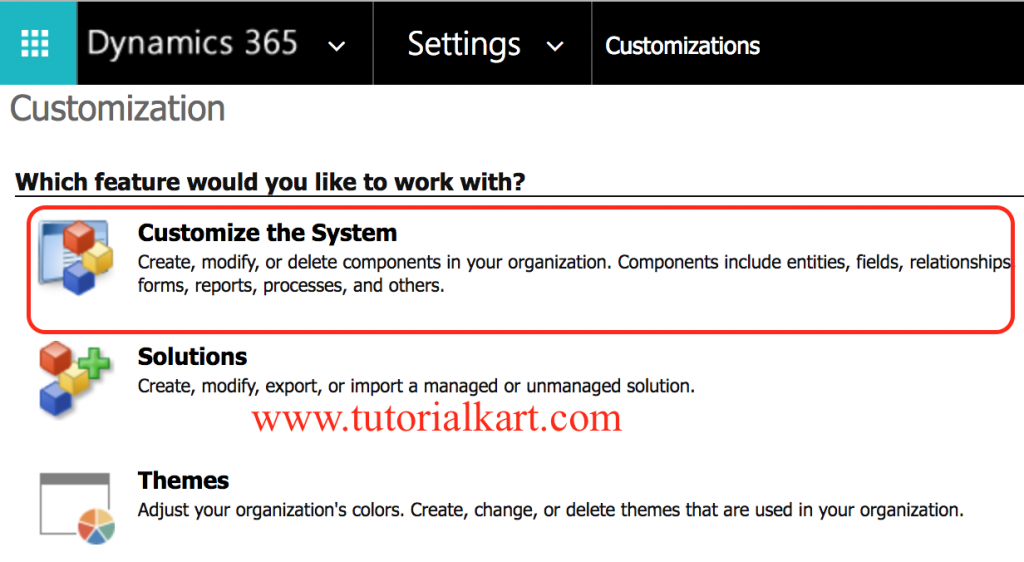
Before exporting solution components in Dynamics CRM, publish all customizations. If customizations are not published, recent changes may not be included in the exported solution package.
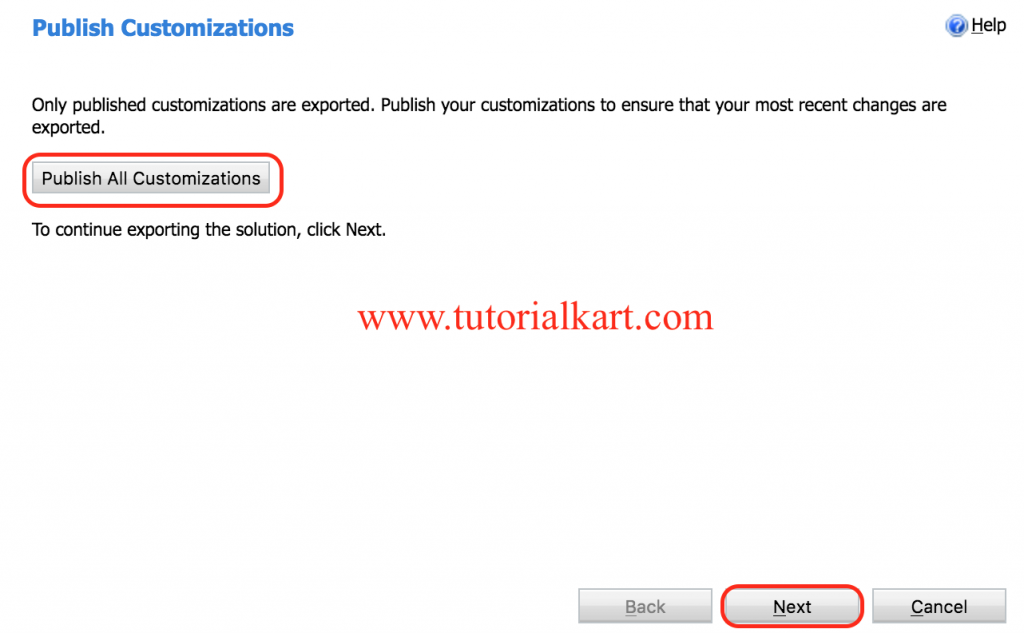
- Click on Publish all customizations as shown above.
- After publishing click on Next button.
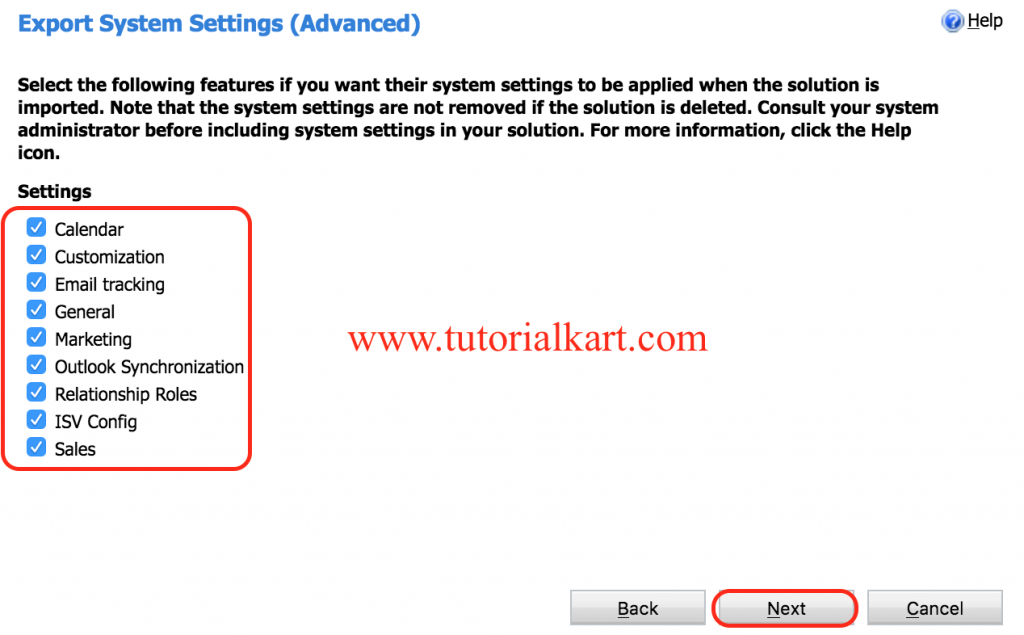
Now Zip file will be downloaded, opening such a solution files shows XML files.
What is Inside an Exported Dynamics CRM Solution ZIP File?
An exported solution is downloaded as a ZIP file. The exact contents can vary based on the Dynamics CRM or Dynamics 365 version and the components included, but solution packages commonly contain XML files that describe the solution, customizations, and relationships between packaged components.
- solution.xml: contains solution-level information such as name, version, publisher, and package details.
- customizations.xml: contains customization definitions for included components such as entities, attributes, forms, views, and other configuration items.
- [Content_Types].xml: describes content types used inside the package.
- Web resources or plug-in files: may be included when those components are part of the solution.
Do not edit the solution ZIP files manually unless you clearly understand the supported deployment process. In normal administration work, changes should be made inside Dynamics CRM or Dynamics 365 and then exported again.
How to create Custom Solution Package in Microsoft Dynamics CRM?
Customizers and developers use solutions to author, package, and maintain units of software that extend the functionality of Microsoft Dynamics 365. Solutions are of two types managed solutions and unmanaged solutions.
- A managed solution is a completed solution that is intended to be distributed and installed.
- An unmanaged solution is one that is still under development or is not intended to be distributed.
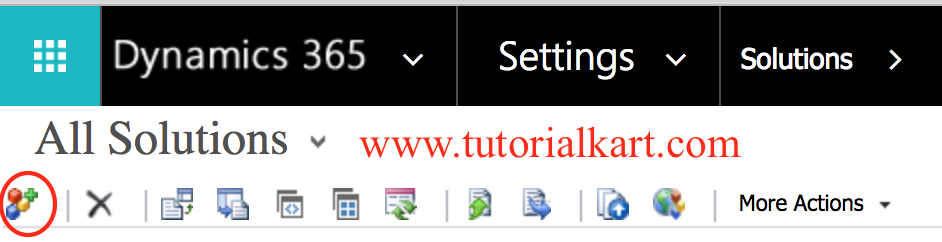
To create custom Solution package in Microsoft Dynamics CRM, make sure you must have system administrator permissions and navigate to Settings | Solutions.
- Now click on New icon + as shown below.
- Enter Solution Name, Display Name and select Publisher from the look up window, If you don’t have any publisher create new publisher.
- Enter version for the new solution.
- Click on Save button.
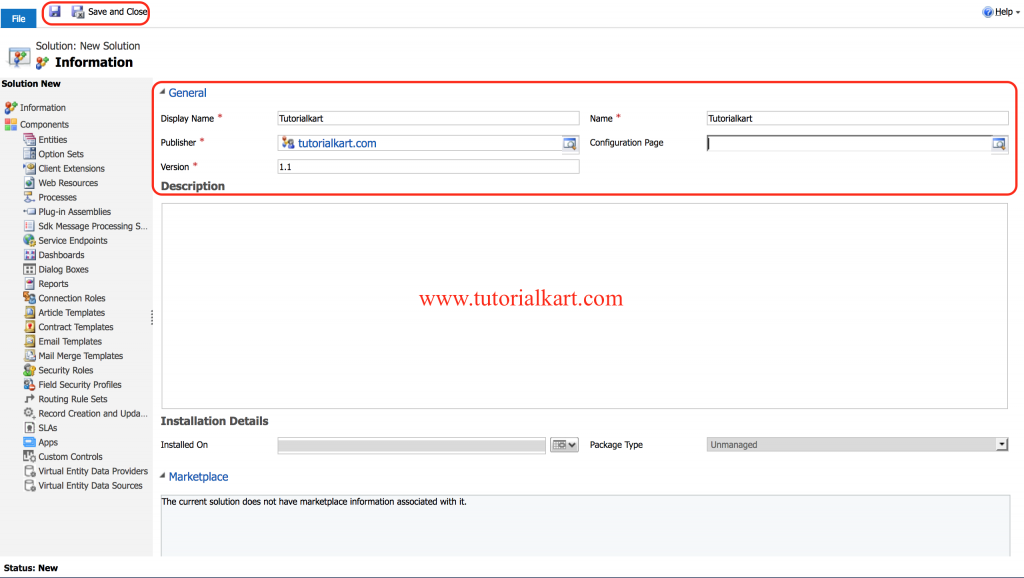
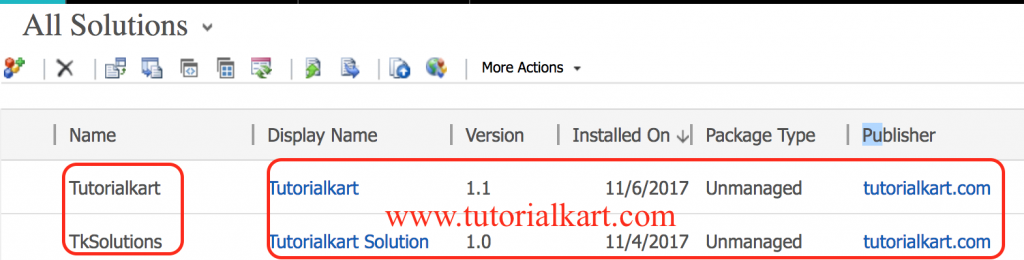
Now custom solution in Microsoft Dynamics CRM is successfully created.
Solution Publisher, Version, and Naming in Dynamics CRM
When you create a new solution package, the publisher and version are important. The publisher identifies who owns the solution and also controls the customization prefix used for new components. The version helps administrators understand which build of the solution is installed in an environment.
- Display Name: readable solution name shown to administrators and customizers.
- Name: internal solution name used by the platform.
- Publisher: organization or team responsible for the solution and its prefix.
- Version: number used to identify and manage solution releases.
- Configuration Page: optional page that can provide setup guidance for managed solutions.
Use clear names such as SalesAppCustomization, CaseManagementExtensions, or VendorPortalIntegration instead of vague names such as TestSolution or NewSolution. Clear naming makes future deployment and support work easier.
Importing a Dynamics CRM Solution Package into Another Environment
After exporting the solution ZIP file, the package can be imported into another Dynamics CRM or Dynamics 365 environment if the target environment is compatible and the required dependencies are available. Always import first into a test or UAT environment before applying the same package to production.
- Open the target Dynamics CRM or Dynamics 365 environment.
- Go to the solution management area.
- Choose the import option and select the exported solution ZIP file.
- Review the solution details, publisher, and version.
- Resolve any missing dependencies reported during import validation.
- Complete the import and publish customizations if required.
- Test forms, views, processes, security roles, and related business flows.
Best Practices for Dynamics 365 CRM Solution Packages
A solution package should be planned like a deployment unit. Adding every possible component into one large solution can make troubleshooting difficult, while creating too many small solutions can make dependency management harder. The right approach depends on the application structure and release process.
- Create customizations in an unmanaged solution in the development environment.
- Use managed solutions for distributing completed functionality to test or production environments.
- Publish all customizations before exporting the solution package.
- Use meaningful solution names, publisher names, and version numbers.
- Check dependencies before export and import.
- Keep a backup or restore point before importing important changes into production.
- Test security roles, forms, business rules, workflows, and plug-ins after import.
- Avoid editing the default solution directly for planned project work when a dedicated custom solution is more suitable.
Common Errors While Working with Dynamics CRM Solutions
Many solution import issues are caused by missing dependencies, unpublished changes, environment differences, or wrong solution type selection. Before assuming the export file is corrupted, review the import log and check whether all required components are available in the target environment.
- Missing dependency: add the required component to the solution or install the dependent solution first.
- Unpublished changes: publish customizations in the source environment before exporting again.
- Wrong solution type: use unmanaged solutions for active development and managed solutions for completed deployment.
- Version confusion: maintain a clear versioning pattern so administrators know which package should be installed.
- Security differences: verify that imported forms, processes, and records work for the intended security roles.
Microsoft Dynamics CRM Solution Package QA Checklist
- Does the tutorial define a solution package as a container for Dynamics CRM customizations and components?
- Does the page explain managed and unmanaged solutions without mixing their purposes?
- Are the existing screenshots and Dynamics CRM links preserved without changing their URLs?
- Does the export process mention publishing customizations before downloading the solution ZIP file?
- Does the content explain common solution components such as entities, forms, views, security roles, processes, and web resources?
- Does the import guidance remind users to check dependencies and test in a non-production environment first?
- Are claims about Dynamics CRM solution packages limited to supported platform behavior and not promotional statements?
Microsoft Dynamics CRM Solution Package FAQs
What is the solution in Microsoft Dynamics CRM?
A solution in Microsoft Dynamics CRM is a package that contains customizations and components such as entities, fields, forms, views, dashboards, security roles, processes, web resources, and code-related items. It is used to move or distribute changes between environments.
What are the different types of solutions in Dynamics 365 CRM?
The main types are managed and unmanaged solutions. An unmanaged solution is usually used while customizations are being developed. A managed solution is a completed package used for installation or distribution in another environment.
What is included in a Dynamics CRM solution package?
A solution package can include tables or entities, fields, relationships, forms, views, charts, dashboards, apps, security roles, processes, web resources, plug-ins, and other supported components. The exact contents depend on what the customizer adds to the solution.
Should I export a Dynamics CRM solution as managed or unmanaged?
Use unmanaged export when the target environment is also used for development and editing. Use managed export when the solution is completed and should be installed as a controlled package in test, UAT, or production.
Why should customizations be published before exporting a CRM solution?
Publishing makes the latest customizations active in the environment. If you export before publishing, some recent changes may not be included or may not behave as expected after import into another environment.
Conclusion
In this Microsoft CRM tutorial, we have learned about Solution Package in Microsoft Dynamics CRM, the main components that can be added to a solution, the difference between managed and unmanaged solutions, and the basic steps to create and export a custom solution package. In our next Dynamics tutorial, we will learn about creating entities and records.