 TutorialKart.com
Microsoft Dynamics 365 for Sales, now commonly referred to as Dynamics 365 Sales, is a CRM application used to manage customers, leads, opportunities, activities, forecasts, dashboards, and the sales process from lead to order. This tutorial explains the basic elements a beginner should understand before working with the Sales app.
Microsoft Dynamics 365 for Sales basics
In this tutorial, we are going to learn about Microsoft Dynamics 365 for Sales basics like what are the different elements present in Dynamics 365 for Sales. Microsoft Dynamics 365 is a set of business applications delivered through the cloud. In the Sales app, these elements help sales teams manage customer data, follow a sales process, track activities, and review sales performance. Microsoft Dynamics 365 for Sales is comprised of elements such as app areas, tables or entities, forms, views, business processes, dashboards, charts, and reports.
For official product context, Microsoft describes Dynamics 365 Sales as an application for managing accounts and contacts, nurturing sales from lead to order, creating sales collateral, and using insights during the sales cycle. Microsoft also provides a beginner guide for learning the basics of Dynamics 365 Sales.
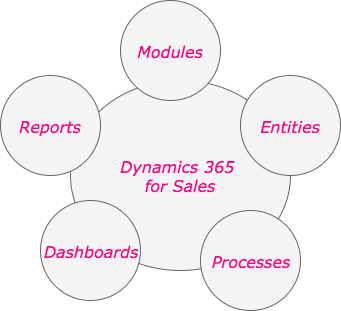
Dynamics 365 Sales app areas used by sales teams
The Sales app is organized around the daily work of a sales team. Depending on the version and configuration, users may see areas such as Sales, Collateral, Marketing, Performance, and Settings. These areas group related records and commands so that users do not have to search through every table in the system.
- Sales area: Used to work with leads, opportunities, accounts, contacts, activities, quotes, orders, invoices, products, and goals.
- Collateral area: Used to store sales literature, product information, and other supporting material that salespeople may need while working with customers.
- Performance area: Used to review dashboards, charts, goals, and sales results.
- Settings and configuration areas: Used by administrators and customizers to adjust business rules, security, fields, forms, views, and app behavior.
Dynamics 365 Sales tables and entities for CRM data
Entities in Dynamics 365 are containers used to model, store and manage business data. In newer Microsoft documentation, the same concept is often called a table because Dynamics 365 apps are built on Microsoft Dataverse. A table stores records, and each record contains columns such as name, status, owner, phone number, estimated revenue, or close date.
Each entity is comprised with number of attributes like Name Attribute, ID attribute, Description attribute and many more. These attributes are the data items of a particular type and stored in the database. Each one of these attributes can be displayed on an Entity form as a field.
The most common Dynamics 365 Sales records are listed below.
- Lead: A potential customer or sales enquiry that has not yet been qualified.
- Account: A company or organization that your business sells to or works with.
- Contact: A person connected to an account, lead, or opportunity.
- Opportunity: A qualified sales deal that is being worked by the sales team.
- Quote: A formal offer sent to a customer for products or services.
- Order: A confirmed sale based on accepted terms.
- Invoice: A billing record created after an order or sale.
Microsoft’s sales table documentation explains that Dynamics 365 Sales uses sales records for tracking leads, opportunities, competitors, quotes, orders, products, invoices, and sales goals. For a beginner, understanding how these records relate to one another is more useful than memorizing every table in the app.
Lead-to-order process in Microsoft Dynamics 365 Sales
The main sales process in Dynamics 365 Sales can be understood as a path from lead to order. The exact steps may vary by organization, but the standard flow usually starts with a lead, converts a qualified lead into an opportunity, prepares a quote, and then moves to order and invoice when the sale is confirmed.
- Create or capture a lead: A lead may come from a campaign, website enquiry, phone call, event, referral, or imported list.
- Qualify the lead: When the lead is valid, Dynamics 365 Sales can create related account, contact, and opportunity records depending on configuration.
- Work the opportunity: The sales team tracks the customer need, estimated revenue, close date, sales stage, activities, stakeholders, competitors, and products.
- Create a quote: A quote can be prepared from the opportunity and sent to the customer for review.
- Close the sale: If the customer accepts, the quote can move toward an order and invoice. If the deal is not won, the opportunity can be closed as lost with a reason.
Microsoft’s guide on how to nurture sales from lead to order in Dynamics 365 Sales is a useful reference when you want to study the standard sales flow in more detail.
Dynamics 365 Sales forms, views, and records
Most user work in Dynamics 365 Sales happens through forms and views. A form is the page used to open and edit one record. A view is a list of records filtered for a specific purpose, such as My Open Leads, Open Opportunities, Active Accounts, or Quotes in Progress.
- Forms show fields, tabs, timelines, subgrids, related records, and business process stages.
- Views help users find the correct record list without building a search each time.
- Charts summarize view data visually, such as opportunities by sales stage or estimated revenue by owner.
- Commands let users qualify leads, close opportunities, assign records, share records, create quotes, or run other actions.
Business process flows in Dynamics 365 Sales
Microsoft Dynamics 365 provides consistent business processes, helping Dynamics users focus more on performing their regular work and less on remembering what needs to be done at each step. A business process flow appears across the top of a record and guides users through stages such as Qualify, Develop, Propose, and Close.
Earlier Dynamics CRM versions also used process types such as dialogs, workflows, actions, and business process flows. In current Dynamics 365 implementations, automation is commonly handled with business process flows, Power Automate cloud flows, classic workflows in older environments, business rules, plug-ins, and custom actions depending on the requirement.
- Business process flows: Guide users through required stages and key fields on records such as leads and opportunities.
- Power Automate flows: Automate notifications, approvals, record updates, task creation, and integrations with other systems.
- Business rules: Apply simple form logic such as setting field values, showing or hiding fields, or validating data without custom code.
- Custom actions and plug-ins: Support advanced server-side logic when configuration is not enough.
Activities and timeline in Dynamics 365 Sales
Activities are used to plan and track customer communication. Common activity types include phone calls, emails, appointments, tasks, notes, and meetings. Activities can be related to leads, contacts, accounts, opportunities, and other records, which gives the sales team a visible history of communication with the customer.
The timeline on a record form helps users review previous interactions and add new activities. This is useful when several users work with the same account or when a salesperson needs to understand what happened before the next call or meeting.
Dashboards and charts in Microsoft Dynamics 365 Sales
Dashboards in Microsoft Dynamics 365 are visual components that allow users quick access to aggregated data in the system. In Dashboards we have various elements like charts, grids, lists, IFRAMES, and web resources. A sales dashboard may show open opportunities, active leads, activities due, pipeline by stage, revenue by owner, and other useful sales metrics.
Dashboards are useful because they bring multiple views and charts together on one page. A sales manager may use dashboards to monitor pipeline and team activity, while a salesperson may use a personal dashboard to focus on assigned leads, open opportunities, and upcoming tasks.
Reports and analytics in Dynamics 365 Sales
Microsoft Dynamics 365 includes reporting options that help users review sales records and performance. Depending on the environment, users may work with built-in charts and dashboards, report wizard reports, paginated reports, Excel exports, Power BI reports, or embedded analytics.
Reports are normally used for questions that need a prepared layout or a repeatable analysis, such as pipeline summary, won and lost opportunities, activity history, sales forecast, or revenue by product. Dashboards are better for quick daily monitoring, while reports are better for scheduled review and detailed analysis.
Security roles and record ownership in Dynamics 365 Sales
Security is an important basic concept in Dynamics 365 Sales. Users do not automatically see or edit every record. Access depends on security roles, business units, teams, sharing, and record ownership. For example, a salesperson may see only records assigned to them and their team, while a sales manager may see records for a wider group.
Record ownership also affects sales work. Leads, opportunities, accounts, and activities usually have an owner. Ownership helps with responsibility, assignment, reporting, and access control.
Customization basics for Dynamics 365 Sales
Many organizations customize Dynamics 365 Sales to match their process. Common beginner-level customizations include adding fields, changing form layout, creating views, adjusting business process flows, adding business rules, and creating dashboards. Larger changes may involve Power Automate, Dataverse solutions, plug-ins, integrations, and custom apps.
Customization should be planned carefully. Before adding a new field or table, check whether a standard field or table already supports the requirement. This keeps the sales application easier to maintain and upgrade.
Dynamics 365 Sales learning path for beginners
A beginner should learn Dynamics 365 Sales in the same order in which a sales user normally works. Start with navigation, then records, then the sales process, and then reporting and customization.
- Open the Sales app and understand the sitemap, command bar, forms, views, and search.
- Learn the purpose of accounts, contacts, leads, opportunities, quotes, orders, and invoices.
- Practice the lead qualification and opportunity management process.
- Create activities and understand how the timeline stores customer interactions.
- Review dashboards, charts, and reports to understand sales performance.
- Study basic customization only after you understand the standard app behavior.
Microsoft Learn provides structured training paths such as Dynamics 365 Sales fundamentals and an introduction to sales in Dynamics 365.
FAQs on Microsoft Dynamics 365 for Sales basics
What is Microsoft Dynamics 365 for Sales used for?
Microsoft Dynamics 365 for Sales, now commonly called Dynamics 365 Sales, is used to manage customer relationships, leads, opportunities, activities, quotes, orders, dashboards, and sales performance in one CRM application.
What are the main records in Dynamics 365 Sales?
The main records are leads, accounts, contacts, opportunities, quotes, orders, invoices, activities, products, competitors, and goals. These records represent the customer, sales process, communication history, and sales results.
What is the difference between a lead and an opportunity in Dynamics 365 Sales?
A lead is an unqualified potential customer or enquiry. An opportunity is a qualified sales deal that the sales team is actively working. Qualifying a lead can create an opportunity along with related account and contact records depending on configuration.
Are entities and tables the same in Dynamics 365 Sales?
In older Dynamics CRM terminology, business data containers were called entities. In Microsoft Dataverse and newer documentation, they are usually called tables. Both terms are often used when learning Dynamics 365 Sales.
Do beginners need coding to learn Dynamics 365 Sales basics?
No. Beginners can learn navigation, records, views, forms, dashboards, activities, and business process flows without coding. Code is mainly needed for advanced custom logic, integrations, and plug-ins.
Editorial QA checklist for Dynamics 365 Sales basics
- Confirm that the page uses the current term Dynamics 365 Sales while still explaining the older Dynamics 365 for Sales name.
- Confirm that entities are explained with the newer Dataverse table terminology for readers using current Microsoft documentation.
- Confirm that the tutorial covers the lead, account, contact, opportunity, quote, order, and invoice relationship clearly.
- Confirm that dashboards, charts, reports, activities, business process flows, and security roles are explained as separate concepts.
- Confirm that official Microsoft Learn and Dynamics 365 Sales documentation links are included for further study.
Summary of Microsoft Dynamics 365 for Sales basics
Microsoft Dynamics 365 for Sales basics start with understanding how the Sales app stores and manages CRM data. The main building blocks are app areas, tables or entities, records, forms, views, activities, business process flows, dashboards, charts, reports, and security roles. Once these basics are clear, it becomes easier to work with the standard lead-to-order process and later move into configuration, automation, and customization.