 TutorialKart.com
Flutter Padding
Padding creates empty space between a Flutter widget and its child. You can add padding with the standalone Padding widget or with the padding property of widgets such as Container.
Flutter represents padding with an EdgeInsetsGeometry value. The most common choices are EdgeInsets.all(), EdgeInsets.symmetric(), EdgeInsets.fromLTRB(), and EdgeInsets.only().
Flutter Padding with EdgeInsets
You can provide padding to a widget in several ways. Choose the constructor that most clearly describes the spacing required by the layout.
EdgeInsets.all()applies the same padding to all four sides.EdgeInsets.symmetric()sets horizontal and vertical padding.EdgeInsets.fromLTRB()sets left, top, right, and bottom values in that order.EdgeInsets.only()applies padding only to the named sides.
The quick code snippets for these functions are provided below.
///same padding to all the four sides: left, top, right, bottom
padding: EdgeInsets.all(10)

///provide padding to left, top, right, bottom respectively
padding: EdgeInsets.fromLTRB(10, 15, 20, 5)

///provide padding only to the specified sides
padding: EdgeInsets.only(left: 20, top:30)
The following syntax also applies equal spacing to the left and right sides and a different value to the top and bottom sides.
padding: const EdgeInsets.symmetric(
  horizontal: 24,
  vertical: 12,
)
Example – Padding to Container Widget
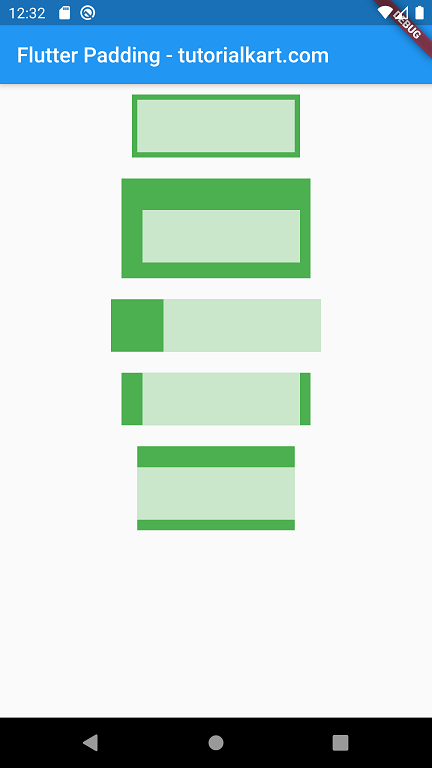
In this example, we provide padding to a Container widget in some of the different possible scenarios.
Each outer green Container adds space around its inner light-colored Container. The amount and position of the visible green area show which sides receive padding.
main.dart
import 'package:flutter/material.dart';

void main() {
  runApp(MyApp());
}

class MyApp extends StatefulWidget {
  @override
  _MyAppState createState() => _MyAppState();
}

class _MyAppState extends State<MyApp> {
  @override
  Widget build(BuildContext context) {
    return MaterialApp(
      home: Scaffold(
          appBar: AppBar(
            title: Text('Flutter - tutorialkart.com'),
          ),
          body: Center(child: Column(children: <Widget>[
            Container(
              margin: EdgeInsets.all(10),
              padding: EdgeInsets.all(5),
              color: Colors.green,
              child: Container(
                width: 150,
                height: 50,
                color: Colors.white70,
                child: Text(''),
              ),
            ),
            Container(
              margin: EdgeInsets.all(10),
              padding: EdgeInsets.fromLTRB(20, 30, 10, 15),
              color: Colors.green,
              child: Container(
                width: 150,
                height: 50,
                color: Colors.white70,
                child: Text(''),
              ),
            ),
            Container(
              margin: EdgeInsets.all(10),
              padding: EdgeInsets.only(left: 50),
              color: Colors.green,
              child: Container(
                width: 150,
                height: 50,
                color: Colors.white70,
                child: Text(''),
              ),
            ),
            Container(
              margin: EdgeInsets.all(10),
              padding: EdgeInsets.only(left: 20, right: 10),
              color: Colors.green,
              child: Container(
                width: 150,
                height: 50,
                color: Colors.white70,
                child: Text(''),
              ),
            ),
            Container(
              margin: EdgeInsets.all(10),
              padding: EdgeInsets.only(top: 20, bottom: 10),
              color: Colors.green,
              child: Container(
                width: 150,
                height: 50,
                color: Colors.white70,
                child: Text(''),
              ),
            ),
          ]))),
    );
  }
}
Output
Add Padding Around Any Flutter Widget
Many widgets do not expose a dedicated padding property. Wrap such a widget with Padding and pass the original widget through its child property.
const Padding(
  padding: EdgeInsets.all(16),
  child: Text(
    'This text has 16 logical pixels of space on every side.',
  ),
)
The Padding widget has one child and does not draw a background, border, or shadow. Use it when you only need spacing. Use a Container when the same widget also needs decoration, constraints, alignment, or a background color.
Flutter Padding with EdgeInsetsDirectional
Use EdgeInsetsDirectional when horizontal spacing should follow the current text direction. Its start and end values automatically resolve for left-to-right and right-to-left interfaces.
const Padding(
  padding: EdgeInsetsDirectional.fromSTEB(
    24, // start
    12, // top
    8,  // end
    12, // bottom
  ),
  child: Text('Direction-aware padding'),
)
For a left-to-right interface, start refers to the left side and end refers to the right side. In a right-to-left interface, those sides are reversed. This makes EdgeInsetsDirectional suitable for layouts that support multiple writing directions.
Flutter Padding versus Margin
Padding and margin both create spacing, but they apply at different positions in a layout.
| Spacing | Position | Typical Flutter implementation |
|---|---|---|
| Padding | Between a widget’s boundary and its child | Padding or Container.padding |
| Margin | Outside a widget’s boundary | Container.margin or an outer spacing widget |
In a decorated Container, padding places the child inside the decoration, while margin separates the entire container from neighboring widgets.
Container(
  margin: const EdgeInsets.all(20),
  padding: const EdgeInsets.all(12),
  color: Colors.blue,
  child: const Text('Padding is inside the blue area'),
)
How Flutter Padding Affects Widget Size
Padding participates in Flutter’s layout process. The parent gives constraints to the padded widget, the padding reduces the space available to the child, and the resulting widget size includes both the child and the insets, subject to the parent’s constraints.
For example, a child that is 100 logical pixels wide with 20 logical pixels of left padding and 20 logical pixels of right padding generally requires 140 logical pixels of horizontal space. A restrictive parent can still force a different result, so padding must be considered together with layout constraints.
Responsive Flutter Padding with MediaQuery
Fixed padding is suitable for many controls, but page-level spacing may need to change with the available width. The following example uses wider horizontal padding on larger screens.
Widget build(BuildContext context) {
  final screenWidth = MediaQuery.sizeOf(context).width;
  final horizontalPadding = screenWidth >= 600 ? 32.0 : 16.0;

  return Padding(
    padding: EdgeInsets.symmetric(
      horizontal: horizontalPadding,
      vertical: 16,
    ),
    child: const Text('Responsive page content'),
  );
}
Use responsive padding for overall page composition rather than changing every small control. Consistent spacing values generally make a layout easier to maintain.
SafeArea and Screen-Edge Padding in Flutter
Ordinary padding does not automatically account for system UI, display cutouts, or rounded screen edges. Wrap screen content in SafeArea when it should avoid those obstructions.
const SafeArea(
  child: Padding(
    padding: EdgeInsets.all(16),
    child: Text('Content inside safe screen boundaries'),
  ),
)
In this example, SafeArea handles device-specific insets, while Padding adds the application’s own visual spacing.
Animate Flutter Padding Changes
Use AnimatedPadding when the inset should transition smoothly after a state change. It accepts the same type of padding value along with a duration and an optional animation curve.
AnimatedPadding(
  duration: const Duration(milliseconds: 300),
  curve: Curves.easeInOut,
  padding: EdgeInsets.all(isExpanded ? 32 : 8),
  child: const Text('Animated padding'),
)
When isExpanded changes and the widget rebuilds, Flutter animates between the old and new padding values.
Common Flutter Padding Mistakes
- Using margin when the space should be inside a background: use padding so the background or border surrounds both the child and the empty space.
- Using left and right in localized layouts: prefer
EdgeInsetsDirectionalwhen spacing should follow the text direction. - Adding several unnecessary Containers: use
Paddingwhen spacing is the only required behavior. - Ignoring parent constraints: large insets can leave too little space for the child and may cause an overflow in a tightly constrained layout.
- Using screen-edge padding instead of SafeArea: fixed values cannot reliably represent notches, status bars, or system gesture areas on every device.
Flutter Padding Questions
How do I add padding to a widget in Flutter?
Wrap the widget with Padding and provide an EdgeInsetsGeometry value, or use the padding property when the widget already supports one.
What is the difference between EdgeInsets.all and EdgeInsets.symmetric?
EdgeInsets.all(value) uses one value for all four sides. EdgeInsets.symmetric() lets you set one value for the horizontal sides and another for the vertical sides.
Should I use Padding or Container in Flutter?
Use Padding when you only need space around a child. Use Container when the widget also needs properties such as a color, decoration, alignment, margin, constraints, width, or height.
How do I add padding to only one side in Flutter?
Use EdgeInsets.only(), such as EdgeInsets.only(top: 16). For direction-aware horizontal spacing, use EdgeInsetsDirectional.only(start: 16).
Complete Code in GitHub
You can get the complete code of the Flutter Application used in the above examples at the following link.
https://github.com/tutorialkart/flutter/tree/master/flutter_padding_tutorial.
Flutter Padding Tutorial Summary
In this Flutter Tutorial, we learned how to add uniform, symmetric, side-specific, directional, responsive, and animated padding. We also compared padding with margin and explained when to use Padding, Container, and SafeArea.