 TutorialKart.com
Flutter Switch Widget Tutorial
Flutter Switch is a Material widget used to toggle a single setting between two states, such as on and off, enabled and disabled, or true and false.
The current state is supplied through the required value property. When the user toggles the switch, Flutter calls onChanged with the new Boolean value. The application must store that value and rebuild the widget to move the switch thumb to its new position.
Flutter Switch Value and onChanged Properties
A basic Flutter switch requires two properties:
value: A Boolean that determines whether the switch is on or off.onChanged: A callback that receives the new Boolean value after the user toggles the switch.
Switch(
  value: isSwitched,
  onChanged: (bool newValue) {
    setState(() {
      isSwitched = newValue;
    });
  },
)
The switch does not permanently update its own state. If the callback does not assign newValue to the state variable, the switch returns to the value supplied during the next build.
Flutter Switch Example with StatefulWidget
In the following Flutter application, a Boolean variable named isSwitched stores the switch state. Whenever the switch is toggled, onChanged receives the new state and setState() rebuilds the interface.
Create a basic Flutter application and replace main.dart with the following code.
main.dart
import 'package:flutter/material.dart';

void main() {
  runApp(MaterialApp(
    home: MyApp(),
  ));
}

class MyApp extends StatefulWidget {
  @override
  _State createState() => _State();
}

class _State extends State<MyApp> {
  bool isSwitched = false;

  @override
  Widget build(BuildContext context) {
    return Scaffold(
        appBar: AppBar(
          title: Text('Flutter - tutorialkart.com'),
        ),
        body: Center(
          child: Switch(
            value: isSwitched,
            onChanged: (value) {
              setState(() {
                isSwitched = value;
                print(isSwitched);
              });
            },
            activeTrackColor: Colors.lightGreenAccent,
            activeColor: Colors.green,
          ),
        )
    );
  }
}
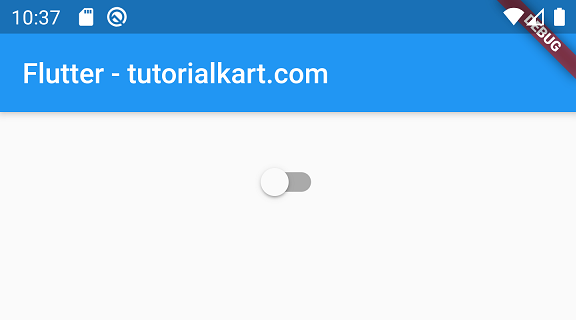
Run this application and you should get the UI shown in the following screenshot. The initial value of isSwitched is false, so the switch starts in the off state.
When you press the switch, onChanged receives true. The callback updates isSwitched, and Flutter rebuilds the widget in its on state.
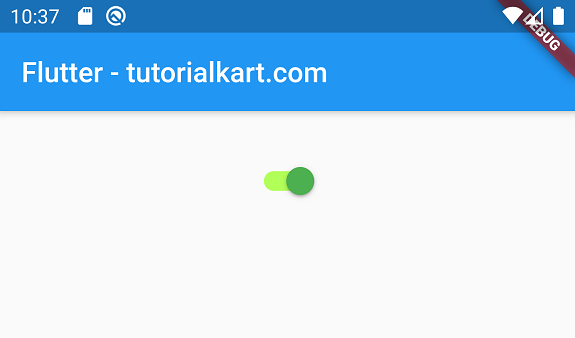
The example also sets colors for the active thumb and track. The value printed by print(isSwitched) appears in the debug console each time the state changes.
Flutter Switch Constructor Properties
The following properties are useful when configuring a Switch widget:
| Property | Purpose |
|---|---|
value | Controls whether the switch is on or off. |
onChanged | Handles a user-requested state change. Set it to null to disable the switch. |
activeColor | Sets the thumb color when the switch is on. |
activeTrackColor | Sets the track color when the switch is on. |
inactiveThumbColor | Sets the thumb color when the switch is off. |
inactiveTrackColor | Sets the track color when the switch is off. |
activeThumbImage | Displays an image in the thumb while the switch is on. |
inactiveThumbImage | Displays an image in the thumb while the switch is off. |
materialTapTargetSize | Controls the minimum interactive area used by the Material widget. |
dragStartBehavior | Controls when a drag gesture begins. |
Change Flutter Switch Active and Inactive Colors
You can style the switch differently for its on and off states. The following example assigns separate colors to the thumb and track in each state.
Switch(
  value: isSwitched,
  onChanged: (bool value) {
    setState(() {
      isSwitched = value;
    });
  },
  activeColor: Colors.green,
  activeTrackColor: Colors.greenAccent,
  inactiveThumbColor: Colors.grey,
  inactiveTrackColor: Colors.black26,
)
Choose colors with enough contrast to distinguish the two states. Do not rely on color alone when the setting needs a clear textual description.
Add a Label Beside a Flutter Switch
The Switch widget contains only the control. To explain what it changes, place it beside a Text widget or use SwitchListTile.
Row(
  mainAxisAlignment: MainAxisAlignment.center,
  children: [
    const Text('Enable notifications'),
    Switch(
      value: notificationsEnabled,
      onChanged: (bool value) {
        setState(() {
          notificationsEnabled = value;
        });
      },
    ),
  ],
)
For settings screens, SwitchListTile usually provides a clearer layout because it combines a title, optional subtitle, and switch into one tappable row.
Flutter SwitchListTile Example for Settings
SwitchListTile(
  title: const Text('Dark mode'),
  subtitle: const Text('Use a dark color scheme'),
  value: darkModeEnabled,
  onChanged: (bool value) {
    setState(() {
      darkModeEnabled = value;
    });
  },
)
Tapping either the switch or the surrounding tile changes the value. This gives the control a larger interaction area and associates the label directly with the setting.
Disable a Flutter Switch
Set onChanged to null when the switch should be visible but unavailable. Flutter displays the control using its disabled appearance.
Switch(
  value: isSwitched,
  onChanged: null,
)
You can also enable or disable the callback conditionally:
Switch(
  value: isSwitched,
  onChanged: canChangeSetting
      ? (bool value) {
          setState(() {
            isSwitched = value;
          });
        }
      : null,
)
Update a Flutter Switch After an Async Operation
Some settings must be saved to local storage or sent to a server. In that case, keep the displayed value synchronized with the saved result and handle failures rather than assuming every update succeeds.
bool notificationsEnabled = false;
bool isSaving = false;

Future<void> updateNotifications(bool newValue) async {
  setState(() {
    isSaving = true;
  });

  try {
    await saveNotificationSetting(newValue);

    if (!mounted) return;
    setState(() {
      notificationsEnabled = newValue;
    });
  } finally {
    if (mounted) {
      setState(() {
        isSaving = false;
      });
    }
  }
}Switch(
value: notificationsEnabled,
onChanged: isSaving ? null : updateNotifications,
)Disabling the callback while the operation is running prevents repeated requests. A production application should also show an error message when saving fails.
Store Flutter Switch State Between App Sessions
A state variable keeps the value only while the current widget exists. To preserve the setting after the application closes, save it using an appropriate persistence mechanism and load the stored Boolean when the page or application starts.
- Use local preferences for small user settings.
- Use a database when the setting belongs to more complex application data.
- Use a remote service when the preference must follow a signed-in user across devices.
After loading the stored value, call setState() or update the relevant state-management provider so that the switch displays the saved state.
Common Flutter Switch State Problems
Flutter Switch moves back to its old position
This happens when onChanged runs but the variable supplied to value is not updated. Assign the callback value inside setState() or update the external state source.
Flutter Switch does not respond to taps
A switch is disabled when onChanged is null. Check whether the callback was intentionally removed by a condition such as a loading or permission state.
Flutter Switch state resets after navigation
Local widget state can be discarded when the page is removed and created again. Store the setting in a parent widget, a state-management solution, local storage, or another persistent data source.
setState is called after the Switch page is disposed
An asynchronous save may complete after the user leaves the page. Check mounted before calling setState() after an await.
Flutter Switch Frequently Asked Questions
How do I get the value of a Flutter Switch?
Read the Boolean variable supplied to the switch’s value property. The onChanged callback provides the new value whenever the user toggles the control.
Why does a Flutter Switch require setState?
The switch’s appearance is controlled by the value supplied by its parent. In a StatefulWidget, setState() tells Flutter to rebuild with the updated Boolean value.
What is the difference between Switch and SwitchListTile?
Switch displays only the toggle control. SwitchListTile combines a switch with a title, optional subtitle, and a tappable list row, making it suitable for settings pages.
How do I disable a Flutter Switch?
Set its onChanged property to null. Restore a callback when the setting becomes available again.
How do I save a Flutter Switch value?
Save the Boolean to local preferences, a database, or a remote user profile. Load that value when the application starts and use it as the switch’s value.
Flutter Switch Tutorial Summary
In this Flutter Tutorial, we learned how to use Flutter Switch, update its Boolean value with onChanged, customize active and inactive colors, add labels, use SwitchListTile, disable the control, and manage persistent or asynchronous switch settings.