 TutorialKart.com
In this Kotlin Android tutorial, we shall learn how to access a View programmatically using findViewById(). You can use this method to get a reference to views such as TextView, EditText, Button, ImageView, LinearLayout, and other classes that extend android.view.View.
The usual pattern is simple: assign an id to the view in XML, call setContentView() in the activity, and then use findViewById(R.id.view_id) to access that view in Kotlin. After you get the view reference, you can read its text, change its properties, attach click listeners, or update its visibility.
Kotlin Android findViewById example for accessing a View by id
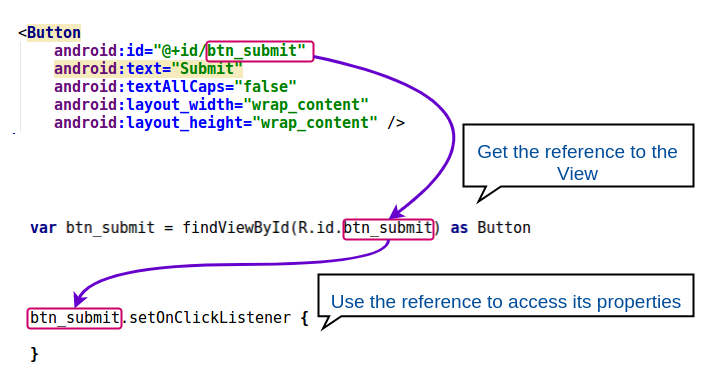
To find a view programmatically, the view must have an id. In XML layouts, ids are usually declared with android:id="@+id/name_here". The @+id form creates the id resource if it does not already exist.
To find a view programmatically, the View (LinearLayout / TextView / Button / ImageView / EditText etc.) should have been set with an id in the layout xml file as shown below :
<Button
    android:id="@+id/button_submit"
    android:src="@drawable/image1"
    android:layout_width="wrap_content"
    android:layout_height="wrap_content"/>
And in the Kotlin file, the View can be assigned to a variable using findViewById method as shown below :
var btn_submit = findViewById(R.id.button_submit) as ButtonReference of Button view is loaded to the variable, btn_submit. The reference could be used to access or modify the properties of the view.
Modern Kotlin findViewById syntax with type inference
In Kotlin, you can usually avoid the explicit as Button cast by using the generic form of findViewById. This is easier to read and reduces unnecessary casting in simple activity code.
val submitButton = findViewById<Button>(R.id.button_submit)After this line, submitButton is a Button reference. You can call button-specific methods and properties directly.
val submitButton = findViewById<Button>(R.id.button_submit)

submitButton.text = "Submit Form"
submitButton.setOnClickListener {
    Toast.makeText(this, "Button clicked", Toast.LENGTH_SHORT).show()
}
Important order: call setContentView before findViewById in Activity
In an activity, call findViewById() only after the layout has been attached with setContentView(). If you call it before setContentView(), Android has not yet inflated the layout, so the view will not be found.
override fun onCreate(savedInstanceState: Bundle?) {
    super.onCreate(savedInstanceState)

    setContentView(R.layout.activity_main)

    val userNameEditText = findViewById<EditText>(R.id.et_user_name)
    val submitButton = findViewById<Button>(R.id.btn_submit)
}
If the id exists in another layout file that is not currently set as the activity content view, findViewById() will not find it from the activity root. Use the correct layout, or call findViewById() on the parent view that contains the child view.
Complete Kotlin Android login form using findViewById
We shall look into an example Login Form Kotlin Android Project, where there are four views that we access programmatically, and assign an OnClickListener to Button.
Following is the login form activity layout xml file that has views with id s assigned.
activity_main.xml
<?xml version="1.0" encoding="utf-8"?>
<android.support.constraint.ConstraintLayout
    xmlns:android="http://schemas.android.com/apk/res/android"
    xmlns:tools="http://schemas.android.com/tools"
    android:layout_width="match_parent"
    android:layout_height="match_parent"
    tools:context="com.tutorialkart.myapplication.MainActivity">
    <LinearLayout
        android:id="@+id/ll_main_layout"
        android:layout_width="match_parent"
        android:layout_height="match_parent"
        android:gravity="center"
        android:background="#444444"
        android:padding="25dp"
        android:orientation="vertical">
        <TextView
            android:layout_width="wrap_content"
            android:layout_height="wrap_content"
            android:textSize="25dp"
            android:textColor="#6dffbf"
            android:padding="30dp"
            android:text="Login"/>
        <EditText
            android:id="@+id/et_user_name"
            android:hint="User Name"
            android:textColor="#6bfff7"
            android:textColorHint="#52afaa"
            android:textAlignment="center"
            android:layout_width="match_parent"
            android:layout_height="wrap_content"/>
        <EditText
            android:id="@+id/et_password"
            android:hint="Password"
            android:textColor="#6bfff7"
            android:textColorHint="#52afaa"
            android:textAlignment="center"
            android:inputType="textPassword"
            android:layout_width="match_parent"
            android:layout_height="wrap_content"/>
        <LinearLayout
            android:layout_width="match_parent"
            android:layout_height="wrap_content"
            android:gravity="center"
            android:padding="25dp"
            android:orientation="horizontal">
            <Button
                android:id="@+id/btn_reset"
                android:text="Reset"
                android:textAllCaps="false"
                android:layout_width="wrap_content"
                android:layout_height="wrap_content" />
            <Button
                android:id="@+id/btn_submit"
                android:text="Submit"
                android:textAllCaps="false"
                android:layout_width="wrap_content"
                android:layout_height="wrap_content" />
        </LinearLayout>
    </LinearLayout>

</android.support.constraint.ConstraintLayout>
And in the following Kotlin file, we shall access those views with ids et_user_name, et_password, btn_reset and btn_submit.
MainActivity.kt
package com.tutorialkart.myapplication

import android.support.v7.app.AppCompatActivity
import android.os.Bundle
import android.view.View
import android.widget.*

/**
 * A Login Form Example in Kotlin Android demonstrating on how to access a view programmatically using findViewById
 */
class MainActivity : AppCompatActivity() {

    override fun onCreate(savedInstanceState: Bundle?) {
        super.onCreate(savedInstanceState)
        setContentView(R.layout.activity_main)

        // get reference to all views to access them programmatically
        var et_user_name = findViewById(R.id.et_user_name) as EditText
        var et_password = findViewById(R.id.et_password) as EditText
        var btn_reset = findViewById(R.id.btn_reset) as Button
        var btn_submit = findViewById(R.id.btn_submit) as Button

        btn_reset.setOnClickListener {
            // clearing user_name and password edit text views on reset button click
            // i.e., modifying the properties of views programmatically
            et_user_name.setText("")
            et_password.setText("")
        }

        // set on-click listener to the submit button programmatically
        btn_submit.setOnClickListener {
            val user_name = et_user_name.text;
            val password = et_password.text;
            Toast.makeText(this@MainActivity, user_name, Toast.LENGTH_LONG).show()
        }
    }
}
Accessing views with findViewById inside a Fragment
Inside a fragment, call findViewById() on the fragment’s root view, not directly on the activity, unless the view really belongs to the activity layout. A common place to do this is onViewCreated(), because the fragment view has already been created there.
class LoginFragment : Fragment(R.layout.fragment_login) {

    override fun onViewCreated(view: View, savedInstanceState: Bundle?) {
        super.onViewCreated(view, savedInstanceState)

        val userNameEditText = view.findViewById<EditText>(R.id.et_user_name)
        val submitButton = view.findViewById<Button>(R.id.btn_submit)

        submitButton.setOnClickListener {
            val userName = userNameEditText.text.toString()
            Toast.makeText(requireContext(), userName, Toast.LENGTH_SHORT).show()
        }
    }
}
This distinction is important when an app uses both activity layouts and fragment layouts. The same id name may also exist in more than one layout, so always search from the correct root view.
Setting an id for a programmatically created Android View
If a view is created in Kotlin instead of XML, it does not automatically have a useful XML id. You can assign a generated id using View.generateViewId(), add the view to a parent layout, and then find it from that parent or from a root view that contains it.
val parentLayout = findViewById<LinearLayout>(R.id.ll_main_layout)

val messageTextView = TextView(this)
messageTextView.id = View.generateViewId()
messageTextView.text = "Created programmatically"

parentLayout.addView(messageTextView)

val sameTextView = parentLayout.findViewById<TextView>(messageTextView.id)
sameTextView.text = "Updated using findViewById"
Use this approach only when you really need dynamic views. For static screens, XML ids are usually clearer and easier to maintain.
findViewById versus View Binding in Kotlin Android
findViewById() is still useful for small examples, legacy projects, quick samples, and cases where you need to search a specific view hierarchy manually. However, Android also supports View Binding, which generates a binding class for each XML layout and lets you access views without calling findViewById() for every view.
For example, with View Binding enabled, an activity can inflate the binding and use properties generated from view ids.
private lateinit var binding: ActivityMainBinding

override fun onCreate(savedInstanceState: Bundle?) {
    super.onCreate(savedInstanceState)

    binding = ActivityMainBinding.inflate(layoutInflater)
    setContentView(binding.root)

    binding.btnSubmit.setOnClickListener {
        val userName = binding.etUserName.text.toString()
        Toast.makeText(this, userName, Toast.LENGTH_SHORT).show()
    }
}
Use findViewById() when you are learning view lookup or working with existing code that already uses it. Use View Binding when you want cleaner access to layout views in a modern Kotlin Android project.
Common findViewById mistakes in Kotlin Android projects
- Calling findViewById before setContentView: the activity layout has not been inflated yet.
- Using the wrong layout id: the id must belong to the layout currently attached to the activity or to the parent view you are searching from.
- Searching from the wrong root in fragments: use
view.findViewById()insideonViewCreated()for fragment layout views. - Casting to the wrong view type: an id assigned to an
EditTextshould not be cast toButton. - Missing imports: import the widget class you use, such as
android.widget.Button,android.widget.EditText, orandroid.widget.TextView.
Frequently asked questions on Kotlin Android findViewById
How do you use findViewById in Android Studio with Kotlin?
Add an id to the view in XML, call setContentView(R.layout.your_layout) in the activity, and then call findViewById<ViewType>(R.id.your_view_id). For example, findViewById<Button>(R.id.btn_submit) returns a Button reference.
What is the difference between findViewById and View Binding?
findViewById() searches the current view hierarchy for a view with a matching id. View Binding generates a binding class from your XML layout and gives direct properties for views that have ids. View Binding usually produces cleaner code in larger screens, while findViewById() remains useful for simple examples and legacy code.
Is View Binding deprecated in Android?
No. View Binding is a supported Android feature. It is different from Kotlin Android synthetic view access, which has been removed from modern Android Kotlin plugin usage. For current projects, View Binding is a common replacement for repeated findViewById() calls.
How do you set an id to a View programmatically in Android?
Create the view in Kotlin, assign view.id = View.generateViewId(), and then add the view to a parent layout. After that, you can use the generated id with findViewById() from the correct parent view.
Why does findViewById return null or fail to find my view?
The most common reasons are: the id is missing, the wrong layout was passed to setContentView(), findViewById() was called too early, or the view belongs to a fragment or included layout and you are searching from the wrong parent.
Editorial QA checklist for this Kotlin findViewById tutorial
- Confirm that every XML view used in Kotlin has a matching
android:id. - Check that activity examples call
setContentView()beforefindViewById(). - Check that fragment examples use
view.findViewById()from the fragment root view. - Use
language-kotlin,language-xml, orsyntaxclasses correctly for new code blocks. - Keep the distinction clear between legacy
findViewById()code and View Binding usage.
Conclusion
In this Android Tutorial, we have learnt how to access a View programmatically using findViewById(int id) method in Kotlin Android with examples for EditText, Button, etc. The key points are to define a valid id, search from the correct layout or parent view, and call findViewById() only after the view hierarchy has been created.