 TutorialKart.com
Change Button background dynamically in Kotlin Android
In this Android Tutorial, we shall learn to dynamically change button background in Kotlin Android.
A button background is often changed to show state in the UI. For example, a button may switch from inactive to active, from pending to completed, or from one selected option to another. In Kotlin Android, the common approaches are to apply a drawable resource with setBackgroundResource() or apply a plain color/tint with backgroundTintList.
Use setBackgroundResource() when the button background is a custom drawable such as a gradient, rounded rectangle, oval, selector, or XML shape. The method accepts a drawable resource id, such as R.drawable.btn_oval_gradient, and applies it as the button background at runtime.
Useful links
To set a drawable background to button : Custom design for Button background
To set a onClickListener to button : Button setOnClickListener
When to use setBackgroundResource for Kotlin Android Button background
- Use
setBackgroundResource()when the background is already defined insideres/drawable. - Use XML drawable files when the button needs gradients, corners, stroke, oval shape, or a reusable design.
- Use
backgroundTintListwhen only the button background color has to change. - Use a selector drawable when Android should automatically change the button background for pressed, focused, selected, or disabled states.
Example – Dynamically Change Button Background in Kotlin Android
In the following Kotlin Android Example, we shall create a button in layout xml and dynamically change its background on the button click using Button OnClickListener.
layout xml file : activity_change_button_background.xml
<?xml version="1.0" encoding="utf-8"?>
<android.support.constraint.ConstraintLayout xmlns:android="http://schemas.android.com/apk/res/android"
    xmlns:app="http://schemas.android.com/apk/res-auto"
    xmlns:tools="http://schemas.android.com/tools"
    android:layout_width="match_parent"
    android:layout_height="match_parent"
    tools:context="com.tutorialkart.myapplication.ChangeButtonBackground">

    <LinearLayout
        android:layout_width="match_parent"
        android:layout_height="match_parent"
        android:gravity="center"
        android:orientation="vertical">
        <Button
            android:id="@+id/button_changing"
            android:padding="15dp"
            android:background="@drawable/btn_center_gradient"
            android:textColor="#FFFFFF"
            android:text="Changing Button"
            android:layout_width="wrap_content"
            android:layout_height="wrap_content" />

    </LinearLayout>

</android.support.constraint.ConstraintLayout>
Kotlin Activity file : ChangeButtonBackground.kt
package com.tutorialkart.myapplication

import android.support.v7.app.AppCompatActivity
import android.os.Bundle
import android.widget.Button

class ChangeButtonBackground : AppCompatActivity() {

    override fun onCreate(savedInstanceState: Bundle?) {
        super.onCreate(savedInstanceState)
        setContentView(R.layout.activity_change_button_background)

        var button_background : Int = 1;

        var button_change = findViewById(R.id.button_changing) as Button;

        button_change.setOnClickListener {
            if(button_background==2){
                button_change.setBackgroundResource(R.drawable.btn_center_gradient);
                button_background=1;
            } else if(button_background==1){
                button_change.setBackgroundResource(R.drawable.btn_oval_gradient);
                button_background=2;
            }
        }

    }
}
/app/src/main/res/drawable/btn_center_gradient.xml
<?xml version="1.0" encoding="utf-8"?>
<shape xmlns:android="http://schemas.android.com/apk/res/android"
    android:shape="rectangle">
    <gradient android:startColor="#44e3ff"
        android:centerColor="#12434c"
        android:endColor="#258191"
        android:angle="90" />
</shape>
/app/src/main/res/drawable/btn_oval_gradient.xml
<?xml version="1.0" encoding="utf-8"?>
<shape xmlns:android="http://schemas.android.com/apk/res/android"
    android:shape="oval">
    <gradient android:startColor="#ffc456"
        android:centerColor="#7a5d28"
        android:endColor="#ad853a"
        android:angle="90"
    />
</shape>
When the app starts, the button uses btn_center_gradient from the layout XML. When the user clicks the button, the click listener checks the current value of button_background and switches the button to the other drawable. The next click changes it back.
Modern Kotlin Android version for changing Button background on click
The original example above uses older Android support package names because the post was first written for earlier Android project templates. In a modern AndroidX project, the same logic can be written with AppCompatActivity from AndroidX and a typed findViewById<Button>() call.
package com.tutorialkart.myapplication

import android.os.Bundle
import android.widget.Button
import androidx.appcompat.app.AppCompatActivity

class ChangeButtonBackground : AppCompatActivity() {

    private var isOvalBackground = false

    override fun onCreate(savedInstanceState: Bundle?) {
        super.onCreate(savedInstanceState)
        setContentView(R.layout.activity_change_button_background)

        val buttonChange = findViewById<Button>(R.id.button_changing)

        buttonChange.setOnClickListener {
            isOvalBackground = !isOvalBackground

            if (isOvalBackground) {
                buttonChange.setBackgroundResource(R.drawable.btn_oval_gradient)
            } else {
                buttonChange.setBackgroundResource(R.drawable.btn_center_gradient)
            }
        }
    }
}
This version avoids integer state values such as 1 and 2. A Boolean variable makes the button background state easier to read: true means the oval gradient is active, and false means the center gradient is active.
Change only Button background color in Kotlin Android
If the button does not need a gradient or shape drawable, change only its background color with a ColorStateList. This is useful for simple color changes after a button click.
import android.content.res.ColorStateList
import android.graphics.Color
import android.widget.Button

val button = findViewById<Button>(R.id.button_changing)

button.setOnClickListener {
    button.backgroundTintList = ColorStateList.valueOf(Color.parseColor("#4CAF50"))
}
Use this color-based approach when the button shape can remain the same. Use drawable resources when the click should change the complete background design, such as from a rectangle to an oval.
Use a selector drawable for pressed and selected Button backgrounds
For state-based button backgrounds, an XML selector is often cleaner than changing the background manually in every click listener. A selector can define different drawables for selected, pressed, disabled, and default states.
/app/src/main/res/drawable/button_state_background.xml
<?xml version="1.0" encoding="utf-8"?>
<selector xmlns:android="http://schemas.android.com/apk/res/android">
    <item android:state_selected="true" android:drawable="@drawable/btn_oval_gradient" />
    <item android:state_pressed="true" android:drawable="@drawable/btn_center_gradient" />
    <item android:drawable="@drawable/btn_center_gradient" />
</selector>
Set this selector as the button background in the layout file.
<Button
    android:id="@+id/button_changing"
    android:layout_width="wrap_content"
    android:layout_height="wrap_content"
    android:background="@drawable/button_state_background"
    android:text="Changing Button"
    android:textColor="#FFFFFF" />
Then toggle the selected state in Kotlin.
val button = findViewById<Button>(R.id.button_changing)

button.setOnClickListener {
    button.isSelected = !button.isSelected
}
This keeps the UI state rules inside the drawable XML and keeps the Kotlin click listener short.
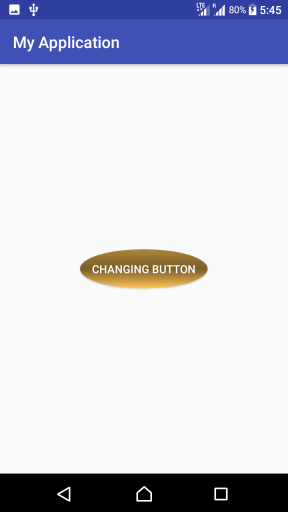
Kotlin Android Button background output screenshots
Following are the screenshots of the application.
Click on the button to change the background.

Common mistakes while changing Button background in Kotlin Android
- Using the wrong resource folder: XML shape, gradient, and selector files should be placed in
app/src/main/res/drawable. - Passing a color resource to setBackgroundResource by mistake:
setBackgroundResource()expects a resource id that can be used as a background drawable. For simple colors, preferbackgroundTintListor a color drawable. - Losing the button shape after applying a tint: Tint changes color, not the complete drawable design. Use a drawable resource when the shape or gradient must change.
- Keeping hard-to-read state values: A Boolean or enum is easier to maintain than numeric values such as
1and2. - Forgetting text contrast: When the background changes, keep
android:textColorreadable on both backgrounds.
QA checklist for this Kotlin Android Button background example
- Confirm that both drawable files exist in
res/drawablewith the same names used in Kotlin. - Run the screen and verify that the first background comes from
android:backgroundin the layout XML. - Tap the button once and check that the second drawable is applied.
- Tap the button again and check that the original drawable is restored.
- Check that the button text is readable on both the rectangle gradient and oval gradient backgrounds.
FAQs on dynamically changing Button background in Kotlin Android
How do I change a Button background in Kotlin Android?
Get the button using findViewById<Button>(), then call setBackgroundResource(R.drawable.your_drawable) inside the click listener or another event handler. The drawable file should be available in the res/drawable folder.
How do I make a Button change color when clicked in Kotlin?
For a simple color change, set button.backgroundTintList = ColorStateList.valueOf(Color.parseColor("#4CAF50")) inside setOnClickListener. For a custom shape or gradient, use setBackgroundResource() with an XML drawable.
Should I use setBackgroundResource or backgroundTintList for a Button?
Use setBackgroundResource() when you want to change the full drawable background, including shape, stroke, corners, or gradient. Use backgroundTintList when you only need to change the button color.
Can I change Button background without writing Kotlin click logic?
Yes. For pressed, selected, focused, and disabled states, create a selector drawable in res/drawable and assign it to android:background. Kotlin is only needed if you want to change a state such as isSelected at runtime.
Why does my Kotlin Android Button background not change?
Check that the drawable resource name is correct, the file is inside res/drawable, and the click listener is attached to the right button id. Also check whether a theme, tint, or Material style is overriding the button background.
In this tutorial, we used setBackgroundResource() to dynamically change Button background in Kotlin Android. We also looked at a modern AndroidX version, a simple color-change approach, and a selector drawable approach for state-based button backgrounds.