 TutorialKart.com
TextView OnClickListener in Kotlin Android
In Android, TextView is a subclass of View, so you can attach a click event to it with the setOnClickListener() method. This is useful when a piece of text should behave like an action, such as opening another screen, showing a message, expanding details, or acting as a small text button.
In this tutorial, we will learn how to set OnClickListener for a TextView in a Kotlin Android Activity. We will also look at a modern findViewById<TextView>() style, a simple XML layout, a complete Kotlin example, and common issues that stop a TextView click from working.
Quick Kotlin code to set OnClickListener for TextView
Following is quick look into code to set OnClickListener for TextView in Kotlin Programming :
// get reference to textview
val tv_click_me = findViewById(R.id.tv_click_me) as TextView
// set on-click listener
tv_click_me.setOnClickListener {
    // your code to run when the user clicks on the TextView
}
In newer Kotlin Android code, you will often see the generic form of findViewById. It avoids the explicit cast shown above.
val textView = findViewById<TextView>(R.id.tv_click_me)

textView.setOnClickListener {
    Toast.makeText(this, "TextView clicked", Toast.LENGTH_SHORT).show()
}
How TextView click handling works in Android Kotlin
The setOnClickListener function registers code that Android should run when the user taps the view. In Kotlin, the listener is commonly written as a lambda expression:
textView.setOnClickListener {
    // This block runs after the TextView is clicked.
}
The code inside the braces runs only after the click event occurs. For example, you may show a Toast, change the text, open another Activity, or update another view on the screen.
If a TextView is used as an action, make the text clear for users. For example, text such as View details, Retry, or Show more communicates the click action better than plain decorative text.
Example – OnClickListener for TextView
In this example, we shall look into the layout xml file and Activity(Kotlin file) to set OnClickListener for a TextView.
Create an Android Application with Kotlin Support and replace activity_main.xml and MainActivity.kt with the following content.
activity_main.xml
We have a TextView in LinearLayout. We will use this TextView to set on-click listener.
<?xml version="1.0" encoding="utf-8"?>
<android.support.constraint.ConstraintLayout xmlns:android="http://schemas.android.com/apk/res/android"
    xmlns:app="http://schemas.android.com/apk/res-auto"
    xmlns:tools="http://schemas.android.com/tools"
    android:layout_width="match_parent"
    android:layout_height="match_parent"
    tools:context="com.tutorialkart.myapplication.MainActivity">
    <LinearLayout
        android:id="@+id/ll_main_layout"
        android:layout_width="match_parent"
        android:layout_height="match_parent"
        android:gravity="center"
        android:orientation="vertical">
        <TextView
            android:id="@+id/tv_click_me"
            android:layout_width="wrap_content"
            android:layout_height="wrap_content"
            android:textSize="50dp"
            android:text="Click Me"/>
    </LinearLayout>

</android.support.constraint.ConstraintLayout>
MainActivity.kt
Get reference to the the TextView in layout file using id, and then call setOnClickListener {} on this TextView. When user clicks on this TextView, the code inside setOnClickListener {} will be executed.
package com.tutorialkart.myapplication

import android.support.v7.app.AppCompatActivity
import android.os.Bundle
import android.widget.TextView
import android.widget.Toast

class MainActivity : AppCompatActivity() {

    override fun onCreate(savedInstanceState: Bundle?) {
        super.onCreate(savedInstanceState)
        setContentView(R.layout.activity_main)

        // get reference to textview
        val tv_click_me = findViewById(R.id.tv_click_me) as TextView
        // set on-click listener
        tv_click_me.setOnClickListener {
            // your code to perform when the user clicks on the TextView
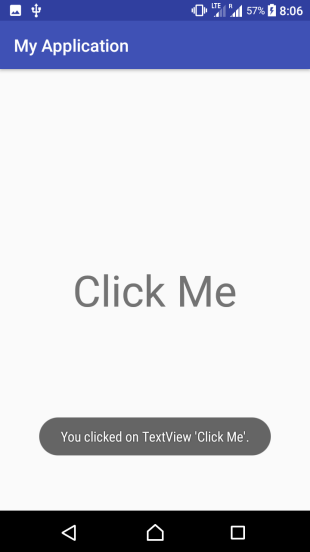
            Toast.makeText(this@MainActivity, "You clicked on TextView 'Click Me'.", Toast.LENGTH_SHORT).show()
        }
    }
}
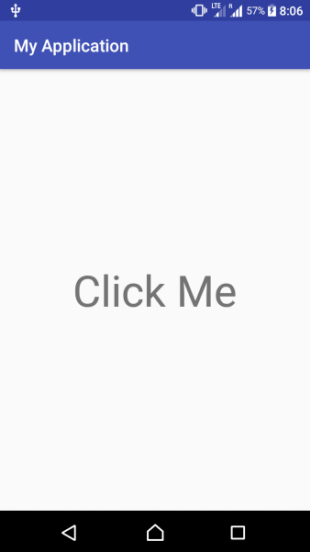
Following are the screenshots to demonstrate the setOnClickListener for TextView.
Modern AndroidX TextView OnClickListener example in Kotlin
The earlier example uses older support library package names because it was written for older Android project templates. In a current AndroidX project, your Activity usually extends androidx.appcompat.app.AppCompatActivity. The click listener code remains the same.
activity_main.xml
<?xml version="1.0" encoding="utf-8"?>
<androidx.constraintlayout.widget.ConstraintLayout
    xmlns:android="http://schemas.android.com/apk/res/android"
    xmlns:app="http://schemas.android.com/apk/res-auto"
    android:layout_width="match_parent"
    android:layout_height="match_parent">

    <TextView
        android:id="@+id/tvClickMe"
        android:layout_width="wrap_content"
        android:layout_height="wrap_content"
        android:padding="16dp"
        android:text="Click Me"
        android:textSize="24sp"
        android:clickable="true"
        android:focusable="true"
        app:layout_constraintBottom_toBottomOf="parent"
        app:layout_constraintEnd_toEndOf="parent"
        app:layout_constraintStart_toStartOf="parent"
        app:layout_constraintTop_toTopOf="parent" />

</androidx.constraintlayout.widget.ConstraintLayout>
MainActivity.kt
package com.tutorialkart.myapplication

import android.os.Bundle
import android.widget.TextView
import android.widget.Toast
import androidx.appcompat.app.AppCompatActivity

class MainActivity : AppCompatActivity() {

    override fun onCreate(savedInstanceState: Bundle?) {
        super.onCreate(savedInstanceState)
        setContentView(R.layout.activity_main)

        val tvClickMe = findViewById<TextView>(R.id.tvClickMe)

        tvClickMe.setOnClickListener {
            Toast.makeText(
                this,
                "You clicked the TextView.",
                Toast.LENGTH_SHORT
            ).show()
        }
    }
}
Use sp for text size and dp for spacing such as padding and margins. In the old layout above, android:textSize="50dp" works syntactically, but sp is the better unit for text because it respects the user’s font-size preference.
Change TextView text after click in Kotlin Android
A common use case is to update the same TextView after it is clicked. The following example changes the displayed text when the user taps it.
val statusTextView = findViewById<TextView>(R.id.tvClickMe)

statusTextView.setOnClickListener {
    statusTextView.text = "TextView was clicked"
}
You can also update another view from inside the click listener, as long as you have a reference to that view.
val actionTextView = findViewById<TextView>(R.id.tvClickMe)
val resultTextView = findViewById<TextView>(R.id.tvResult)

actionTextView.setOnClickListener {
    resultTextView.text = "Clicked successfully"
}
Open another Activity from TextView click in Kotlin
If the TextView should navigate to another screen, create an Intent inside the click listener and call startActivity().
val openDetailsTextView = findViewById<TextView>(R.id.tvClickMe)

openDetailsTextView.setOnClickListener {
    val intent = Intent(this, DetailsActivity::class.java)
    startActivity(intent)
}
Add the required import for Intent when you use this pattern.
import android.content.IntentUsing the clicked View inside TextView setOnClickListener
Inside the Kotlin lambda, Android passes the clicked view as it. You can use it when you want to work with the view that received the click.
val textView = findViewById<TextView>(R.id.tvClickMe)

textView.setOnClickListener {
    val clickedTextView = it as TextView
    clickedTextView.text = "Clicked"
}
When the listener is attached to a known TextView, directly using the variable name is usually clearer. Use it when the same listener is shared by multiple views.
Handle clicks for multiple TextViews with one listener
If your screen has more than one clickable TextView, you can attach the same listener logic and use a Kotlin when expression to identify which view was clicked.
val tvProfile = findViewById<TextView>(R.id.tvProfile)
val tvSettings = findViewById<TextView>(R.id.tvSettings)
val tvHelp = findViewById<TextView>(R.id.tvHelp)

val textClickListener = View.OnClickListener { view ->
    when (view.id) {
        R.id.tvProfile -> {
            Toast.makeText(this, "Profile clicked", Toast.LENGTH_SHORT).show()
        }
        R.id.tvSettings -> {
            Toast.makeText(this, "Settings clicked", Toast.LENGTH_SHORT).show()
        }
        R.id.tvHelp -> {
            Toast.makeText(this, "Help clicked", Toast.LENGTH_SHORT).show()
        }
    }
}

tvProfile.setOnClickListener(textClickListener)
tvSettings.setOnClickListener(textClickListener)
tvHelp.setOnClickListener(textClickListener)
Add this import when you explicitly use View.OnClickListener.
import android.view.ViewTextView OnClickListener not working in Kotlin Android
If the click listener does not run, check the following points before changing the Kotlin code.
- Check the TextView id. The id in XML must match the id used in
findViewById. - Call setContentView before findViewById. The Activity layout must be loaded before you access the
TextView. - Do not place another view on top of the TextView. An overlapping view may receive the click instead.
- Keep the TextView enabled. A disabled view will not behave like a normal clickable view.
- Use enough padding for small text. A tiny click target may make it look like the click is not working.
For text that is meant to behave like a button, adding padding improves usability.
<TextView
    android:id="@+id/tvClickMe"
    android:layout_width="wrap_content"
    android:layout_height="wrap_content"
    android:padding="16dp"
    android:text="Click Me"
    android:textSize="18sp" />
TextView click listener versus Button click listener
A Button is the better choice for a primary action, such as submitting a form or saving changes. A clickable TextView is better for lighter text actions, such as Read more, Change, Skip, or View details.
| Use case | Recommended view |
|---|---|
| Main screen action such as Save, Submit, Continue | Button |
| Small inline action such as Show more or Edit | TextView with click listener |
| Opening a web link inside text | TextView with spans or link handling |
| Navigation text in a custom layout | TextView with setOnClickListener |
FAQ on TextView OnClickListener in Kotlin Android
How do I set a click event on TextView in Android Kotlin?
Get the TextView reference using findViewById<TextView>(R.id.yourTextViewId), and then call setOnClickListener on it. The code inside the lambda runs when the user taps the TextView.
val textView = findViewById<TextView>(R.id.tvClickMe)

textView.setOnClickListener {
    Toast.makeText(this, "Clicked", Toast.LENGTH_SHORT).show()
}
Can I use setOnClickListener for both Button and TextView?
Yes. Both Button and TextView are Android views, so both can use setOnClickListener. Use a Button for clear form actions and a clickable TextView for lighter text-based actions.
Why is my TextView OnClickListener not firing?
The most common reasons are a wrong view id, calling findViewById before setContentView, another view overlapping the TextView, or the TextView being disabled. Also check that you are tapping inside the actual bounds of the text or padded area.
Should I add android:clickable=”true” to TextView?
When you set an OnClickListener, Android can treat the view as clickable. Adding android:clickable="true" and android:focusable="true" in XML can still make the intent clear, especially when the text is designed as an interactive element.
How do I handle multiple TextView clicks in one Kotlin listener?
Create one View.OnClickListener, attach it to all required TextView objects, and use when (view.id) inside the listener to run different code for each TextView.
QA checklist for this Kotlin TextView click tutorial
- The layout has a
TextViewwith the same id used in Kotlin. setContentView()is called beforefindViewById().- The Kotlin file imports
TextView,Toast, and any additional classes such asIntentorViewwhen needed. - The click listener code is inside
onCreate()or another method that runs after the layout is loaded. - Text size uses
sp, while padding and margins usedp. - The clickable text has enough padding or visible styling so users understand it is interactive.
Conclusion
In this Kotlin Android Tutorial, we have learnt how to set on-click listener for TextView using TextView.setOnClickListener() method.
The key steps are simple: define a TextView in XML, get its reference in Kotlin, and call setOnClickListener on it. From inside the listener, you can show a message, update the text, navigate to another Activity, or handle multiple clickable TextView elements with a shared listener.