 TutorialKart.com
Create EditText Programmatically in Kotlin Android
An EditText is an Android widget used to accept editable text input from the user. Usually, you declare it in an XML layout file. In some screens, however, you may need to create an EditText programmatically in Kotlin and add it to a parent layout at runtime.
In this tutorial, we will create an EditText in Kotlin code, set its layout parameters and hint text, and then add it to a LinearLayout that already exists in the layout file.
When to Create an EditText Programmatically in Android
Creating an EditText in Kotlin code is useful when the number of input fields is not fixed. For example, a form may allow the user to add more phone numbers, email addresses, tags, comments, or custom fields. In such cases, defining every EditText in XML is not practical.
The basic steps are:
- Get the parent layout using
findViewById(). - Create an
EditTextobject using the Activity context. - Set layout parameters such as width and height.
- Set properties such as hint, text size, input type, or single-line behavior.
- Add the EditText to the parent layout using
addView().
Code – Create EditText in Kotlin File
A quick snippet of code to create a new EditText Widget programmatically in Kotlin Android
val edit_text = EditText(this)
edit_text.layoutParams = LinearLayout.LayoutParams(LinearLayout.LayoutParams.WRAP_CONTENT, ViewGroup.LayoutParams.WRAP_CONTENT)
edit_text.hint = "Enter Text"
The constructor EditText(this) uses the current Activity as the context. Layout parameters tell the parent layout how much space the EditText should occupy. The hint property displays placeholder text until the user enters a value.
Create and update Android views on the main UI thread. If you try to modify views from a background thread, Android can throw a thread-related runtime exception. In normal Activity code, the onCreate() method already runs on the main thread, so the examples below are safe.
In this Android Tutorial, we shall present you on how to create a EditText Widget programmatically and add the EditText to a LinearLayout using Kotlin programming.
Example – Android Application with EditText Created Programmatically
Following is the activity_main.xml containing a LinearLayout.
activity_main.xml
<?xml version="1.0" encoding="utf-8"?>
<android.support.constraint.ConstraintLayout xmlns:android="http://schemas.android.com/apk/res/android"
    xmlns:app="http://schemas.android.com/apk/res-auto"
    xmlns:tools="http://schemas.android.com/tools"
    android:layout_width="match_parent"
    android:layout_height="match_parent"
    tools:context="com.tutorialkart.myapplication.MainActivity">
    <LinearLayout
        android:id="@+id/ll_main_layout"
        android:layout_width="match_parent"
        android:layout_height="match_parent"
        android:gravity="center"
        android:orientation="vertical">

    </LinearLayout>

</android.support.constraint.ConstraintLayout>
In MainActivity.kt, we will create a new EditText with hint “Enter Text” programmatically and add it to the LinearLayout in the layout file.
MainActivity.kt
package com.tutorialkart.myapplication

import android.support.v7.app.AppCompatActivity
import android.os.Bundle
import android.view.ViewGroup
import android.widget.EditText
import android.widget.LinearLayout

class MainActivity : AppCompatActivity() {

    override fun onCreate(savedInstanceState: Bundle?) {
        super.onCreate(savedInstanceState)
        setContentView(R.layout.activity_main)

        val ll_main = findViewById(R.id.ll_main_layout) as LinearLayout

        val edit_text = EditText(this)
        // setting layout_width and layout_height using layout parameters
        edit_text.layoutParams = LinearLayout.LayoutParams(LinearLayout.LayoutParams.WRAP_CONTENT, ViewGroup.LayoutParams.WRAP_CONTENT)
        edit_text.hint = "Enter Text"
        // add EditText to LinearLayout
        ll_main.addView(edit_text)
    }
}
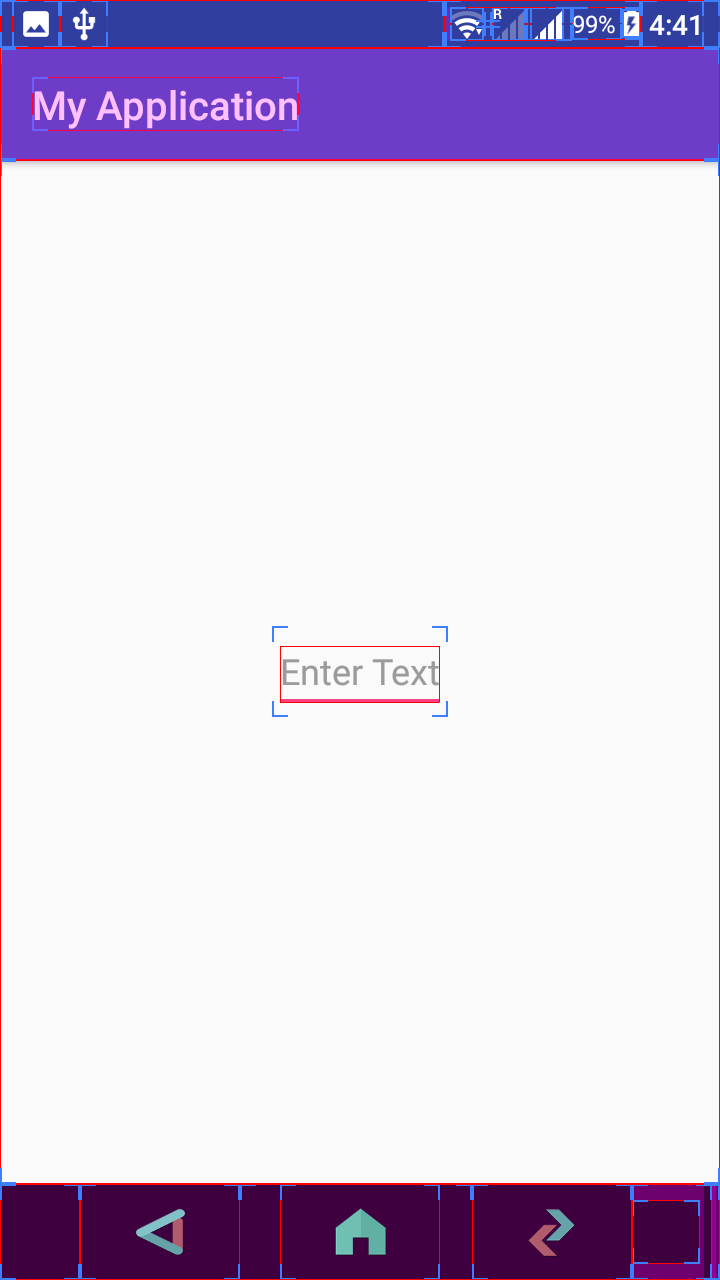
Following is the Android Screen with programmatically generated EditText. Layout bounds are shown for understanding the placement of EditText in the layout.
AndroidX Kotlin Version for Creating EditText Programmatically
The earlier example uses the old Android support package imports because the original project was created with that setup. In current Android projects, AndroidX imports are normally used. The logic is the same: find the parent layout, create the EditText, configure it, and add it to the layout.
MainActivity.kt with AndroidX imports
package com.tutorialkart.myapplication

import android.os.Bundle
import android.view.ViewGroup
import android.widget.EditText
import android.widget.LinearLayout
import androidx.appcompat.app.AppCompatActivity

class MainActivity : AppCompatActivity() {

    override fun onCreate(savedInstanceState: Bundle?) {
        super.onCreate(savedInstanceState)
        setContentView(R.layout.activity_main)

        val mainLayout = findViewById<LinearLayout>(R.id.ll_main_layout)

        val editText = EditText(this).apply {
            layoutParams = LinearLayout.LayoutParams(
                LinearLayout.LayoutParams.MATCH_PARENT,
                ViewGroup.LayoutParams.WRAP_CONTENT
            )
            hint = "Enter Text"
        }

        mainLayout.addView(editText)
    }
}
In this version, findViewById<LinearLayout>() avoids the explicit cast used in older Kotlin Android examples. The width is set to MATCH_PARENT, so the EditText takes the available width of the parent layout.
Set Hint, Text, Input Type, and Single Line for Kotlin EditText
After creating an EditText programmatically, you can set the same properties that you normally set in XML. For example, you can set default text, make the field accept only numbers, or restrict input to a single line.
import android.text.InputType
import android.widget.EditText
import android.widget.LinearLayout

val editText = EditText(this).apply {
    layoutParams = LinearLayout.LayoutParams(
        LinearLayout.LayoutParams.MATCH_PARENT,
        LinearLayout.LayoutParams.WRAP_CONTENT
    )
    hint = "Enter mobile number"
    setText("")
    inputType = InputType.TYPE_CLASS_PHONE
    isSingleLine = true
}
Use hint for placeholder text. Use setText() when you want to place an actual value inside the EditText. Use inputType to help Android show a suitable keyboard for the expected input.
Read Text from a Programmatically Created EditText in Kotlin
To read the value entered by the user, keep a reference to the EditText and call text.toString(). The text property returns an editable text object, so converting it to a String is useful when validating or saving the input.
val userInput = editText.text.toString()If the EditText is created inside a method and you need to read it later, declare it as a property of the Activity or store references in a list when you create multiple EditText fields dynamically.
private lateinit var nameEditText: EditText

// Inside onCreate()
nameEditText = EditText(this).apply {
    hint = "Enter name"
}

// Later, for example inside a button click listener
val name = nameEditText.text.toString().trim()
Create Multiple EditText Fields Dynamically in Kotlin
If you need more than one input field, create EditText widgets in a loop and add each one to the parent layout. This pattern is common in dynamic forms.
val editTexts = mutableListOf<EditText>()

for (index in 1..3) {
    val editText = EditText(this).apply {
        layoutParams = LinearLayout.LayoutParams(
            LinearLayout.LayoutParams.MATCH_PARENT,
            LinearLayout.LayoutParams.WRAP_CONTENT
        )
        hint = "Enter value $index"
    }

    editTexts.add(editText)
    mainLayout.addView(editText)
}
The list editTexts lets you read all values later. For example, you can map each EditText value to a list of strings.
val values = editTexts.map { it.text.toString().trim() }TextView vs EditText in Android Forms
A TextView displays text to the user. An EditText allows the user to enter and edit text. If the content is only for display, use TextView. If the user needs to type a value, use EditText.
For example, a label such as Name can be a TextView, while the field where the user enters the name should be an EditText.
Common Mistakes When Adding EditText Programmatically
- Using the wrong parent layout parameters: Use
LinearLayout.LayoutParamswhen adding the EditText to a LinearLayout. Use the parent layout’s matchingLayoutParamstype for other layouts. - Forgetting to call addView(): Creating the EditText object alone does not display it. You must add it to a parent ViewGroup.
- Confusing hint and text: The hint is only placeholder text. Use
setText()to set the actual value. - Creating views from a background thread: Create and update Android views on the main thread.
- Not keeping a reference: If you need to read the value later, keep the EditText reference as a property or store it in a list.
QA Checklist for Kotlin Android EditText Programmatic Tutorial
- Confirm that the parent layout ID used in Kotlin matches the ID in
activity_main.xml. - Check that the EditText is added to the correct parent layout using
addView(). - Use
MATCH_PARENTorWRAP_CONTENTbased on the intended field width. - Use
hintfor placeholder text andsetText()for actual text. - When using AndroidX, import
androidx.appcompat.app.AppCompatActivityinstead of the older support package.
FAQs on Creating EditText Programmatically in Kotlin Android
How to create custom EditText in Android using Kotlin?
Create an EditText object in Kotlin, set its layout parameters and properties, and add it to a parent layout. You can customize it further by setting hint text, input type, padding, background, text size, or validation logic.
How to set text in EditText Android programmatically?
Use the setText() method or assign text through the EditText reference. For example, editText.setText("Hello") places the value Hello inside the EditText.
What is the difference between TextView and EditText in Android?
A TextView is mainly used to display text. An EditText is used when the user should be able to enter or edit text. EditText is commonly used in forms, search boxes, login screens, and data entry screens.
Why is my programmatically created EditText not visible?
The EditText may not be visible if it was not added to a parent layout, if the parent layout is hidden, or if the layout parameters are not suitable for the parent. Check the parent ID, addView() call, width, height, and visibility.
Can I create more than one EditText dynamically in Kotlin?
Yes. You can create multiple EditText widgets in a loop and add each one to a LinearLayout or another ViewGroup. Store the EditText references in a list if you need to read their values later.
Conclusion – Create EditText Programmatically in Kotlin Android
In this Kotlin Android Tutorial, we have learned to create EditText programmatically and add it to layout.
The key idea is simple: create the EditText with a valid context, set layout parameters that match the parent layout, configure the field properties, and add it to the parent using addView(). This approach is useful when your Android screen needs input fields that are decided at runtime.