 TutorialKart.com
Android Text to Speech with Kotlin Using TextToSpeech
To convert text to speech in Android, use the android.speech.tts.TextToSpeech class and call its speak() method after the TTS engine has finished initialization.
In this tutorial – Android Text To Speech Kotlin Example, we will learn how to use the TextToSpeech class to convert entered text into spoken audio in a Kotlin Android application.
The example below uses an EditText and a Speak button. The important parts are: initialize the engine, wait for onInit(), set a supported language, call speak(), and release the TTS engine in onDestroy().
Android TextToSpeech Kotlin Flow
- Create a
TextToSpeechobject for the current Activity. - Disable the Speak button until the engine is ready.
- Use
setLanguage(Locale.US)or another supported locale. - Use
TextToSpeech.QUEUE_FLUSHwhen the latest text should replace any current speech. - Call
stop()andshutdown()when the Activity is destroyed.
For API details, refer to the official Android documentation for TextToSpeech.
Steps to Convert Text to Speech in Android Kotlin
Following are the steps we have to take while using speak() method of TextToSpeech.
Step 1: Extend your activity with TextToSpeech.OnInitListener.
class MainActivity : AppCompatActivity(),TextToSpeech.OnInitListenerStep 2: Initialize TextToSpeech class variable.
tts = TextToSpeech(this, this)TextToSpeech(Context, OnInitListener)
Step 3: You may set an event, which can trigger the Speech output. A button onClickListener is used in this example.
buttonSpeak!!.setOnClickListener { speakOut() }private fun speakOut() {
val text = editText!!.text.toString()
tts!!.speak(text, TextToSpeech.QUEUE_FLUSH, null,"")
}Step 4: When your application is started, TextToSpeech Engine may take some duration of time for initialization. To avoid speaking out, you may initially disable the button to speak. When the TextToSpeech Engine is initialized, onInit() function is called, which should be overridden and you may enable the button here.
Step 5: And finally, when your Activity is destroyed, stop and shutdown TextToSpeech Engine.
public override fun onDestroy() {
// Shutdown TTS
if (tts != null) {
tts!!.stop()
tts!!.shutdown()
}
super.onDestroy()
}Android 11 Manifest Query for TextToSpeech Engines
If your app targets Android 11 or later and needs to discover installed TTS engines, add a TTS service query in AndroidManifest.xml. A basic text-to-speech app does not need microphone permission because it plays synthesized audio and does not record audio.
<queries>
<intent>
<action android:name="android.intent.action.TTS_SERVICE" />
</intent>
</queries>Android Text To Speech Kotlin XML Example
Following are the details of the Android Application we created for this example.
| Application Name | TextToSpeechApp |
| Company name | tutorialkart.com |
| Minimum SDK | API 21: Android 5.0 (Lollipop) |
| Activity | Empty Activity |
You may keep rest of the values as default and create Android Application with Kotlin Support.
Following are the MainActivity.kt (class file) and activity_main.xml (layout file).
activity_main.xml
<?xml version="1.0" encoding="utf-8"?>
<android.support.constraint.ConstraintLayout xmlns:android="http://schemas.android.com/apk/res/android"
xmlns:tools="http://schemas.android.com/tools"
android:layout_width="match_parent"
android:layout_height="match_parent"
tools:context="com.tutorialkart.texttospeechapp.MainActivity">
<LinearLayout
android:layout_width="match_parent"
android:layout_height="match_parent"
android:orientation="vertical"
android:gravity="center">
<EditText
android:id="@+id/edittext_input"
android:layout_width="wrap_content"
android:layout_height="wrap_content"
android:ems="10" >
<requestFocus />
</EditText>
<Button
android:id="@+id/button_speak"
android:layout_width="wrap_content"
android:layout_height="wrap_content"
android:text="Speak" />
</LinearLayout>
</android.support.constraint.ConstraintLayout>
MainActivity.kt
package com.tutorialkart.texttospeechapp
import android.support.v7.app.AppCompatActivity
import android.os.Bundle
import android.speech.tts.TextToSpeech
import android.util.Log
import android.widget.Button
import android.widget.EditText
import kotlinx.android.synthetic.main.activity_main.*
import java.util.*
class MainActivity : AppCompatActivity(),TextToSpeech.OnInitListener {
private var tts: TextToSpeech? = null
private var buttonSpeak: Button? = null
private var editText: EditText? = null
override fun onCreate(savedInstanceState: Bundle?) {
super.onCreate(savedInstanceState)
setContentView(R.layout.activity_main)
buttonSpeak = this.button_speak
editText = this.edittext_input
buttonSpeak!!.isEnabled = false;
tts = TextToSpeech(this, this)
buttonSpeak!!.setOnClickListener { speakOut() }
}
override fun onInit(status: Int) {
if (status == TextToSpeech.SUCCESS) {
// set US English as language for tts
val result = tts!!.setLanguage(Locale.US)
if (result == TextToSpeech.LANG_MISSING_DATA || result == TextToSpeech.LANG_NOT_SUPPORTED) {
Log.e("TTS","The Language specified is not supported!")
} else {
buttonSpeak!!.isEnabled = true
}
} else {
Log.e("TTS", "Initilization Failed!")
}
}
private fun speakOut() {
    val text = editText!!.text.toString()
    tts!!.speak(text, TextToSpeech.QUEUE_FLUSH, null,"")
}
public override fun onDestroy() {
    // Shutdown TTS
    if (tts != null) {
        tts!!.stop()
        tts!!.shutdown()
    }
    super.onDestroy()
}
}Note for new Android projects: this sample keeps the older support-library and Kotlin synthetic-accessor code unchanged. In a current AndroidX project, use androidx.appcompat.app.AppCompatActivity and access views with View Binding, findViewById(), or Jetpack Compose.
TextToSpeech Language and Queue Checks in Kotlin
| TextToSpeech item | Purpose in this example |
|---|---|
onInit() | Confirms that the TTS engine is ready before enabling the Speak button. |
setLanguage(Locale.US) | Sets the language and returns whether language data is missing or unsupported. |
TextToSpeech.QUEUE_FLUSH | Clears current queued speech and speaks the latest text from the input field. |
TextToSpeech.QUEUE_ADD | Can be used when new text should be spoken after the current speech. |
shutdown() | Releases TextToSpeech resources when the Activity is destroyed. |
For longer speech flows, Android also provides UtteranceProgressListener, which can be used to track when an utterance starts, completes, or fails.
Run the Android Text To Speech Kotlin App
Run the application, and you will get the following output in the screen.
Output
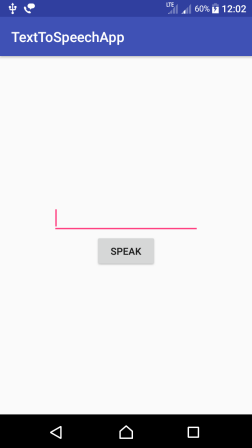
Type in some text into the text input.
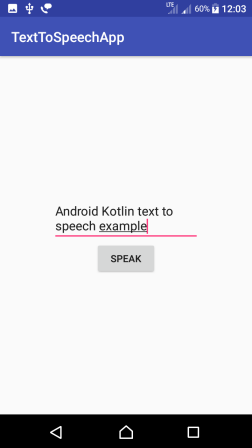
Click on SPEAK button, and you will hear the Speech.
Common Android TextToSpeech Kotlin Issues
- No speech output: check that
onInit()returnsTextToSpeech.SUCCESS. - Language error: check for
LANG_MISSING_DATAandLANG_NOT_SUPPORTEDafter callingsetLanguage(). - Old speech overlaps new speech: use
QUEUE_FLUSHinstead ofQUEUE_ADD. - Speech continues after closing the screen: call
stop()andshutdown()inonDestroy(). - Blank button clicks: trim the EditText value and avoid calling
speak()for empty text.
Editorial QA Checklist for Android TextToSpeech Kotlin Code
- The TextToSpeech object is initialized once for the Activity.
- The Speak button is disabled until the engine is ready.
- The selected locale is checked for missing data and unsupported language.
- The
speak()call uses the intended queue mode. - The Activity releases the TTS engine with
shutdown(). - No microphone permission is added for a text-to-speech-only feature.
FAQs on Android TextToSpeech Kotlin Example
Do I need internet for Android TextToSpeech in Kotlin?
Not always. Android TextToSpeech can use installed TTS engine voices. Some engines or voices may use network synthesis depending on device settings.
Why should speak() be called only after onInit()?
The TextToSpeech engine must complete initialization before it can reliably synthesize speech. The example enables the Speak button only after initialization succeeds.
What is the difference between QUEUE_FLUSH and QUEUE_ADD?
QUEUE_FLUSH clears existing queued speech and speaks the latest text. QUEUE_ADD adds the new text after the current speech queue.
Does Android TextToSpeech require RECORD_AUDIO permission?
No. Text-to-speech plays generated audio and does not record from the microphone. Add microphone permission only if your app also records audio or performs speech recognition.
What this Android TextToSpeech Kotlin Tutorial Covered
In this Kotlin Android Tutorial, we learned how to use TextToSpeech class to convert text to audio. We also covered initialization, language checks, queue modes, Android 11 package visibility, common mistakes, and proper TextToSpeech cleanup.