 TutorialKart.com
Kotlin setOnClickListener for Button
Android Button widget is a UI element generally used to receive user actions as input. You can click on a Button, long press, etc.
In Kotlin Android, the usual way to run code when a user taps a Button is to call setOnClickListener on the Button reference. The listener receives the click event, and the code inside the listener block is executed only after the Button is clicked.
In this tutorial, we shall learn to set OnClickListener for Button using a simple Toast message example, and then look at a few common variations such as using the clicked View, disabling repeated clicks, and understanding the difference between XML android:onClick and setOnClickListener.
Code – Button.setOnClickListener()
Following code helps you to set on-click listener for Button.
// get reference to button
val btn_click_me = findViewById(R.id.btn_click_me) as Button
// set on-click listener
btn_click_me.setOnClickListener {
    Toast.makeText(this@MainActivity, "You clicked me.", Toast.LENGTH_SHORT).show()
}
What we have done here is, we got the reference to the Button and then used setOnClickListener method to trigger an action when the button is clicked.
Kotlin setOnClickListener syntax for a Button click
The Kotlin syntax is concise because setOnClickListener accepts a single-method listener. You can pass a lambda block directly.
button.setOnClickListener {
    // Code to run when the button is clicked
}
If you need the clicked view inside the listener, use the lambda parameter. This is useful when the same listener logic is shared by multiple views.
button.setOnClickListener { view ->
    // view is the Button or View that was clicked
    view.isEnabled = false
}
For newer Kotlin Android code, you may also see a typed findViewById call instead of casting with as Button.
val button = findViewById<Button>(R.id.btn_click_me)Both approaches are common in tutorials. The important point is that the Button reference must be available after setContentView has loaded the layout that contains the Button.
Example – Kotlin Androide Button.setOnClickListener()
Now we shall look into the layout xml file and Activity(Kotlin file) to set OnClickListener for a Button.
Create an Android Application with Kotlin Support and replace activity_main.xml and MainActivity.kt with the following content.
activity_main.xml
<?xml version="1.0" encoding="utf-8"?>
<android.support.constraint.ConstraintLayout xmlns:android="http://schemas.android.com/apk/res/android"
    xmlns:app="http://schemas.android.com/apk/res-auto"
    xmlns:tools="http://schemas.android.com/tools"
    android:layout_width="match_parent"
    android:layout_height="match_parent"
    tools:context="com.tutorialkart.myapplication.MainActivity">
    <LinearLayout
        android:id="@+id/ll_main_layout"
        android:layout_width="match_parent"
        android:layout_height="match_parent"
        android:gravity="center"
        android:orientation="vertical">
        <Button
            android:id="@+id/btn_click_me"
            android:layout_width="wrap_content"
            android:layout_height="wrap_content"
            android:text="Click Me"/>
    </LinearLayout>
</android.support.constraint.ConstraintLayout>
MainActivity.kt
package com.tutorialkart.myapplication

import android.support.v7.app.AppCompatActivity
import android.os.Bundle
import android.widget.Button
import android.widget.Toast

class MainActivity : AppCompatActivity() {

    override fun onCreate(savedInstanceState: Bundle?) {
        super.onCreate(savedInstanceState)
        setContentView(R.layout.activity_main)

        // get reference to button
        val btn_click_me = findViewById(R.id.btn_click_me) as Button
        // set on-click listener
        btn_click_me.setOnClickListener {
            // your code to perform when the user clicks on the button
            Toast.makeText(this@MainActivity, "You clicked me.", Toast.LENGTH_SHORT).show()
        }
    }
}
Build and Run the Android Application. You would see the Android screen as shown in the following screenshot.
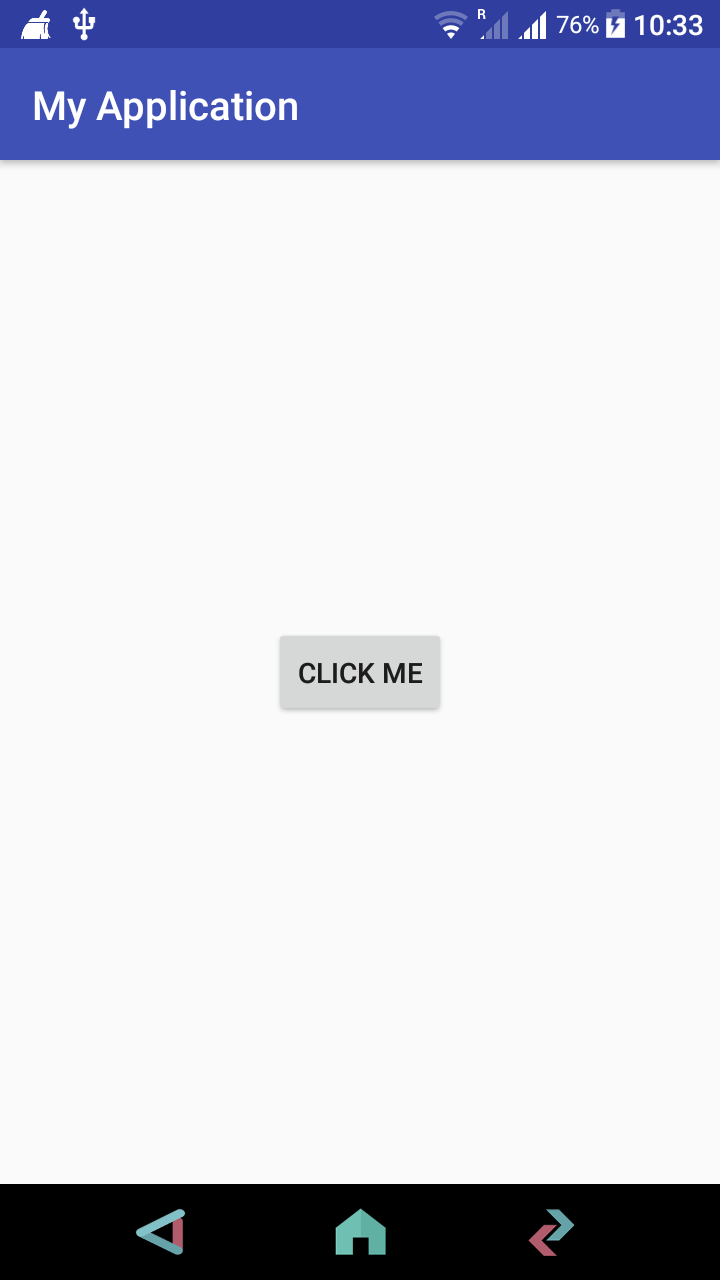
Tap on ‘Click Me’ button.
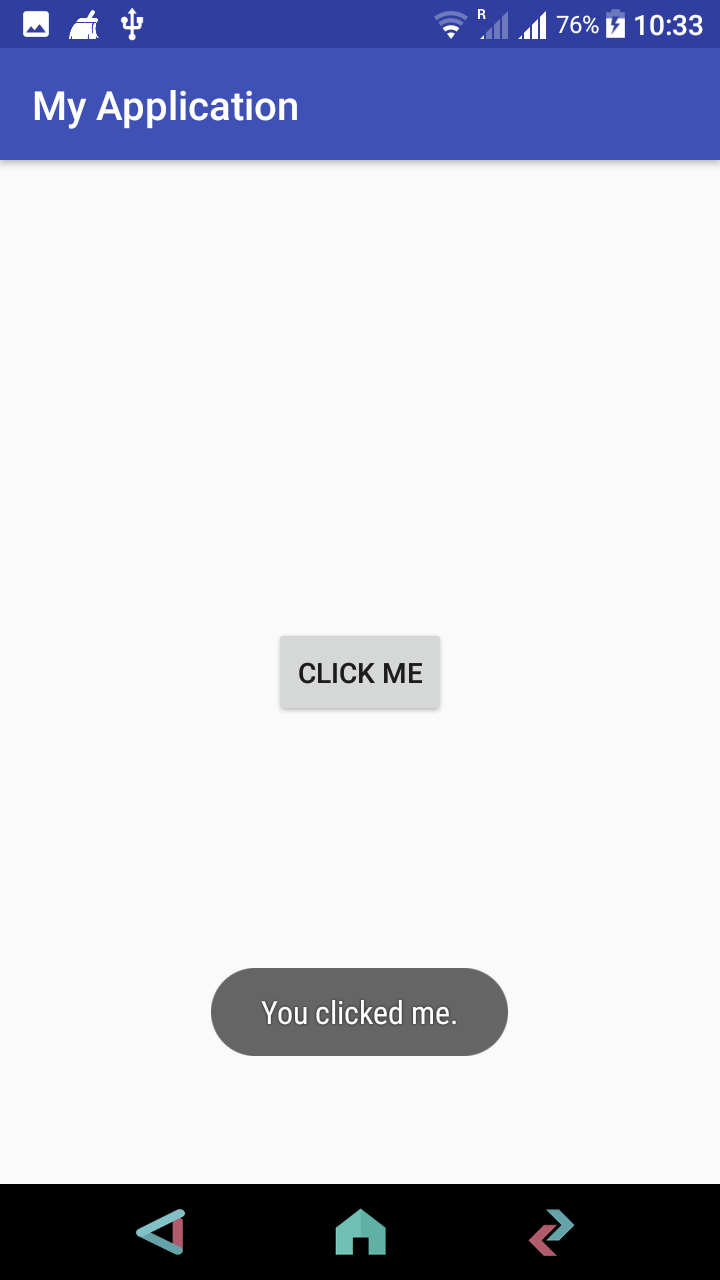
Button.setOnClickListener() will be triggered and the code in this setOnClickListener{} block will run.
What happens when the Kotlin Button is clicked?
When the Activity starts, Android loads the layout using setContentView. Then findViewById finds the Button from that layout. After that, setOnClickListener attaches click-handling code to the Button.
- The user taps the Button.
- Android detects the click event on that Button.
- The lambda block passed to
setOnClickListeneris executed. - In this example, a Toast message is shown on the screen.
The Toast is only an example action. Inside the click listener, you can open another Activity, update a TextView, submit form data, validate input, start an animation, or call another function.
Kotlin Button click listener with a separate function
For small examples, writing the click code directly inside the listener is fine. In real screens, it is often cleaner to call a separate function from the listener.
val button = findViewById<Button>(R.id.btn_click_me)

button.setOnClickListener {
    showClickMessage()
}

private fun showClickMessage() {
    Toast.makeText(this, "You clicked me.", Toast.LENGTH_SHORT).show()
}
This keeps onCreate easier to read, especially when the Activity contains many Buttons or several UI actions.
Kotlin setOnClickListener for multiple Buttons
If you have more than one Button, you can attach a separate listener to each Button. This approach is clear when each Button performs a different action.
val saveButton = findViewById<Button>(R.id.btn_save)
val cancelButton = findViewById<Button>(R.id.btn_cancel)

saveButton.setOnClickListener {
    saveDetails()
}

cancelButton.setOnClickListener {
    finish()
}
When multiple Buttons perform similar work, you can use the clicked View parameter and check the Button id.
val clickListener = View.OnClickListener { view ->
    when (view.id) {
        R.id.btn_save -> saveDetails()
        R.id.btn_cancel -> finish()
    }
}

findViewById<Button>(R.id.btn_save).setOnClickListener(clickListener)
findViewById<Button>(R.id.btn_cancel).setOnClickListener(clickListener)
To use View.OnClickListener, import android.view.View in your Kotlin file.
Difference between android:onClick and setOnClickListener in Kotlin
Android also supports an XML attribute named android:onClick, where the method name is written in the layout file. For example:
<Button
    android:id="@+id/btn_click_me"
    android:layout_width="wrap_content"
    android:layout_height="wrap_content"
    android:text="Click Me"
    android:onClick="onClickMe" />
Then the Activity should contain a matching public method that receives a View parameter.
fun onClickMe(view: View) {
    Toast.makeText(this, "You clicked me.", Toast.LENGTH_SHORT).show()
}
However, many Kotlin Android projects prefer setOnClickListener because the click logic stays in Kotlin code, is easier to refactor, and avoids mistakes caused by method names written as strings in XML.
| Approach | Where click logic is connected | Common use |
|---|---|---|
setOnClickListener | In Kotlin code | Recommended for most Kotlin Activity and Fragment code |
android:onClick | In XML using a method name | Simple XML-based examples or legacy layouts |
Common Button click listener mistakes in Kotlin Android
If the click listener does not run, check these points before changing the Button code.
- Calling findViewById before setContentView: The layout must be loaded before you search for the Button id.
- Wrong Button id: Make sure the id used in Kotlin exactly matches the id in XML, such as
R.id.btn_click_me. - Missing import: If you use
Button,Toast, orView, import the correct Android classes. - Disabled Button: A Button with
android:enabled="false"orbutton.isEnabled = falsewill not respond to normal clicks. - Overlapping view: Another view placed over the Button may receive the touch event instead of the Button.
Kotlin Button click listener for preventing repeated clicks
Sometimes you may want to prevent the user from tapping the Button repeatedly, for example while submitting a form. One simple method is to disable the Button when it is clicked.
submitButton.setOnClickListener {
    submitButton.isEnabled = false
    submitForm()
}
Enable the Button again after the work is complete, especially if the form submission fails and the user should be allowed to retry.
Frequently asked questions about Kotlin Button setOnClickListener
How to set OnClickListener on a Button in Kotlin Android?
Get the Button reference using findViewById, and then call setOnClickListener on that Button. Place the code that should run after the click inside the listener block.
Is Android onClick deprecated?
The XML android:onClick attribute may still appear in examples, but Kotlin Android code commonly uses setOnClickListener because it keeps event handling in Kotlin code and is easier to maintain.
What is the difference between onClick and OnClickListener?
onClick is the callback method that runs when a click happens. OnClickListener is the listener interface used to receive that click event. In Kotlin, the listener is often written as a lambda passed to setOnClickListener.
Can I use the same Kotlin click listener for multiple Buttons?
Yes. You can create one View.OnClickListener, check view.id inside it, and attach it to multiple Buttons using setOnClickListener.
Why is my Kotlin Button click listener not working?
Common reasons include a wrong Button id, calling findViewById before setContentView, using a disabled Button, missing imports, or placing another view over the Button in the layout.
QA checklist for Kotlin Button OnClickListener tutorial
- The Button id in XML and Kotlin must match exactly.
- The listener must be attached after
setContentView. - The example should clearly show what happens after the Button is clicked.
- Any new Kotlin code examples should use the correct Android imports when copied into a project.
- The tutorial should distinguish between XML
android:onClickand KotlinsetOnClickListener.
Kotlin Android Button setOnClickListener summary
In this Android Tutorial – Kotlin Button OnclickListener, we have learnt to set OnClickListener for Button in Kotlin Android using Button.setOnClickListener() method.
The basic steps are simple: load the layout, get the Button reference, call setOnClickListener, and place the required action inside the listener block. This pattern is used throughout Android views whenever the app needs to respond to a user click.