 TutorialKart.com
In this SAP MM tutorial, you will learn how to create material types in SAP step by step using transaction code OMS2. Material type configuration is part of Material Master customizing, so it should normally be done in a development or customizing client first and then moved by transport after testing.
What are Material Types in SAP MM?
Material types in SAP MM group materials that have similar business behavior. For example, raw materials are commonly grouped under ROH, semi-finished materials under HALB, and finished products under FERT. When a material master record is created, the user must assign a material type, and that material type controls several important settings for the material.
A material type can influence number assignment, field selection, allowed material master views, procurement options, valuation settings, quantity and value updating, and the account category reference used with valuation classes. Because these settings affect purchasing, inventory management, MRP, accounting, and sales processes, create a new material type only when the standard material types do not meet the business requirement.
Before Creating a New Material Type in OMS2
Before you start transaction OMS2, decide the business reason for the new material type. In many cases, copying an existing standard material type such as ROH, HALB, FERT, HAWA, or DIEN and changing only the required fields is safer than creating settings from the beginning.
- Material type key: Use a clear custom key according to your project naming rule. Many projects use a customer namespace such as Z or Y for custom configuration.
- Reference material type: Choose a standard material type that behaves closest to the required process.
- Number range approach: Decide whether materials of this type will use internal number assignment, external number assignment, or both.
- Material master views: Decide which user departments such as Basic Data, Purchasing, MRP, Accounting, Sales, Storage, or Work Scheduling should be allowed.
- Valuation requirement: Confirm whether stock should be quantity-managed, value-managed, or both for the relevant valuation areas.
- Account determination: Check the account category reference and valuation classes with the FI/CO team before saving the final setup.
How to Create Material Type in SAP Using T-Code OMS2
You can create material type in SAP MM by using one of the following navigation methods.
Transaction code : – OMS2
IMG Path : – SPRO > IMG > Logistics – General > Material Master > Basic Settings > Material Type > Define attributes of material types.
Step 1 : – Enter SAP t-code “OMS2” in the SAP command field and press Enter.

Step 2 : – On the change view material types overview screen, the list of defined material types is displayed. Select an existing material type that is closest to your requirement and click Copy As. Copying a similar material type helps you retain relevant standard settings and reduces the chance of missing dependent configuration.
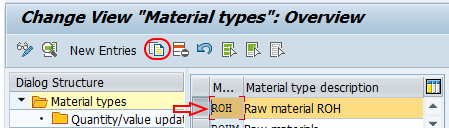
Step 3 : – On the change view “Material Types” details screen for the copied entry, update the required fields for the new material type.
Material Type : – Enter the new material type key. The key should clearly identify the purpose of the material type and should follow the naming convention used in your SAP system.
Description : – Enter a meaningful description for the material type. This description appears to users when they select the material type while creating or displaying material master records.
General data : – Under this field, maintain the required values such as field reference, SRef material type, item category group, and number assignment related settings. The field reference affects which fields are displayed, hidden, required, or optional in material master maintenance.
Special material types : – Select the relevant options only when the material type has a special purpose, such as packaging, configurable material, value-only material, or similar process-specific behavior. Leave options unchanged if they are not required for the business process.
User departments : – Choose the required departments for the material type, such as work scheduling, accounting, classification, MRP, purchasing, basic data, storage, sales, warehouse management, and quality management. These selections control which material master views can be maintained for materials of this type.
Internal/external purchase order : – Maintain the values for internal purchase orders and external purchase orders according to how the material can be procured or produced. These settings should match the procurement process used by the company.
Valuation : – Under this field, maintain the price control setting and account category reference. Price control can be set according to the business process, commonly standard price or moving average price. The account category reference links the material type with allowed valuation classes for automatic account determination.
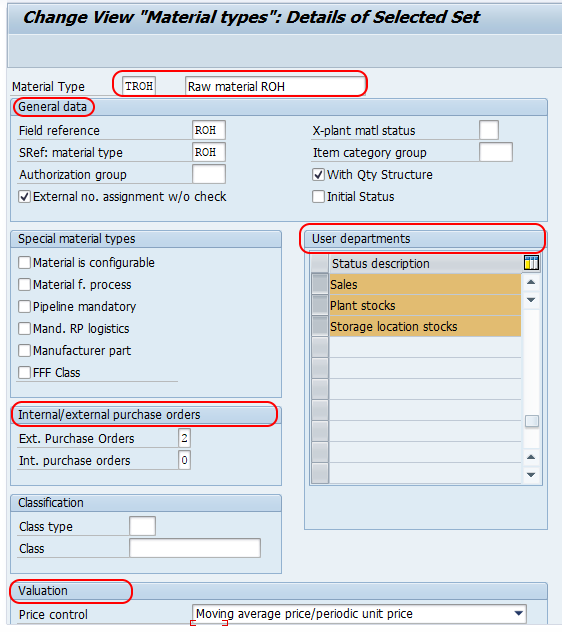
Press Enter to validate the entry. If the system displays any warning or error message, review the message and correct the missing or inconsistent setting. Then click the Save button and save the configured details in a customizing request.
Step 4 : – Now choose the created material type TROH and click on Quantity/value updating.
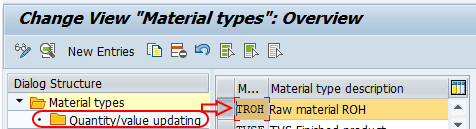
On the change view quantity/value updating overview screen, maintain the quantity updating and value updating indicators for the required valuation area. This is an important setting because it controls whether stock quantities and stock values are updated for materials of this type in that valuation area.
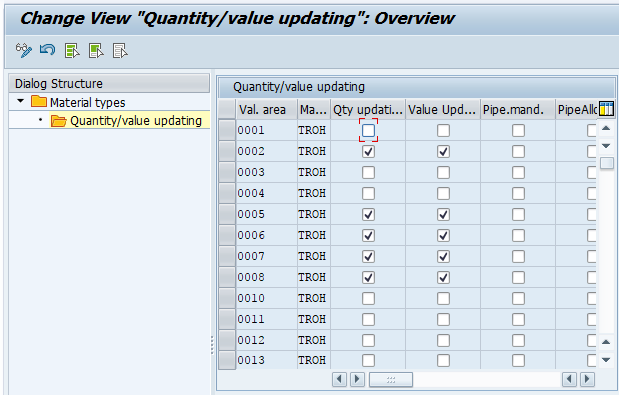
Click on the save button and save the configured material types in SAP.
Important OMS2 Fields for SAP Material Type Configuration
| OMS2 field or setting | What it controls in SAP MM | Practical check before saving |
|---|---|---|
| Material type key | Identifies the type assigned to the material master record. | Confirm the key follows the project naming rule and does not conflict with standard SAP types. |
| Field reference | Controls field selection behavior during material master maintenance. | Use a reference that matches the copied material type unless the business process needs different field behavior. |
| User departments | Controls the material master views available for this material type. | Check whether Purchasing, MRP, Accounting, Sales, Storage, Quality, or Work Scheduling views are required. |
| Internal/external number assignment | Controls how material numbers are assigned. | Confirm the number range and external number rules before users create materials. |
| Procurement settings | Controls whether the material type can be internally produced, externally procured, or both. | Match the setting with the intended purchasing or production process. |
| Price control | Provides the default valuation approach for materials of this type. | Confirm whether standard price or moving average price is expected for the material category. |
| Account category reference | Links the material type to allowed valuation classes. | Validate the setting with account determination and valuation class configuration. |
| Quantity/value updating | Controls whether inventory quantity and value are updated for each valuation area. | Maintain the correct indicators for each valuation area where the material type will be used. |
When to Create a Custom Material Type Instead of Using ROH, HALB, or FERT
Create a custom material type only when a standard material type cannot represent the required behavior. A new material type may be justified when the business needs separate number ranges, different material master views, different valuation class restrictions, special procurement control, or reporting separation that cannot be handled by material group, valuation class, item category group, or other master data fields.
Do not create a new material type only for description, department ownership, or a small reporting preference. In such cases, check whether material group, product hierarchy, valuation class, plant-specific settings, or classification can meet the requirement with less customizing impact.
Testing the New SAP Material Type After OMS2 Configuration
After saving the OMS2 settings, test the new material type before allowing business users to use it. A basic test should include creating a material master, checking the available views, verifying number assignment, and confirming that valuation and inventory settings behave as expected.
- Use MM01 to create a test material with the new material type.
- Check whether the expected views appear during material master creation.
- Verify whether internal or external material number assignment works according to the configuration.
- Extend the material to the required plant and storage location if the process needs inventory management.
- Check accounting data, valuation class, price control, and stock value behavior.
- Use MM03 to display the created material and confirm that the saved data is correct.
- Use MM60 when you need a list of materials and want to verify that materials of the new type are listed correctly.
Common Mistakes While Defining Material Types in SAP MM
- Copying the wrong reference material type: If the copied material type has very different settings, users may see incorrect views or procurement behavior.
- Missing quantity/value updating: If these indicators are not maintained for the relevant valuation area, inventory and accounting results may not match the expected process.
- Incorrect account category reference: This can prevent users from selecting the correct valuation class or can cause account determination issues later.
- Too many custom material types: Creating a new type for every small requirement makes master data governance difficult.
- Changing production customizing directly: Material type configuration should normally be created and tested in a controlled client and moved through transport.
- Not testing MM01 after configuration: A material type is not fully verified until a test material can be created with the expected views, number assignment, and valuation settings.
Related SAP T-Codes for Material Type and Material Master Work
| SAP t-code | Use |
|---|---|
| OMS2 | Define attributes of material types. |
| MM01 | Create material master record. |
| MM02 | Change material master record. |
| MM03 | Display material master record. |
| MM60 | Display a list of materials. |
| MM17 | Mass maintenance of material master data. Use it carefully because it can update many material records at once. |
Official SAP Reference for Creating Material Types
For release-specific details, compare your system behavior with the official SAP documentation and SAP Learning content. SAP screens and field labels can differ by SAP ERP or SAP S/4HANA release, activated business functions, and project configuration.
FAQs on SAP Material Type OMS2 Configuration
What is the OMS2 t-code in SAP?
OMS2 is the SAP customizing transaction used to define and maintain the attributes of material types. It is used for settings such as material type description, field reference, user departments, procurement control, valuation settings, account category reference, and quantity/value updating.
What is the difference between material type and material group in SAP?
Material type controls core material master behavior such as number assignment, allowed views, procurement settings, valuation, and quantity/value updating. Material group is mainly used to classify materials for reporting, purchasing, and analysis. Material group does not replace material type configuration.
What is MM60 used for in SAP material master work?
MM60 is used to display a list of materials. After creating a custom material type, MM60 can help users check whether materials created with that material type are appearing correctly in material list reports.
What is MM17 used for in SAP?
MM17 is used for mass maintenance of material master data. It can update multiple material records together, so it should be used only after carefully filtering the records and checking the fields that will be changed.
Can the material type be changed after creating a material master?
Changing the material type after a material is created may be restricted because material type controls valuation, account category reference, views, and other settings. Check the system rules, stock position, open documents, and account category reference before attempting a material type change.
QA Checklist for Publishing SAP Material Type Configuration Notes
- Confirm that the tutorial clearly says OMS2 is for defining attributes of material types.
- Verify that every screenshot still matches the surrounding step and the image links are unchanged.
- Check that the IMG path is written as Logistics – General > Material Master > Basic Settings > Material Type > Define attributes of material types.
- Confirm that quantity/value updating is explained as valuation-area dependent.
- Ensure the article does not suggest creating custom material types when standard SAP material types are sufficient.
- Check that MM01, MM60, and MM17 are mentioned only in the correct material master context.
- Verify that the FAQ questions are specific to SAP material type and OMS2 configuration.