 TutorialKart.com
How to Assign Purchasing Organization to Plant in SAP MM
In this SAP MM Tutorial, you will learn how to assign purchasing organization to plant in SAP step by step using transaction code OX17. The link between purchasing organization and plant is established through the assignment of plant to purchasing organization in SAP.
This configuration is required when a purchasing organization is allowed to procure materials or services for a plant. After the assignment is maintained, the purchasing organization can be used in purchasing documents such as purchase requisitions, purchase orders, outline agreements, and source list or info record related procurement activities for that plant, depending on the rest of your SAP MM configuration.
Purpose of Assigning a Purchasing Organization to a Plant
A purchasing organization is responsible for procurement activities, while a plant represents the location where materials are received, stored, produced, or consumed. The assignment between these two organizational units tells SAP which purchasing organization can handle procurement for a specific plant.
- It connects the procurement responsibility to the plant where goods or services are needed.
- It enables plant-level purchasing document processing for the assigned purchasing organization.
- It supports scenarios where one purchasing organization procures for multiple plants.
- It helps control which purchasing organizations are available when users create purchasing documents for a plant.
Prerequisites Before Using Transaction OX17
Before you assign purchasing organization to plant in SAP MM, make sure that the required organizational units are already defined. If either value is missing, the assignment screen will not allow a valid entry.
- The purchasing organization must be created in SAP.
- The plant must be defined in the enterprise structure.
- The plant should be assigned to the correct company code.
- The purchasing organization should follow the intended procurement design, such as plant-specific purchasing, company-code purchasing, or cross-plant purchasing.
- You should have authorization to access Customizing through SPRO or transaction code OX17.
Refer below step by step configuration steps of assignment of purchase organization to plant.
Configuration values
| POrg | Description | Plnt | Description |
| TKPO | TK Softwre.Purch.Org | TKBL | TKBL-Bangalore Plant |
| TKPO | TK Softwre.Purch.Org | TKUS | TKBL- US Plant |
In this example, the same purchasing organization TKPO is assigned to two plants: TKBL and TKUS. This means the purchasing organization can be used for procurement activities connected with both plants.
Navigation
| Transaction code | OX17 |
| SAP Menu Path | SPRO > IMG > Enterprise Structure > Assignment > Material Management > Assign Purchasing organization to Plant. |
Step-by-Step SAP MM Configuration to Assign Purchasing Organization to Plant
Step 1 : – Execute t-code “OX17” in command field from SAP easy access screen.
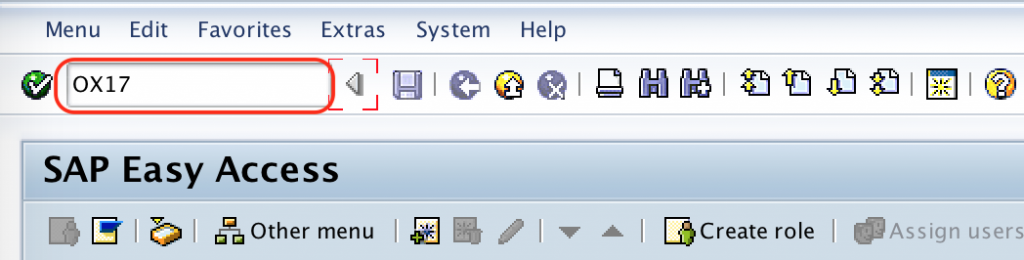
You can also reach the same configuration activity through the SAP IMG path shown above. In many SAP systems, transaction OX17 opens the same Customizing view directly and saves time during configuration.
Step 2 : – On change view “Assign purchase organization to plant” overview screen, choose new entries button for assignment configuration screen.

If an assignment already exists, check it carefully before creating a new entry. Duplicate or incorrect assignments can confuse users while creating purchasing documents, especially in systems with multiple plants and several purchasing organizations.
Step 3 : – On new entries assignment screen, update the following details.
- POrg : – Enter the purchase organization key in the field POrg for assigning to plant.
- Plnt : – Update the required plant key in the field Plnt.
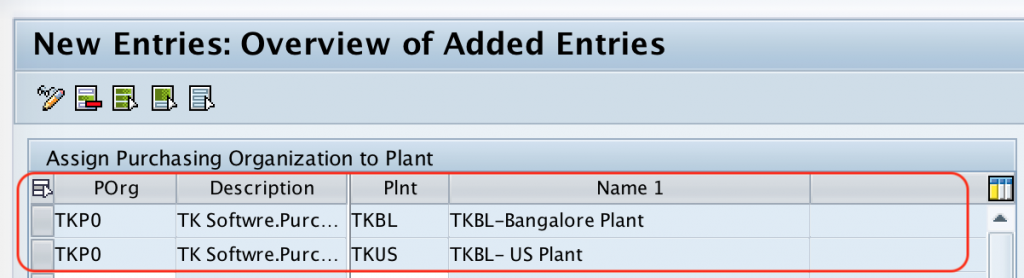
After assigning the required details, press enter to continue and choose save icon and save the configured details.
When you save the assignment, SAP may ask for a Customizing request. Choose the correct transport request so the configuration can be moved from the development system to quality and production systems according to your project process.
Successfully we have assigned purchasing organization to plant in SAP MM.
How Purchasing Organization to Plant Assignment Works in SAP MM Documents
After this assignment is saved, the purchasing organization becomes valid for procurement transactions related to the assigned plant. For example, when a purchase order is created for plant TKBL, the purchasing organization TKPO can be used if other required master data and configuration are also available.
This assignment does not automatically create vendors, purchasing groups, material master views, source lists, or purchasing info records. It only defines the organizational relationship between the purchasing organization and the plant. Procurement processing still depends on other SAP MM settings and master data.
Purchasing Organization, Purchasing Group, and Plant Difference in SAP MM
| SAP MM Object | Meaning | Configuration Relevance |
| Purchasing Organization | Organizational unit responsible for procurement activities. | Assigned to plant for plant-level procurement in transaction OX17. |
| Plant | Location where materials are produced, stored, planned, or received. | Used in purchasing, inventory management, production, and logistics processes. |
| Purchasing Group | Buyer or group of buyers responsible for day-to-day purchasing activities. | Maintained separately and entered in purchasing documents. |
A common mistake is to confuse purchasing organization with purchasing group. A purchasing organization is an enterprise structure unit, while a purchasing group is usually a buyer responsibility code. Assigning a purchasing organization to a plant does not assign a purchasing group to the plant.
Table T024E and Related SAP MM Configuration Check
Table T024E stores purchasing organization details in SAP. It is useful when you want to check whether a purchasing organization key exists and what description is maintained for it. The plant assignment itself is maintained through the Customizing activity used by transaction OX17.
For a quick functional check, verify the following configuration objects before testing procurement documents:
- The purchasing organization exists and has the correct description.
- The plant exists and is assigned to the correct company code.
- The purchasing organization is assigned to the plant in OX17.
- The relevant purchasing group is available for document processing.
- The material, vendor, and purchasing master data are extended for the required organizational levels.
Common Errors While Assigning Purchasing Organization to Plant
| Issue | Possible Reason | What to Check |
| Purchasing organization is not accepted | The purchasing organization is not defined or the key is typed incorrectly. | Check the purchasing organization definition before assigning it to the plant. |
| Plant is not accepted | The plant is not defined or the plant key is incorrect. | Verify the plant configuration and company code assignment. |
| Entry cannot be saved | Authorization, transport request, or configuration lock issue. | Check SAP authorization, client settings, and open Customizing request. |
| Purchasing organization not available in PO processing | Assignment is missing, master data is incomplete, or document settings restrict the value. | Review OX17 assignment, vendor/material data, and purchase order input values. |
Testing the Purchasing Organization and Plant Assignment
After saving the assignment, test it with a purchasing transaction such as creating or changing a purchase order. Enter the assigned plant and purchasing organization together and confirm that SAP accepts the combination. If the document still shows an error, check the vendor, material, purchasing group, company code, and plant-related master data before changing the OX17 assignment again.
SAP MM Editorial QA Checklist for Purchasing Organization to Plant Assignment
- Confirm that transaction code OX17 is shown as the direct configuration transaction.
- Verify that the IMG path is written as Enterprise Structure > Assignment > Materials Management > Assign Purchasing Organization to Plant.
- Check that the example uses valid four-character organization keys for purchasing organization and plant.
- Explain the difference between purchasing organization, plant, and purchasing group.
- Include a practical testing note so readers know how to confirm the assignment in procurement processing.
FAQs on Assigning Purchasing Organization to Plant in SAP MM
What is transaction code OX17 in SAP MM?
Transaction code OX17 is used to assign a purchasing organization to a plant in SAP MM. It opens the Customizing view where you maintain valid purchasing organization and plant combinations.
What is T024E in SAP?
T024E is the SAP table that stores purchasing organization details. It helps you check whether a purchasing organization exists, but the purchasing organization to plant assignment is maintained through the SAP MM enterprise structure assignment activity.
Can one purchasing organization be assigned to multiple plants?
Yes, one purchasing organization can be assigned to multiple plants when the business process requires the same purchasing organization to handle procurement for more than one plant.
Is purchasing group assigned to plant in OX17?
No. OX17 is used for assigning purchasing organization to plant. Purchasing group is a separate buyer responsibility object and is not assigned to the plant through this transaction.
Why is the purchasing organization not appearing for a plant in SAP MM?
The assignment may be missing in OX17, the purchasing organization or plant may be entered incorrectly, or related master data and document settings may be incomplete. First verify the OX17 assignment, then check vendor, material, purchasing group, and company code related settings.