 TutorialKart.com
How to create material master record in SAP MM
In SAP MM, a material master record stores the main data required to identify, procure, store, value, and use a material in business processes. It contains information such as material description, base unit of measure, material type, plant data, purchasing data, storage data, MRP data, sales data, accounting data, and valuation details.
This tutorial explains how to create a material master record, also called a material code, using transaction code MM01 in SAP. The exact fields visible on each screen can vary based on material type, industry sector, selected views, organizational levels, and configuration settings in the SAP system.
Material master record creation in SAP MM using MM01
Configuration steps
You can maintain material master record (create material codes) in SAP by performing the following steps
| Transaction code | MM01 |
| SAP Menu Path | SAP Menu > Logistics > Material Management > Material Master > Material > Create (General) > MM01 – Immediately. |
Use MM01 to create a new material master record. Use MM02 to change an existing material master and MM03 to display an existing material master without changing it.
Prerequisites before creating a material code in SAP MM
Before creating a material code, confirm the basic master data and configuration values required for the material. This avoids incomplete views and incorrect valuation or purchasing settings.
- Material type: Decide whether the material is raw material, finished product, semi-finished product, trading goods, packaging material, or another configured material type.
- Number assignment: Check whether the material number is assigned internally by SAP or entered manually by the user.
- Industry sector: Select the relevant industry sector if it is required on the initial screen.
- Plant and storage location: Keep the required plant and storage location ready for plant-specific and storage-specific views.
- Purchasing data: Identify the purchasing group, order unit, source list requirement, and other procurement-related settings if the material will be purchased.
- Accounting data: Confirm the valuation class, price control, and price before saving the Accounting view.
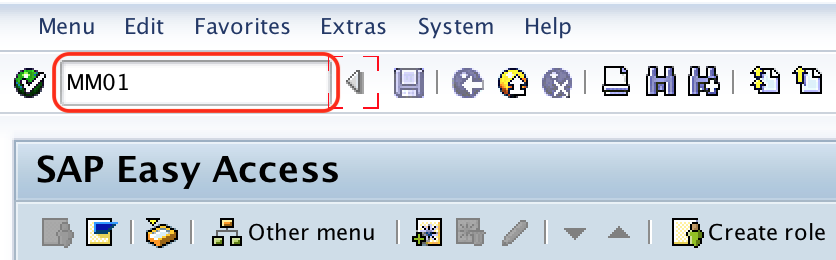
Step 1 : – Execute t-code “MM01” in command field from SAP easy access screen.
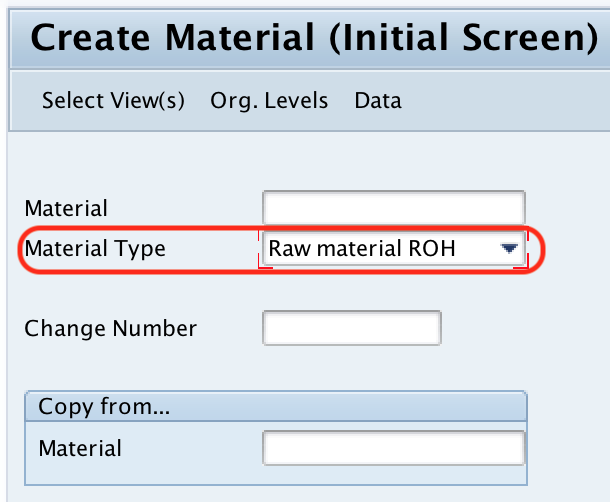
Enter material number and material type in MM01 initial screen
Step 2 : – On create material master initial screen, update the following details.
- Material : – For external type, enter the alphabetic keys that defines as material code. For internal type, leave it as blank so the system assign material number automatically based on material type selection. The maximum length of material code is 18 digits.
- Material Type : – Choose the material type from the list (Raw material, trading, etc).
In many SAP systems, the initial screen also asks for Industry sector. If the field appears, select the correct industry sector for the material. The selected material type controls number range, allowed views, valuation settings, and other material master behavior.
Now double click on select views.
Select material master views required for SAP MM processing
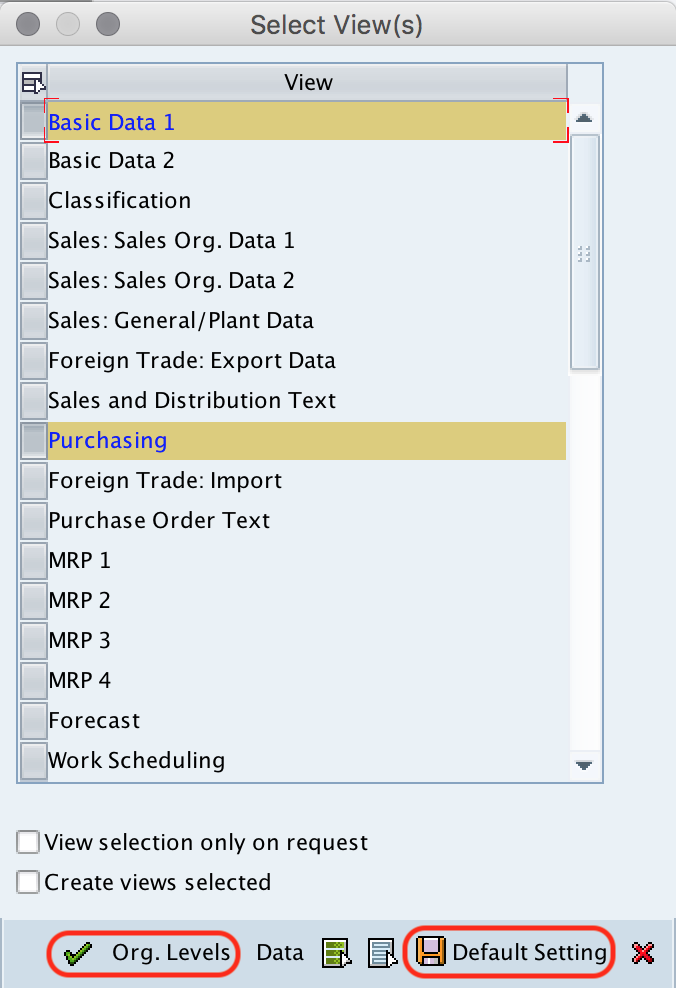
Step 3 : – Then views are displayed, select the required views such as
The views selected in this step decide which tabs will be maintained for the material. For example, a purchased raw material normally needs Basic Data, Purchasing, Plant Data / Storage, and Accounting views. A finished product may need additional MRP, Work Scheduling, Sales, or Costing views depending on the business process.
After you choose required views for material master record, click on default values and then click on organization level.
Maintain organization levels for plant and storage location
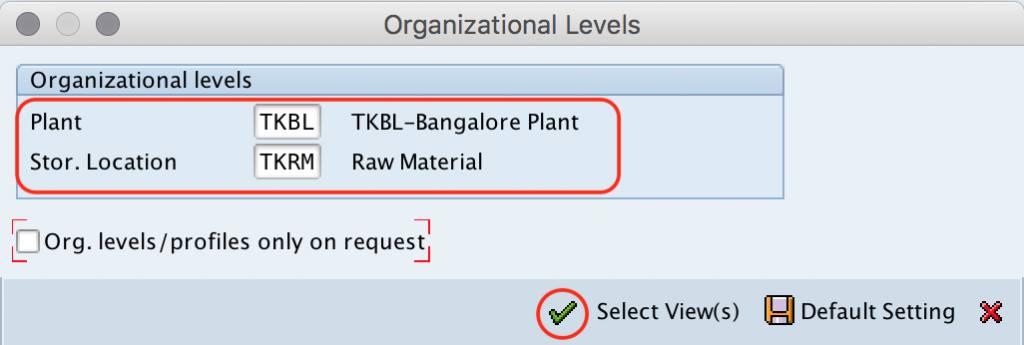
Step 4 : – A pop up window organization levels opens, specify the plant code and storage location code in the given fields. Press enter to continue.
Organization levels decide where the material master data is valid. Basic Data is maintained at client level, while Purchasing, Plant Data, Storage, MRP, and Accounting views are maintained for specific organizational levels such as plant, storage location, purchasing organization, sales organization, distribution channel, or valuation area, depending on the selected views.
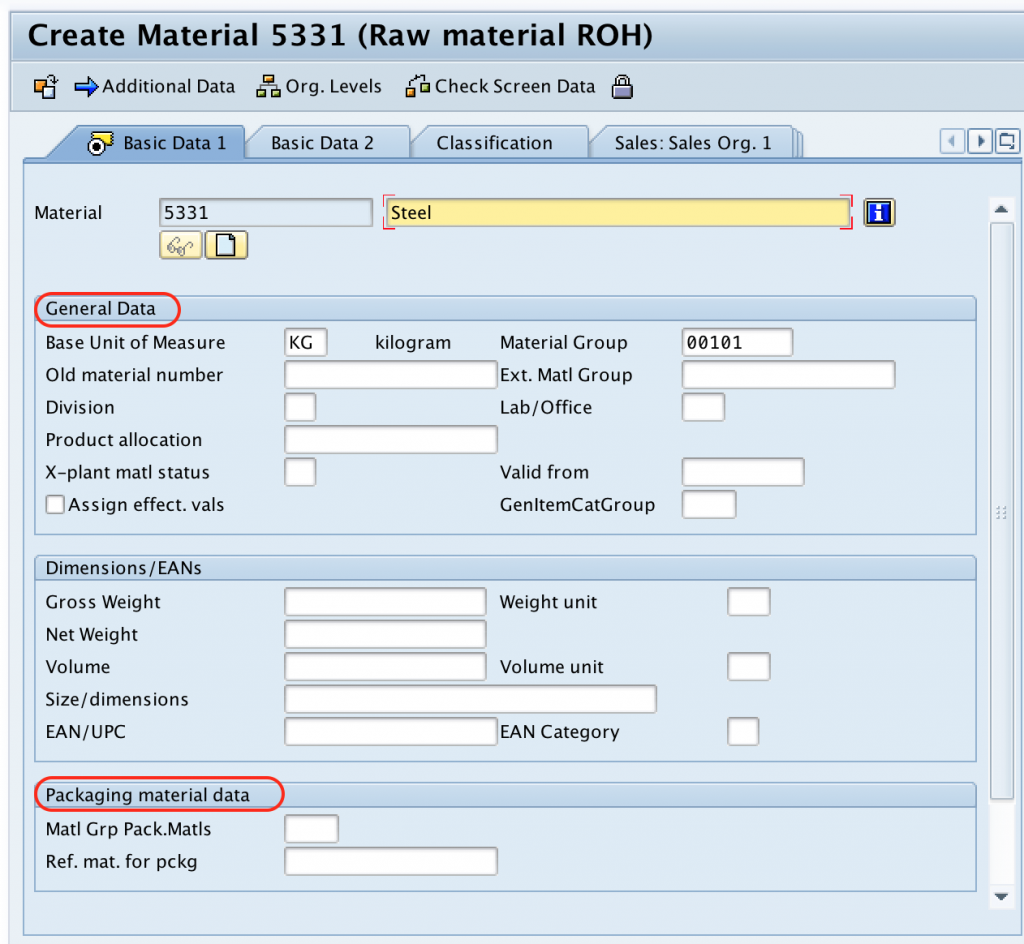
Maintain Basic Data 1 for the SAP material master
Step 5 : – On create material (Raw Material ROH) update the following details.
Basic data 1 and basic data 2 view are maintained at client level .
- Description : – Update the descriptive text of material, you are allowed to enter up to 40 characters.
- Base unit of measure : – Update material unit of measure (stocks keeping unit) as KG, press F4 key for list of measurement units.
- Material group : – Material which are having similar features are combined together and assigned to a material group.
- Old material number : – This is an option field, enter the material number for this material which was using in old erp system.
- X-plant matl status : – If the material is to be block for purchasing and warehouse transactions in all plant, update key as BP (Blocked for purchasing).
Choose the base unit of measure carefully. It is the stockkeeping unit for the material and affects inventory quantities, goods movement, and reporting. If alternate units of measure are needed, maintain the correct conversion data according to the business requirement.
Packaging material data
- Material group packaging material status : – if the material master is creating for packing item, then assign the packaging item that belongs to packaging group.
Maintain Purchasing view for the SAP material code
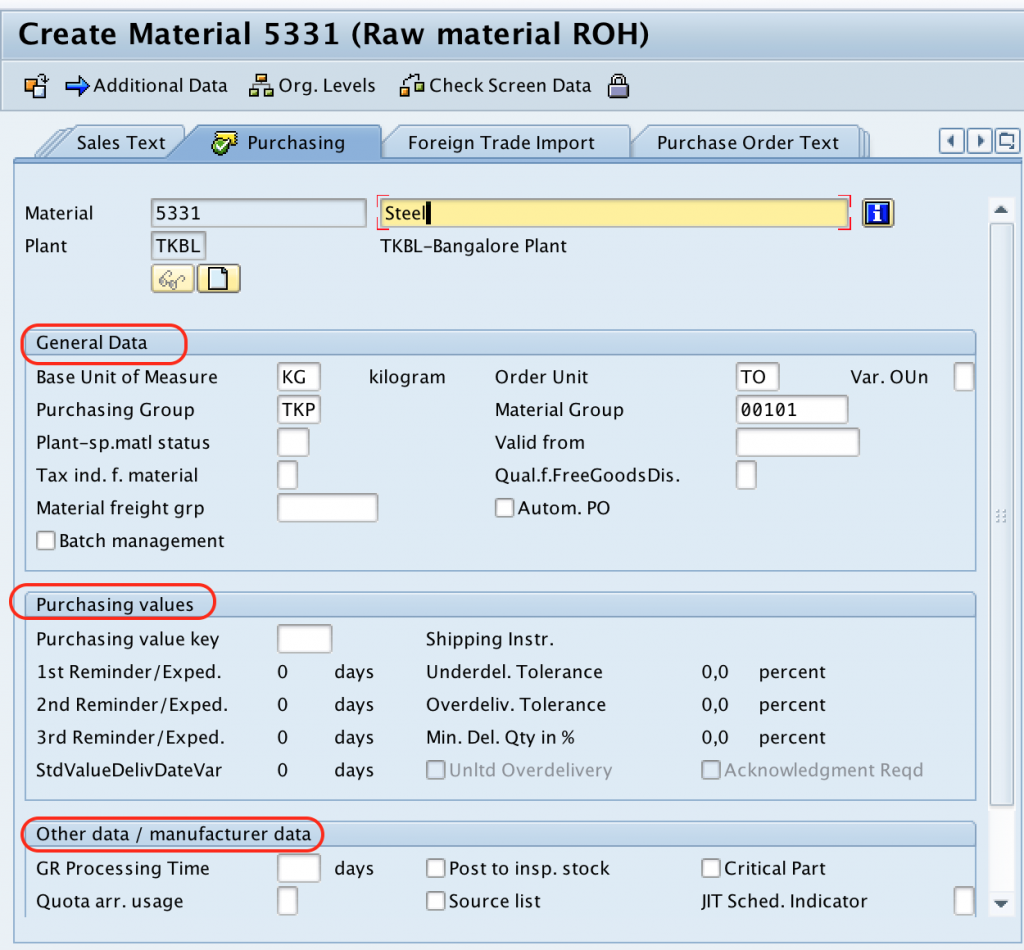
- Order unit : – Update the order unit as “TO” (Tonnes).
- Purchasing group : – It is a group of buyer or an individual buyer and it is responsible for procurement of materials and services.
- Purchase value key : – It specifies the remainders for delivery tolerances and shipping instructions
- Other data/ manufacturer data : – update the details of GR processing time, post to inspection stock, critical part, source list, manufacturer part number, etc.
The Purchasing view is used in procurement processes such as purchase requisitions, purchase orders, goods receipt, and vendor-related planning. Maintain the purchasing group and purchasing-related indicators only after checking how the material is bought and controlled in the organization.
Maintain Plant Data / Storage 1 for material storage details
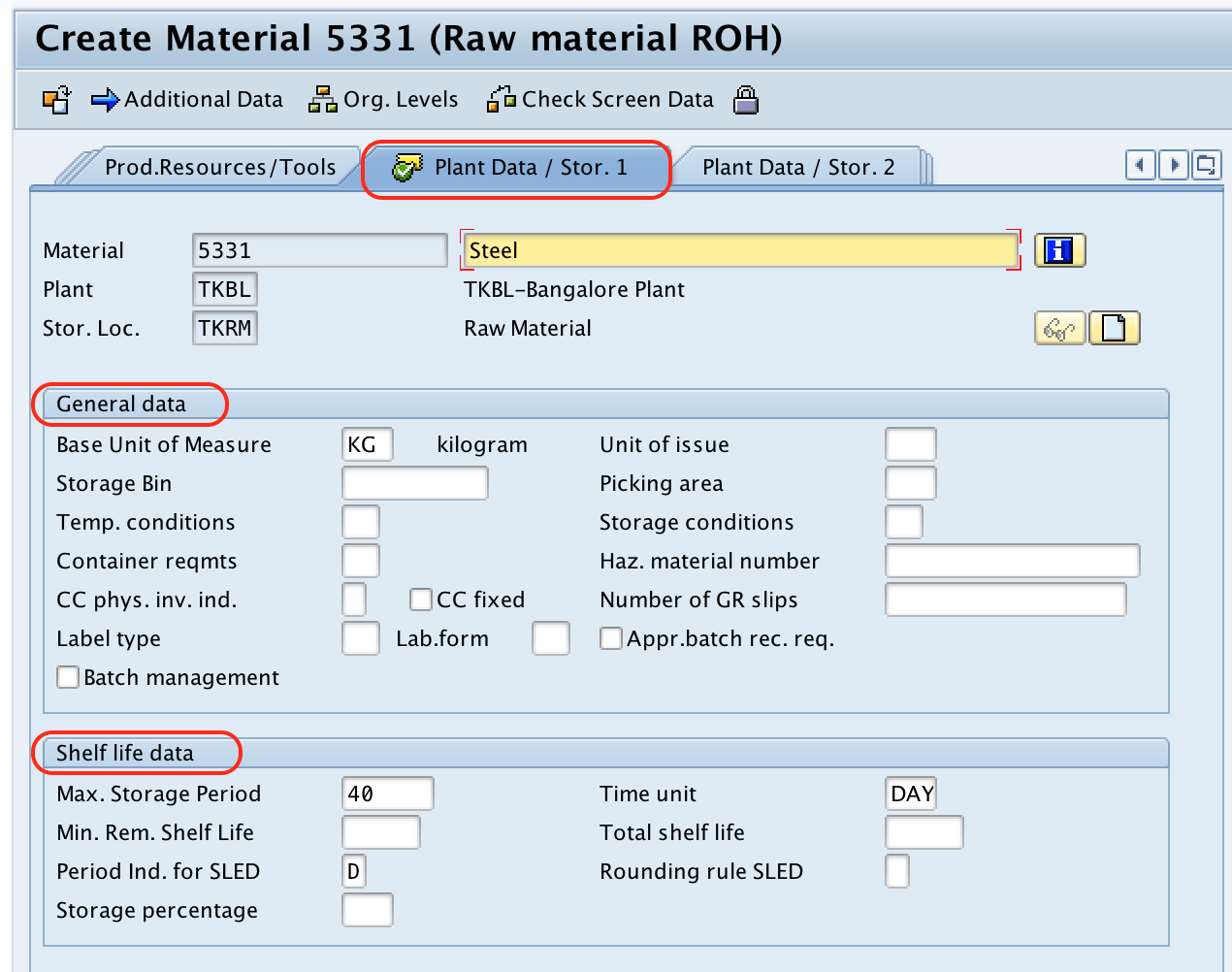
- Unit of issue : – It specifies in which unit of measure materials has to be issued to production, or internal consumption or external customers.
- Maximum storage period : – Enter maximum storage period of materials in days or month.
- Time unit : – Day, In the store if the material stock is not consumed within 40 days, then it will be dead stock to the organization.
This view is relevant for inventory handling at plant and storage-location level. Maintain shelf-life, storage conditions, issue unit, and storage period details only when they are applicable to the material. For perishable or time-sensitive materials, these values should match the warehouse and quality process.
Maintain Accounting view for material valuation in SAP MM
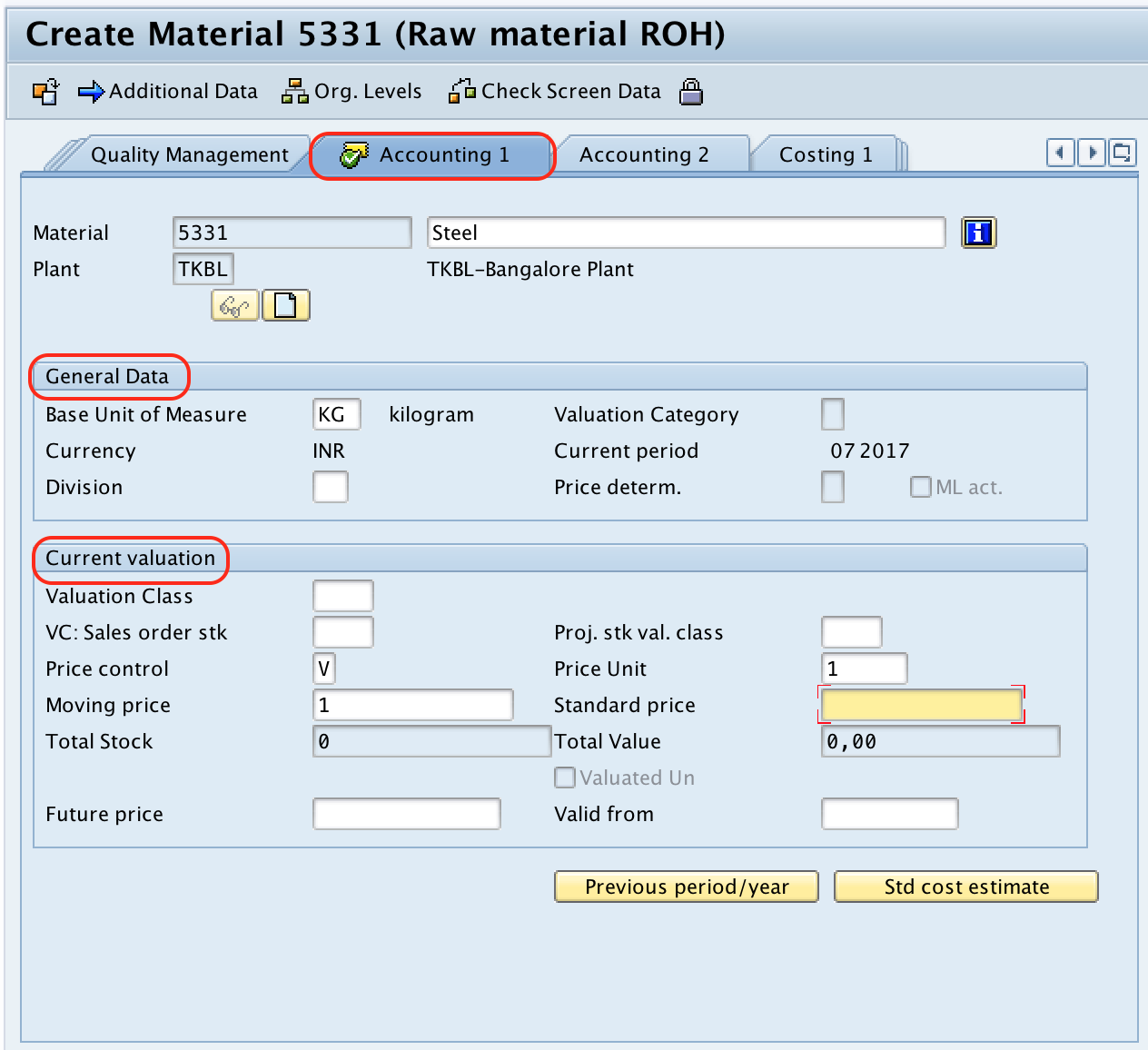
- Valuation class : – Assign material to a General ledger account , so this material stock value will be credited or debited in the particular G/L account.
- Price control : – Set indicator as S (standard price) or V (Moving average price/ period unit price). For external procurement, moving average price will be used.
- Moving Price : – Enter average moving price.
The Accounting view connects the material to inventory valuation and automatic account determination. The valuation class is important because it helps determine the G/L account used when stock movements are posted. Price control S is used for standard price and price control V is used for moving average price. Use the price control method defined by the finance and materials management process for the material type.
Save the SAP material master record and verify the material code
After maintaining all the required details, choose save icon and save the configured material code.
Successfully we have created material master record (material code) in SAP.
After saving, SAP displays a message with the created material number. If internal number assignment is active, SAP generates the material code automatically. If external number assignment is active, the material code entered on the initial screen is saved as the material number.

Common SAP MM material master views and their purpose
| Material master view | Where it is used | Typical fields |
|---|---|---|
| Basic Data 1 / Basic Data 2 | Client-level identification of the material | Description, base unit of measure, material group, old material number |
| Purchasing | Procurement and purchase order processing | Purchasing group, order unit, purchase value key, source list indicator |
| Plant Data / Storage | Inventory handling and storage control | Unit of issue, storage conditions, shelf-life or storage period details |
| MRP | Material requirements planning | MRP type, lot size, reorder point, planned delivery time |
| Accounting | Inventory valuation and financial posting | Valuation class, price control, standard price, moving average price |
| Sales | Sales and distribution processing | Sales unit, item category group, delivering plant, tax classification |
MM01, MM02, MM03, MM17, and OMS2 transaction codes in material master
The following transaction codes are commonly used around material master maintenance and configuration.
| Transaction code | Purpose |
|---|---|
| MM01 | Create a material master record. |
| MM02 | Change an existing material master record. |
| MM03 | Display an existing material master record. |
| MM17 | Perform mass maintenance for selected material master fields, subject to authorization and field availability. |
| OMS2 | Configure material types, including settings that influence number assignment, allowed views, quantity/value updates, and related controls. |
Use configuration transaction codes carefully. Changes to material type settings can affect how materials are created and processed across the SAP system.
Common mistakes while creating material master records in SAP MM
- Selecting the wrong material type: Material type affects number range, allowed views, procurement behavior, and valuation settings.
- Using an incorrect base unit of measure: The base unit affects stock quantity, goods movement, planning, and reporting.
- Skipping required views: A material used for purchasing and valuation normally needs Purchasing and Accounting views in addition to Basic Data.
- Entering the wrong plant or storage location: Plant-specific data will not be available for the correct business location if the wrong organizational level is used.
- Choosing the wrong valuation class: This can lead to incorrect G/L account determination during stock postings.
- Saving without checking mandatory fields: SAP may allow some optional fields to remain blank, but business processes may later fail if required operational data is missing.
Editorial QA checklist for SAP MM material master tutorial
- Confirm that the tutorial clearly identifies MM01 as the transaction code for creating a material master record.
- Check that material number assignment is explained for both internal and external number ranges.
- Verify that the selected material master views match the business purpose of the material.
- Confirm that plant, storage location, and valuation area are described as organization-level inputs where applicable.
- Check that Purchasing, Plant Data / Storage, and Accounting view fields are explained with their SAP MM use.
- Ensure that related transaction codes such as MM02, MM03, MM17, and OMS2 are described without mixing configuration steps into the MM01 creation flow.
FAQs on creating material master record in SAP MM
How to create material master record in SAP MM?
Use transaction code MM01. Enter or generate the material number, select the material type, choose the required views, maintain the organization levels, fill the required Basic Data, Purchasing, Plant Data / Storage, and Accounting fields, and then save the material master record.
What is MM01 used for in SAP MM?
MM01 is used to create a new material master record. It is the main transaction code for creating material codes in SAP MM.
What is MM17 used for in SAP material master?
MM17 is used for mass maintenance of material master data. It is helpful when selected fields need to be changed for many materials, provided the user has the required authorization and the fields are available for mass change.
What is OMS2 tcode in SAP material master configuration?
OMS2 is used to configure material types. Material type settings influence number assignment, allowed views, quantity update, value update, and other controls used when creating or maintaining material master records.
What is the difference between internal and external material number assignment?
In internal number assignment, SAP automatically generates the material number when the material is saved. In external number assignment, the user enters the material number manually on the MM01 initial screen, based on the allowed number range and format.
Summary of creating material codes in SAP MM
To create a material master record in SAP MM, start with transaction code MM01, enter the material number or allow SAP to assign it automatically, select the correct material type, choose the required views, maintain organization levels, complete the relevant Basic Data, Purchasing, Plant Data / Storage, and Accounting fields, and save the record. The saved material code can then be used in SAP MM processes such as purchasing, inventory management, valuation, and material planning.