 TutorialKart.com
How to Set Up Authorization Check for G/L Account in SAP MM
In this SAP MM activity, you set up authorization check for G/L account during creation of a purchase requisition. In a real business scenario, when a user creates a purchase requisition with account assignment, the corresponding general ledger account must be entered or derived. The SAP system can then check whether the user is allowed to use that G/L account for the relevant company code.
This configuration is useful when a business wants to restrict the use of sensitive or specific G/L accounts in purchase requisitions. The setting does not replace user roles and authorizations. It activates the check for purchase requisitions, while the actual access is controlled through the authorization values maintained in the user role.
Purpose of G/L Account Authorization Check in Purchase Requisition
A G/L account in SAP MM is used when procurement postings need financial account assignment. For example, a purchase requisition for a cost center, internal order, asset, or project may require a G/L account so that the later purchasing and invoice processes post to the correct financial account.
By enabling the G/L account authorization check for a company code, you can prevent users from selecting or posting against G/L accounts that they are not authorized to use. This is generally relevant for expense accounts, restricted clearing accounts, tax-related accounts, or other accounts that should be used only by selected users or departments.
Transaction Code and IMG Path for G/L Account Authorization Check
You can set up authorization check for G/L account in SAP by using the following navigation method.
| SAP Transaction Code | SPRO |
| SAP IMG Path | IMG > Material Management > Purchasing > Purchase requisition > Set up authorization check for G/L account. |
The setting is maintained at company code level. Therefore, review the required company codes before making changes, especially in systems where multiple company codes share purchasing users.
Prerequisites Before Setting Up G/L Account Authorization in SAP MM
Before enabling the check, confirm the following points with the FI and security teams.
- The relevant G/L accounts exist for the company code.
- The business has identified which users should be allowed to use restricted G/L accounts.
- The required authorization groups or authorization values are maintained in the user roles.
- The purchase requisition process uses account assignment categories where G/L account entry or derivation is relevant.
- Testing is planned with a normal business user, not only with an administrator or SAP_ALL user.
If the role authorization is missing, simply activating the check may cause users to receive authorization errors while creating purchase requisitions. Test in a quality or development client before moving the configuration to production.
Configuration Steps to Set Up Authorization Check for G/L Account
Perform the following steps for setting the authorization check for G/L in Purchase Requisition.
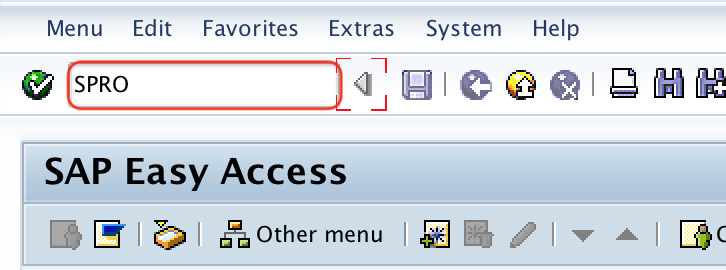
Step 1 : – Execute t-code “SPRO” in command field from SAP easy access screen.
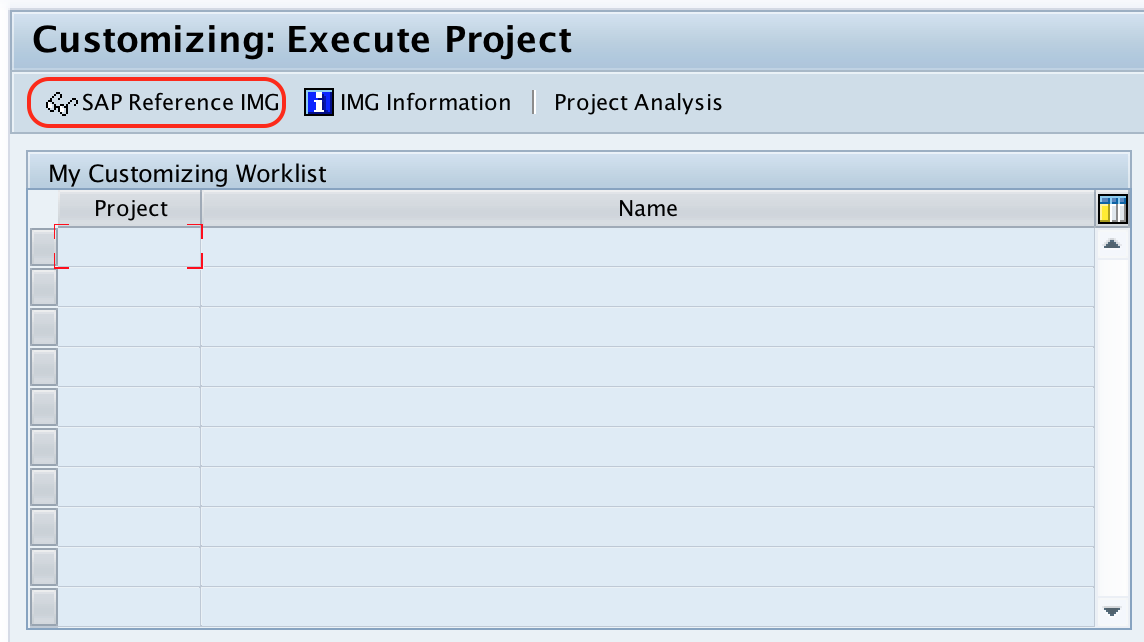
Step 2 : – Choose “SAP Reference IMG”
Step 3 : – From display IMG screen, follow the navigation path as Material Management – Purchasing – Purchase requisition and click on choose img activity Set up authorization check for G/L account.
Step 4 : – On change view “G/L account authorization check in requisition” overview screen, choose position option and enter your company code in the given entry field company code. So the your company code display on top of the screen and you can easily setup authorization checks for general ledger account in SAP.
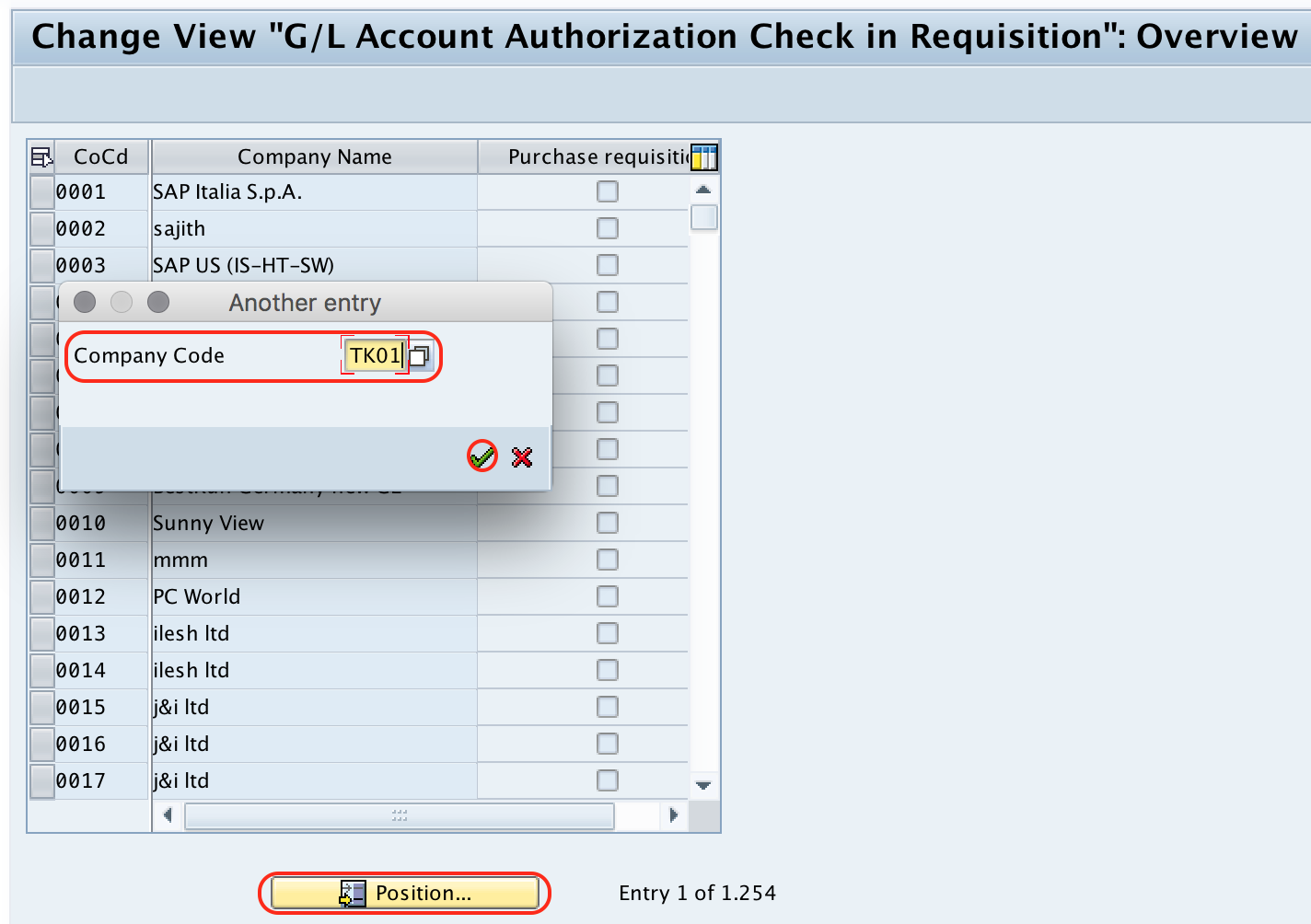
Now check the purchase requisition check box for the company codes to check the authorization for G/L account.

After you have done authorization check box of purchase requisition, choose save icon and save the configured details.
Successfully we have done authorization check for G/L account in SAP MM.
What Happens After Enabling G/L Account Authorization Check
After this configuration is saved, the system performs the G/L account authorization check during purchase requisition processing for the selected company code. If the user is not authorized for the account or authorization group used by the G/L account, the system can stop the transaction with an authorization message.
This check is part of access control. It should be used along with the normal SAP role design, purchasing document authorizations, account assignment controls, and FI master data governance. Do not use it as the only control for purchasing postings.
Authorization Object for G/L Account Access in SAP
For G/L account authorization, SAP commonly uses authorization values connected with the G/L account master data and company code. In many classic SAP ERP and SAP S/4HANA scenarios, the authorization group maintained in the G/L account company code data is checked through relevant FI authorization objects, such as F_BKPF_BES, depending on the transaction and process design.
The exact authorization object checked can vary based on the transaction, release, configuration, and enhancement logic in the system. If a user receives an error while creating a purchase requisition, ask the user to run SU53 immediately after the failed action, or ask the security team to trace the check with STAUTHTRACE or ST01. This gives the exact missing object and field values instead of guessing from configuration alone.
How to Check G/L Account Details Before Testing PR Authorization
Before testing the authorization check, verify the G/L account in the company code. In SAP GUI, users commonly display G/L account master data using transactions such as FS00 or related display transactions, depending on the system setup. In SAP S/4HANA, the same account may also be reviewed through the relevant Fiori apps if they are enabled in the system.
Check the following details for the G/L account before testing purchase requisition creation.
- Company code assigned to the G/L account.
- Whether the account is active and allowed for the intended postings.
- Account group and field status settings, if they affect entry behavior.
- Authorization group or other restriction field maintained for the G/L account.
- Whether the user role contains the required authorization values.
Testing G/L Account Authorization in Purchase Requisition
After configuration, test the check with a normal procurement user. Create or change a purchase requisition with an account assignment category that requires a G/L account. Enter a G/L account that the user is allowed to use, and then repeat the test with a restricted G/L account.
A basic test should include the following cases.
| Test case | Expected result |
|---|---|
| User enters an authorized G/L account in PR | Purchase requisition can be saved, provided all other PR checks are passed. |
| User enters a restricted G/L account in PR | System displays an authorization error or prevents saving the document. |
| Company code is not selected in this configuration | G/L authorization check for purchase requisition may not be triggered for that company code. |
| User has broad authorization such as admin-level access | Error may not appear, so this is not a valid end-user test. |
How to Troubleshoot G/L Account Authorization Errors in SAP
If the user cannot save the purchase requisition after entering a G/L account, first confirm whether the error is truly an authorization issue. Some errors may come from account assignment configuration, field status settings, missing cost object data, or account determination rules.
- Run SU53 immediately after the failed PR save or check action.
- Ask the security team to review the missing authorization object and field values.
- Confirm that the correct company code is selected in the G/L account authorization check configuration.
- Check whether the G/L account has an authorization group or restriction value maintained.
- Test with another user who has the expected role to confirm whether the issue is role-specific.
- Review whether any custom validation, BAdI, or user exit is also restricting the account.
If SU53 does not show a useful result, use an authorization trace. This is often required when the failed check happens in a background step, update task, or custom logic.
Common Mistakes in SAP MM G/L Account Authorization Setup
| Common mistake | Why it causes issues | Correction |
|---|---|---|
| Activating the check without updating user roles | Users may suddenly receive authorization errors in PR creation. | Coordinate with the security team before moving the setting to production. |
| Testing only with an administrator user | Admin users may bypass the issue because they have broad authorization. | Test with real business roles used by PR creators. |
| Assuming every PR error is a G/L authorization error | Account assignment and field status errors can look similar to users. | Use the exact SAP message, SU53, and trace tools to identify the source. |
| Enabling the check for the wrong company code | The expected check may not run for the business company code. | Use the Position option and verify the correct company code entry. |
| Ignoring custom enhancements | Custom logic can add additional G/L restrictions beyond standard checks. | Review enhancements if standard role checks appear correct. |
Editorial QA Checklist for SAP MM G/L Account Authorization Tutorial
- Confirm that the IMG path is specific to purchase requisition G/L account authorization check.
- Verify that the article explains company code level activation, not only the SPRO navigation.
- Check that the tutorial clearly separates configuration activation from user role authorization maintenance.
- Include troubleshooting steps with SU53 and authorization trace because users often search for failed G/L account checks.
- Review the screenshots to ensure they still match the SAP GUI configuration flow shown in the steps.
- Test the process with a normal PR creator role before treating the setup as complete.
FAQs on Authorization Check for G/L Account in SAP MM
What is the authorization object for G/L account in SAP?
The authorization object can depend on the transaction and process. In many FI-related G/L account checks, authorization values connected with the G/L account master and company code are checked, and objects such as F_BKPF_BES may be relevant. For an exact answer in your system, use SU53 or an authorization trace after the failed transaction.
How do I restrict G/L account access in SAP S/4HANA or SAP ERP?
Restrict G/L account access by maintaining the required restriction values in G/L account master data, assigning the correct values in user roles, and activating process-specific checks such as the purchase requisition G/L account authorization check where required. The exact setup should be validated with the SAP security team.
How do I check a G/L account in SAP?
You can check G/L account master data in SAP GUI through transactions such as FS00 or other display transactions available in your system. Review the company code data, account status, field settings, and authorization-related values before testing purchase requisition authorization.
How do I check an authorization failure in SAP?
Run SU53 immediately after the failed action to see the last failed authorization check for the user. If SU53 is not enough, the security team can use authorization trace tools such as STAUTHTRACE or ST01 to identify the exact object, field, and missing value.
What is the G/L account in SAP MM purchase requisition?
In SAP MM purchase requisition, a G/L account represents the financial account used for posting the value of the procurement. It is commonly used with account assignment categories such as cost center, asset, order, or project, depending on the procurement process.