 TutorialKart.com
How to create factory calendar in SAP and assign it to a plant
A factory calendar in SAP defines the working days, non-working days, weekends, and public holidays used by business processes such as plant maintenance planning, production planning, purchasing, goods movements, and delivery scheduling. When a date is calculated in SAP, the system can use the assigned factory calendar to determine whether the proposed date is a valid working day or a holiday/weekend.
In SAP PM, the factory calendar is especially important because maintenance plans, work order scheduling, task list scheduling, and capacity-related dates depend on correct working-day rules. For example, a plant that works Monday to Friday should not use the same calendar as a plant that runs 24 hours a day and 7 days a week.
Based on the requirements of the project, you can create one or more factory calendars. For example, if one plant works 24 hours a day and 7 days a week, it can have one factory calendar. If another plant works only 8 hours a day and 5 days a week, it can have a different factory calendar.
Factory calendar prerequisites in SAP SCAL
Before creating a factory calendar in SAP, make sure the holiday-related settings are already available. The factory calendar depends on the holiday calendar, and the holiday calendar depends on public holiday definitions.
- List out the public holidays and define public holidays
- Create the holiday calendar with the correct validity period.
- Assign the required public holidays to the holiday calendar.
- Decide the factory calendar ID, description, validity years, and weekly workdays.
- Confirm whether the same calendar can be reused for multiple plants or whether a separate calendar is required.
SAP factory calendar transaction code and IMG path
The transaction code used to create or change a factory calendar in SAP is SCAL. The same transaction is also used for public holidays and holiday calendars.
| Transaction code | SCAL |
| Configuration object | Factory Calendar |
| SAP IMG Path | SPRO > SAP Reference IMG > Time Management > Work Schedules > Define Public Holidays / Holiday Calendar / Factory Calendar |
| Plant assignment transaction | OX10 |
Use SCAL carefully in customizing systems and move the change through the correct transport path used in your SAP landscape. Calendar changes can affect date calculations in multiple modules.
Create factory calendar in SAP using transaction SCAL
Follow the steps below to create a factory calendar in SAP.
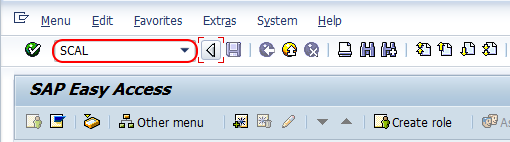
Step 1 : – Execute t-code “SCAL” in command field from SAP easy access screen.
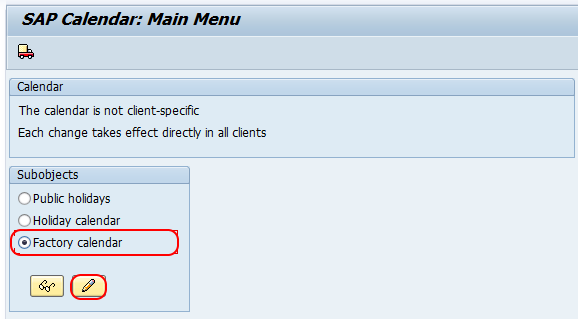
Step 2 : -On Sap calendar : main menu screen, choose “Factory Calendar” option and click on change icon.
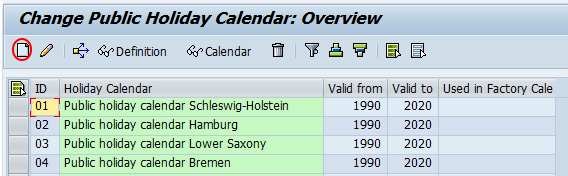
Step 3 : – On change factory calendar: overview screen, click on create icon.
Step 4 : -On change factory calendar details screen, update the following details.
- Factory Calendar Id : – Update the two digits key that defines as factory calendar id in SAP.
- Description : – Update the descriptive text of factory calendar.
- Valid : – Update the validity of factory calendar i.e. from and to year.
- Holiday calendar id : – Assign the holiday calendar id to the factory calendar.
- Workdays : – Choose the working days of factory calendar.
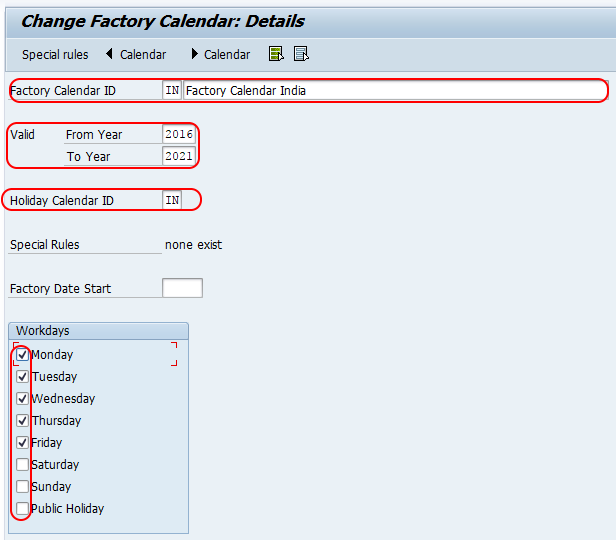
Choose save icon and save the configured details in SAP.
Factory calendar field values to check before saving
While creating the factory calendar, review each field because these values control the way SAP interprets working days for the calendar ID.
| Field | What to enter | Why it matters |
|---|---|---|
| Factory Calendar ID | A short key such as a two-character ID | This is the key assigned later to the plant or used in other calendar-dependent settings. |
| Description | Meaningful text such as plant name, country, or shift pattern | Helps consultants and users identify the purpose of the calendar. |
| Valid from / Valid to | The year range for which the calendar is valid | Date calculations may fail or give unexpected results if the requested date is outside the validity period. |
| Holiday calendar ID | The holiday calendar relevant for the location or business unit | Public holidays are inherited from the selected holiday calendar. |
| Workdays | Working weekdays such as Monday to Friday or all seven days | Controls which weekdays are treated as working days. |
If a plant follows special shutdown days, local public holidays, or a non-standard working week, validate the design with the business team before saving the calendar.
Assign Factory Calendar to Plant in SAP
After you define/ create factory calendar in SAP, you need to assign to plant. Perform the following steps for assignment of calendar to plant.
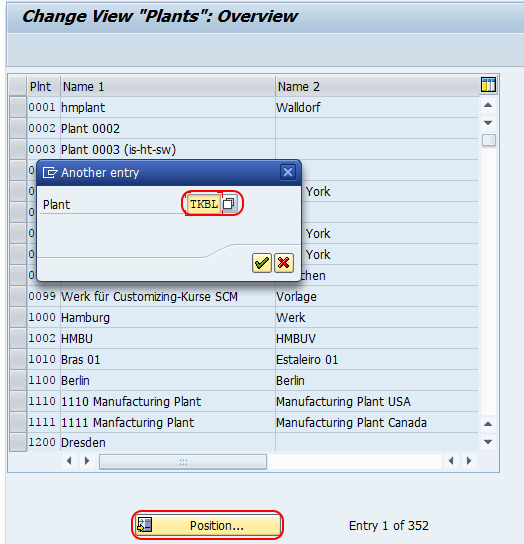
Step 1 : – Execute t-code “OX10” in command field.
Step 2 : – Click on position button and enter plant key “TLBL” and press enter, so that plant code displays on top of the SAP screen.
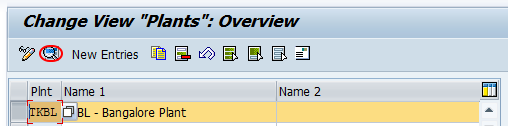
Step 3 : – Now choose the plant key and click on magnifying glass to display the details.
Step 4 : – Now enter the factory holiday calendar key in the given field “factory calendar”.
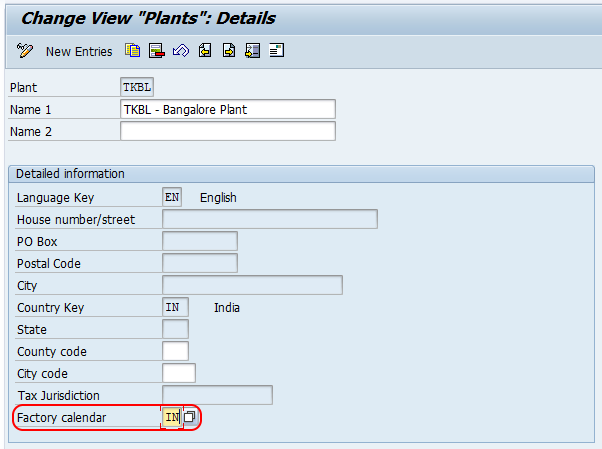
After assignment of calendar, choose save icon and save the configure details.
Successfully we have created factory calendar and assigned to a plant in SAP.
How SAP uses the plant factory calendar after assignment
Once the factory calendar is assigned to a plant, SAP can use it for plant-level date calculations. This is useful in processes where the system must identify the next working day, skip holidays, or calculate dates based on working days instead of calendar days.
- In SAP PM, maintenance order dates and maintenance plan scheduling may depend on working-day logic.
- In Materials Management, plant calendars can influence planning and procurement-related date checks.
- In Production Planning, the calendar supports scheduling logic together with work centers, capacities, and other planning data.
- In Logistics Execution, calendars can help avoid non-working days in delivery or shipping-related date determination.
The factory calendar does not replace detailed shift or capacity configuration. It mainly defines the working-day pattern at the calendar level. For capacity planning or shift-specific scheduling, check the related work center and capacity settings also.
Changing an existing factory calendar in SAP SCAL
To change an existing factory calendar, execute transaction SCAL, select Factory Calendar, choose the calendar ID, and update the required validity, holiday calendar, or workday settings. Save the change using the normal customizing process for your system.
Before changing a calendar that is already assigned to a plant, review the business impact. A calendar change can affect future scheduling results and may also change how the system interprets dates for open business objects. In many projects, consultants extend the validity period or create a new calendar instead of changing historical working-day rules without analysis.
Common SAP factory calendar mistakes to avoid
- Using the wrong holiday calendar: Assigning a holiday calendar for another country or location can make local holidays appear as working days.
- Short validity period: If the factory calendar is not valid for future years, long-term scheduling may fail or require correction later.
- Wrong weekly workdays: A Monday-to-Friday plant and a seven-day plant should not share the same factory calendar unless the business rule is truly the same.
- Changing a used calendar without review: Updating an active calendar can affect date calculations across modules.
- Not assigning the calendar to the plant: Creating the factory calendar in SCAL is not enough. The correct calendar key must also be assigned in the plant definition using OX10.
SAP factory calendar FAQ
What is the T code for factory calendar in SAP?
The transaction code for factory calendar maintenance in SAP is SCAL. In SCAL, you can maintain public holidays, holiday calendars, and factory calendars.
How do I assign a factory calendar to a plant in SAP?
Use transaction OX10, select the plant, open the plant details, and enter the required factory calendar key in the Factory calendar field. Save the plant configuration after verifying the correct calendar ID.
Can I create a custom factory calendar in SAP?
Yes. In transaction SCAL, select Factory Calendar, create a new calendar ID, enter the description and validity period, assign the relevant holiday calendar, and choose the required workdays.
What is the difference between holiday calendar and factory calendar in SAP?
A holiday calendar contains public holidays for a country, region, or business location. A factory calendar uses the holiday calendar and adds weekly working-day rules, such as Monday to Friday or all seven days.
How do I change the factory calendar in SAP?
Execute transaction SCAL, choose Factory Calendar, select the existing calendar ID, and make the required changes. Review the effect on plant scheduling and dependent processes before changing a calendar that is already in use.
Factory calendar editorial QA checklist
- Confirm that transaction SCAL is mentioned for creating and changing the factory calendar.
- Confirm that transaction OX10 is mentioned for assigning the factory calendar to a plant.
- Check that the tutorial explains the relationship between public holidays, holiday calendars, and factory calendars.
- Verify that the article warns readers about changing an already-used factory calendar.
- Ensure that plant assignment steps clearly tell the reader to save the configuration after entering the factory calendar key.