 TutorialKart.com
How to Create Functional Location in SAP PM
In this activity, you create a functional location in SAP PM. A functional location is a SAP technical object, upon which information can be stored and maintenance can be carried out. The requirements for a functional location comes from the necessity to have equipment associated with sites for maintenance planning.
A functional location represents a place, system, production line, plant section, building, or other maintainable location where maintenance tasks are planned and recorded. Equipment can be installed at a functional location, and maintenance history can then be analyzed by location as well as by individual equipment.
Functional locations should be installed in a hierarchy level. The user creating the functional location manually assigns functional location labels using the relevant structure code.
SAP PM Functional Location Usage in Maintenance Processing
In SAP Plant Maintenance, a functional location is useful when maintenance work is linked to a fixed location rather than only to a movable asset. For example, a conveyor line, compressor room, boiler area, utility section, or production cell can be represented as a functional location. Equipment such as motors, pumps, meters, and valves can then be installed below the appropriate functional location.
The main benefit of creating a functional location is that maintenance orders, notifications, measuring points, permits, task lists, and technical history can be organized by the operational structure of the plant. This helps planners and technicians understand where the problem occurred and what other assets are affected in the same hierarchy.
Functional Location Transaction Codes in SAP PM
| Transaction code | Purpose in SAP PM |
|---|---|
IL01 | Create functional location |
IL02 | Change functional location |
IL03 | Display functional location |
IL05 | Display list of functional locations |
IH01 | Display functional location structure |
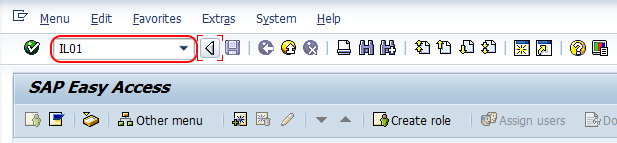
For this tutorial, we use transaction code IL01 to create a functional location in SAP PM.
Prerequisites to Create Functional Location in SAP PM
Before creating a functional location, the required enterprise structure and PM master data should be available. The exact fields depend on your SAP configuration, but the following objects are commonly required.
- Define plant
- Define division
- Define business area
- Functional location category configured for the type of location you want to create.
- Structure indicator maintained for the functional location label format.
- Maintenance planning plant, planner group, and work center available for assignment.
- Cost center or other account assignment details available if required by your organization.
Navigation Path for Creating Functional Location in SAP PM
| Transaction code | IL01 |
| SAP Menu Path | Logistics > Plant Maintenance > Management of technical objects >Functional location > Create |
You can also access official SAP learning material for functional locations from SAP Learning and refer to SAP Help documentation for product-specific details when working in SAP S/4HANA Asset Management.
Configuration Steps to Create Functional Location Using IL01
Perform the following configuration steps to create the functional location in SAP.
Step 1 : – Execute t-code “IL01” in command field from SAP easy access screen.
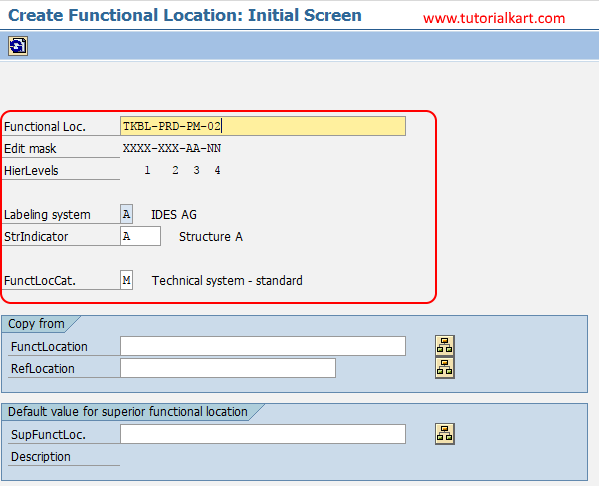
Step 2 : – On create functional location initial screen, update the following details.
- FunctLocCat : – Enter the functional location key based on the edit mask hierarchy structure.
- StrIndicator : – The structure indicator defines the type of hierarchy structure of the numbering system for the type of functional location.
- Copy from : – You can also create functional location by choose existing functional location.
The functional location label must match the structure indicator rules. For example, if the structure indicator uses hierarchy levels separated by hyphens, the new functional location should follow the same label format. If you create a lower-level functional location, make sure the higher-level functional location already exists or is created as part of the same structure design.
After updating the correct structure indicator and functional location category, press enter to continue.
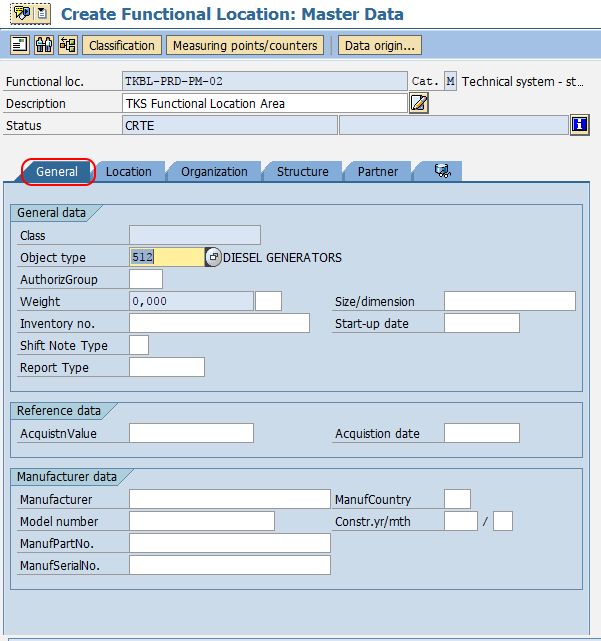
Step 3 : – On Create Functional location: master date screen, choose general tab and update the following details.
- Description : -Update the descriptive text of functional location in SAP.
- General date : -Under general date, update the all the required details of Size/Dimension, Reference data (Acquistion date) and manufacturer date.
- Object type : Object type as functional location can be a production location, or it can be a machine or any longer assembly line, where which part can be designed as a separate location. So you can choose type of sort functional location that is being created.
Use a clear description because the functional location description appears in search helps, maintenance notifications, orders, and reports. The object type should be selected consistently so that similar functional locations can be filtered and analyzed later.
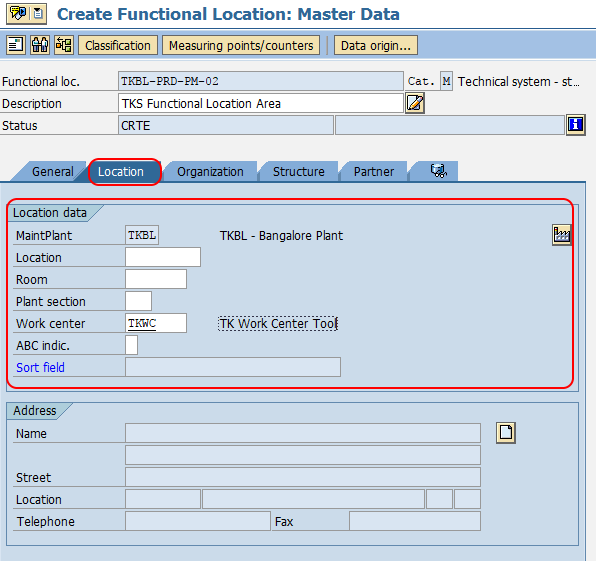
Step 4 : – Choose the location tab and update the following details.
- MaintPlant : – Update the maintaining planning plant key for an functional location.
- Work Center : – Work center is defined that any activity done in this functional location will be done by this resource.
The Location tab connects the functional location with the maintenance plant and responsible work center. These values are important because they influence planning, execution responsibility, and default values in maintenance processing.
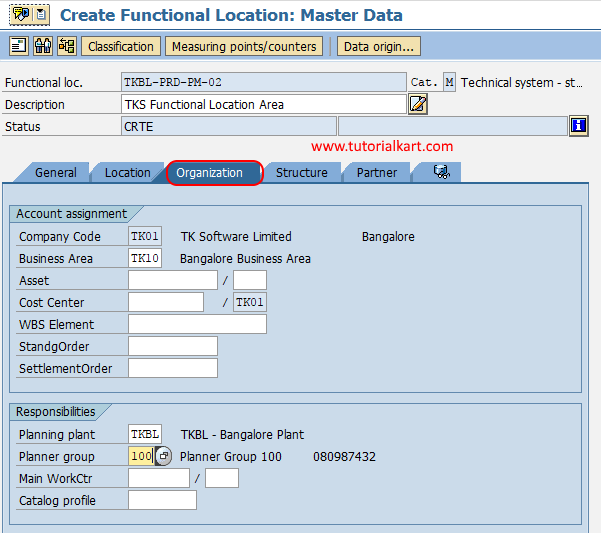
Step 5 : Choose organization tab and update the required details like business area, cost center, WBS elements, planner group, planning plant, responsibilities, etc.
The Organization tab stores responsibility and account assignment information. The planner group and planning plant help maintenance teams route work to the correct planning responsibility. Cost center and WBS elements are used when maintenance costs need to be posted or analyzed against the correct controlling object.
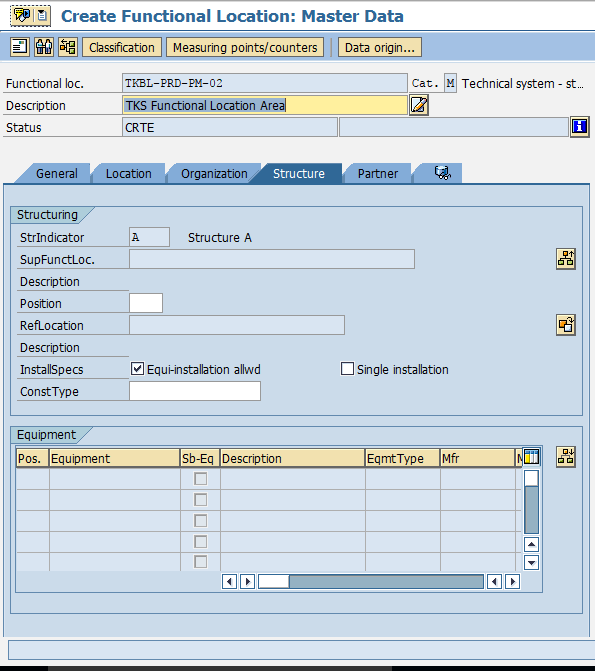
Step 6 : Choose structure tab and update the required details as per requirements of project.
The Structure tab is used to maintain hierarchy-related details and installation information. Review the superior functional location, structure assignment, and related technical object details before saving. Correct hierarchy assignment is important because it affects structure display, object inheritance, and maintenance reporting.
Choose save icon and save the configured functional location in SAP.
Successfully we have created functional location in SAP PM.

Important Fields While Creating SAP PM Functional Location
| Field | Why it matters |
|---|---|
| Functional location | Identifies the technical location according to the structure indicator and hierarchy format. |
| Functional location category | Controls screen layout and behavior for the type of functional location. |
| Structure indicator | Defines the edit mask and hierarchy structure used for functional location labels. |
| Description | Helps users identify the location in notifications, orders, reports, and search results. |
| Maintenance plant | Identifies the plant where the functional location is maintained. |
| Work center | Defines the responsible work center for maintenance work related to the location. |
| Planner group | Assigns maintenance planning responsibility. |
| Cost center | Supports maintenance cost tracking and controlling integration. |
Functional Location Hierarchy Example in SAP PM
A functional location hierarchy should reflect the way maintenance teams think about the plant. The hierarchy can start from a plant or area and then go down to systems, lines, units, and maintainable sections.
PLANT-01
PLANT-01-PROD
PLANT-01-PROD-LINE01
PLANT-01-PROD-LINE01-CONV01
In this example, PLANT-01-PROD-LINE01-CONV01 is a lower-level functional location under a production line. Equipment can be installed at this level if maintenance is performed on a specific conveyor, drive, or related technical object.
Creating Functional Location by Copying an Existing Functional Location
If a similar functional location already exists, use the Copy from option on the initial screen. This can reduce manual entry because many values are copied from the reference functional location. After copying, review all copied fields carefully before saving, especially the description, location data, organization assignments, work center, planner group, and cost assignment fields.
Copying is useful when you create multiple similar functional locations, such as similar production lines, pump stations, utility rooms, or plant sections. Do not save copied data without checking whether the new location needs different responsibilities or account assignments.
Mass Creation of Functional Locations in SAP PM
For a small number of functional locations, transaction code IL01 is enough. For a large rollout or master data migration, functional locations are usually created through a controlled data upload or migration process. Depending on the SAP system and project approach, teams may use SAP migration tools, BAPIs, data migration templates, or other approved upload methods.
Before mass creation, prepare and validate the hierarchy labels, functional location categories, structure indicators, descriptions, plants, work centers, planner groups, and account assignments. A small mistake in the structure or hierarchy can create reporting and maintenance processing issues later.
SAP PM Functional Location QA Checklist
- Confirm that the functional location label follows the selected structure indicator and edit mask.
- Check whether the superior functional location exists and the new location is created at the correct hierarchy level.
- Verify that the functional location category matches the technical object type being created.
- Review the description so maintenance users can identify the location without ambiguity.
- Confirm maintenance plant, planning plant, work center, and planner group assignments.
- Validate cost center, WBS element, or other account assignment fields if maintenance costs are tracked.
- Check whether equipment should be installed under the new functional location after it is created.
- Display the structure using
IH01or relevant structure display options to confirm the hierarchy.
Common Errors When Creating Functional Location in SAP PM
- Incorrect structure indicator: The functional location label may not match the required hierarchy format.
- Wrong hierarchy level: The functional location may be created under the wrong superior location.
- Unclear description: Users may struggle to identify the correct location in notifications and orders.
- Missing planning data: Planner group, planning plant, or work center may be required for maintenance processing.
- Copied values not reviewed: When using Copy from, old cost center, work center, or planner group values may remain on the new functional location.
FAQs on Creating Functional Location in SAP PM
What is a functional location in SAP PM?
A functional location in SAP PM is a technical object that represents a maintainable location or system in a plant structure. Maintenance history, notifications, orders, and equipment installation can be managed with reference to the functional location.
What is the transaction code to create a functional location in SAP?
The transaction code to create a functional location in SAP PM is IL01. You can use IL02 to change and IL03 to display an existing functional location.
How do I create a functional location hierarchy in SAP PM?
Create the higher-level functional location first, then create lower-level functional locations using the correct structure indicator and label format. The hierarchy should represent the plant, area, system, line, or section structure used for maintenance planning.
Can I create a functional location by copying another functional location?
Yes. In transaction IL01, you can use the Copy from option to copy values from an existing functional location. After copying, review the copied organization, planning, and account assignment fields before saving.
How are functional locations created in mass in SAP PM?
Functional locations can be created in mass through approved SAP migration or upload methods used in your project. Before mass upload, validate the hierarchy labels, structure indicators, functional location categories, plants, work centers, and planner groups to avoid master data errors.
Conclusion: Functional Location Creation in SAP PM
To create a functional location in SAP PM, use transaction code IL01, enter the functional location category and structure indicator, maintain the general, location, organization, and structure details, and save the record. After saving, verify the hierarchy and planning assignments so the functional location can be used correctly in maintenance notifications, orders, and asset structure reporting.