 TutorialKart.com
How to create work centres in SAP PM using CR01
In SAP Plant Maintenance, a work centre is the resource or location where maintenance work is performed. It can represent a maintenance workshop, technician group, machine, service team, or external work area. Work centres are used in maintenance task lists and orders for responsibility, capacity planning, scheduling, and costing.
In this activity, you create a work centre in SAP by using transaction code CR01. You can use CR02 to change an existing work centre and CR03 to display work centre details.
Prerequisites for creating a SAP PM work centre
Before you create work centres in SAP, the basic enterprise structure and controlling settings should be available. These settings are generally completed by SAP FI/CO consultants before PM master data is created.
- Define company
- Define company code
- Assign company code to company
- Create chart of accounts
- Assign company code to chart of accounts
- Maintain fiscal year variant
- Assign fiscal year variant to company code
- Define posting period variant
- Assign posting period variant to company code
- Maintain open and close posting period variants
- Maintain controlling area
- Create cost centers
Also check that the plant, cost centre, activity types, work centre category, standard value key, control key, capacity category, and formula keys required for your maintenance scenario are configured in the system.
CR01 transaction code and SAP menu path for work centres
You can maintain work centres in SAP by using one of the following navigation methods.
| Transaction code | CR01 |
| SAP Menu Path | Logistics > Production > Master Data > Work centres > Create. |
Work centre tabs to review before saving in SAP PM
| Tab | Main details | Purpose in SAP PM |
|---|---|---|
| Basic Data | Description, person responsible, location, usage, standard value key | Identifies the work centre and controls where it can be used |
| Default Values | Control key, units, text and operation defaults | Proposes values in task list and order operations |
| Capacities | Capacity category and available capacity | Supports capacity planning for maintenance work |
| Scheduling | Capacity category and formulas | Controls operation duration calculation |
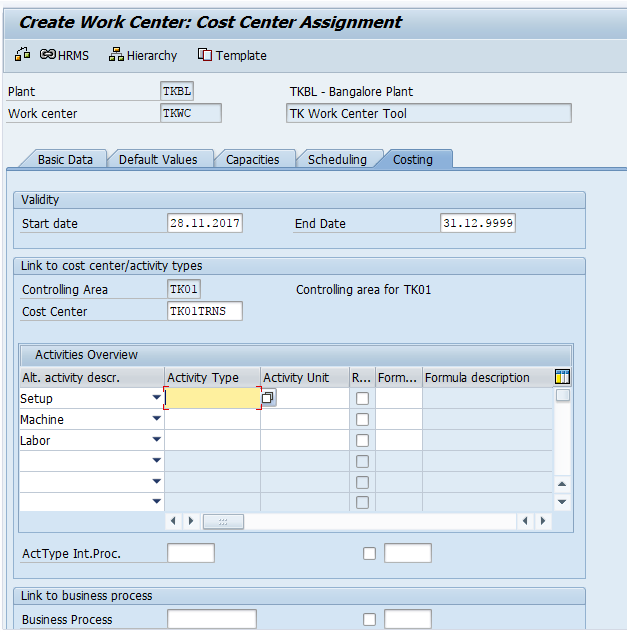
| Costing | Cost centre, activity type and formula key | Connects work centre activity with controlling costs |
Step 1: Execute SAP work centre transaction CR01
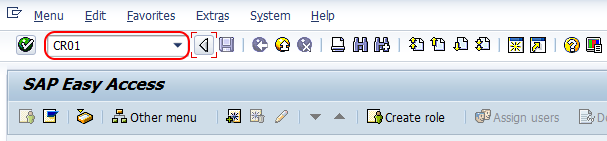
Execute t-code CR01 in the command field from the SAP Easy Access screen.
Step 2: Enter plant, work centre key and work centre category
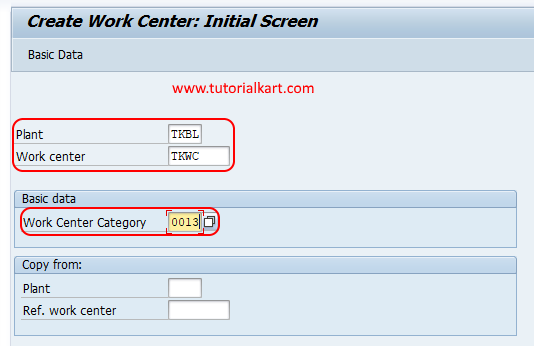
On the Create Work Center: Initial Screen, update the following details.
- Plant: Update the plant key where this work centre is located.
- Work Centre: Enter the new key that identifies the work centre in SAP.
- Work Center Category: Select the work centre category from the drop-down list. The category controls the screens, fields, and functions available for the work centre.
After updating all the required details, press Enter to continue.
Step 3: Maintain Basic Data for the SAP PM work centre
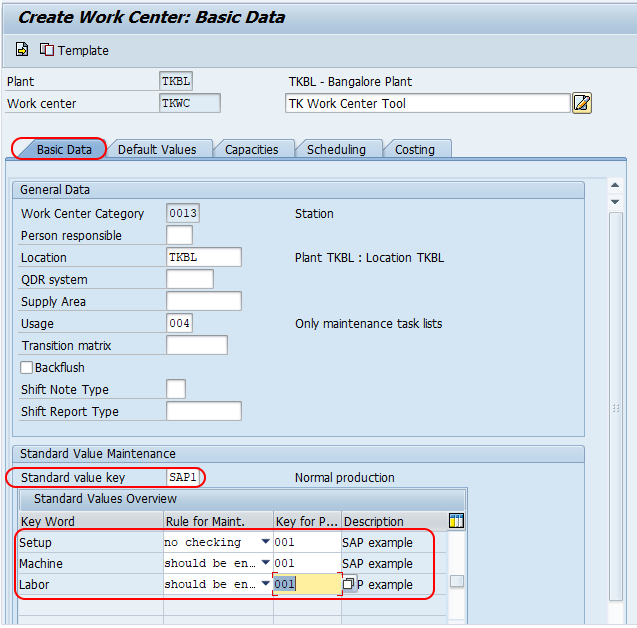
On the Create Work Center: Basic Data screen, update the following details.
- Description: Update the descriptive text of the work centre.
- Person responsible: Enter the person or responsible group that maintains work centre activities.
- Location: Update the work centre location.
- Usage: Update the usage key from the drop-down list. For maintenance, this example uses 004 – Only maintenance task list.
- Standard value key: Assign the standard value key. In this example, the key is SAP1 – Normal Production. Press Enter to continue.
- Standard values overview: Review setup, machine, and labor values and maintain the required rule and key values.
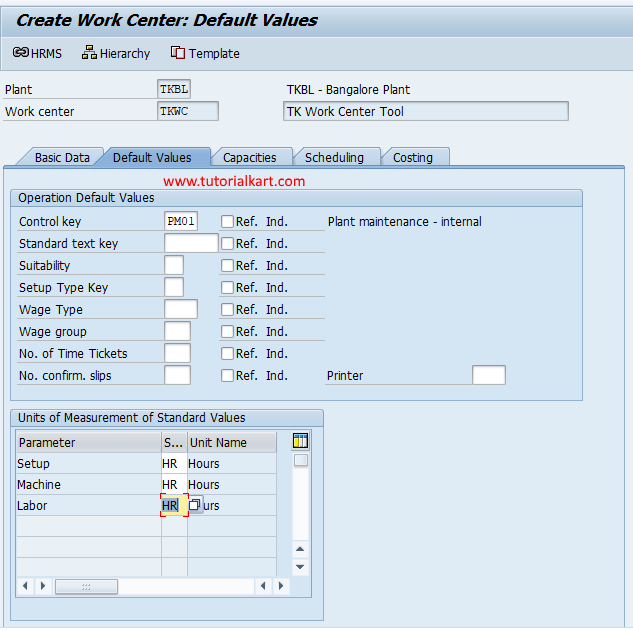
Step 4: Maintain Default Values for maintenance operations
Choose the Default Values tab and update the following details.
- Control key: Choose the control key from the list by pressing F4. In this example, choose PM01 – Plant Maintenance internal.
- Other defaults: Update required fields such as wage type, wage group, suitability, standard text type, number of tickets, reference indicator, and other fields used in your system.
- Unit of measurement of standard values: Update the unit of measurement. In this example, the unit is HR – Hours.
The control key is important because it controls operation functions such as scheduling, costing, confirmation, and external processing.
Step 5: Maintain work centre capacity details in SAP
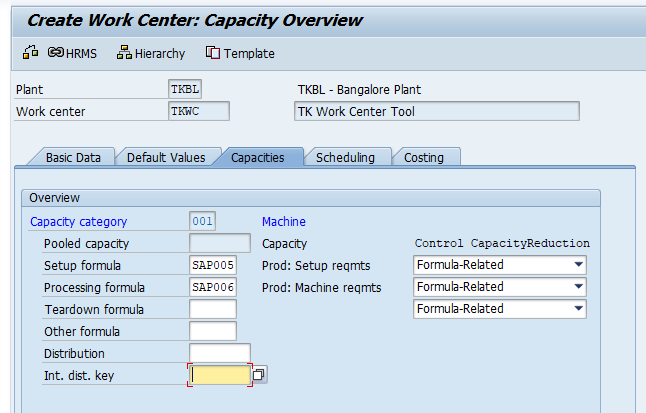
Choose the Capacities tab and update the required details for setup, machine setup, and labour capacity.
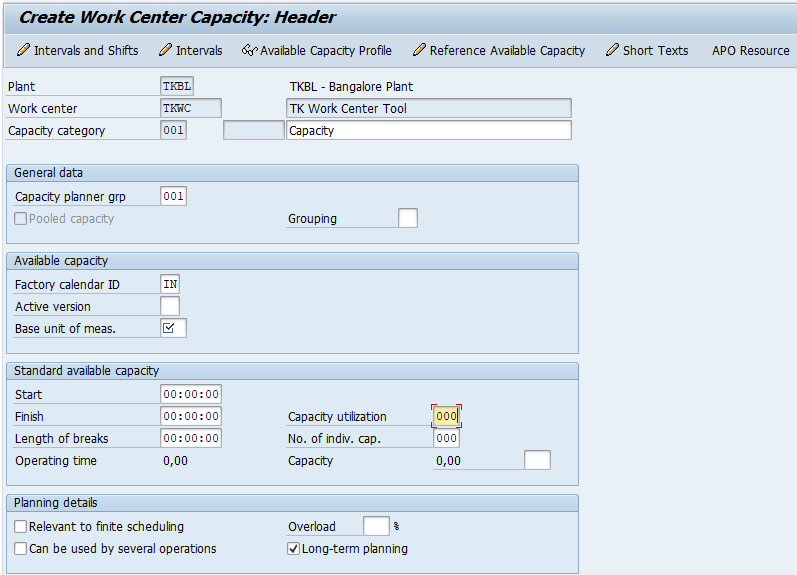
- Capacity category: Choose the capacity category type, such as 001 – Machine or 002 – Labour.
- Setup formula and processing formula: Update the formulas used to calculate setup and processing requirements.
- Available capacity: Maintain the available capacity details where required, such as operating time, number of individual capacities, and utilisation.
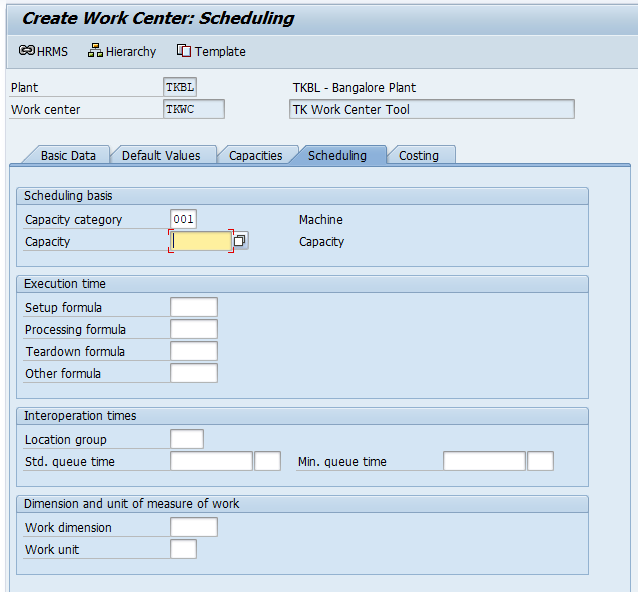
Step 6: Maintain scheduling formulas for the work centre
Choose the Scheduling tab and update the required details of capacity category, setup formula, processing formula, and other scheduling-related fields. These values help SAP calculate operation duration when the work centre is used in task lists or maintenance orders.
Step 7: Assign cost centre and activity types in the Costing tab
Choose the Costing tab and update the required details such as cost centre, activity type, formula key, and activity overview. The cost centre assignment connects the work centre to controlling, and activity types help calculate planned and actual maintenance costs.
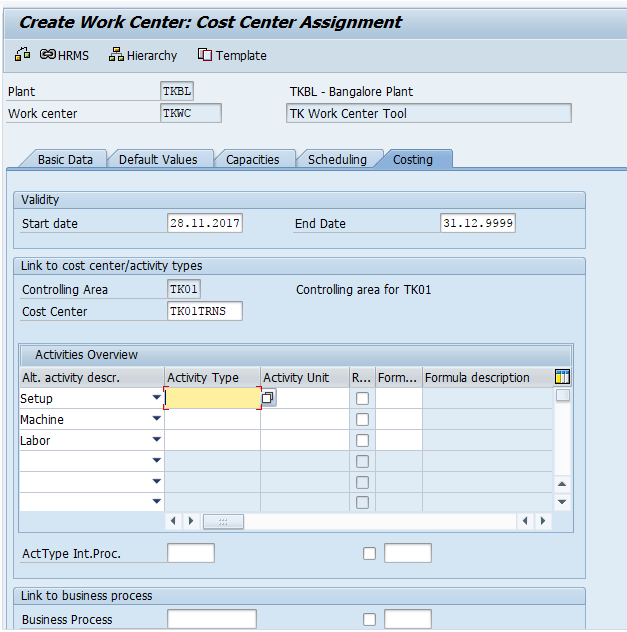
After updating all the required details, choose the Save icon and save the configured details.
The system displays a confirmation message after the work centre is created successfully.

Common checks when CR01 work centre creation fails
- Work centre key already exists: Check the existing work centre in CR03 or use a different key.
- Costing error: Verify the cost centre, activity type, controlling area, and validity dates.
- Capacity error: Check the capacity category, available capacity, and formula keys.
- Missing mandatory field: Review the required fields controlled by the work centre category and field selection configuration.
Editorial QA checklist for SAP PM work centre setup
- Confirm that CR01 is used for creation, CR02 for change, and CR03 for display.
- Check that the tutorial explains Basic Data, Default Values, Capacities, Scheduling, and Costing tabs.
- Ensure example values such as 004, SAP1, PM01, and HR are not presented as mandatory for every SAP system.
- Verify that cost centre, activity type, capacity category, and formulas are described as configuration-dependent fields.
FAQs on creating work centres in SAP PM
What is the T code for work centre creation in SAP?
The transaction code for creating a work centre in SAP is CR01. Use CR02 to change and CR03 to display work centres.
What is the SAP menu path for creating a work centre?
The menu path is Logistics > Production > Master Data > Work centres > Create. You can also enter CR01 directly in the command field.
Why is a work centre used in SAP PM?
A work centre is used in SAP PM to assign the maintenance resource, support capacity planning, calculate operation duration, and determine costs for task lists and maintenance orders.
Which fields are important in a SAP PM work centre?
Important fields include plant, work centre category, description, person responsible, usage, standard value key, control key, capacity category, formulas, cost centre, and activity type.
Can one work centre be used for both maintenance and production?
It depends on the work centre category, usage key, and system configuration. Some work centres are limited to maintenance task lists, while others may be configured for broader use.