 TutorialKart.com
Assign Sales Organization to Company Code in SAP is an SAP SD enterprise structure assignment that connects a sales organization with the legal company code used for financial accounting. After this assignment, sales documents created under that sales organization can be posted to the correct company code for accounting, billing, and reporting purposes.
In this SAP SD tutorial, you will learn how to assign sales organization to company code in SAP using the IMG path and the commonly used transaction code OVX3. In our previous training we have learned how to define shipping points in SAP.
The link between sales organization and company code in SAP is established through the assignment of sales organization to company code.
In a typical SAP SD enterprise structure, one sales organization is assigned to one company code, while one company code can have multiple sales organizations. This is why the assignment should be completed before you create sales areas, plants, shipping point assignments, customer master sales views, and sales documents that depend on the SD structure.
Sales Organization to Company Code Assignment in SAP SD: What It Controls
The sales organization represents the selling unit in SAP SD, while the company code represents the legal accounting entity in SAP FI. The assignment tells SAP which company code should receive accounting impact from sales transactions processed under a specific sales organization.
| SAP object | Role in this assignment | Example |
|---|---|---|
| Sales Organization | Responsible for sales and distribution activities | TK01 |
| Company Code | Legal entity for financial accounting postings | 1000 or TK01 |
| Assignment | Links SD transactions to FI accounting entity | Sales org TK01 assigned to company code TK01 |
SAP Help describes sales organizations as part of the Sales and Distribution enterprise structure. For official reference, you may also review the SAP documentation for sales organization assignment in SAP S/4HANA.
Before You Assign Sales Organization to Company Code in SAP
Check the following prerequisites before you save the assignment. These checks prevent common errors during SD configuration and later sales document processing.
- The sales organization has already been defined in SAP SD customizing.
- The company code has already been defined in SAP FI customizing.
- You have authorization to maintain enterprise structure assignments.
- A valid Customizing Request is available for saving and transporting the change.
- You have confirmed the intended legal entity, especially in systems with multiple company codes.
Step-by-Step Process to Assign Sales Organization to Company Code in SAP
SAP IMG Path and OVX3 Transaction for Sales Organization Assignment
Use either the IMG path or the direct transaction code to open the assignment screen:
- Transaction Code:
SPRO - Direct Transaction Code:
OVX3 - Menu Path:
SPRO > SAP Customizing Implementation Guide > Enterprise Structure > Assignment > Sales & Distribution > Assign Sales Organization to Company Code
The SPRO path is useful when you are learning SAP SD configuration because it shows where this assignment fits inside the enterprise structure. The direct transaction code OVX3 is useful when you already know the configuration object and want to open it quickly.
Step 1: Enter Transaction Code SPRO for SAP Customizing
- Log in to your SAP system.
- In the Command Field, type
SPROand press Enter. Image Description:- This image shows the SAP command field where the user types
SPROto open the SAP Customization menu. - The field is highlighted for clarity.

- This image shows the SAP command field where the user types
If your system allows direct access, you can also enter OVX3 in the command field to go directly to the assignment activity. The remaining configuration screen is the same assignment view used through the IMG path.
Step 2: Open SAP Reference IMG for Enterprise Structure Assignment
- On the Customizing Execute Project screen, click on SAP Reference IMG. Image Description:
- The image highlights the “SAP Reference IMG” button in the customization menu.
- This button directs users to the main configuration guide.
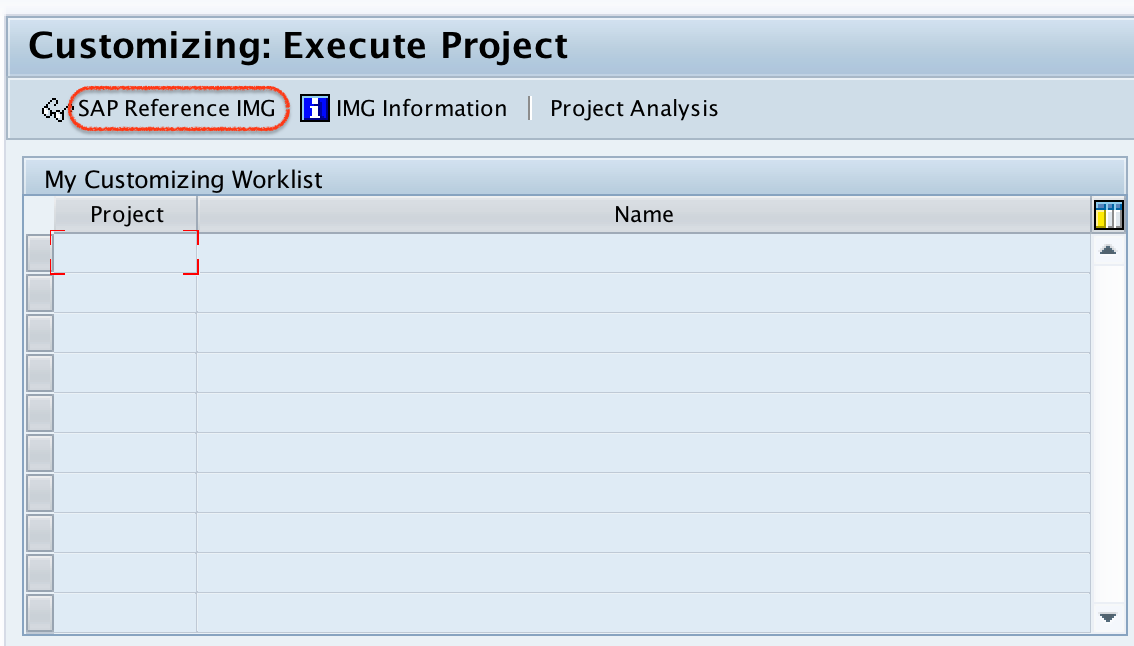
The SAP Reference IMG displays configuration activities by module and enterprise structure area. For this task, you need the Sales and Distribution assignment node.
Step 3: Navigate to Assign Sales Organization to Company Code in SAP IMG
- In the SAP Reference IMG, follow the path:
Enterprise Structure > Assignment > Sales & Distribution > Assign Sales Organization to Company Code - Double-click on “Assign Sales Organization to Company Code”. Image Description:
- The navigation path in the SAP IMG is clearly shown, with the option “Assign Sales Organization to Company Code” highlighted.
- The image helps users locate the correct option quickly.
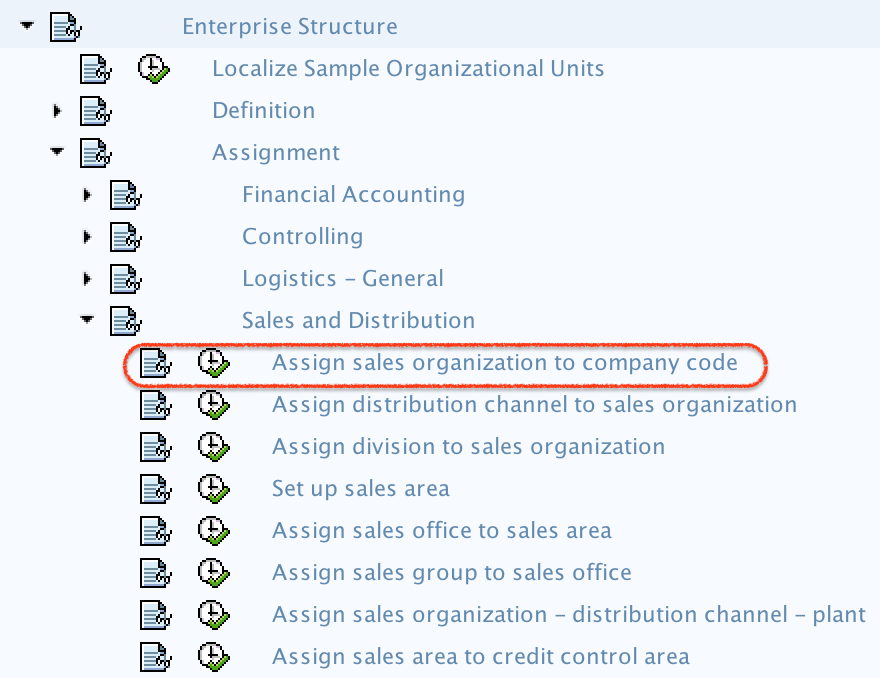
This activity opens the assignment overview where existing sales organizations and their company code assignments can be reviewed or changed.
Step 4: Position the Required Sales Organization in the Assignment View
- On the Change View: Assignment Sales Organization – Company Code screen:
- Click on the Position button.
- Enter the Sales Organization Key you wish to assign.
- This image shows the screen where the user can assign a Sales Organization to a Company Code.
- The “Position” button is highlighted, guiding the user to focus on this key step.
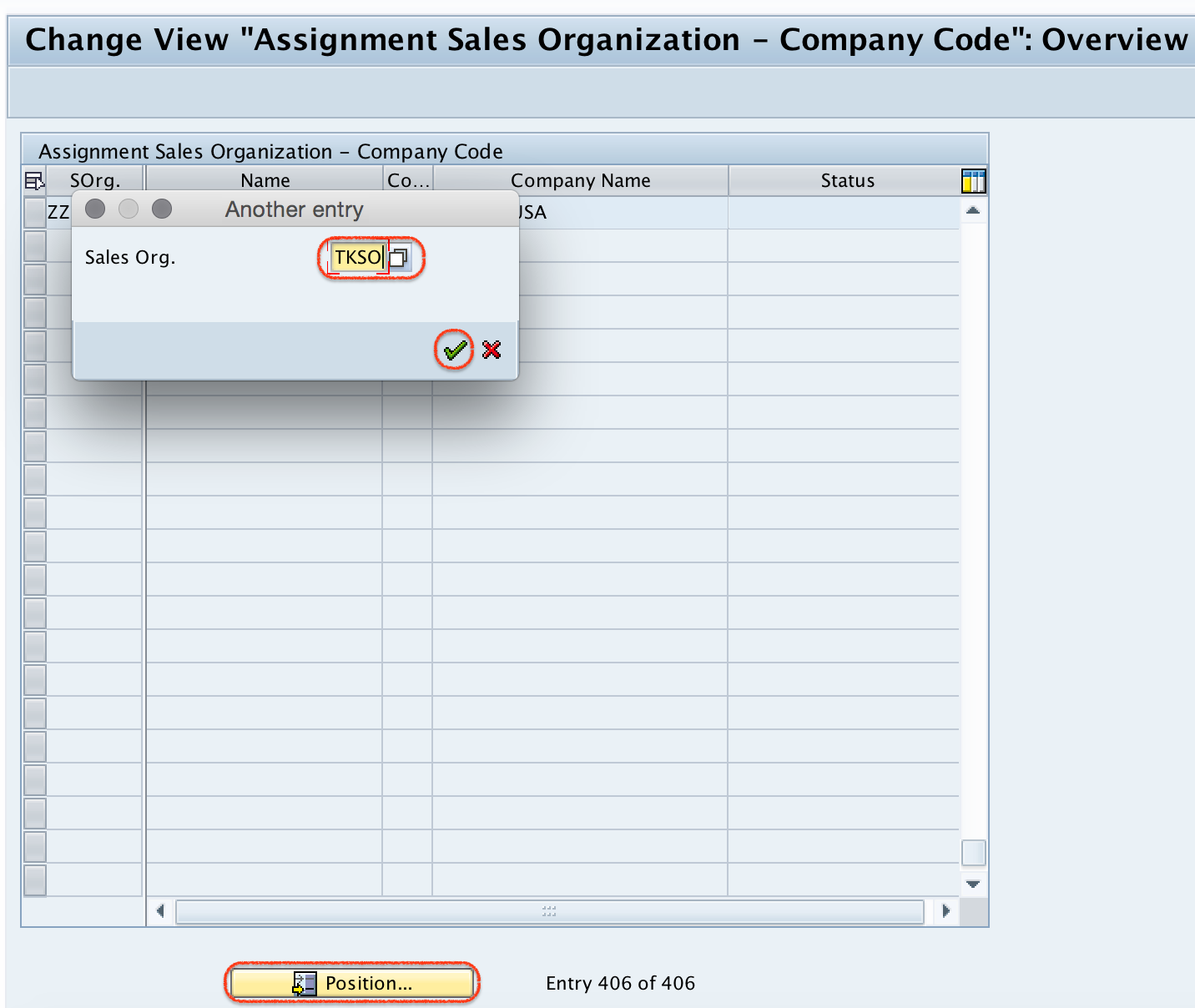
The Position button is helpful when the system contains many sales organizations. It takes you directly to the row for the sales organization instead of scrolling through the full list.
Step 5: Enter Company Code for the Selected Sales Organization
- In the CoCd (Company Code) field, type the Company Code (e.g.,
TK01) and press Enter. Image Description:- The image focuses on the field where the Company Code is entered.
- The example Company Code “TK01” is visible for demonstration.

Make sure the company code you enter is the correct legal entity for the sales organization. If the sales organization is used by the wrong company code, downstream configuration such as sales area setup, pricing, billing, and accounting integration can become inconsistent.
| Field on screen | What to enter | Check before saving |
|---|---|---|
| Sales Org. | Sales organization key | It must already exist in SAP SD |
| CoCd | Company code key | It must already exist in SAP FI |
| Description | Displayed from configuration | Use it to confirm the correct organizational unit |
Step 6: Save Sales Organization to Company Code Assignment
- Click the Save button to finalize the assignment. Image Description:
- The save button is highlighted, prompting the user to save their configuration changes.
- This step ensures that the new settings are stored in the system.

- SAP will prompt you to select a Customizing Request.
- Choose the appropriate request and confirm.
After saving, SAP stores the assignment as customizing. In a development system, the change is usually moved to quality and production through the assigned transport request.
How to Verify the Sales Organization and Company Code Assignment
After saving the assignment, reopen the same activity through OVX3 or the IMG path and check that the required sales organization displays the correct company code in the CoCd field.
- Use Position to search for the sales organization key.
- Confirm that the company code in the same row is correct.
- Check that the description matches the intended organization and company code.
- Confirm that the customizing request was saved without errors.
If the assignment is missing, sales area and sales document configuration may fail later because SAP cannot determine the financial accounting entity behind the sales organization.
Common Errors While Assigning Sales Organization to Company Code in SAP
| Issue | Likely reason | How to fix it |
|---|---|---|
| Sales organization is not available in the list | The sales organization is not defined or you are in the wrong client | Define the sales organization first and confirm the client/system |
| Company code is not accepted | The company code does not exist or was entered incorrectly | Check the company code in FI enterprise structure configuration |
| Save button prompts for transport | The assignment is customizing and must be transported | Select the correct Customizing Request |
| Wrong company code assigned | Incorrect organizational mapping was chosen | Correct the assignment before dependent SD configuration is transported |
SAP SD Assignment QA Checklist Before Transport
Use this checklist before releasing the transport request for the sales organization to company code assignment.
- The sales organization key is correct and belongs to the intended SD structure.
- The company code is the correct legal entity for billing and accounting postings.
- No sales organization is assigned to an unintended company code.
- Dependent configuration owners for sales area, plant assignment, shipping point, and billing have been informed.
- The Customizing Request contains only the intended enterprise structure changes.
FAQs on Assigning Sales Organization to Company Code in SAP
How do I assign sales organization to company code in SAP?
You can assign sales organization to company code in SAP through SPRO > SAP Customizing Implementation Guide > Enterprise Structure > Assignment > Sales & Distribution > Assign Sales Organization to Company Code. You can also use transaction code OVX3 to open the assignment screen directly.
Can one sales organization be assigned to multiple company codes in SAP?
No. In standard SAP SD enterprise structure, one sales organization is assigned to one company code. However, one company code can have multiple sales organizations assigned to it.
What is the transaction code for assigning sales organization to company code?
The commonly used direct transaction code is OVX3. You can also reach the same configuration activity through SPRO using the SAP Reference IMG path.
Why is sales organization to company code assignment required in SAP SD?
This assignment connects sales transactions with the correct financial accounting entity. It helps SAP determine which company code should be used when sales and billing processes create accounting-relevant postings.
Should I assign company code before creating sales areas in SAP?
Yes. The company code assignment should be completed before dependent SD enterprise structure settings such as sales area, plant, and shipping point assignments are finalized.
SAP SD Enterprise Structure Tutorials to Read Next
- How to Define Shipping Points in SAP
- How to Define Sales Organization in SAP
- Define Company Code in SAP