 TutorialKart.com
In this SAP tutorials, you will learn what an item category is, how item categories control sales document item processing, and how to customize new item categories in SAP SD using transaction code VOV7. Before configuration, it is important to understand how an item category works with the sales document type, item category group, schedule lines, pricing, delivery, and billing.
What is an item category in SAP SD?
In SAP Sales and Distribution (SD), an item category defines how an item behaves inside a sales document. It controls whether the item is relevant for pricing, delivery, billing, schedule lines, credit checks, cost determination, business data, and completion processing. The standard item category TAN is commonly used for a normal standard item in a sales order. To view or configure item categories, use transaction code VOV7.
An item category is not selected manually in most day-to-day sales order processing. SAP usually determines it automatically when the user enters a material in a sales document. The determination depends on the sales document type, the item category group from the material master, item usage, and higher-level item category when applicable.
Purpose of item category configuration in SAP SD
In this configuration activity, you define item categories that determine how items behave within a sales document. The item category, together with the sales document type and schedule line category, controls the flow from sales order to delivery and billing.
| Item category control in VOV7 | What it affects in SAP SD |
|---|---|
| Business item | Controls whether business data can be maintained at item level. |
| Schedule line allowed | Controls whether schedule lines are allowed for the item. |
| Pricing relevance | Controls whether the item participates in pricing. |
| Billing relevance | Controls whether billing is order-related, delivery-related, or not relevant. |
| Delivery relevance | Controls whether the item can be processed in delivery. |
| Completion rule | Controls how the item is treated as complete in document processing. |
| Incompletion procedure | Controls which missing fields make the item incomplete. |
| Credit active | Controls whether the item is relevant for credit management checks. |
Because item category settings influence order processing, delivery, billing, and pricing, new item categories should normally be created by copying a similar standard item category and changing only the required fields.
Standard item categories in SAP SD sales documents
- AFN – IN – Inquiry
- AGN – QT – Quotation
- KMN – Quantity Contract
- TAN – OR – Standard Order
- TANN: Free Item
- TATX: Text Item in Order
- BVN – CS – Cash Sales
- REN – RE – Returns Order
- G2N – CMR – Credit Memo
- L2N – DMR – Debit Memo
The list above shows common standard item categories used in different sales document scenarios. In real projects, the exact item category used depends on the process design, document type, and item category determination settings.
SAP item category determination before VOV7 customization
Defining an item category in VOV7 creates or changes the item category itself. To make SAP determine that item category automatically in a sales order, the item category must also be assigned in item category determination. This is usually maintained with transaction code VOV4.
| Determination field | Example value | Purpose |
|---|---|---|
| Sales document type | OR | Defines the sales process, such as standard order. |
| Item category group | NORM | Comes from the material master and helps classify the item. |
| Item usage | Blank or process-specific value | Used for special item processing scenarios. |
| Higher-level item category | Blank, TAN, or another category | Used for sub-items such as BOM components or free goods. |
| Default item category | TAN or custom item category | The item category proposed in the sales document. |
For example, in a standard sales order, a material with item category group NORM may determine item category TAN. If you create a custom item category, check both VOV7 and the item category determination assignment so that SAP can propose it correctly in the sales document.
How to create item categories in SAP using VOV7
Standard SAP system delivers various predefined item categories. You can use the predefined item categories when they match the business requirement. If required, you can create new item categories in SAP as per the requirements of the project.
Navigation Path
| SAP R/3 Role Menu | Create item category |
| Transaction Code | VOV7 |
| IMG Path | SPRO > IMG > Sales and Distribution > Sales > Sales Documents > Sales Document Items > Define Item Categories |
Step 1: – Enter T-code “VOV7” in the SAP command field and press Enter.

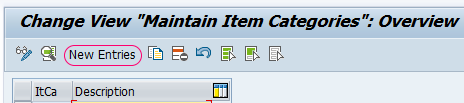
Step 2 : – On the Change View Maintain Item Categories Overview screen, the system displays the list of existing item categories. Click the New Entries button to create a new item category as per client requirements.
Step 3 : – On the new entries item category screen, update the following details.
- Item Category: Update the key that identifies the item category in SAP.
- Description: Update the name or short description of the item category.
- Billing relevance and pricing: Update billing relevance as A for delivery-related billing document when the process requires delivery-related billing, and set pricing as X for standard pricing where applicable.
- Control indicators: Choose the required options for business item, schedule line allowed, weight/volume relevant, credit active, and determine cost based on the sales process.
- Other required fields: Update additional fields such as completion rule, incompletion procedure, text determination, partner determination, and item relevance settings as required by the business process.
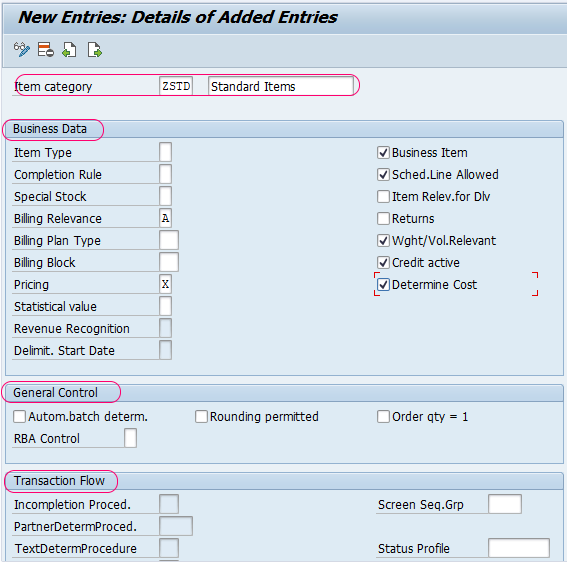
After maintaining all the required details of the item category, choose the save button on the standard toolbar and save the configured item category in SAP.
Recommended way to create a custom SAP SD item category
In most implementations, it is safer to copy an existing standard item category that is close to the required process instead of creating every control value manually. For example, if the new item should behave mostly like a normal standard order item, copy TAN and adjust only the fields required for the custom process.
- Copy from a standard item category with similar delivery, billing, and pricing behavior.
- Use a custom naming convention that is clear for the project, such as a customer namespace or agreed internal prefix.
- Review billing relevance carefully because it affects whether billing happens with reference to the order or delivery.
- Check schedule line allowed when the item must support delivery quantities and dates.
- Test the item category in a sales order, delivery, and billing document before moving the configuration to production.
SAP SD item category configuration checks after saving VOV7
After saving the item category in VOV7, check the related configuration. A new item category may exist correctly but still not appear in a sales order if determination or dependent settings are missing.
- Assign the item category in item category determination so that SAP can propose it in the sales document.
- Check whether the item category allows schedule lines when delivery processing is required.
- Verify whether the item is relevant for pricing, billing, delivery, credit, and cost determination.
- Confirm that the incompletion procedure captures mandatory item-level fields.
- Run an end-to-end test from sales order creation to delivery and billing where applicable.
Common mistakes while defining item categories in SAP SD
- Creating a new item category without VOV4 assignment: The item category is saved, but SAP does not determine it in the sales order.
- Using the wrong billing relevance: This can stop billing or create billing at the wrong stage of the process.
- Ignoring schedule line settings: Delivery-related items usually need schedule line processing.
- Changing a standard item category directly: This can affect existing sales processes. A copied custom item category is usually easier to control.
- Skipping testing with real document flow: Item category behavior should be tested through order, delivery, and billing where relevant.
Editorial QA checklist for SAP item category tutorial
- Confirm that VOV7 is described as the transaction for defining or maintaining SAP SD item categories.
- Confirm that the tutorial explains both item category configuration and item category determination.
- Confirm that pricing, billing relevance, delivery relevance, schedule line allowed, and business item controls are explained in context.
- Confirm that the standard item category TAN is identified as the common standard order item category.
- Confirm that the steps advise testing the new item category in sales order, delivery, and billing where applicable.
FAQs on item category in SAP SD and VOV7
How do you assign item categories in SAP SD?
Item categories are assigned through item category determination, usually with transaction code VOV4. The assignment uses fields such as sales document type, item category group, item usage, and higher-level item category to propose the default item category in a sales document.
What is the Tcode for item category in SAP SD?
The transaction code to define or maintain item categories in SAP SD is VOV7. The IMG path is SPRO > Sales and Distribution > Sales > Sales Documents > Sales Document Items > Define Item Categories.
How do you create a new item category in SAP?
Open VOV7, choose New Entries or copy a similar existing item category, maintain the required controls such as pricing, billing relevance, schedule line allowed, and business item, then save the configuration. After that, maintain item category determination if the new item category must be proposed automatically.
What is VOV7 Tcode in SAP SD?
VOV7 is the SAP SD transaction code used to define and maintain sales document item categories. It controls important item-level behavior such as pricing relevance, billing relevance, delivery relevance, schedule line permission, incompletion procedure, and cost determination.
What is the difference between item category and item category group in SAP SD?
An item category controls how a sales document item is processed. An item category group is maintained in the material master and helps SAP determine the item category in a sales document. For example, a material with item category group NORM can lead to item category TAN in a standard sales order.