 TutorialKart.com
In this SAP SD tutorials, you will learn how to define condition table in SAP SD step by step using transaction code V/03. A condition table is used in SAP SD pricing to store the key fields that the system uses to find condition records such as prices, discounts, freight, taxes, or surcharges.
Condition tables are combinations of fields used to maintain condition records in SAP. For example, a pricing condition may be determined by customer and material, sales organization and material, customer group, material pricing group, or another valid field combination. The condition table defines this combination, and the access sequence later tells SAP in which order to search those tables.
What Is a Condition Table in SAP SD Pricing?
A condition table in SAP SD is a customizing object that contains the fields used as the key for a condition record. When a sales document is created, SAP checks the pricing procedure, condition type, access sequence, and condition tables to determine the correct condition value.
In simple terms, the condition table answers this question: which fields should SAP use to search for the price or discount? If pricing depends on the customer and material, those fields must be available in the condition table. If pricing depends on sales organization, distribution channel, customer group, and material, the condition table must contain that combination instead.
Where Condition Tables Fit in SAP SD Pricing Configuration
Before creating a new condition table, it is useful to understand the pricing sequence. In SAP SD, condition tables are not used alone. They work with condition types, access sequences, and pricing procedures.
- Condition table: Stores the field combination used to maintain condition records.
- Condition type: Represents the pricing element, such as base price, discount, freight, or tax.
- Access sequence: Defines the search strategy and sequence of condition tables for a condition type.
- Pricing procedure: Controls the full pricing calculation in the sales document.
- Condition record: Stores the actual value, such as a price amount or discount percentage, for the selected field combination.
If an existing standard condition table already has the required fields, use the standard table instead of creating a new one. Create a custom condition table only when the business pricing requirement cannot be handled by an available table.
Define Condition Table in SAP SD Using Transaction Code V/03
Navigation Menu Path
| SAP R/3 Role Menu | Create condition tables |
| Transaction code | V/03 |
| SAP IMG Menu Path | SPRO -> Implementation Guide for R/3 Customizing (IMG) -> Sales and Distribution (SD) -> Basic functions -> Pricing > Pricing control -> Define condition tables. |
Step 1 : – Enter tcode “V103” in the SAP command field and execute. In many SAP systems, the standard transaction code for creating a pricing condition table is shown as V/03. If your system accepts V/03 directly, use V/03 from the command field.

Step 2: – On create condition table (Pricing Sales/ Distribution) screen, update the following details.
Table : – User defined table number should be above 500, below 500 are predefined default tables. Enter the number the identifies as condition table in SAP. The table number should be in between 500 and 999, if you don’t enter table number than the system automatically takes the number below 500.
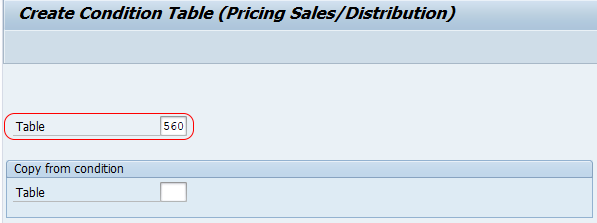
Press enter to continue.
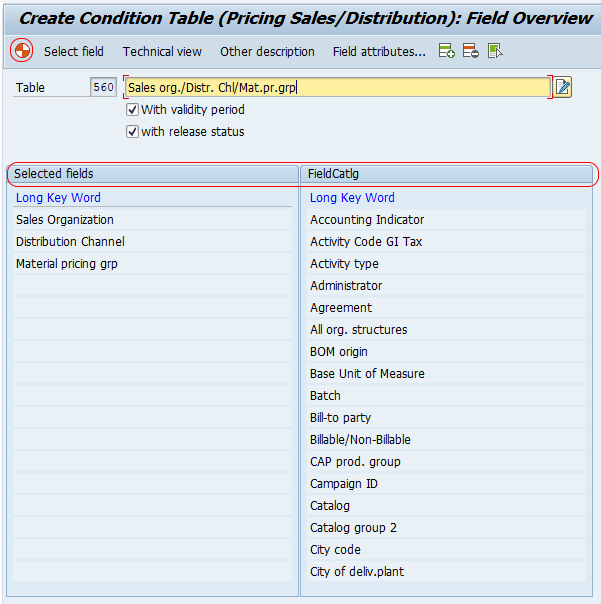
Step 3 : – On create condition table (Pricing sales/distribution) field overview screen, update the following details.
Field catalog: – Field catalog consists the list of allowed fields for creation of condition table in SAP. Choose the required key fields to create the condition table. Double click on the filed which is under filed catalog field and it will appear in selected field.
Click on technical view button, the fields that are marked as key appears at key level, and the fields that are marked as footer field appears at footer level while defining condition records.
After selecting the fields click on generate (shift+f4).
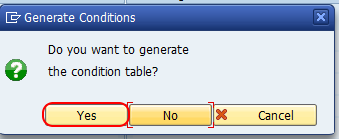
Click on yes option to generate the condition table.
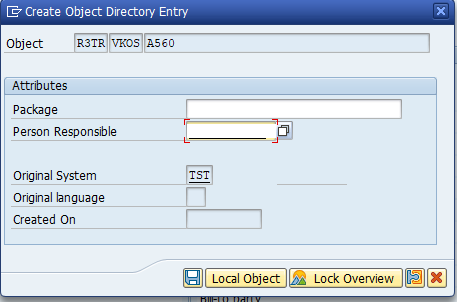
You have to save it in package, then only system will propose workbench request number. If you save it in request number then only you can transport it from one server to another server. Workbench request is cross client request, so you can create any condition table in one client and it will appear in all clients.
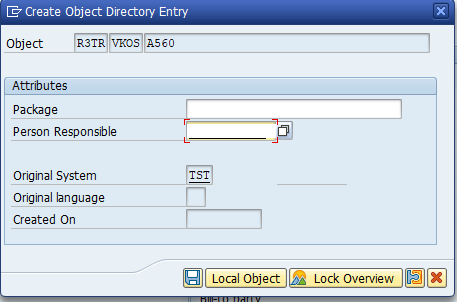
You can save condition table in local object or package. If you save condition table in local object, then SAP system wont generate request number and you can not transport condition tables from one server t another server. So save the tables in package to transport from one server to another server.
Successfully we have created condition table in SAP.
Choosing Fields for a SAP SD Condition Table
The most important decision while creating a condition table is the field combination. Add only the fields required for the pricing rule. Too many fields can make condition record maintenance difficult, while too few fields may cause the same price or discount to apply too broadly.
| Pricing requirement | Possible condition table fields | Configuration note |
|---|---|---|
| Customer-specific material price | Customer, Material | Useful when a particular customer has a negotiated price for a material. |
| Sales-area-specific material price | Sales Organization, Distribution Channel, Material | Useful when the same material has different prices by sales area. |
| Customer group discount | Customer Group, Material Group | Useful when discounts depend on grouped customer and product classifications. |
| Plant-specific freight or surcharge | Plant, Incoterms, Destination Region | Useful when logistics costs vary by shipping or destination attributes. |
The available fields depend on the field catalog. If a required field is not visible in the field catalog, it may need additional configuration or enhancement before it can be used in a pricing condition table.
Condition Table Number Range and Naming in SAP SD
For custom pricing condition tables, use the customer-defined number range, generally from 501 to 999. Standard SAP condition tables usually use lower table numbers. Avoid changing standard tables unless there is a controlled project requirement and the impact is clearly understood.
After a condition table is generated, SAP creates the technical table structure used for pricing records. In SD pricing, generated condition table names are commonly represented with the condition table number, for example a table number such as 901 is technically associated with a generated pricing table structure. Always check the generated object and transport request in the same system landscape used by your project.
Assign the New Condition Table to an Access Sequence
Creating a condition table does not automatically make it active in pricing. After defining and generating the condition table, assign it to the relevant access sequence. Then assign or verify that the access sequence is linked to the required condition type.
- Create or identify the required condition table in V/03.
- Add the condition table to the correct access sequence.
- Maintain the access fields and field mapping for that access.
- Assign the access sequence to the relevant condition type if it is not already assigned.
- Maintain condition records for the new field combination.
- Test pricing determination in a sales order or relevant sales document.
This sequence is important because the condition table only defines the structure. SAP pricing uses it only when the access sequence calls that table during condition record search.
Testing a New SAP SD Condition Table After Generation
After the condition table is created and assigned, test it with a realistic business example. Maintain a condition record using the newly created field combination, then create a sales document with matching values. Open the pricing analysis screen in the sales order to verify whether SAP found the condition record from the expected access.
- Check whether the condition record was maintained for the exact key combination.
- Verify that the access sequence contains the new condition table.
- Confirm that the access fields are correctly mapped.
- Check whether the pricing procedure contains the required condition type.
- Review the validity dates of the condition record.
- Confirm that sales document values match the condition record fields.
Common Issues While Creating Condition Tables in SAP SD
The following issues are common while defining condition tables in SAP SD pricing configuration.
| Issue | Likely reason | What to check |
|---|---|---|
| Required field is not available in field catalog | The field is not included in the pricing field catalog | Check whether the field is supported for pricing or needs enhancement. |
| Condition table is created but not used in sales order | The table is not assigned to the access sequence | Add the table to the correct access sequence and maintain access fields. |
| Condition record is not found | Key values do not match the sales document | Compare customer, material, sales area, validity dates, and other key fields. |
| No transport request is created | The table was saved as a local object | Save the object in a package if it must be moved to another system. |
| Wrong pricing result after adding the table | Access sequence order is incorrect | Review the order of accesses and whether exclusive indicators are used. |
Best Practices for Defining SAP SD Pricing Condition Tables
- Check standard condition tables before creating a custom condition table.
- Use only the fields required for the business pricing rule.
- Use the customer-defined table number range for custom condition tables.
- Keep the access sequence order logical, from most specific to more general where applicable.
- Save transportable configuration in a package instead of a local object when it must move across the landscape.
- Document why the condition table was created and which condition type or access sequence uses it.
- Test the condition table with valid condition records before releasing the configuration.
QA Checklist for This SAP SD Condition Table Tutorial
- Confirm that the transaction code V/03 and IMG path for defining condition tables are clearly shown.
- Check that existing SAP SD tutorial, SAP definition, pricing, and V/03 links remain unchanged.
- Verify that all existing screenshots are retained in their original order.
- Ensure the tutorial explains what a condition table does before showing the configuration steps.
- Check that post-creation steps mention access sequence assignment and condition record testing.
- Confirm that transport guidance explains the difference between package and local object.
SAP SD Condition Table FAQ
What is a condition table in SAP SD?
A condition table in SAP SD is a table that defines the field combination used to store and search condition records. It is commonly used in pricing for prices, discounts, freight, taxes, and other condition values.
What is the transaction code to create a condition table in SAP SD?
The transaction code used to create a pricing condition table in SAP SD is V/03. The related IMG path is Sales and Distribution > Basic Functions > Pricing > Pricing Control > Define Condition Tables.
Which table number should be used for a custom SAP SD condition table?
Custom SAP SD pricing condition tables are generally created in the customer-defined range from 501 to 999. Standard SAP-delivered tables usually use lower numbers, so check existing tables before creating a new one.
Why is my new condition table not used in sales order pricing?
A condition table is not used automatically after creation. It must be assigned to the relevant access sequence, the access fields must be maintained correctly, and condition records must exist for the matching key combination and validity period.
Should a SAP SD condition table be saved as a local object or in a package?
Save it in a package when the condition table must be transported from one SAP system to another. A local object is suitable only for local testing or non-transportable work because it does not create a transport request.