 TutorialKart.com
Creating Custom List Views In Salesforce
In our previous Salesforce Tutorial we have learned about Salesforce Documents Tabs and Salesforce Home page layouts. In this Salesforce tutorial, we will learn how to create custom list views in Salesforce, how list view filters work, how to choose fields to display, what Salesforce list view permissions control, and where Salesforce list view API details are useful.
What are list views in Salesforce?
List views in Salesforce are saved sets of filters and display columns for records in an object. Instead of opening every record one by one, a list view lets users quickly see records that match a condition, such as invoices created today, open opportunities, active accounts, or cases assigned to a support queue.
A Salesforce list view does not create new records and it does not override object-level security, field-level security, sharing rules, or record ownership. It only controls which records are shown in that view and which columns appear on the page.
When to create custom list views in Salesforce
List views are widely used in any Salesforce organisation. For standard objects there are some standard list views available in Salesforce, but for a custom object we often create custom list views in Salesforce.com based on the records users need to work with regularly.
- Create a custom list view when users repeatedly search for the same set of records.
- Use filters when records should be shown by owner, date, status, amount, region, priority, or another field value.
- Choose display fields that help users decide what action to take without opening each record.
- Use list view sharing carefully when a view is needed by a team or by all users.
- Clone an existing list view when the standard view is close to your requirement but should not be edited directly.
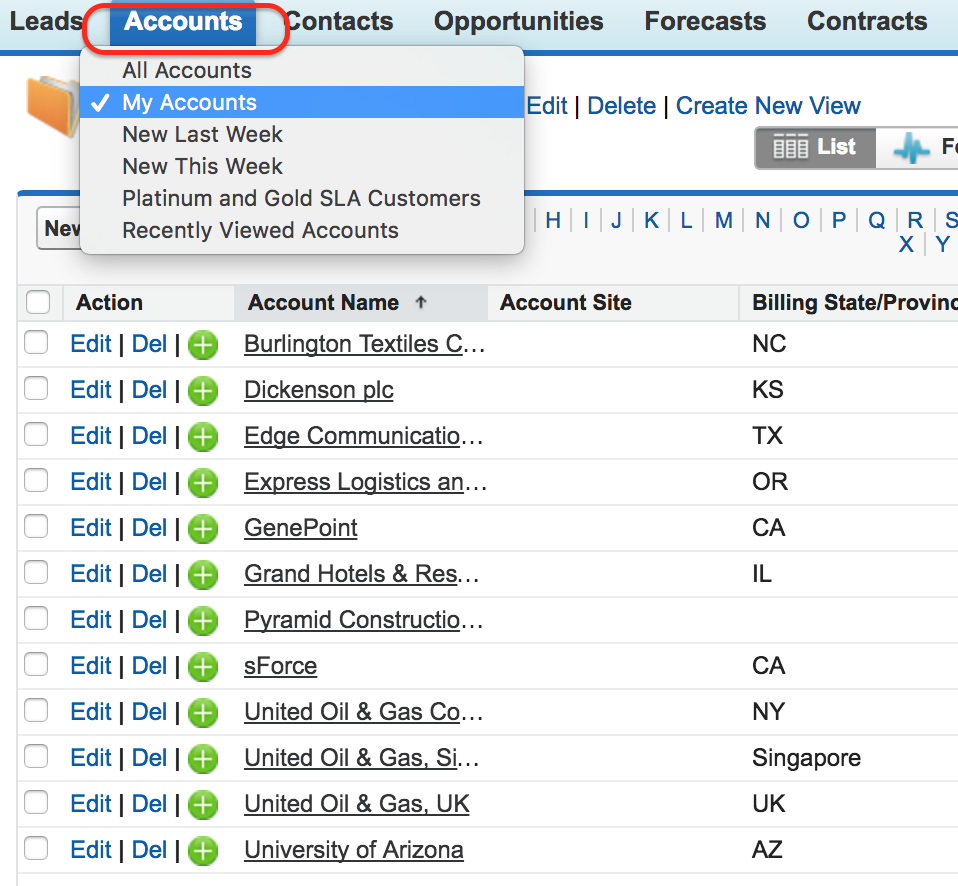
Salesforce Lightning path to create a custom list view
In Salesforce Lightning Experience, open the object tab, select the list view controls menu, and choose the option to create a new list view. In Salesforce Classic, the same task may appear as Create New View on the object home page. The screen names may differ slightly by Salesforce UI, object, and permissions, but the setup idea is the same: name the view, add filters, choose fields, and save it.
In this Salesforce tutorial we are creating a custom list view for invoices created in this week. Go to Invoices Tab| Create new view.
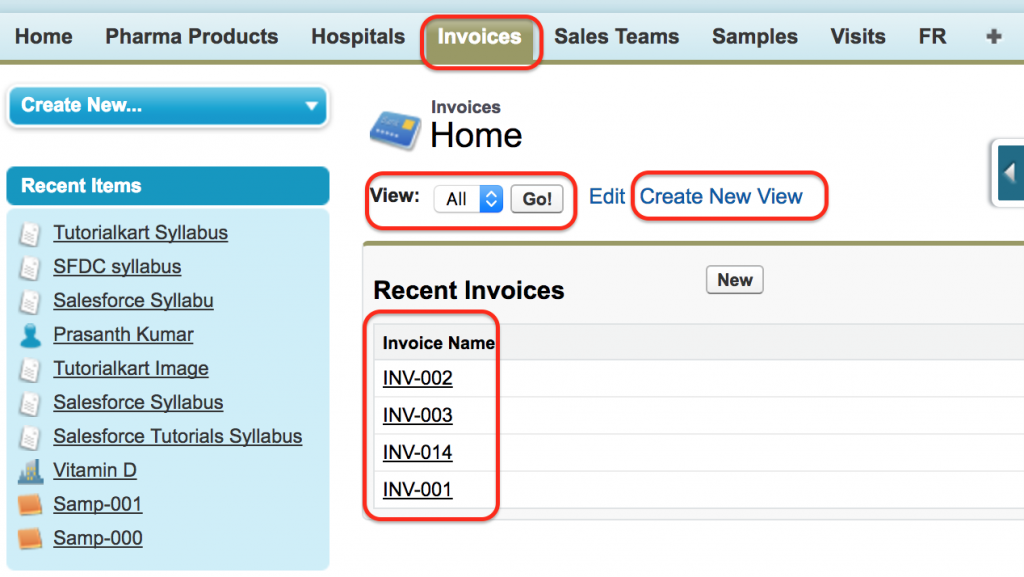
- Click on Invoice Tab.
- Invoice Home page will be opened where for custom object Invoice we don’t have any custom view. The default view is All.
- When a view is All, it displays all records that are created in Invoices Object.
- To create New list view in Salesforce click on create New view as shown above.
Step 1: Enter Salesforce list view name and unique name
Enter a clear list view name and view unique name. The list view name is what users see in the object tab. The unique name is the API-style name used internally by Salesforce, so it should be short, descriptive, and consistent with your naming standards.
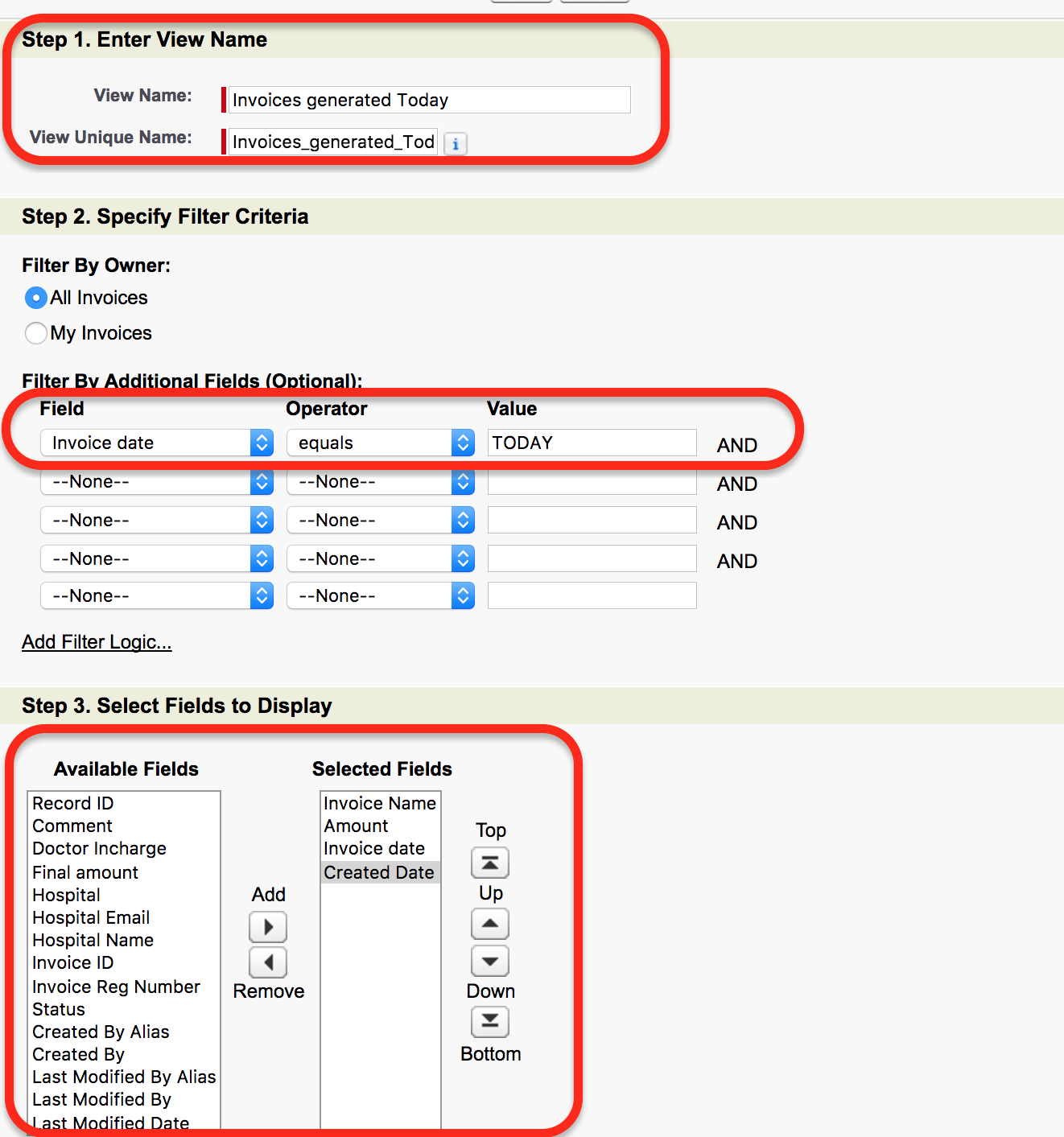
- Enter View name and view unique name.
- Ente filter criteria.
Step 2: Add filter criteria for invoice records
In this criteria we are going to extract the records that are created Today. The filter criteria will be as follows.
Invoice date equals to TODAY.
For a real Salesforce list view, choose filters that match the business question. For example, an invoice team may need views such as Invoices Created Today, Invoices Due This Week, Unpaid Invoices, or High Value Invoices. Date filters such as TODAY, THIS WEEK, and LAST MONTH are useful when users need records for a rolling period.
Step 3: Select fields to display in the Salesforce list view
Step 3: Select Field to display.
In this step we have to select the field that are to be displayed. Select the field from Available field to Selected field using arrow.

As shown above we have selected Invoice name, Amount, Invoice Date and Created Date fields in Step 3.
Keep list view columns focused. Too many columns make the list hard to scan, while too few columns force users to open records unnecessarily. For an invoice list view, fields such as Invoice Name, Invoice Date, Amount, Status, Owner, and Created Date are usually more useful than rarely used administrative fields.
Step 4: Save and test the custom list view in Salesforce
After entering the name, filter criteria, and selected fields, save the list view. Open the view from the Invoice tab and confirm that the records shown match the expected filter. If no records appear, check whether matching records exist and whether the logged-in user has access to those records.
How to edit list views in Salesforce Lightning
To edit list views in Salesforce Lightning, open the object tab, choose the required list view, and use the list view controls menu. Depending on your permissions, you can edit filters, rename the list view, change visible fields, pin a preferred list view, or adjust sharing settings.
- Edit Filters: Change the conditions that decide which records appear.
- Select Fields to Display: Add, remove, or reorder columns in the list view.
- Rename: Update the list view name when the purpose changes.
- Sharing Settings: Control whether the view is private, visible to a selected group, or visible to all users, based on permissions.
- Clone: Create a copy when you want a similar view without changing the original one.
If a standard list view cannot be edited, clone it and save the cloned version as a custom list view. This is a safer option when users need a modified version of a standard Salesforce view.
Salesforce list view permissions and visibility
Salesforce list view permissions
We can create and edit permission set list views in Salesforce.com. Permission Sets can be managed using Profiles and Permission Sets.
List view access depends on both user permissions and record access. A user may be able to open a shared list view but still see only the records that the user is allowed to access. List view sharing does not bypass Salesforce security.
| Requirement | What to check in Salesforce |
| User needs to create personal list views | Check whether the user has permission to create and customize list views. |
| User needs to create list views for other users | Check permission for managing public list views and sharing options. |
| User cannot see records in a list view | Check object permissions, record sharing, role hierarchy, owner-based access, and field-level security. |
| User cannot edit a list view | Check whether the view is standard, private, owned by another user, or restricted by permissions. |
Salesforce list view API name and REST API notes
The Salesforce list view unique name is important when admins and developers refer to a view outside the user interface. Salesforce also provides REST API resources for list views, which can be useful when an integration needs to read available list views, describe a list view, or retrieve list view results for an object.
For admin work, the main point is simple: use a meaningful view name and a consistent unique name. For development work, confirm the object API name, list view identifier, authentication method, and API version before using list view data in an integration.
Salesforce list view charts in Lightning Experience
In Lightning Experience, list views can also support list view charts for quick visual summaries, depending on the object, available fields, and user permissions. A chart is useful only when the list view filter is well defined. For example, a filtered invoice list can be summarized by status, owner, or amount range if the required fields are available.
For more practice with Lightning list views, you can review Salesforce Trailhead resources such as Get to Know List Views and Customize List Views in Lightning Experience.
Common mistakes while creating Salesforce custom list views
- Creating a list view with a vague name such as New View or Test View.
- Adding filters that do not match the actual field values used in records.
- Adding too many columns, making the view difficult to read.
- Sharing a list view with all users when only a specific team needs it.
- Assuming list view sharing gives users access to records they cannot otherwise see.
- Editing a shared list view without checking whether other users depend on it.
Editorial QA checklist for Salesforce custom list views tutorial
- Confirm that the tutorial explains what Salesforce list views are before the configuration steps.
- Check that the custom object example uses the Invoice tab and invoice-related filters consistently.
- Verify that the article explains list view filters, selected fields, visibility, and permissions separately.
- Confirm that the difference between list view visibility and record access is clearly stated.
- Review the Lightning Experience editing guidance so users know how to edit, clone, rename, and share list views.
FAQs on creating custom list views in Salesforce
What are list views in Salesforce?
List views in Salesforce are saved filters and selected columns for records in an object. They help users quickly open a focused set of records, such as today’s invoices, open cases, or active accounts.
What’s the first step to create a list view in Salesforce?
The first step is to open the object tab, such as Accounts, Opportunities, Cases, or a custom object tab like Invoices. Then use the list view controls menu in Lightning or the Create New View option in Classic.
How do I edit list views in Salesforce Lightning?
Open the object tab, select the list view, and use the list view controls menu. If you have the required permissions, you can edit filters, select fields to display, rename the view, clone it, or update sharing settings.
How to edit a standard list view in Salesforce Lightning?
Some standard list views may not be editable for every user. If you cannot edit a standard list view, clone it, change the filters or columns, and save it as a custom list view.
Do Salesforce list views control record access?
No. A list view controls which records are requested and which columns are displayed, but it does not override object permissions, field-level security, sharing rules, or record ownership.
Final check after creating custom list views in Salesforce
In this Salesforce Tutorial we have learned how to create custom Salesforce list views, add filter criteria, select fields to display, and review Salesforce list view permissions. We also covered how Salesforce list views are edited in Lightning Experience and why list view visibility should not be confused with record-level access. We will learn about Salesforce list view permissions and REST API clearly in our upcoming Salesforce Tutorials.