 TutorialKart.com
SFDC login caching and autocomplete is a Salesforce Session Settings option that controls whether the Salesforce login page can remember previously used usernames and show login hints. It is useful for users who work with multiple Salesforce orgs, sandboxes, Developer Edition accounts, or custom domains, but some organizations disable it on shared computers or under stricter security policies.
This tutorial explains what the Enable caching and autocomplete on login page checkbox does, how to turn it on or off, how to test it at login salesforce, and how it differs from browser password managers.
What enable caching and autocomplete means on the SFDC login page
When this setting is enabled, the Salesforce login page can store username hints after a user signs in. On the next visit to login.salesforce.com, Salesforce can display previously used usernames so the user can choose the right account more quickly.
This feature is often called multiple username login hints. It helps administrators, developers, consultants, and support users who switch between production orgs, sandboxes, and Developer Edition orgs. It also supports the Salesforce login experience across standard login pages and custom domains, depending on the org and browser behavior.
It is important to understand the boundary of this setting. It controls username caching and login-page autocomplete behavior in Salesforce. It is not the same as a browser password manager, and it does not replace Salesforce security controls such as password policies, multi-factor authentication, session timeout, or login IP restrictions.
When Salesforce admins should enable or disable SFDC login autocomplete
| Admin decision | Use this when | Expected login-page behavior |
|---|---|---|
| Enable caching and autocomplete on login page | Users regularly switch between several Salesforce usernames on a trusted personal device. | Previously used usernames can appear as login hints after sign-in. |
| Disable caching and autocomplete on login page | Users sign in from shared computers, training labs, kiosks, or devices controlled by strict security standards. | Salesforce should not save additional username hints from the login page. |
| Also manage browser password settings | The browser still suggests usernames or passwords after the Salesforce setting is disabled. | Browser-level saved passwords or autofill entries may need to be removed separately. |
Disabling caching and autocomplete on SFDC login page
SFDC login username hints can be managed from Salesforce Session Settings. In the current Salesforce Setup experience, open Setup, enter Session Settings in the Quick Find box, and then select Session Settings. In older Salesforce Setup navigation, the path may appear as Setup | Administration Setup | Security Controls | Session Settings.
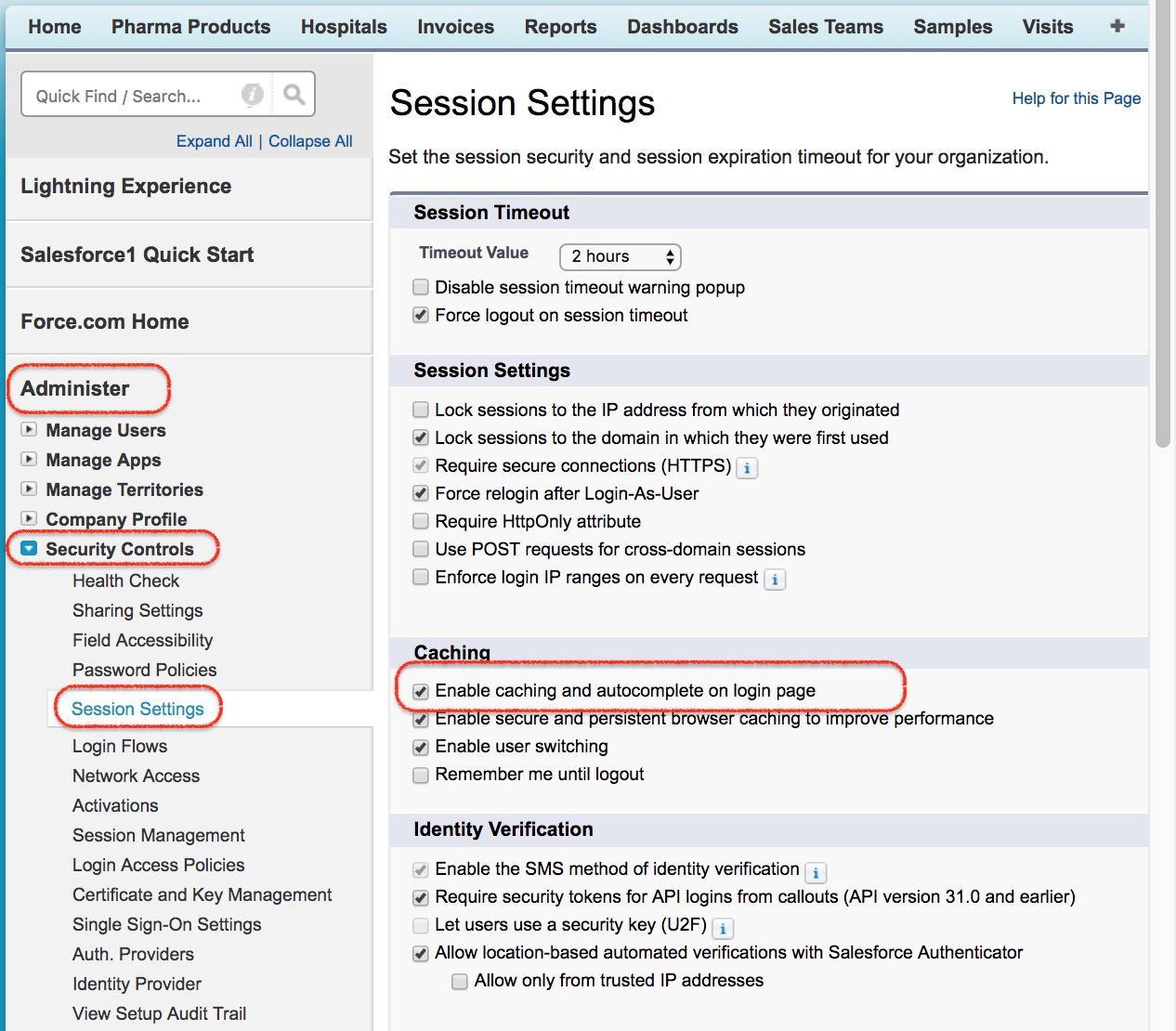
In Session Settings, find the checkbox named Enable caching and autocomplete on login page. To disable Salesforce login hints, clear the checkbox and click Save. The change applies at the org level, so review the impact before changing it in a production org.
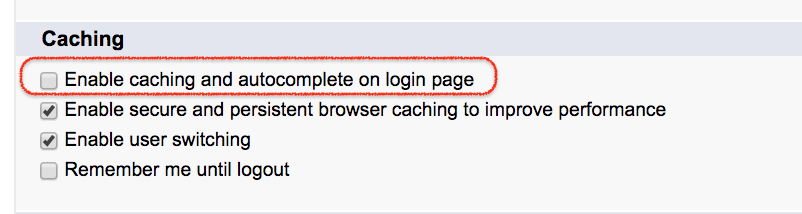
Enabling caching and autocomplete on the Salesforce login page
To enable the feature again, return to Setup > Session Settings, select Enable caching and autocomplete on login page, and click Save. Salesforce Help describes this setting as allowing the browser to store usernames so they can be shown automatically after the initial login. You can also review related Salesforce session behavior in the official Salesforce Help pages for Modify Session Security Settings and Session Security.
After enabling the setting, the user still has to sign in normally. Salesforce can then show username hints on later visits, depending on browser settings, domain, cookies, and whether the user selected the available remember-username option on the login page.
Testing SFDC login username hints after changing Session Settings
After saving the Session Settings change, test the behavior with a normal user account. Open the Salesforce login page at login.salesforce.com or your Salesforce My Domain login URL. Select Remember User Name if the option is shown.
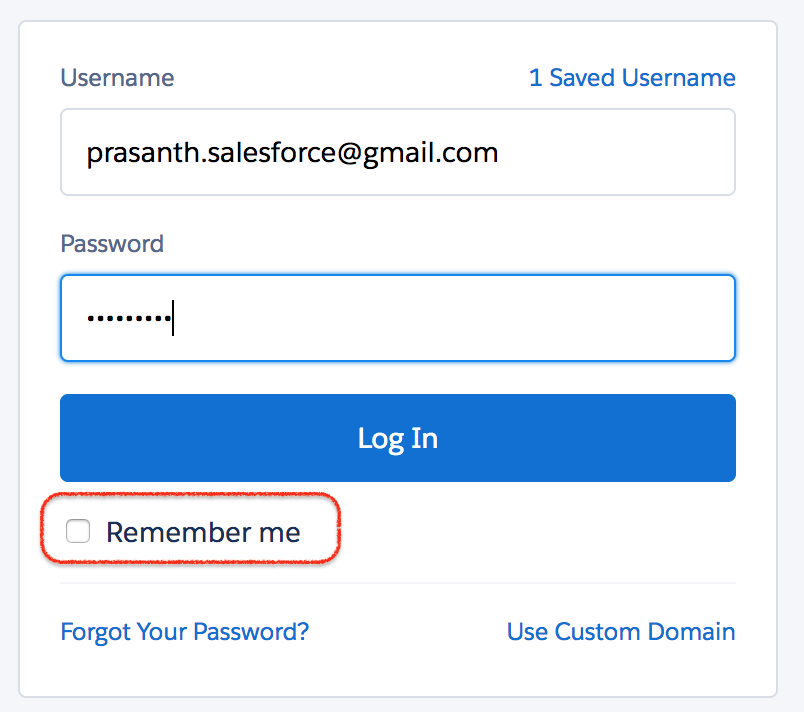
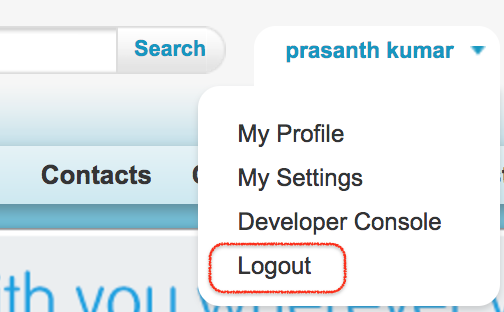
After SFDC login, Salesforce redirects the user to the Salesforce organization. Now log out from your Salesforce account as shown below.
Now again navigate to login.salesforce.com and try to login with one of your account as shown below.
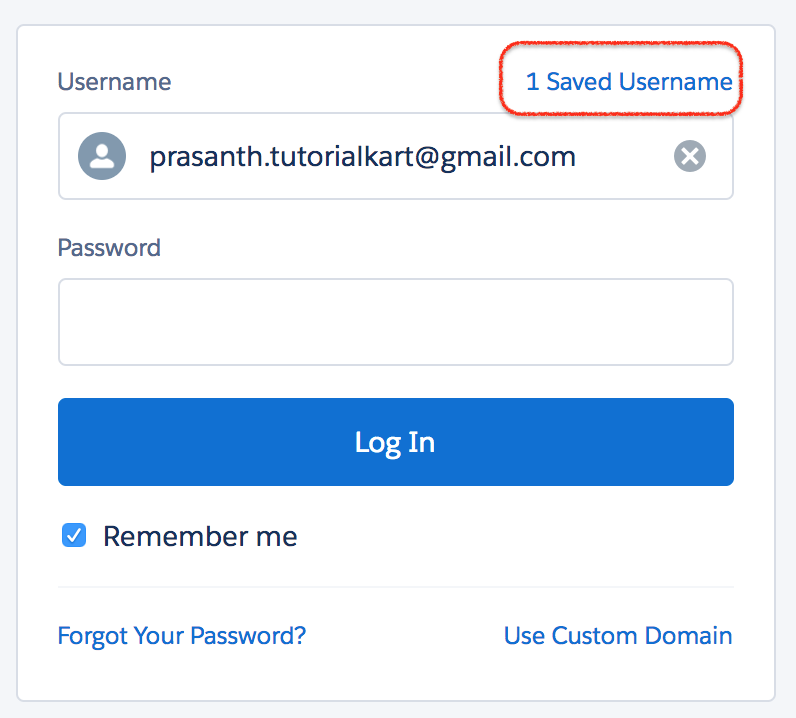
If Enable caching and autocomplete on login page is disabled, Salesforce should not continue saving new username hints from the login page. If it is enabled, the login page can show the remembered username so the user can choose it without typing the full username again.
Why Salesforce may still show a username after disabling login autocomplete
Disabling the Salesforce setting does not always remove every username that appears in the browser. A username may still appear because it was already saved by the browser, a password manager, an extension, or a previous login session.
- Clear browser autofill entries: Remove saved usernames and passwords for login.salesforce.com or your My Domain URL from the browser settings.
- Test in a private window: Use an incognito/private window to check whether the suggestion is coming from Salesforce login caching or from browser storage.
- Check password-manager extensions: Tools such as enterprise password managers can still suggest credentials independently of Salesforce Session Settings.
- Confirm the correct org: Change the setting in the Salesforce org where the user signs in, especially when working with sandboxes and production orgs.
- Retest custom domains: If users log in through a My Domain URL, test the same domain instead of testing only login.salesforce.com.
Security notes before enabling SFDC login caching in production
Salesforce login caching is a convenience setting, not a complete security feature. Before enabling it in a production org, administrators should consider how users access Salesforce, whether devices are shared, and whether internal policy allows usernames to be stored in the browser.
For personal devices managed by the organization, enabling username hints can reduce repeated typing for users with multiple orgs. For shared computers, classrooms, support desks, and public terminals, disabling the setting is usually safer because it reduces visible login history on the login page.
Related Salesforce login and session settings to review
While reviewing this setting, admins commonly review other Salesforce session controls as well. These controls are separate from login autocomplete, but they affect the overall login and session experience.
- Session timeout: Defines how long a user session can remain active before reauthentication is required.
- Remember Me behavior: Controls how long the remember option persists, where available.
- Enable user switching: Allows a user-switching experience when supported by the org and login flow.
- High assurance session settings: Can require stronger authentication for sensitive setup areas and operations.
- Secure and persistent browser caching: A separate caching setting used for Salesforce performance, especially with Lightning components.
FAQs about Enable caching and autocomplete on SFDC login page
Does disabling SFDC login caching delete saved browser passwords?
No. The Salesforce Session Settings checkbox controls Salesforce login-page username hints. Saved browser passwords, password-manager entries, and autofill data must be managed separately in the browser or password manager.
Where is Enable caching and autocomplete on login page in Salesforce?
Open Setup, search for Session Settings in Quick Find, and select Session Settings. Then find the checkbox named Enable caching and autocomplete on login page and save the change.
Should Salesforce admins disable login autocomplete on shared computers?
For shared computers, training rooms, kiosks, or devices used by many people, disabling login autocomplete is usually a better security choice because it reduces stored username hints on the login page.
Why do I still see a Salesforce username after disabling the setting?
The suggestion may come from the browser, a password manager, an extension, cookies, or a previously saved entry. Clear saved credentials and test in a private window to identify the source.
Admin QA checklist for Salesforce login caching settings
- Confirm that the article clearly separates Salesforce username hints from browser password-manager behavior.
- Verify that the Setup path uses the current Setup > Session Settings navigation while still helping users on older Setup screens.
- Check that instructions cover both enabling and disabling Enable caching and autocomplete on login page.
- Confirm that the testing steps mention login.salesforce.com and My Domain login URLs.
- Review whether the security guidance is practical for shared devices, sandboxes, and production orgs.
Conclusion
In this Salesforce tutorial, we learned how Enable caching and autocomplete on SFDC login page works, how to disable or enable it from Session Settings, how to test login hints, and why browser password-manager data may still appear separately. For administrators, the right choice depends on whether users sign in from trusted personal devices or shared computers.