 TutorialKart.com
Home Page Layout in Salesforce: Classic Layouts and Lightning Home Pages
In our previous Salesforce Tutorial we have learned about Object Page Layouts , how to create page layouts, How to assign page layouts to profiles. In this Salesforce tutorial we are going to learn about Home Page layouts and How to customize Home page layout in Salesforce.
A Home Page Layout in Salesforce controls what users see on the Home tab. In Salesforce Classic, this means choosing Home page components such as custom links, messages, alerts, calendar, tasks, items to approve, and other sidebar or main-area sections. In Lightning Experience, the Home page is usually customized with Lightning App Builder and then assigned as the org default, app default, or profile-specific Home page.
This tutorial mainly explains the Salesforce Classic Home Page Layout screens shown in the images below. If your org uses Lightning Experience, use the Lightning App Builder approach for modern Home page customization. The idea is similar: decide which information is useful on the Home page, add the right components, and assign the page to the correct users.
What a Salesforce Home Page Layout Controls in Classic
Customizing Home Page Layout in Salesforce is nothing but changing the components that appear on the sidebar, adding company logo, adding dashboard snapshots on the side bar, and deciding which standard or custom Home page sections should be visible. We can also add custom home components to the page layout.
A Home Page Layout is not the same as an object page layout. Object page layouts control the fields, buttons, related lists, and sections shown on records such as Accounts, Contacts, Leads, and Opportunities. A Home Page Layout controls the Home tab experience.
Navigate to Home Page Layouts in Salesforce Classic Setup
Here we will learn about how the page layout is associated to Home page. We can access Home page by clicking Home Tab. Login into Salesforce.com to configure Home page Layout in Salesforce go to Setup | Build | Customize | Home | Home page Layouts.
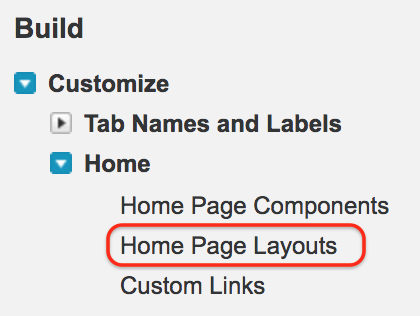
- Click on Home page Layouts as shown above. When we click on Home Page Layouts the list of home page layouts will appear.
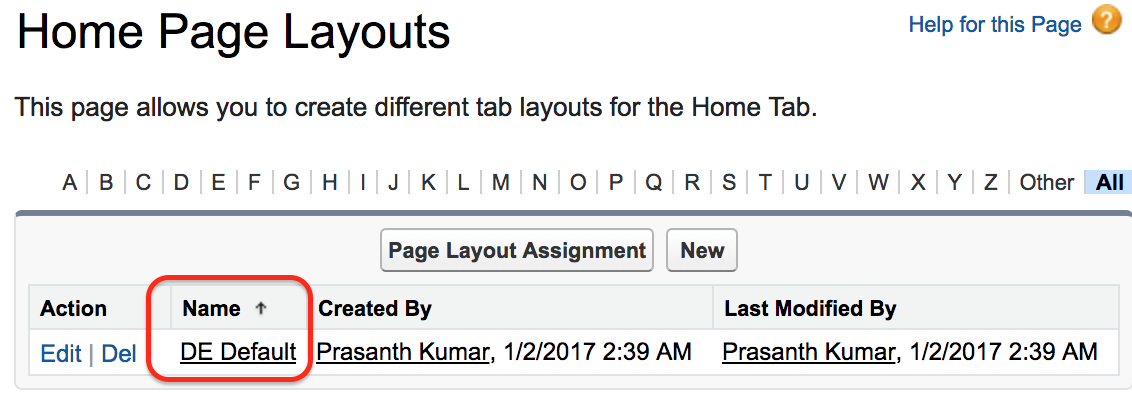
Our Salesforce Home page is assigned with default home page. To customize the layout click on Name as shown above.
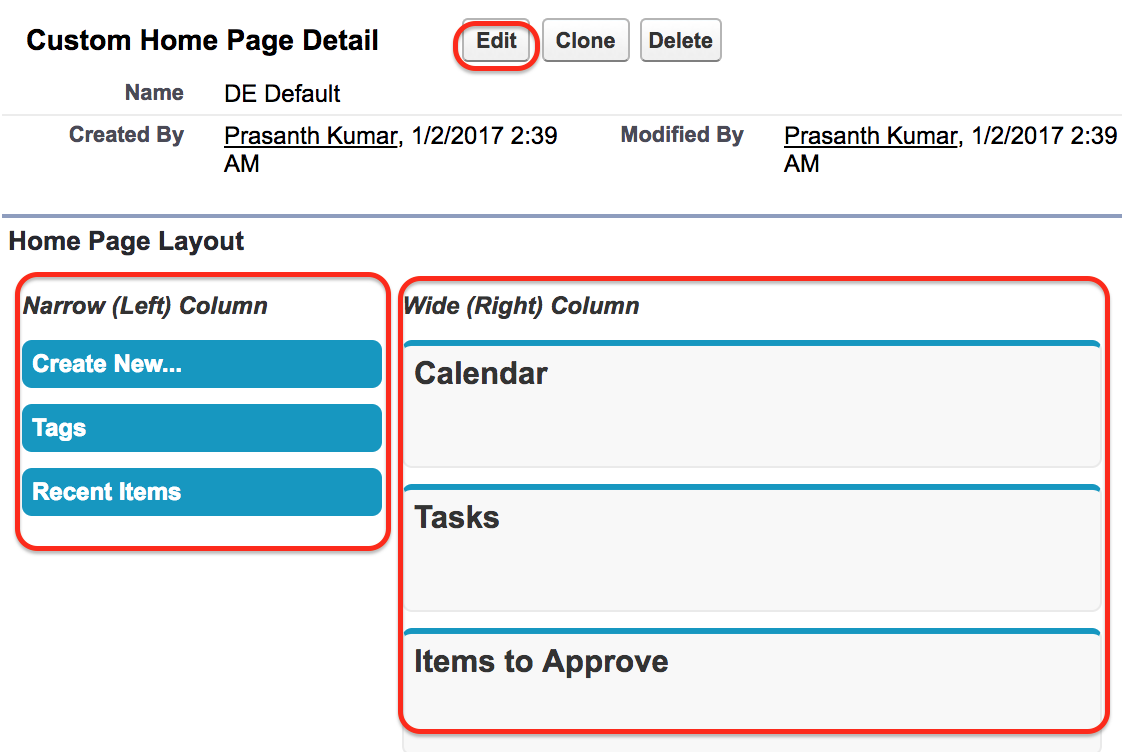
Narrow Left Column and Wide Right Column in Salesforce Home Page Layout
Now Home page Detail will be opened. We observe two columns in our Home page.
- Narrow Left Column :- This is the side bar where Tags, Create New, Custom links, Messages and alerts, Recent Items, Recycle Bin present.
- Wide Right Column :- This is the column that present below feeds. We can add calendar, Tasks, Items to approve etc.
The best practice is to keep the Home page simple. Add components that help users start their daily work quickly, such as tasks, approvals, important links, and announcements. Avoid adding too many components because a crowded Home page becomes difficult to use.
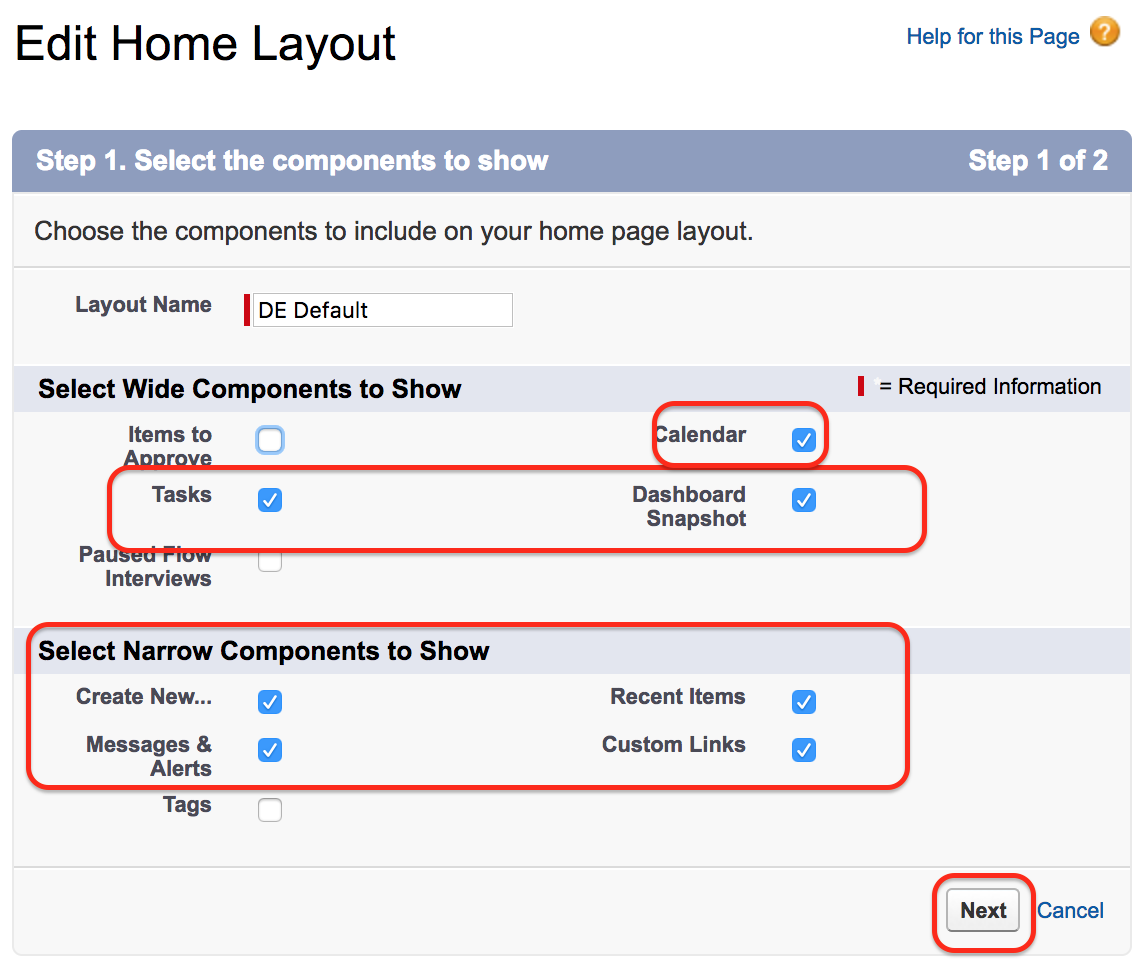
To customize Home page Layout in Salesforce click on Edit button. Now select the radio buttons to show on your Narrow left column and Right wide column.
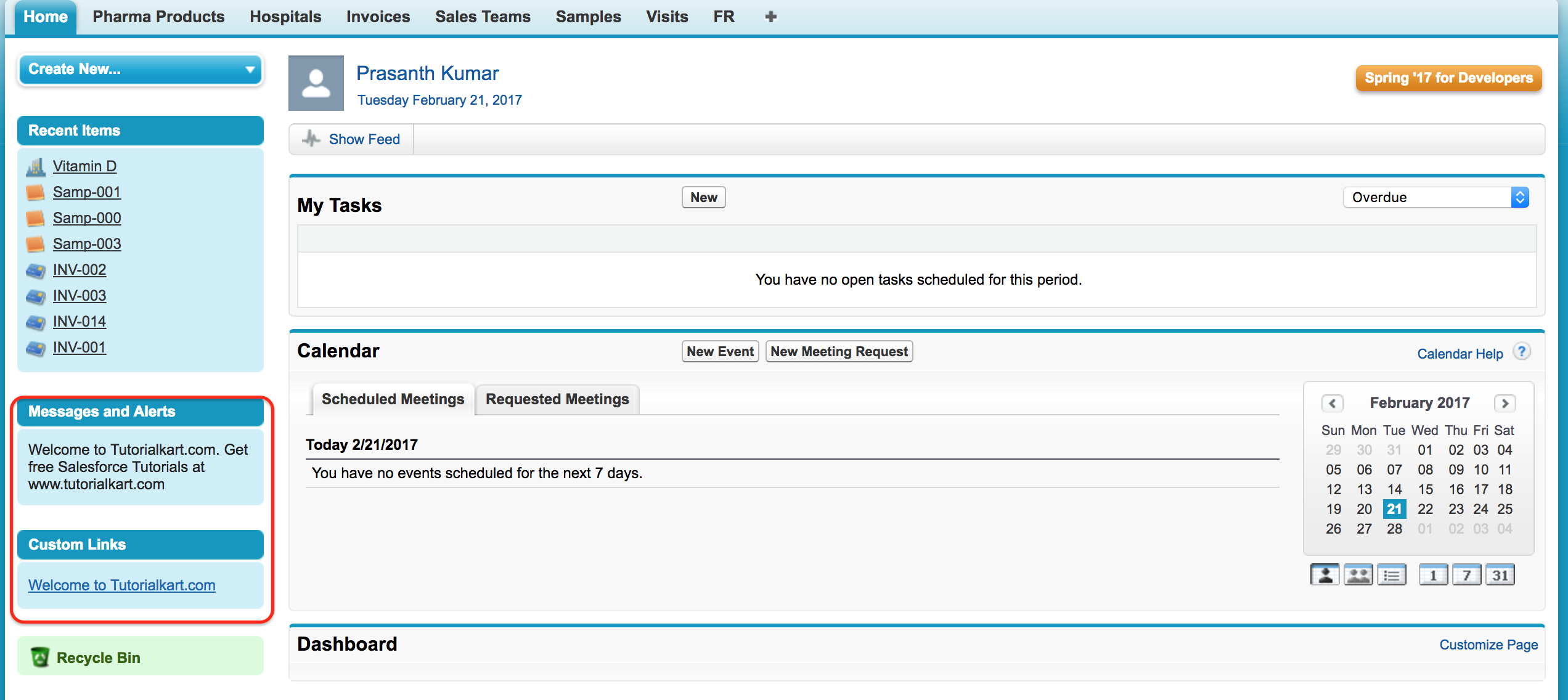
To check the changes that are made in Home page Layout go to Home Tab.
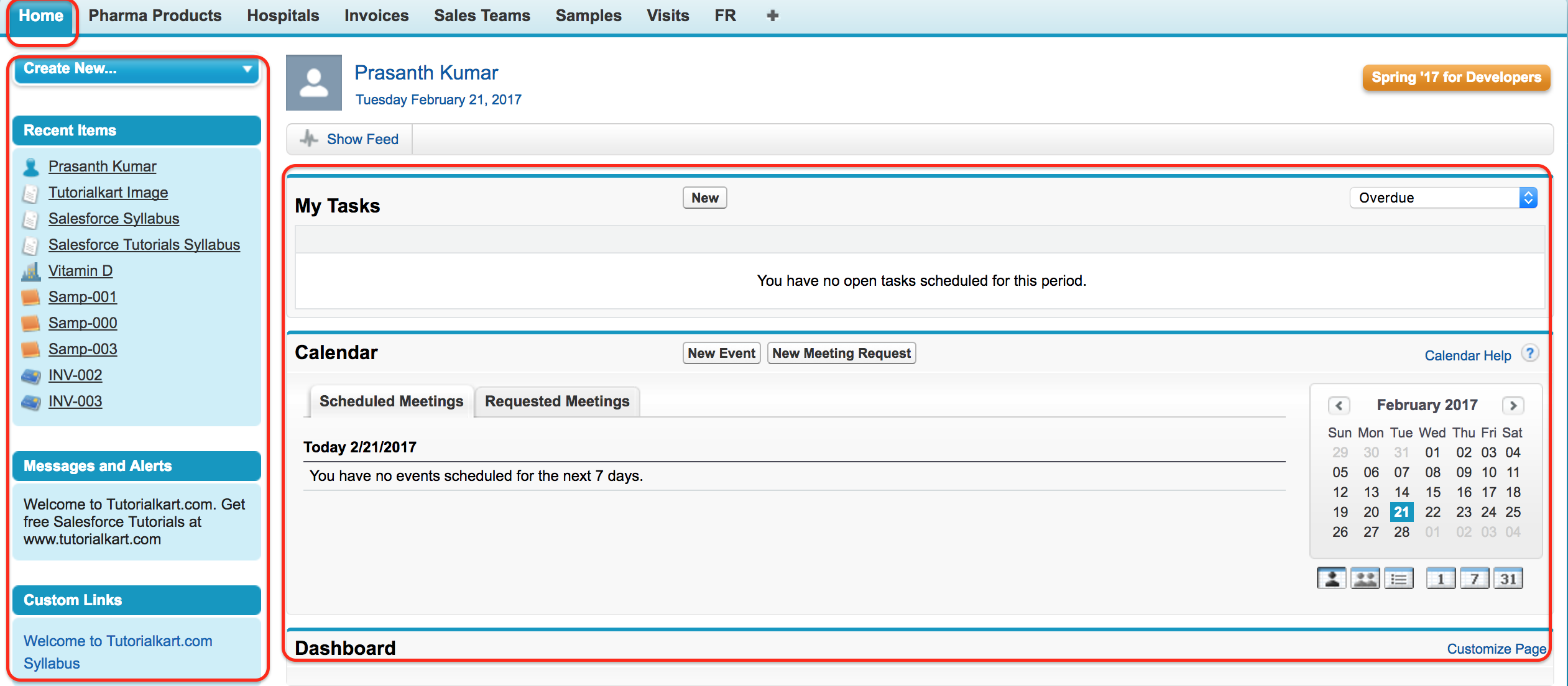
Salesforce Home Page Components Used in Classic Layouts
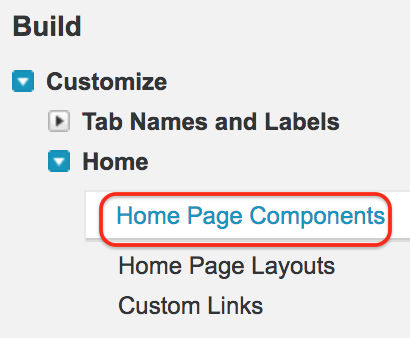
There are two types of Home Page Components in Salesforce they are Standard Components and Custom Components. We can access Home Page Components in Salesforce by navigating to Setup | Build | Customize | Home | Hone Page Components.
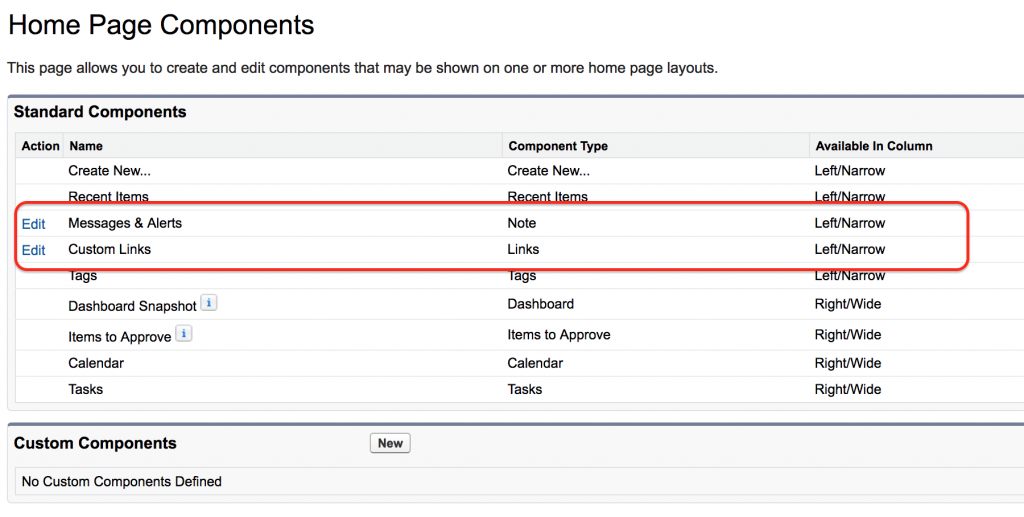
When we click on home page components we find Standard components and Custom components. In standard components we find two standard component are only edited. They are
- Messages and Alerts.
- Custom Links.
We can insert Message alerts in salesforce.com it will be displayed to all employees in a Company. Similarly we can we can add Custom link on the home page as shown below.
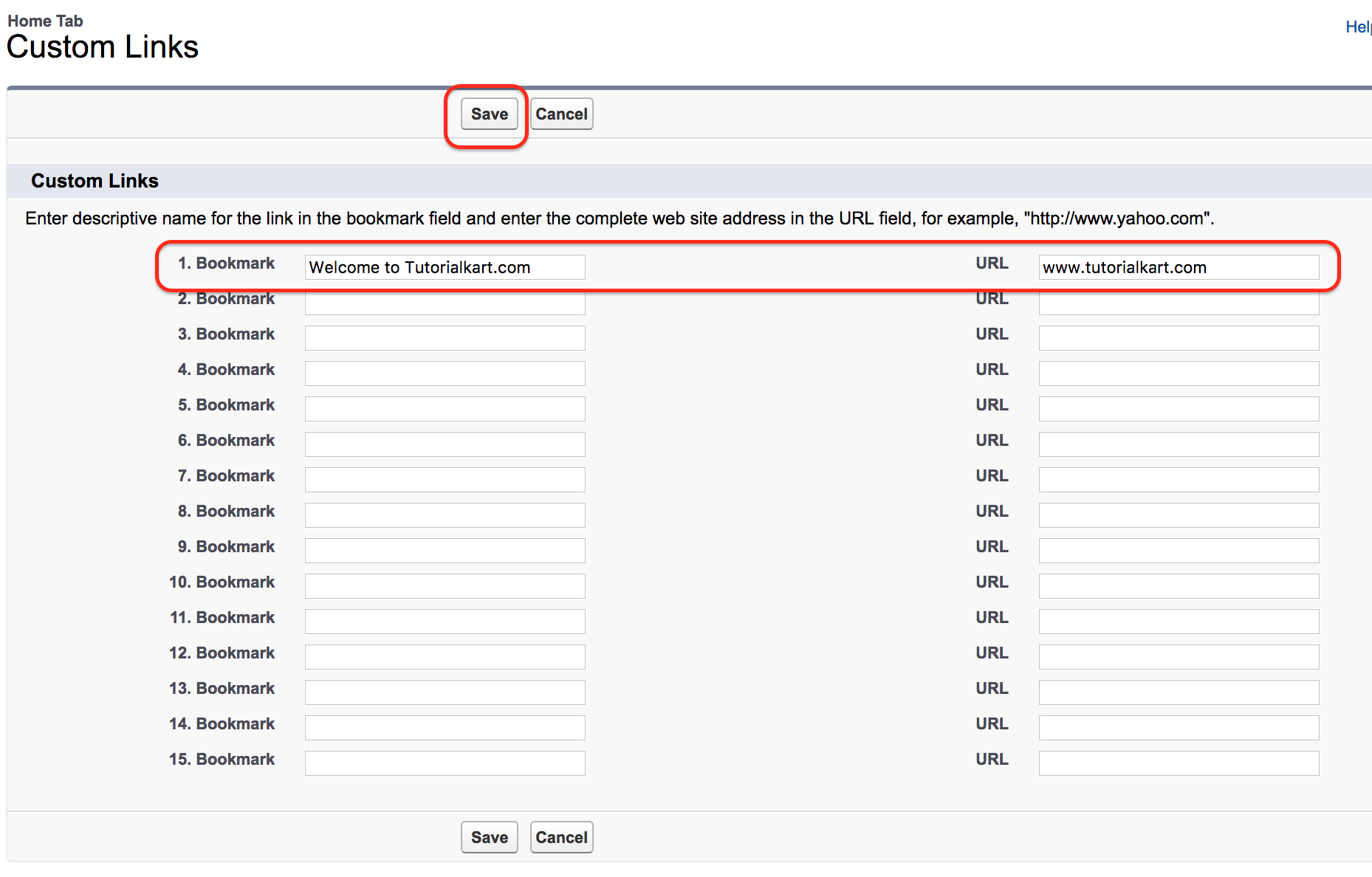
Enter the bookmark name and enter the custom URL as shown above.
Adding messages and alerts on the Salesforce Home page
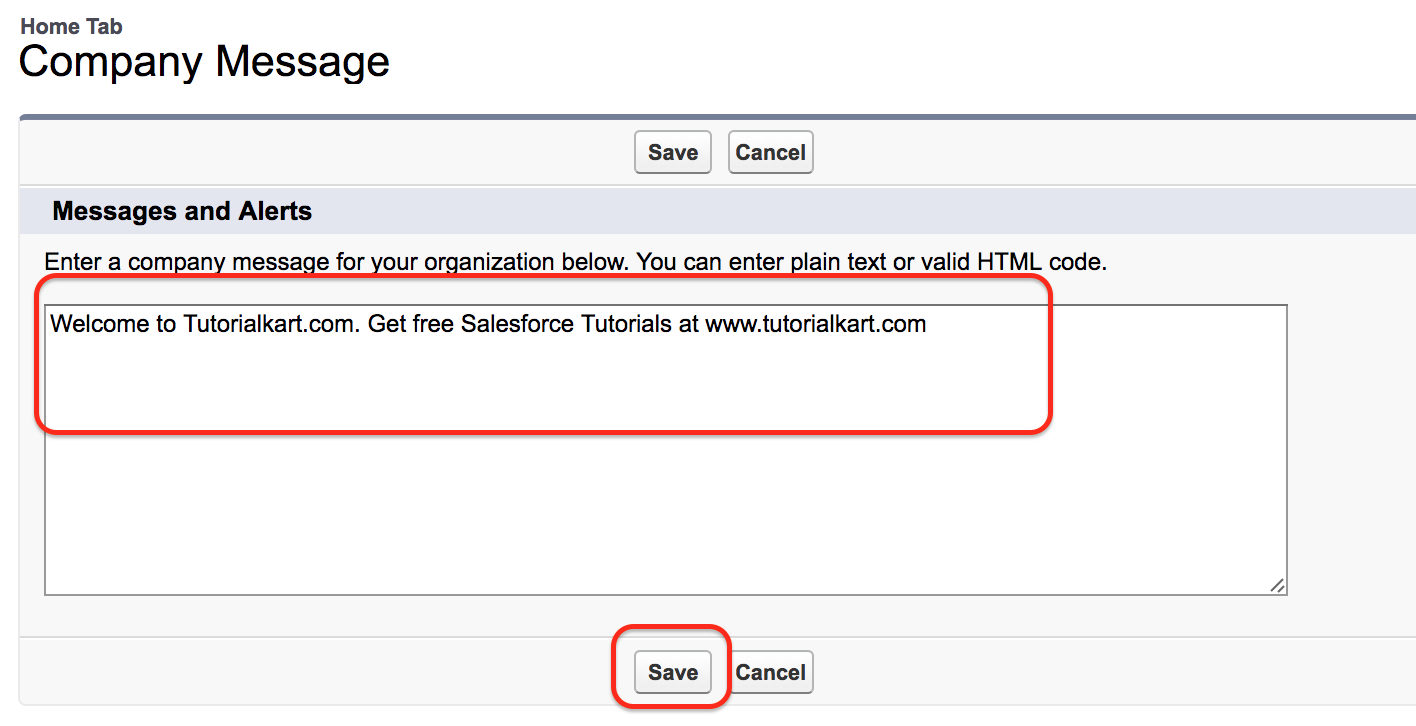
In text editor enter a message that to be displayed on Home page. Finally click on Save button.
Before creating Custom components in Salesforce.com we have to understand about Documents in Salesforce. Why documents are used in Salesforce and how we access documents in Salesforce. Follow our next Salesforce tutorial to get full details about Salesforce Documents.
Classic Home Page Layout vs Lightning Home Page in Salesforce
If you are using Salesforce Classic, Home Page Layouts and Home Page Components are the correct setup areas for the screens shown above. If you are using Lightning Experience, the usual method is different. In Lightning Experience, admins create or edit a Home page in Lightning App Builder, add Lightning components, save the page, and activate it for the required users.
In Lightning App Builder, a Home page can include components such as Assistant, Performance Chart, Today’s Events, Tasks, Report Chart, Rich Text, custom Lightning components, and other available standard components. After saving the page, activation decides whether the page is used as the org default, app default, or for selected app and profile combinations.
For official Salesforce guidance, refer to Salesforce Help on customizing Home pages, Salesforce Help on setting the default Home page in Lightning Experience, and Trailhead’s Lightning App Builder Home page unit.
How to Create a Home Page in Salesforce Lightning Experience
To create a Home page in Salesforce Lightning Experience, use Lightning App Builder instead of the Classic Home Page Layout editor. The exact components available can depend on your Salesforce edition, enabled features, and user permissions.
- Go to Setup.
- Enter Lightning App Builder in the Quick Find box.
- Click New.
- Select Home Page and click Next.
- Enter a label for the Home page.
- Choose a page template.
- Drag the required Lightning components onto the page.
- Click Save.
- Click Activate and choose the correct assignment option.
Use profile-specific or app-specific activation only when different teams need different Home page content. For example, sales users may need tasks, opportunities, and performance charts, while service users may need cases, queues, and knowledge-related information.
Home Page Layout Assignment Tips for Salesforce Admins
Before changing a Salesforce Home Page Layout, decide who needs the change and what information should appear first. A layout that works for administrators may not work for sales, service, or support users.
- Use a test profile first: Preview the Home page with a limited profile before making it available to many users.
- Keep announcements short: Messages and Alerts should be easy to read and should not replace formal communication channels.
- Review custom links: Remove outdated links so users do not follow old internal pages or retired tools.
- Match the page to the user role: Add tasks, approvals, dashboards, or links based on the user’s daily work.
- Check both desktop experiences: If your org still uses both Classic and Lightning Experience, verify the Home page behavior in the correct interface.
Troubleshooting Salesforce Home Page Layout Changes
If a Salesforce Home Page Layout change is not visible, check whether the user is in Salesforce Classic or Lightning Experience. A Classic Home Page Layout change will not work the same way as a Lightning App Builder Home page activation.
- User still sees the old Home page: Confirm that the correct layout or Lightning page is assigned to the user’s profile, app, or org default.
- Component is not visible: Check whether the component was selected in the layout and whether the user has permission to access the related feature.
- Custom link is missing: Confirm that the custom link was created, saved, and added to the correct Home page component or layout section.
- Dashboard or report content is not shown: Verify that the user has access to the report, dashboard folder, and underlying records.
FAQ on Home Page Layout in Salesforce
How do I create a Home Page in Salesforce?
In Salesforce Lightning Experience, create a Home page from Setup by opening Lightning App Builder, choosing New, selecting Home Page, adding the required components, saving the page, and activating it. In Salesforce Classic, use Home Page Layouts and Home Page Components under Setup to control the Home tab layout.
What is the difference between a Salesforce Home Page Layout and a page layout?
A Salesforce Home Page Layout controls what appears on the Home tab in Salesforce Classic. A page layout usually refers to an object record page layout, such as the layout for Account, Contact, Lead, or Opportunity records.
Can I assign different Salesforce Home pages to different users?
Yes. In Lightning Experience, Home pages can be activated as the org default, app default, or for selected app and profile combinations. In Classic, Home page layout access depends on the available Classic setup and layout assignment behavior in the org.
Why are my Salesforce Home Page Layout changes not showing?
The most common reason is that the user is viewing a different experience or assignment than the one you edited. Check whether the user is in Classic or Lightning Experience, verify profile or app assignment, and confirm that the component is available to that user.
Which Salesforce Home page customization method should I use today?
For Lightning Experience, use Lightning App Builder. For Salesforce Classic pages that still use the older Home tab layout, use Home Page Layouts and Home Page Components.
QA Checklist for Reviewing a Salesforce Home Page Layout Tutorial
- Confirm that the tutorial clearly separates Salesforce Classic Home Page Layouts from Lightning Experience Home pages.
- Check that the setup path for Classic Home Page Layouts matches the screenshots used in the tutorial.
- Verify that Lightning App Builder guidance mentions activation and assignment, not only page creation.
- Ensure every custom link, message, alert, dashboard, or component example is relevant to the Home page use case.
- Review whether the conclusion sends readers to the next related Salesforce setup topic without changing the meaning of the current tutorial.
Conclusion: Customizing Home Page Layout in Salesforce
In this Salesforce Tutorial we have learned about Home page Layout in Salesforce and how to customize Home page Layout in Salesforce. We also discussed how Salesforce Classic Home Page Layouts differ from Lightning Experience Home pages created with Lightning App Builder. In our next Salesforce tutorial we are going to learn about Documents in Salesforce.