 TutorialKart.com
Creating Public Groups in Salesforce
In our previous Salesforce tutorial we learned about how to create multiple user in salesforce and how to create Role hierarchies in Salesforce.com. In this Salesforce administrator tutorial, we will learn how to create public groups in Salesforce, what members can be added to a public group, and where public groups are used in SFDC security and sharing.
What is a Public Group in Salesforce?
A public group in Salesforce is a named collection of users, other public groups, roles, roles and subordinates, and territory-related members where available. Public groups help administrators manage record access for a set of people without adding each person separately in every sharing configuration.
For example, a company may create a public group named Sales Team and add sales users, sales managers, or sales roles to it. The same group can then be selected in sharing rules, manual sharing, folder access, list view visibility, or other Salesforce features that support public groups.
Why Public Groups Are Used in Salesforce Sharing
Public groups are mainly used to simplify access management. Instead of assigning access to many individual users, an administrator can assign access to one public group and maintain group membership from one place.
- Public groups in Salesforce are used to define sharing rules.
- They help extend record access beyond the access already provided by organization-wide defaults, role hierarchy, teams, and manual sharing.
- They are useful when the users who need access do not all belong to one role in the role hierarchy.
- They reduce repeated administration because access can be managed by changing public group membership.
A public group does not automatically grant record access by itself. It becomes useful when it is selected in a sharing rule or another Salesforce access feature.
Before Creating a Public Group in Salesforce
Before creating a public group, decide the business purpose of the group and the users who should belong to it. This avoids creating too many similar groups that are difficult to maintain later.
- Group purpose: Decide whether the group is for sharing rules, reports, folders, list views, or another access requirement.
- Member type: Decide whether to add individual users, roles, roles and subordinates, or another public group.
- Group name: Use a clear name such as Sales Team, Regional Sales Managers, or Support Escalation Users.
- Maintenance owner: Decide who will update membership when users change roles or leave the team.
Creating Public Groups in Salesforce
Public groups are used to extend sharing rules beyond Role hierarchies in Salesforce. Now we are going to create a public group with different users who can have different profiles and roles. To create public groups, login Salesforce and navigate to Administer | Manage users | Public groups.
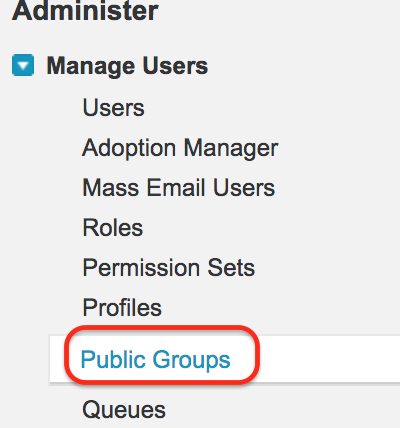
In Salesforce Lightning Experience, you can also open public groups from Setup by entering Public Groups in the Quick Find box and selecting Public Groups. The exact navigation label can vary between Salesforce Classic and Lightning Experience, but the public group setup page is used for the same purpose.
- Click on Public groups and then click on the New button.

If there are no public groups in your Salesforce org, the list page will be empty. Click New to create the first public group.
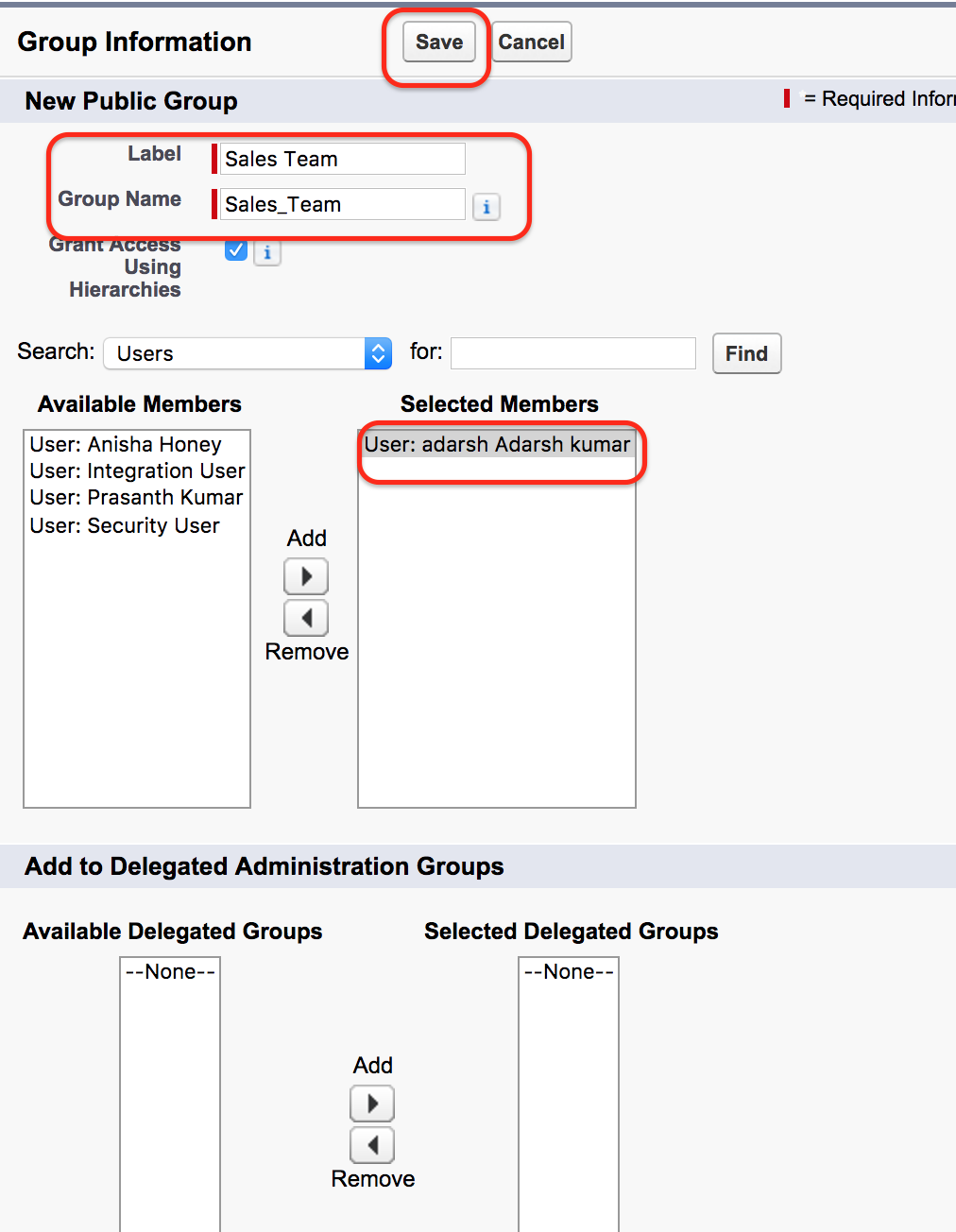
As stated earlier, public groups are made up of users, roles, roles and subordinates, and other public groups. While creating the group, Salesforce shows available members on one side and selected members on the other side.
- Enter the Public Group Label. This is the readable name shown to administrators and users.
- Enter the Group Name. Salesforce uses this as the internal API-style name.
- Select the member category from the search drop-down.
- Add members from Available Members to Selected Members.
- Click on the Save button.
In search, we can select Public Groups, Roles, Roles and Subordinates, and Users. Choose the option based on how the access should be maintained. If access should follow a role and its lower-level roles, choose Roles and Subordinates. If only a few named users need access, choose Users.
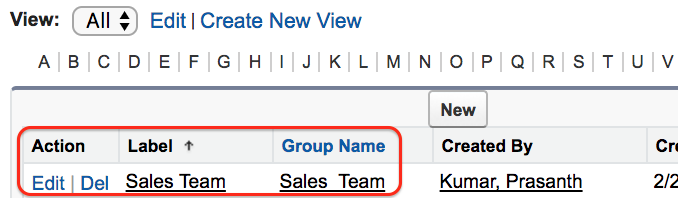
We have successfully created a public group with the group name Sales Team. Now this public group can be used when defining sharing rules and other access settings that allow public groups.
Salesforce Public Group Member Types
When creating a public group in Salesforce, the member type you select affects how easy the group is to maintain. The following table explains common member choices.
| Member type | When to use it |
|---|---|
| Users | Use this when only specific named users should be part of the public group. |
| Roles | Use this when all users assigned to a particular role should be included. |
| Roles and Subordinates | Use this when users in a role and users below that role in the role hierarchy should be included. |
| Public Groups | Use this when one existing public group should be included inside another group. |
Adding roles instead of individual users is usually easier to maintain when user assignments change often. Adding individual users is suitable for smaller exception-based groups.
Using a Salesforce Public Group in Sharing Rules
After creating the public group, you can use it in a sharing rule. For example, if Opportunity records owned by one role must be shared with the Sales Team public group, the sharing rule can select the public group as the target group.
- Open Setup.
- Search for Sharing Settings.
- Select the object for which access must be shared.
- Create a sharing rule based on owner or criteria.
- Choose the newly created public group as the users to share with.
- Select the access level, such as Read Only or Read/Write, based on the object and business requirement.
Always review organization-wide defaults and role hierarchy access before adding a sharing rule. A public group sharing rule should grant only the access required for the business process.
Public Groups, Queues, and Chatter Groups in Salesforce
In Salesforce, queues and public groups may look similar because both can contain multiple users. However, they are used for different purposes.
| Salesforce feature | Main purpose | Typical use |
|---|---|---|
| Public Group | Groups users, roles, and groups for access configuration | Sharing rules, folder access, list views, manual sharing |
| Queue | Holds ownership of work items until a user accepts or takes ownership | Leads, cases, custom object records where queue ownership is enabled |
| Chatter Group | Supports collaboration and conversations | Posts, files, discussions, announcements, and collaboration spaces |
Do not create a queue when the requirement is only to grant access to records. Use a public group for sharing and use a queue when records must wait in a shared work pool for assignment or ownership.
Best Practices for Salesforce Public Groups
- Use clear group labels that describe the business purpose, such as Sales Team or Support Managers.
- Avoid creating duplicate public groups for the same team or access requirement.
- Prefer roles or roles and subordinates when membership should follow role hierarchy changes.
- Review public group membership when users transfer teams or leave the organization.
- Document where each public group is used, especially when it supports sharing rules.
- Do not use public groups as a substitute for proper role hierarchy, profiles, permission sets, or organization-wide defaults.
Common Mistakes When Creating Public Groups in Salesforce
- Expecting access immediately: A public group only groups members. Access is granted when the group is used in sharing or another access setting.
- Adding every user manually: For large teams, roles or roles and subordinates may be easier to maintain.
- Using unclear names: Names such as Group 1 or Test Group make administration difficult later.
- Ignoring role hierarchy access: Users may already have access through role hierarchy, so check existing access before creating extra sharing rules.
- Confusing public groups with Chatter groups: Public groups are for access management, while Chatter groups are for collaboration.
Salesforce Public Groups FAQ
How do I create a public group in Salesforce Lightning?
In Salesforce Lightning, open Setup, enter Public Groups in the Quick Find box, select Public Groups, and click New. Enter the group label and group name, add users, roles, roles and subordinates, or other public groups, and then click Save.
What is the difference between a public group and a queue in Salesforce?
A public group is mainly used for access management, such as sharing records or folders with a group of users. A queue is used to hold records, such as leads or cases, until a user accepts or owns the record. Public groups grant access when used in sharing settings, while queues help manage work assignment.
Can a Salesforce public group contain another public group?
Yes. A public group can include another public group as a member. This is useful when you want to reuse an existing group inside a larger access group. Use nested groups carefully because too many nested groups can make access troubleshooting harder.
Does a public group automatically give record access in Salesforce?
No. Creating a public group does not automatically give record access. The group must be used in a sharing rule, manual sharing, folder sharing, list view sharing, or another Salesforce feature that supports public groups.
Who can create public groups in Salesforce?
Salesforce administrators and users with the required setup permissions can create and edit public groups. In most organizations, public group management is handled by administrators because it can affect access to records and other shared resources.
Editorial QA Checklist for This Salesforce Public Groups Tutorial
- Confirms that a public group is a collection of users, roles, roles and subordinates, and other groups.
- Explains that a public group does not grant access until it is used in sharing or another access setting.
- Shows the Salesforce setup path for creating a public group.
- Explains the difference between public groups, queues, and Chatter groups.
- Includes practical guidance on member selection and ongoing group maintenance.
Conclusion.
In this SFDC tutorial, we learned how to create public groups in Salesforce, how to add users and roles to a public group, and how public groups are used in sharing rules. In our upcoming Salesforce tutorial, we are going to learn about Creating profiles, managing profiles in Salesforce, and field level security.