 TutorialKart.com
Salesforce Service Cloud is the service and support part of Salesforce CRM. It helps support teams receive customer questions, convert them into cases, route those cases to the right agents, work from a console, use knowledge articles, and report on service performance.
This tutorial explains what Salesforce Service Cloud means, the main Service Cloud features, what a case is, how Service Cloud differs from Sales Cloud, and how to create and open a Service Cloud Console. The screenshots in the setup section show the Salesforce Classic app-creation flow, while the notes also explain how the same idea maps to the Lightning Service Console used in many current Salesforce orgs.
What is Salesforce Service Cloud in Salesforce CRM?
Salesforce Service Cloud is a customer service platform built on the Salesforce cloud platform. In practical terms, it is used for case management, service automation, customer support conversations, knowledge management, agent productivity, and service reporting.
Service Cloud is delivered as cloud software, so agents can work from supported browsers and devices based on the organization’s Salesforce setup, security rules, and licenses. Newer Salesforce documentation may also use the Agentforce Service name for service capabilities; many administrators and users still refer to the product and app experience as Service Cloud and Service Console.
In this Salesforce Tutorials article, the focus is on Service Cloud basics and the console app setup that helps agents handle service work faster.
Salesforce Service Cloud features used in customer support
Service Cloud is not a single screen. It is a group of Salesforce service tools that can be configured for the way a support team works. The most common Service Cloud features are listed below.
- Case Management: Tracks customer issues, questions, feedback, and service requests from creation to resolution.
- Service Console: Gives agents a workspace where important records can be opened as tabs and subtabs.
- Omni-Channel: Routes work such as cases or other service records to available and qualified support agents based on the routing configuration.
- Salesforce Knowledge: Stores reusable help articles, troubleshooting steps, and answers that agents can search while solving cases.
- Email-to-Case and Web-to-Case: Create cases from customer emails or web forms, depending on the organization’s setup.
- Entitlements and Milestones: Help teams track service-level commitments such as first response time and resolution time.
- Automation: Uses assignment rules, escalation rules, flows, quick actions, macros, and other tools to reduce repetitive service work.
- Reports and Dashboards: Help service managers review case volume, backlog, response time, resolution time, and agent performance.
- Chatter and collaboration: Allows internal collaboration on service records when agents need help from another team.
What a Case means in Salesforce Service Cloud
A Case is the main service record in Salesforce Service Cloud. It stores the details of a customer’s question, problem, request, or feedback. Support teams use cases to track ownership, priority, status, origin, customer details, comments, related emails, activities, and the final resolution.
A Case is a detailed description of a customer’s feedback, problem, or question. These cases are used to track and solve customers’ issues. In an organization, Cases can be manually entered from within the Cases tab, by a phone call or e-mail from a customer. However, you can also set up more complex Web-to-Case and Email-to-Case to obtain customer responses from your company’s website and customer e-mails.
For example, if a customer sends an email saying that a product is not working, Service Cloud can create a case. The case can then be assigned to a support queue, routed to an agent, worked inside the Service Console, and closed after the issue is solved.
Salesforce Service Cloud vs Sales Cloud
Salesforce Service Cloud and Sales Cloud are both Salesforce CRM products, but they support different business processes. Sales Cloud is mainly used by sales teams to manage leads, accounts, contacts, opportunities, forecasts, and sales activities. Service Cloud is mainly used by support teams to manage cases, customer issues, service conversations, knowledge articles, service entitlements, and support performance.
| Area | Sales Cloud | Service Cloud |
|---|---|---|
| Main purpose | Manage the sales process | Manage the customer support process |
| Primary record examples | Lead, Opportunity, Account, Contact | Case, Knowledge Article, Entitlement |
| Typical users | Sales representatives and sales managers | Support agents, service managers, and contact center teams |
| Common workspace | Sales app and opportunity pages | Service Console and case pages |
Service Cloud Console in Salesforce: agent workspace meaning
Service Cloud Console is a Salesforce console application used to find, update and create records quickly. It gives agents a workspace where they can open customer records, cases, accounts, contacts, related records, knowledge articles, and activity details without moving through many separate pages.
In a console app, primary tabs normally show the main record the agent is working on, such as a case. Subtabs show related records, such as the account, contact, or activities connected to that case. This tabbed layout helps agents keep the customer context visible while handling support work.
Create Salesforce Service Cloud Console in Salesforce Classic
The following steps show the older Salesforce Classic method for creating a console application. These steps are useful for understanding the app structure and for orgs that still use Classic setup pages. In Lightning Experience, administrators usually use Setup > App Manager and create or edit a console-style Lightning app.
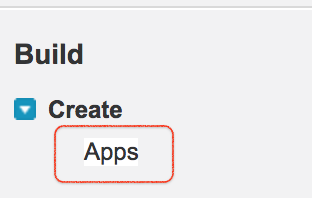
- To create a new console application, navigate to Build | Create | Apps.
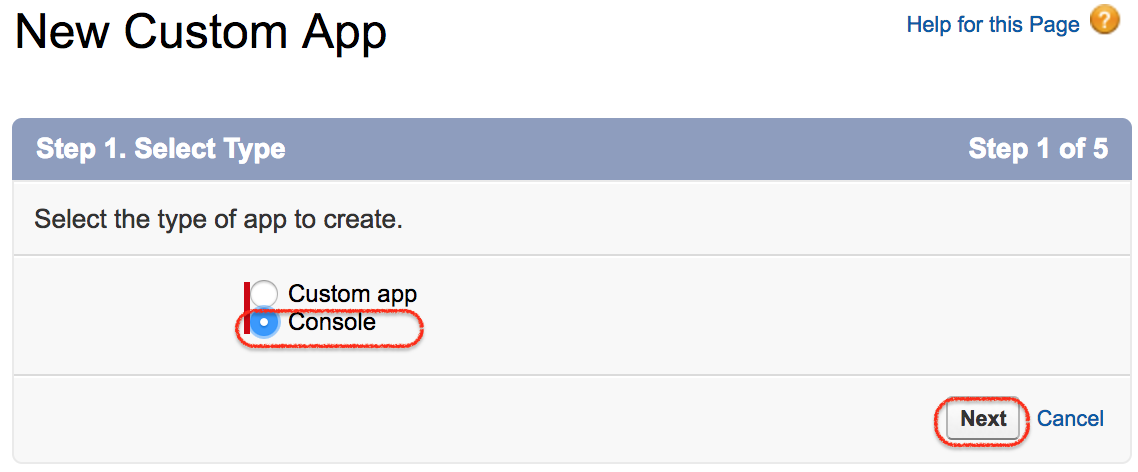
- Click on new to create a new app.

- Select Console to create a new Service Cloud console app.
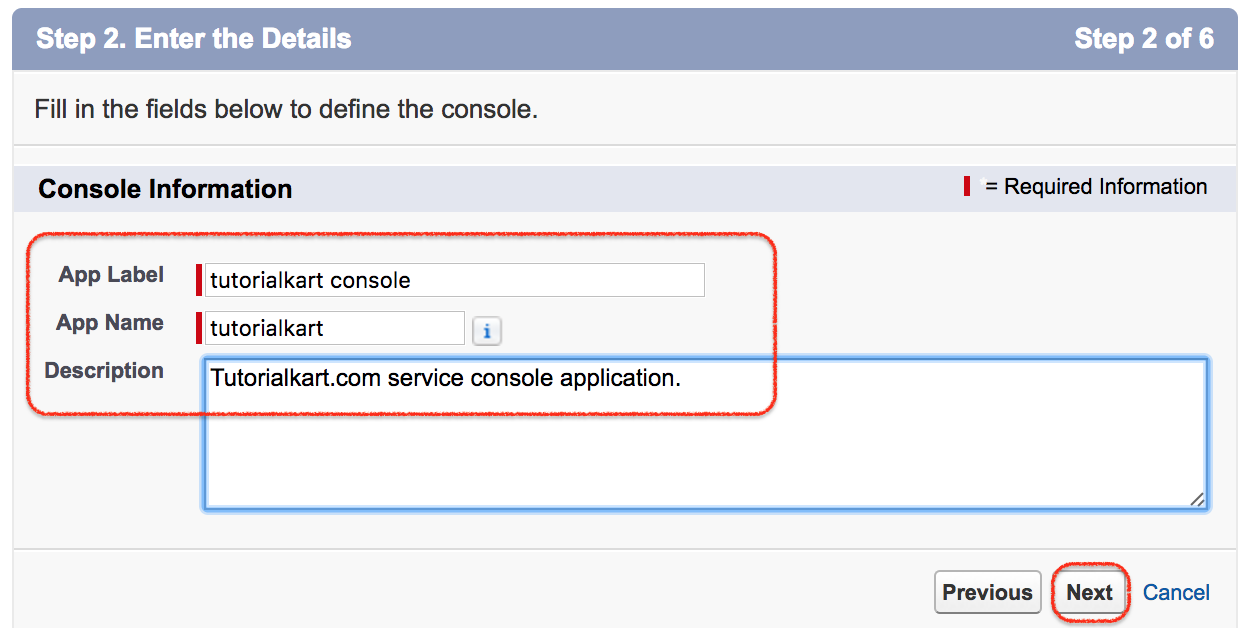
- Enter the name and description for the console app. Use a clear name so agents can identify the app from the app menu. Click Next.
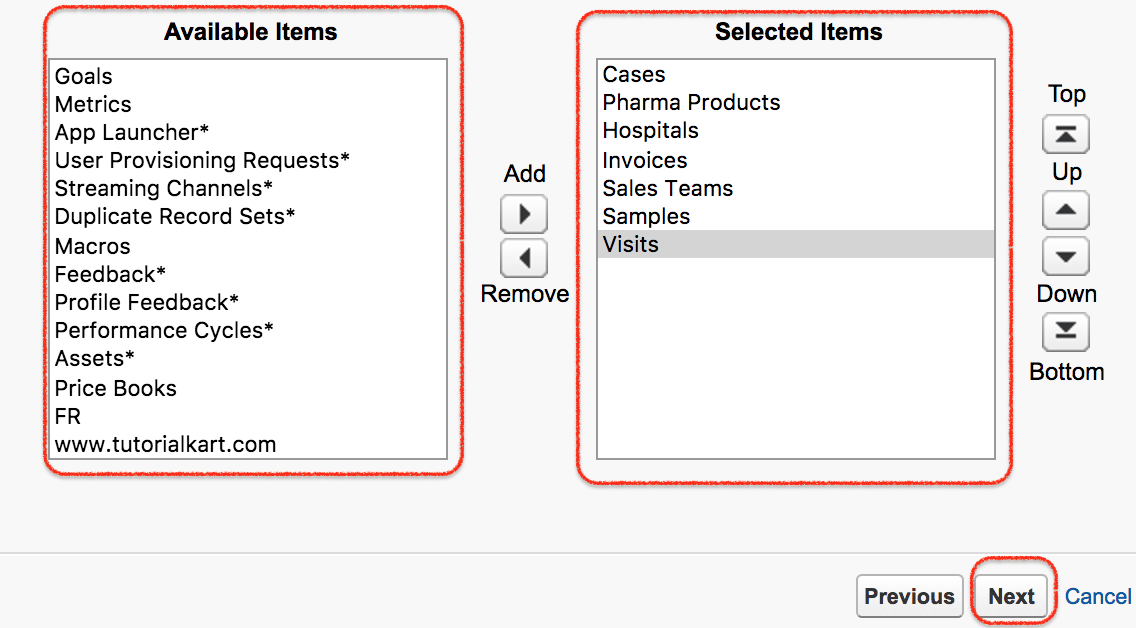
Select the objects that must be available in the Service Cloud Console. Common objects include Cases, Accounts, Contacts, Reports, Dashboards, and Knowledge, depending on the features enabled in your org. After adding the required objects, click Next.
Now select As a primary tab and As a subtab of. These two options control how records open inside the console. A primary tab displays the main record, while a subtab displays a related record under the main record.
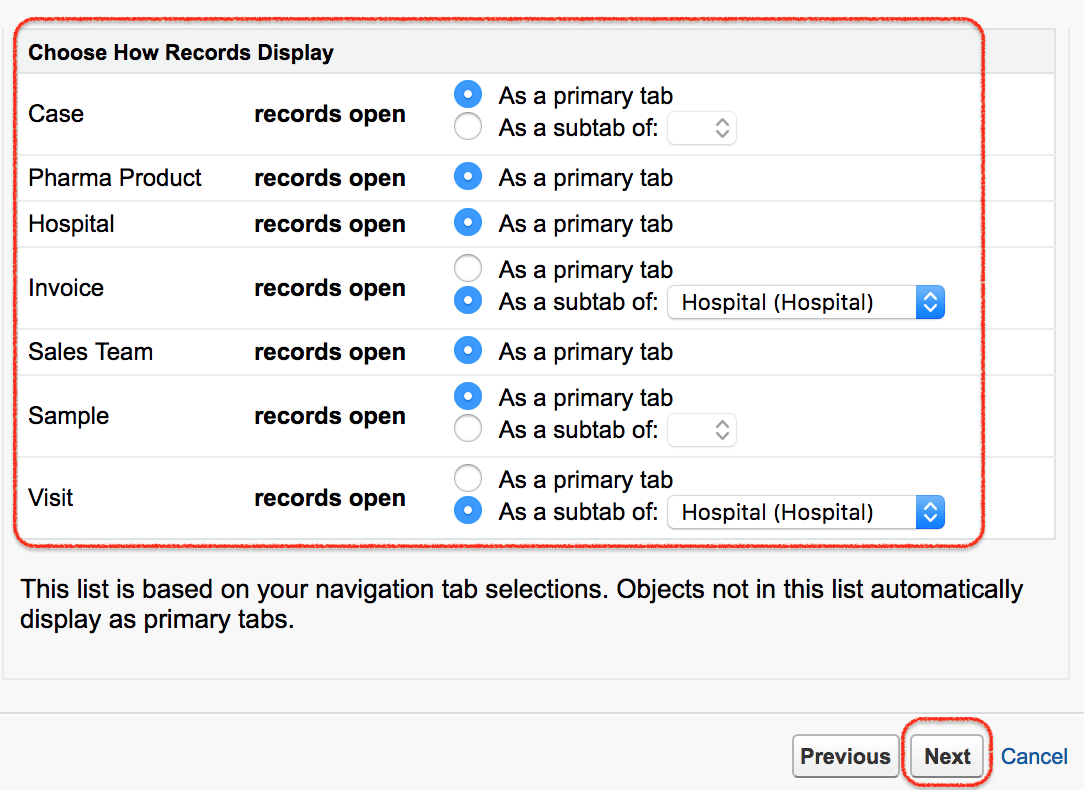
- Move the required items from Available Items to Selected Items, and click Next.
- Select the profiles that should be able to access this console app, and click Next. For a real support team, choose only the profiles that need the Service Console.
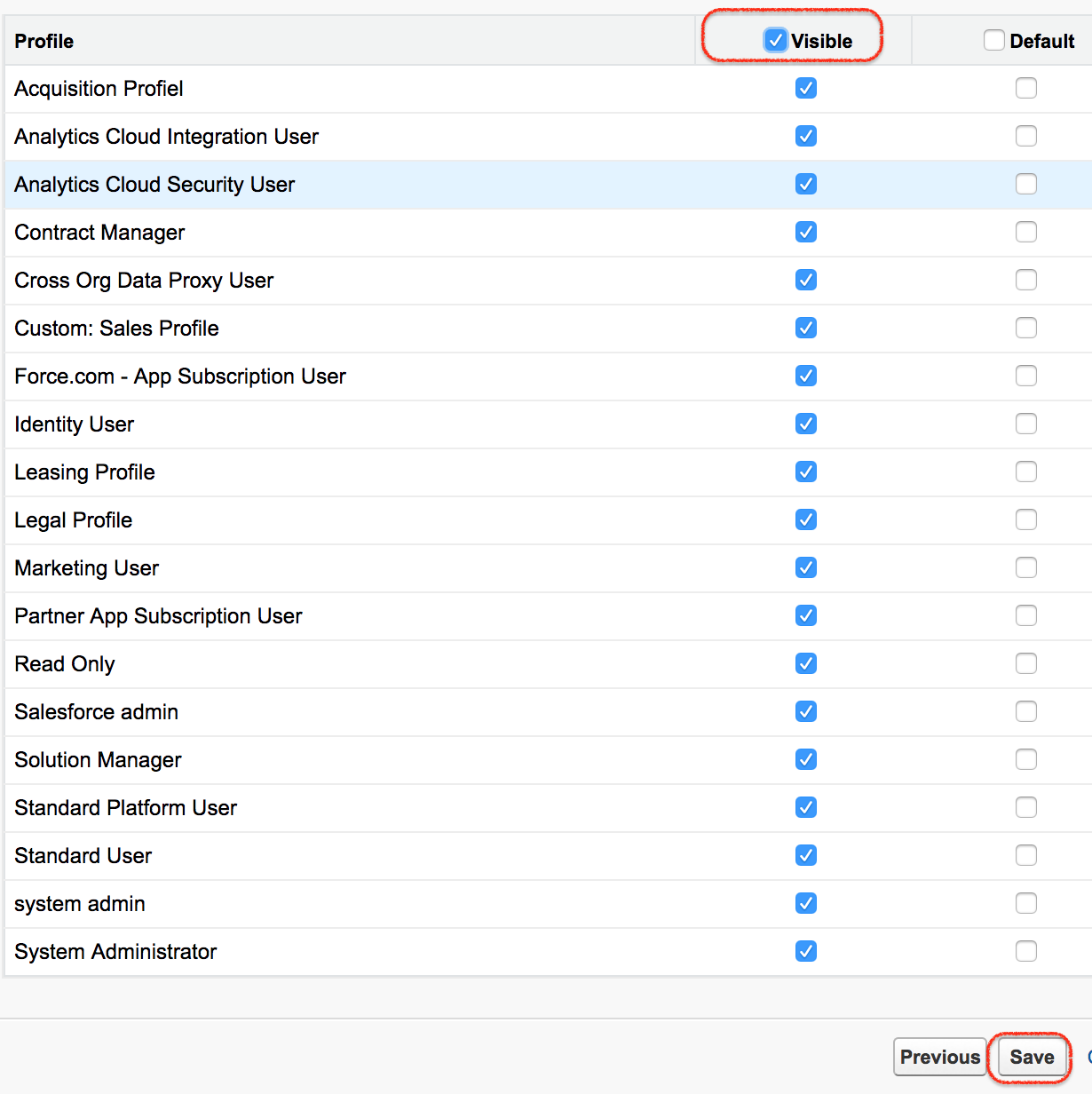
- Finally, click Save to save all Service Cloud Console settings.
Lightning Service Console setup note for current Salesforce orgs
In many current Salesforce orgs, the Service Console is configured in Lightning Experience instead of Salesforce Classic. The exact screens can vary by edition, license, and enabled features, but the usual administrator path is to open Setup, search for App Manager, create or edit a Lightning app, choose console-style navigation, add the required navigation items, and assign the app to the correct user profiles or permission sets.
If your org already has the standard Service Console app, you may not need to create a new console from the beginning. Instead, review the existing app’s navigation items, utility items, user access, Omni-Channel setup, and case page layouts before creating another app.
Open the Salesforce Service Cloud Console app
To open the Salesforce Service Cloud console in the Classic example, navigate to custom application | Tutorialkart console.
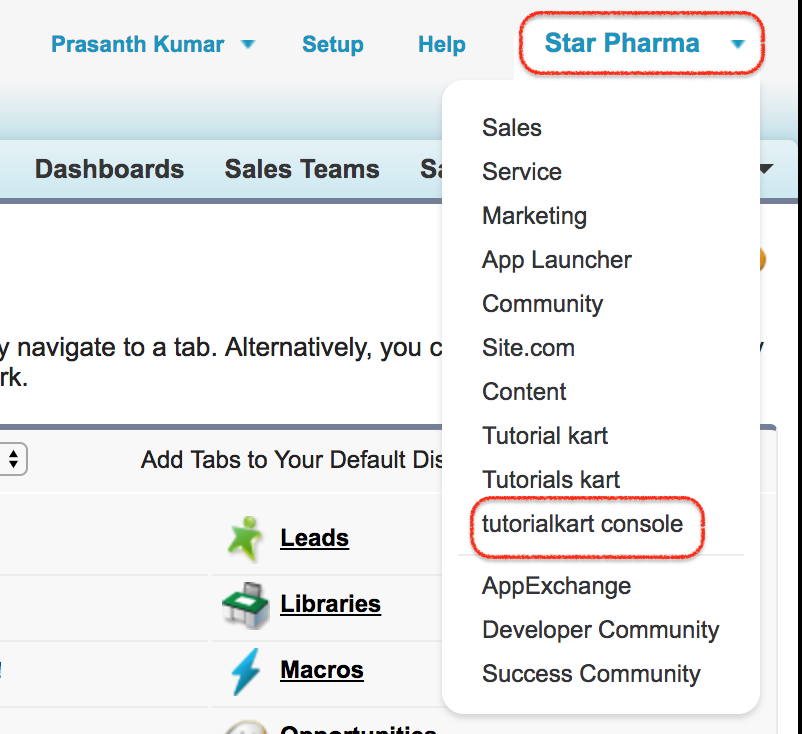
In Lightning Experience, open the App Launcher, search for the Service Console or your custom console app name, and open it from the app list. The console should show the navigation items and utility tools configured by the administrator.
Salesforce Service Cloud configuration checklist before agents start using it
- Case fields: Confirm that required fields such as Status, Priority, Origin, Subject, Account, and Contact match the support process.
- Case queues and assignment: Decide how new cases are assigned to queues, agents, or Omni-Channel routing configurations.
- Support channels: Configure email, web, phone, messaging, or other channels only when the business process and ownership rules are clear.
- Page layouts and record pages: Show agents the fields, related lists, actions, and knowledge components they need to solve cases.
- Knowledge articles: Prepare useful article categories, visibility rules, and review processes before asking agents to rely on the knowledge base.
- Security access: Check profiles, permission sets, object permissions, field-level security, and sharing rules for service users.
- Reports and dashboards: Create reports for open cases, aging cases, reopened cases, case origin, priority, and agent workload.
Common Salesforce Service Cloud mistakes to avoid
- Creating too many console apps when one well-configured Service Console is enough.
- Adding many fields to the case page without deciding which fields agents actually need.
- Turning on routing or automation before case ownership rules are clear.
- Using Knowledge without article review, versioning, and ownership processes.
- Giving console access to profiles that do not need customer support records.
- Reporting only on closed cases and ignoring backlog, aging, and first response metrics.
Salesforce Service Cloud official reference links
For current product details and setup behavior, refer to Salesforce’s official Service Cloud and help documentation:
- Salesforce Service Cloud guide
- Salesforce Help: service descriptions
- Salesforce Help: Omni-Channel routing
Salesforce Service Cloud FAQs
What are the main features of Salesforce Service Cloud?
The main Salesforce Service Cloud features include case management, Service Console, Omni-Channel routing, Salesforce Knowledge, Email-to-Case, Web-to-Case, entitlements, automation, reports, dashboards, and collaboration tools such as Chatter.
What is the difference between Salesforce and Salesforce Service Cloud?
Salesforce is the broader CRM platform and product ecosystem. Salesforce Service Cloud is the part of Salesforce focused on customer service and support processes such as cases, knowledge, service routing, and support reporting.
What is the difference between Sales Cloud and Service Cloud?
Sales Cloud is used mainly for sales processes such as leads, opportunities, forecasts, and pipeline management. Service Cloud is used mainly for support processes such as cases, customer issues, knowledge articles, entitlements, and service performance.
What is a case in Salesforce Service Cloud?
A case is a Salesforce record used to track a customer question, issue, feedback item, or service request. It helps support teams manage ownership, priority, status, communication, and resolution details.
Do all Salesforce orgs need a custom Service Cloud Console?
No. Many orgs can use the standard Service Console app and customize its navigation, page layouts, utility items, and user access. A custom console is useful when the support team needs a different app structure or a separate experience.
Editorial QA checklist for this Salesforce Service Cloud tutorial
- Does the article define Salesforce Service Cloud before explaining setup steps?
- Does the tutorial explain that the screenshots show Salesforce Classic app creation?
- Does the article distinguish Service Cloud from Sales Cloud without mixing sales and support features?
- Does the Service Cloud feature list include case management, console workspace, Knowledge, Omni-Channel, and reporting?
- Does the setup guidance remind admins to check profiles, permissions, navigation items, and existing Service Console apps?
Salesforce Service Cloud console setup summary
In this Salesforce Training tutorial, we learned what Salesforce Service Cloud is, how cases support the customer service process, which Service Cloud features are commonly used, and how to create and open a Service Cloud Console. In the next tutorial, we learn about how to develop Force.com sites.