 TutorialKart.com
Data Management tools in Salesforce
Data Management tools in Salesforce help administrators import, update, upsert, export, delete, and maintain records without editing every record manually. In daily admin work, the two most used tools are Data import wizard and Data loader. They are used after the Salesforce data model is ready and before large amounts of business data are moved into the org.
This tutorial explains what data management means in Salesforce, how the data model affects imports, when to use Data Import Wizard, when to use Salesforce Data Loader, and what checks an admin should complete before importing live data.
What data management in Salesforce means for admins
Data management in Salesforce is the process of collecting, organizing, loading, protecting, cleaning, and maintaining business data inside Salesforce objects. For an administrator, it usually includes record imports, mass updates, duplicate prevention, data exports, ownership transfers, and periodic cleanup of old or incorrect records.
Good Salesforce data management is not only about uploading a CSV file. The admin must understand the object structure, required fields, lookup relationships, duplicate rules, validation rules, sharing settings, and field-level permissions before running a bulk operation. A small mistake in a CSV file can affect thousands of Accounts, Contacts, Leads, Opportunities, or custom object records.
Salesforce data model setup before using data management tools
What is Data Model in Salesforce
- Data Model is the storage structure used to store Salesforce data in an organized and efficient way.
To create Data model we require
- Objects.
- Fields.
- Relationships.
- validation Rules.
- Page Layouts.
Every Salesforce project starts with the creation of a data model. In this model, various objects, fields, relationship settings, validation rules, and page layouts are defined. The next step is to load useful data into the model. There are different ways to move data into Salesforce, depending on volume, object type, and operation.
- Data Import Wizard.
- Apex DataLoader.
- Integration or ETL tools.
- Spreadsheet-based connectors or third-party AppExchange tools.
Salesforce data activities handled by import and export tools
What are the activities that we do with sample records?
- We create new records – Import or Insert.
- We edit existing records – Update.
- We create records if they do not exist and update them if they already exist – Upsert.
- We delete existing records.
- We export information for backup, audit, reporting, or migration.
- We transfer ownership when records move from one user, queue, or team to another.
These are the activities that admins perform with Salesforce data. If only a few records must be changed, we can edit them manually. But if there are 10,000 leads to import or thousands of Account records to update, manual editing is not practical. Here the Data Management tools in Salesforce come into picture. Using Data management tools, admins can insert, update, upsert, export, and delete records in bulk.
Different Data Management tools in Salesforce
- Data Import Wizard.
- Apex Data Loader, now generally called Salesforce Data Loader.
- External integration, ETL, and AppExchange data tools for recurring or system-to-system data movement.
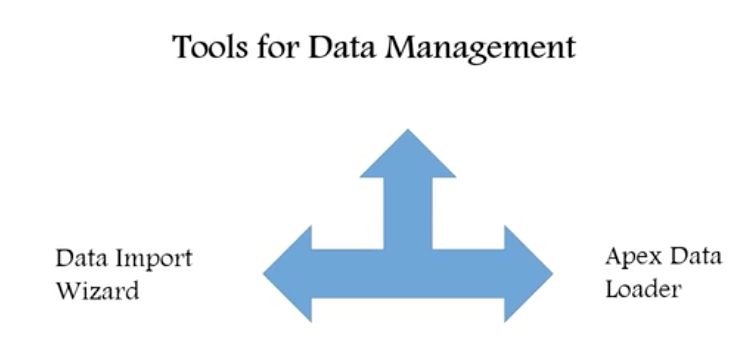
We have to understand the similarities, advantages, disadvantages, limits, and supported operations before choosing a Salesforce data management tool. A tool that is simple for a small Lead import may not be suitable for a large export, hard delete, or scheduled update.
Data Import Wizard in Salesforce for guided CSV imports
Data Import Wizard is the browser-based Salesforce import tool. It is useful when an admin wants a guided import experience, duplicate handling, and simple mapping without installing a desktop application. Salesforce documentation states that Data Import Wizard can import up to 50,000 records at a time and supports CSV files.
Use Data Import Wizard when you are importing a moderate number of records for supported objects such as Accounts, Contacts, Leads, Solutions, Campaign Members, Person Accounts, and custom objects. It is also useful when you want Salesforce to help with duplicate matching during the import process.
For step-by-step practice, read our tutorial on Data import wizard. You can also refer to the official Salesforce Help page for Data Import Wizard.
Salesforce Data Loader for bulk import, export, delete, and automation
Salesforce Data Loader is a client application used for bulk data operations. Salesforce describes Data Loader as a tool for bulk import or export of data, including insert, update, delete, and export operations. It is the better choice when the data volume is larger, the object is not supported by Data Import Wizard, or the admin needs export, delete, hard delete, or command-line processing.
Data Loader supports large files with up to 5 million records. When importing data, it reads data from CSV files or from a database connection. When exporting data, it outputs CSV files. This makes it useful for migration, backup extracts, bulk corrections, and administrator-controlled data cleanup.
Use Apex DataLoader. when you need more control over the operation. For official downloads and current release information, see Salesforce Data Loader on Salesforce Developers.
Import Wizard vs Data Loader in Salesforce
| Import Wizard | Apex Data loader |
| It can load up to 50,000 records at a time. | It supports large files with up to 5 million records. |
| It can import supported objects such as Accounts, Contacts, Leads, Solutions, Campaign Members, Person Accounts, and custom objects. | It supports all standard and custom objects available to the user through permissions. |
| De-Duplication can happen during the import process when matching settings are used. | De-Duplication will not happen automatically; the admin must clean the CSV or use duplicate rules and matching strategy carefully. |
| Insert, Update, and Upsert operations can be done. | Insert, Update, Upsert, Delete, Hard Delete, Export, and Export All operations can be done. |
| It runs in the Salesforce setup interface and is easier for smaller guided imports. | It is installed as a client application and is better for larger, repeatable, or admin-controlled bulk jobs. |
How to choose the right Salesforce data management tool
Select the tool based on the operation, record count, object support, and risk level. The safest approach is to use the simplest tool that supports the required work, then test the import in a sandbox or with a small file before running it in production.
| Requirement | Recommended Salesforce data tool |
| Import a small or medium CSV file into supported objects | Data Import Wizard |
| Update more than 50,000 records | Data Loader |
| Export records from Salesforce | Data Loader or Salesforce export features |
| Delete or hard delete records in bulk | Data Loader, with strong backup and approval checks |
| Move data repeatedly between Salesforce and another system | Integration, ETL, API-based tools, or AppExchange data tools |
| Clean duplicates before loading records | CSV cleanup, duplicate rules, matching rules, and Data Import Wizard where supported |
Salesforce Help also provides a tool-selection guide for choosing between import methods. Admins can review the official Choosing a Method for Importing Data page when deciding between Data Import Wizard, Data Loader, and other supported options.
Salesforce CSV preparation checklist before data import
Before using any data management tool in Salesforce, prepare the source file carefully. A clean CSV reduces import failures and prevents unwanted record changes.
- Confirm the target Salesforce object and operation: insert, update, upsert, delete, or export.
- Include required fields for new records, such as record name, owner, required lookup fields, and required custom fields.
- Use Salesforce record IDs or an External ID field when updating or upserting records.
- Check lookup and master-detail relationship values before import.
- Remove duplicate rows or decide how duplicate rules should handle them.
- Verify picklist values, date formats, currency values, phone numbers, and email fields.
- Review validation rules, required fields, flows, triggers, assignment rules, and automation that may run during the data load.
- Export a backup before mass update, delete, or ownership transfer.
- Test with a small batch first and review success and error files before processing the full file.
Common Salesforce data management mistakes to avoid
- Using update instead of upsert: Update works only when matching existing Salesforce records. Upsert is safer when the file may contain both new and existing records, provided an External ID or record ID is available.
- Ignoring validation rules: A file can look correct but still fail because a validation rule, required field, or automation blocks the save.
- Deleting without export backup: Always export the records before delete or hard delete operations.
- Mapping the wrong fields: Field labels may be similar. Check API names, field types, and relationship fields before running the job.
- Running a full production load without testing: Test a small file first, review the result, then continue with the full file.
Salesforce data management FAQ
What is data management in Salesforce?
Data management in Salesforce is the process of organizing, importing, updating, exporting, protecting, cleaning, and maintaining Salesforce records. It includes both the data model and the tools used to move or correct data in bulk.
Which Salesforce data management tool is best for small imports?
Data Import Wizard is usually best for small or medium guided imports into supported objects. It runs inside Salesforce Setup, supports CSV files, and can import up to 50,000 records at a time.
When should I use Salesforce Data Loader instead of Data Import Wizard?
Use Salesforce Data Loader when you need to process more records, work with objects not supported by Data Import Wizard, export records, delete records, hard delete records, or run repeatable bulk jobs with more control.
Does Salesforce Data Loader remove duplicate records automatically?
No. Data Loader does not automatically remove duplicates during the load. Admins should clean the CSV file first and use matching rules, duplicate rules, External IDs, or another data-quality process where appropriate.
Can I update and insert records in the same Salesforce data load?
Yes. Use the upsert operation when the same file may contain both new and existing records. Upsert requires a matching key, such as a Salesforce record ID or an External ID field.
Conclusion: choosing Salesforce data management tools
Data Management tools in Salesforce help admins handle records safely and efficiently when the work is too large for manual editing. Use Data Import Wizard for guided imports into supported objects, and use Salesforce Data Loader for larger jobs, export, delete, hard delete, and advanced bulk operations. In our upcoming Salesforce tutorial, we learn deeply about different operations in Apex Data Loader and Import wizard.