 TutorialKart.com
Data Loader Upsert (Updating and Inserting records)
Data Loader UPSERT is one of the operation that performed using APEX Data Loader where Updation and Insertion of records can be done in Salesforce. In simple terms, an upsert updates a Salesforce record when a matching record already exists and inserts a new record when no matching record is found.
In this salesforce Tutorial we are going to learn about Data loader UPSERT operation and what are the requirements needed to update and Insert a record using Data Loader. We will also see how Data Loader chooses between insert and update, how record IDs and external IDs are used, and what to verify before running an upsert job.
How Salesforce Data Loader Upsert Decides Between Insert and Update
Data Loader upsert needs a matching field to decide whether each CSV row should update an existing Salesforce record or create a new one. This matching field can be the Salesforce record Id or an External ID field defined on the Salesforce object.
| CSV row condition | Data Loader upsert result | Example |
|---|---|---|
| Matching Salesforce Id or External ID is found | Existing record is updated | Course name changes from B.Sc to M.Sc |
| No matching Salesforce Id or External ID is found | New record is inserted | New Studentinfo__c record is created |
| Matching value is duplicated or not unique | Row can fail with a matching error | Two records have the same external reference |
For a standard update, Salesforce record Id is usually enough. For upsert, an External ID field is often safer when your source system has its own unique reference number and you do not want to depend only on Salesforce record IDs.
What is Record ID in Salesforce?
Record ID is the unique 15 digit number created for every record created in Salesforce. To find record ID in Salesforce User Interface go to any records and click on the URL as shown below. Salesforce also supports an 18-character case-safe version of the record ID, which is commonly used in exports, integrations, and spreadsheet work.

To Update an existing record we require Record ID where for Inserting record we don’t need any record ID. We use CSV(Comma Separated Value) file to update a record using DataLoader in Salesforce.
Record ID and External ID Requirements for Data Loader Upsert
When you run a Data Loader upsert, decide which field will identify existing records before preparing the CSV file. If you choose Id, rows with an existing Salesforce ID are updated. Rows without an ID can be inserted as new records when the required fields are provided. If you choose an External ID, Data Loader checks that external value to find a matching record.
- Use Id when your CSV was exported from the same Salesforce org and already contains Salesforce record IDs.
- Use an External ID when records come from another system, such as a student management system, ERP, or old CRM.
- Make sure the selected External ID field is unique enough for matching, otherwise the upsert can fail or update the wrong record.
- Include all required fields for rows that may be inserted as new records.
- Check picklist values, lookup references, validation rules, and required custom fields before loading the file.
A simple upsert CSV may look like this when Salesforce record Id is used for matching. The row with an Id can update an existing record, while a row without an Id can create a new record if all required fields are present.
Id,StudentInfoName__c,Coursename__c,Fee_Paid__c,Subject1__c,Subject2__c,Subject3__c
,a Pink,M.Sc,Yes,Maths,Physics,Chemistry
a015g00000ABCdE,B Black,M.Sc,Yes,Maths,Physics,Chemistry
If you are using an External ID instead of Salesforce Id, the CSV should contain that external key. In the example below, Student_Number__c is the field used to match existing records.
Student_Number__c,StudentInfoName__c,Coursename__c,Fee_Paid__c
STU-1001,B Black,M.Sc,Yes
STU-1002,P Pink,B.Sc,No
As shown below we have created a CSV file with fields StudentInfo name, Course name, Fee paid, Subject1, Subject2, Subject3 and Record ID.

- Create a CSV file as shown above and Save the file.
- From above CSV file we are going to Insert Pink record in Studentinfo__c object.
- Coursename__c is going to updated from B.Sc to M.Sc using record ID.
Updating and Inserting a Record using Data loader UPSERT
Now go open Data Loader and login using username and password. Use the correct environment, such as production or sandbox, before selecting the operation.
- Click on Upsert function and click on next button.
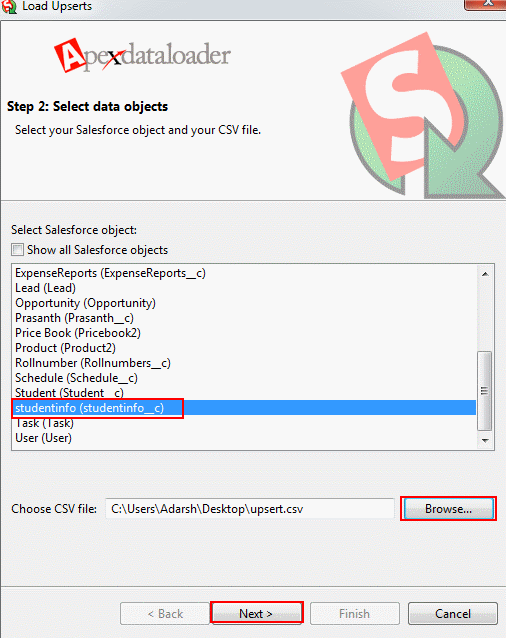
- Select the object from the list.
- Click browse to upload CSV file which we created.
- Click on Next button.
Choose the object that matches the records in your CSV file. In this example, the CSV fields belong to the Studentinfo__c custom object, so the same object must be selected in Data Loader.
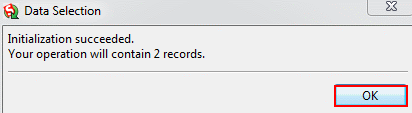
- Initialization of UPSERT operation succeeded.
- Click on OK button
During the upsert setup, Data Loader asks you to choose the field used for matching. Select Id when your CSV contains Salesforce record IDs. Select the correct External ID field when your CSV uses an external reference value.
Mapping Fields.
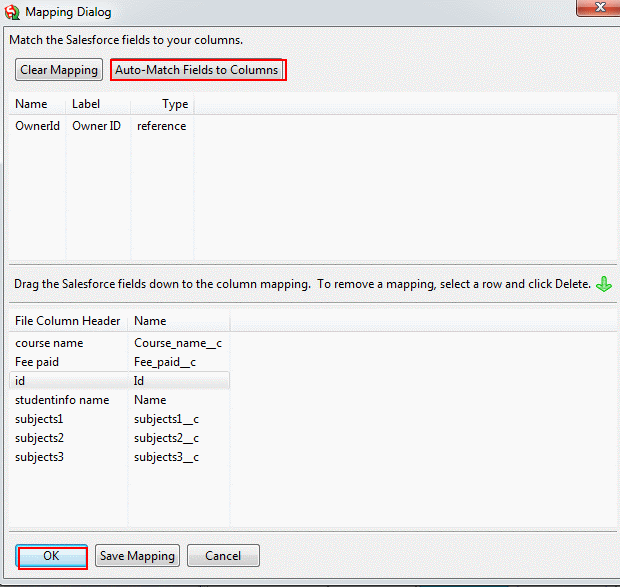
- Click on Auto-Match fields to column.
- Drag the Salesforce fields down to the column mapping.
- To remove a mapping, select a row and click Delete.
Review the mapping carefully before moving to the next step. Auto-Match is useful when CSV column names are close to Salesforce field names, but manual review is still needed for custom fields, lookup fields, and fields with similar labels.
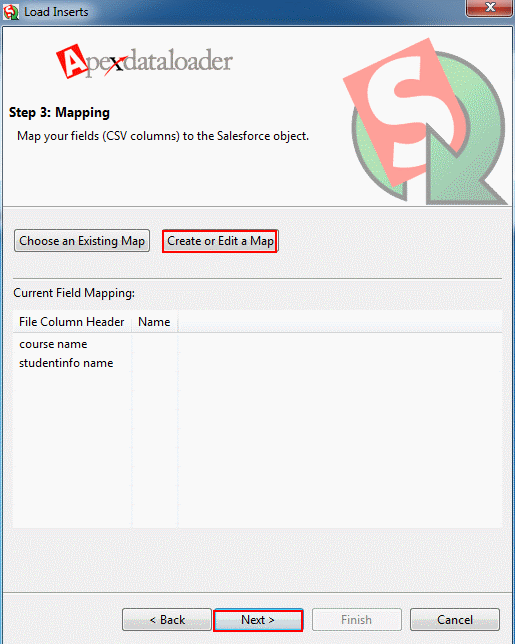
- Click on Next Button.
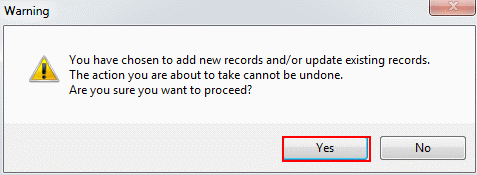
- Now click on Yes Button.
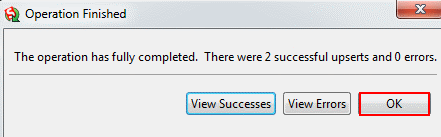
As shown above UPSERT operation is successful using Salesforce Dataloader. Let us check the Object. Go to Studentinfo__C object.
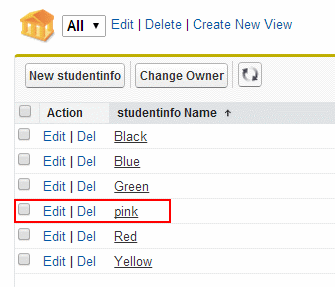
Previously we don’t have Pink record in Studentinfo__C object. Now we observe that new record is created.
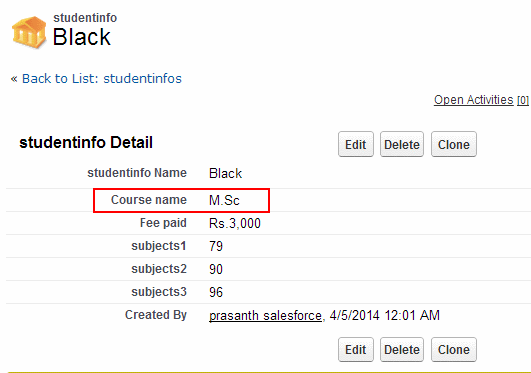
As we discussed about UPSERT operation in Data Loader, both Inserting and Updating records will happen at a time. The Coursename__c in studentinfo name called black is updated from B.Sc to M.SC successfully.
Data Loader Upsert Success and Error File Review
After the upsert job completes, Data Loader creates success and error files in the folder selected during the operation. The success file shows rows that were inserted or updated. The error file shows failed rows and the reason for failure. Review both files before assuming that the full CSV was processed successfully.
Id,Success,Created,Error
0015g00000ABCdE,true,false,
0015g00000ABCdF,true,true,
,false,false,REQUIRED_FIELD_MISSING: Required fields are missing
In the sample output, Created = false means the row updated an existing record. Created = true means Data Loader inserted a new record. Failed rows should be corrected and loaded again separately.
Common Data Loader Upsert Errors in Salesforce
| Upsert problem | Likely cause | What to check |
|---|---|---|
| Required field missing | A row is being inserted but required fields are blank | Add values for all required Salesforce fields |
| Invalid field mapping | CSV column is mapped to the wrong Salesforce field | Open Create or Edit a Map and verify each mapping |
| Duplicate external ID match | The external key matches more than one existing record | Clean duplicate external ID values before upserting |
| Invalid picklist value | CSV value is not allowed for the picklist field | Use an active picklist value accepted by the object |
| Insufficient access | User lacks permission to create, edit, or access a field | Review object permission, field-level security, and sharing access |
Salesforce Data Loader Upsert Safety Checklist
- Export a backup of the object before running a large upsert.
- Confirm whether the upsert will match by Salesforce Id or External ID.
- Check that every insertable row has all required fields.
- Verify lookup values, picklist values, and validation rule requirements.
- Run a small test file before processing a large production CSV.
- Review the Data Loader success and error files after the operation.
- Reload only corrected failed rows instead of blindly running the same full CSV again.
When to Use Insert, Update, or Upsert in Salesforce Data Loader
Use the operation that matches the state of your data. Upsert is helpful when one CSV file contains both new and existing records, but it is not always the best choice for every load.
| Data Loader operation | Use this when | Key field needed |
|---|---|---|
| Insert | All rows are new records | No existing record Id is required |
| Update | All rows already exist in Salesforce | Salesforce record Id |
| Upsert | CSV contains both new and existing records | Salesforce record Id or External ID |
FAQs on Data Loader Upsert in Salesforce
How to use upsert in Data Loader?
Open Data Loader, select Upsert, log in, choose the Salesforce object, upload the CSV file, select the matching field such as Id or an External ID, map the CSV columns to Salesforce fields, choose a folder for success and error files, and run the operation.
How does Data Loader upsert choose to insert or update?
Data Loader checks the selected matching field. If a matching record is found, the row updates that record. If no matching record is found and the row has the required values, Data Loader inserts a new record.
Can Data Loader upsert without Salesforce record Id?
Yes. Data Loader can upsert without Salesforce record Id when you use an External ID field for matching. The external value must identify the correct existing record, and new rows must include all required field values.
What are common limitations of Data Loader upsert?
Data Loader upsert depends on user permissions, valid CSV formatting, correct field mapping, required fields, validation rules, lookup relationships, and unique matching values. Rows can fail when any of these conditions are not met.
Should I use insert or upsert for new Salesforce records?
Use Insert when every row is definitely new. Use Upsert when the CSV may contain both new records and existing records that should be updated.
Data Loader Salesforce Upsert Summary
In this Salesforce Tutorial we have learned about UPSERT operation. Data Loader upsert is useful when one CSV file must update existing records and insert new records in Salesforce. The important step is selecting the correct matching field, either Salesforce record Id or a suitable External ID, and then verifying the success and error files after the job finishes. In our upcoming Salesforce admin Tutorial we are going to learn about Deleting and Exporting records using Apex Data Loader.