 TutorialKart.com
Creating Salesforce Custom fields
Salesforce Custom fields are fields created by an admin or developer to store information that is not already captured by Salesforce standard fields. Up to now we have created custom app, custom object and now we are going to create Salesforce custom fields on the Pharma Product object.
In this tutorial, we create a Price field on the Pharma Product custom object. You will also learn how to choose the correct Salesforce field type, enter field label and field name, set field-level security, add the field to a page layout, and verify that the field appears when creating a new record.
Salesforce standard fields and custom fields on an object
When we talk about fields in Salesforce there are two types of fields they are
- Standard Fields.
- Custom Fields.
Standard Fields :- Standard fields are created by Salesforce. Some fields are available on many objects automatically, and some fields depend on the object type and its settings.
- Name.
- Owner.
- Created By.
- Last Modified By.
The object also has system fields such as record ID and date fields that Salesforce uses internally and in reports. You can change some properties of standard fields, but you cannot create or delete them in the same way you create custom fields.
Custom Fields :- Custom fields are created on standard objects or custom objects to capture organization-specific data. A custom field API name ends with __c. For example, a custom currency field named Price on Pharma Product can have the API name Price__c.
| Field category | Created by | Example | API name pattern |
|---|---|---|---|
| Standard field | Salesforce | Name, Owner, Created By | Usually no __c suffix |
| Custom field | Admin, developer, package, or metadata deployment | Price, Product Code, Dosage Form | Ends with __c |
Open Fields and Relationships for the Pharma Product custom object
Example:- if we want to create a field for custom object Pharma Products so what we do now. In Lightning Experience, go to Setup → Object Manager → Pharma Product → Fields & Relationships → New. In older Salesforce Classic navigation, go to the object | Object definition page | Create new field.
Go to Setup | Build | Create | Objects.
Now list of all objects that are present will be displayed. Now select the respective Object that you want to create a field. Here we are selecting Pharma Product custom object.
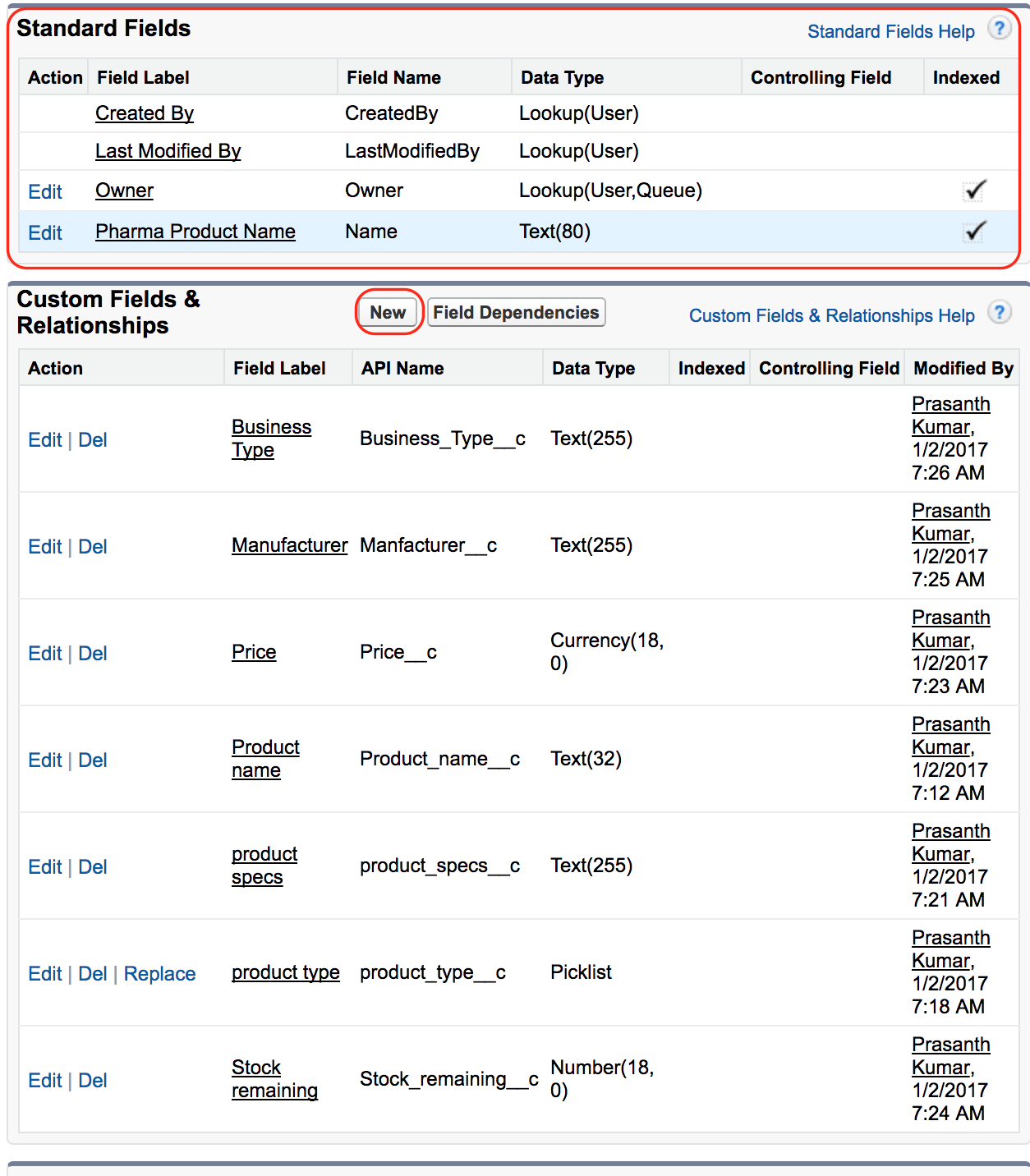
As shown above four Standard fields are created when an object is created but custom fields are not created by default. To store additional information such as product price, manufacturer code, dosage form, or expiry tracking details, create new custom fields.
Choose the correct Salesforce custom field type for Price
When creating new custom field in step 1 we have to choose the field types. In Salesforce.com we have the following field types.
| Auto Number | Formula | Roll-Up Summary |
| Lookup Relationship | Master-Detail Relationship | External Lookup Relationship |
| Checkbox | Currency | Date |
| Date/Time | Geolocation | |
| Number | Percent | Phone |
| Picklist | Picklist(Multi-Select) | Text |
| Text Area | Text Area(long) | Text Area(Rich) |
| Text(Encrypted) | URL |
The exact field type list can vary by Salesforce edition, enabled features, object type, and user permissions. Do not choose a field type only by the field label. Choose it based on how the data should be entered, validated, searched, filtered, reported, and used in automation.
| Data you need to store | Recommended Salesforce field type | Reason |
|---|---|---|
| Product price | Currency | Stores money values with decimal places and currency formatting. |
| Product code | Text | Allows letters, numbers, and leading zeros. |
| Dosage form | Picklist | Keeps values consistent, such as Tablet, Capsule, Syrup, Injection. |
| Launch date | Date | Supports date filters, reports, and validation rules. |
| Active product flag | Checkbox | Stores true or false values. |
| Manufacturer record | Lookup Relationship | Connects the product to another Salesforce record. |
Click on New button to create new custom field for an object Pharma product. In this example we are going to create Price field for an object Pharma product.
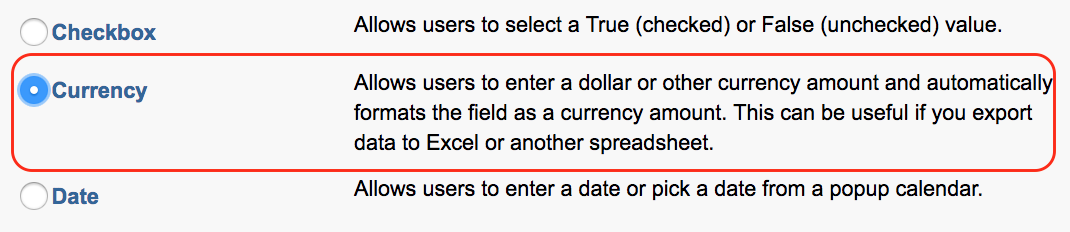
Field type is mandatory while creating fields in Salesforce.com. Price corresponds to currency so we are selecting currency as field types. If we are creating a filed for phone number then we have to select field type phone in Step 1. All other field types will be explained in detail later.
- Now click on Next Button.
Enter Salesforce custom field label, field name, length, and description
Step 2.
In Step 2 we have to enter all details like Field label, Length, Field Name.
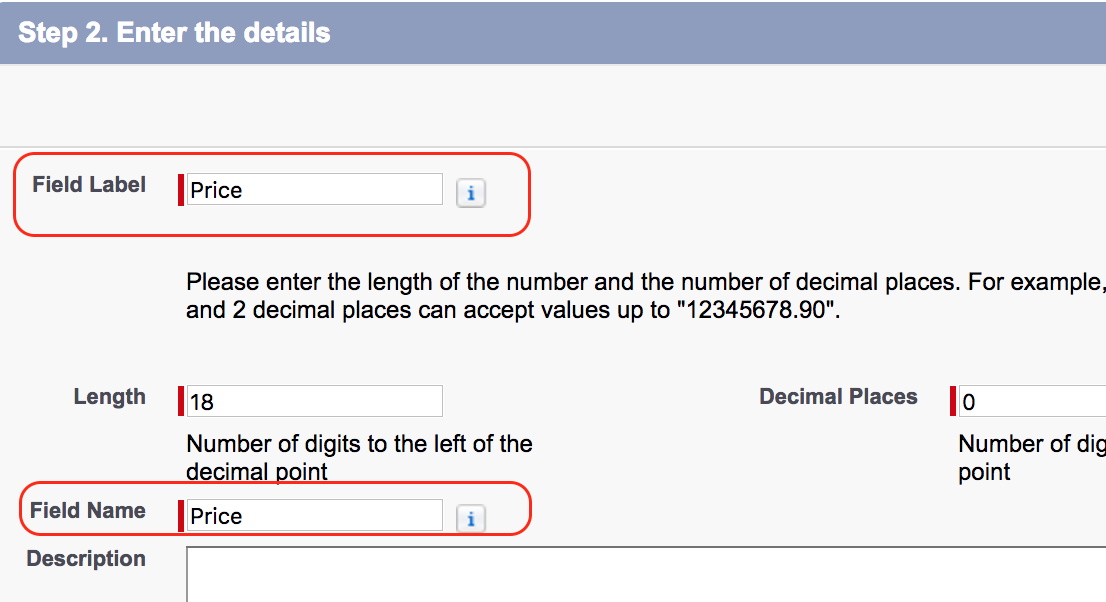
For the Pharma Product Price field, use values similar to the following. The screen may show additional options depending on the field type selected.
| Salesforce field setting | Example value for Price field | Explanation |
|---|---|---|
| Field Label | Price | Label shown to users on record pages, reports, and forms. |
| Length | 16 | Total number of digits allowed for the currency value. |
| Decimal Places | 2 | Number of digits allowed after the decimal point. |
| Field Name | Price | Used to generate the API name Price__c. |
| Description | Stores the selling price of the pharma product. | Helps admins understand why the field exists. |
| Help Text | Enter the selling price for this product. | Guides users while entering data. |
Review the field name before saving. The field label can be changed for users, but the API name is used by formulas, validation rules, flows, reports, Apex, integrations, and SOQL queries. Changing API names later can require updates in many places.
Set field-level security for the Salesforce Price custom field
Now click on Next button. In Step 3 we have to establish field level security. Select the profiles to which this field is to be visible. Field-level security controls whether users can see or edit the field. Page layouts control where the field appears on the record page. If field-level security hides a field, adding it to a page layout will not make it visible to that user.

For a Price field, make it visible and editable only to profiles or permission sets that need to maintain pricing. Users who only need to view product details can be given read access without edit access. Sensitive fields should be reviewed carefully before enabling visibility for all profiles.
Add the Salesforce custom field to the Pharma Product page layout
Now click on Next button as shown above. Now add to page layout to which this field is to be visible

Select the page layouts where the Price field should appear. If different teams use different page layouts, add the field only where it is relevant. For example, a sales page layout may show Price near commercial details, while an operations layout may place it in a product information section.
Finally click on save button. Alright successfully we have created Salesforce Custom field. To check our how custom field will appear in UI.
Verify the new Salesforce custom field on a Pharma Product record
Now go to custom object Pharma Product.

Now click on new Button to create new Record.
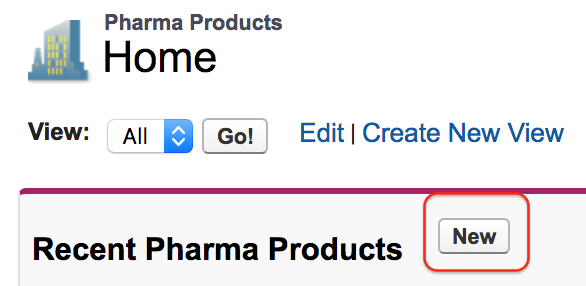
On the new record page, confirm that the Price field is visible in the expected section. Enter a test price, save the record, and reopen it to confirm the value is stored correctly. If the field is not visible, check field-level security, page layout assignment, object permissions, and whether you are viewing the expected record page layout.
Use Salesforce custom field API names in SOQL and automation
Custom fields use the __c suffix in the API. If the Pharma Product object API name is Pharma_Product__c and the Price field API name is Price__c, a SOQL query can refer to the field like this:
SELECT Name, Price__c
FROM Pharma_Product__c
WHERE Price__c != null
The field label shown to users can be Price, but integrations, Apex code, formulas, flows, and SOQL generally use the API name Price__c. Standard fields usually do not use the custom __c suffix.
Common Salesforce custom field setup mistakes to avoid
- Choosing Text for every field: use Currency, Number, Date, Picklist, Checkbox, or Lookup when the data needs structure.
- Skipping help text: short help text reduces confusion for users entering data.
- Ignoring field-level security: a field may not appear for users if visibility is not enabled.
- Adding the field to the wrong page layout: verify layout assignment for the profile and record type being tested.
- Changing API names casually: API names can be used in formulas, Flow, Apex, reports, and integrations.
- Using multi-select picklists without a strong reason: they can be harder to report on and automate compared with normalized related records or single picklists.
Official Salesforce references for creating custom fields
For current Salesforce setup behavior, compare your org with official Salesforce resources such as Create a Custom Field on Trailhead, Salesforce documentation for adding fields, and Salesforce Developer custom fields reference.
Salesforce custom fields FAQ
How do I create a custom field in Salesforce Lightning?
Go to Setup → Object Manager, open the object, select Fields & Relationships, and click New. Choose the field type, enter field details, set field-level security, add the field to the required page layouts, and save.
What is the difference between Field Label and Field Name in Salesforce?
Field Label is the user-facing name shown on record pages and reports. Field Name is used to generate the API name. For a custom field named Price, the API name is typically Price__c.
Why is my Salesforce custom field not visible on the record page?
Check field-level security, page layout assignment, object permissions, profile or permission set access, record type layout assignment, and whether you are viewing the correct Lightning record page. Field-level security can hide a field even when it is on the page layout.
Can I change the Salesforce custom field type after saving?
Some field type changes are allowed, but many changes are restricted because they can affect existing data, formulas, automation, reports, and integrations. Before changing a field type, review dependencies and back up important data.
What does __c mean in a Salesforce custom field API name?
__c identifies a custom field or custom object in Salesforce APIs. For example, Price__c is a custom field API name, while Pharma_Product__c is a custom object API name.
Editorial QA checklist for this Salesforce custom fields tutorial
- The tutorial uses the current Lightning path Setup → Object Manager → Fields & Relationships → New and also keeps the older Classic path shown in the screenshots.
- The Pharma Product example creates a Price field with the Currency field type.
- The article explains field label, field name, API name, field-level security, and page layout placement.
- The custom field suffix is written as lowercase
__cand shown withPrice__c. - The troubleshooting section explains why a Salesforce custom field may not appear on a record page.
- Official Salesforce Trailhead, setup, and developer references are included for current custom field behavior.