 TutorialKart.com
Creating and Managing Salesforce Lead Assignment Rules
In this Salesforce tutorial, we will learn what assignment rules are, how Salesforce lead assignment rules assign leads automatically, how to create rule entries, and what to check before activating a lead routing rule in an org.
Salesforce lead assignment rules are used to assign new Lead records to the correct user or queue based on conditions such as country, state, lead source, industry, product interest, campaign source, or partner channel. They are commonly used with Web-to-Lead, imported leads, partner-submitted leads, and other lead creation processes where manual owner selection is not practical.
What is an Assignment Rule in Salesforce lead and case routing?
Assignment Rules are used to assign Leads and Cases automatically to users or queues based on criteria. In Salesforce, the two standard assignment rule types are:
- Lead Assignment Rules and
- Case Assignment Rules.
Each assignment rule contains one or more rule entries. Salesforce evaluates the entries in sort order and uses the matching entry to decide the owner. A rule entry can assign the record to a specific user or to a queue. The entry can also use an email template to send an assignment notification, depending on the configuration.
What are Salesforce lead assignment rules?
Salesforce lead assignment rules define how administrators assign Lead records to users and queues based on criteria. A lead can be created manually, generated from Web-to-Lead, submitted from a partner process, inserted through an integration, or loaded through a data tool. When the active lead assignment rule is applied, Salesforce checks the lead against the configured rule entries and assigns ownership according to the first matching entry.
For example, leads from the United States can be assigned to a US sales queue, leads from the United Kingdom can be assigned to a UK sales queue, and leads from a specific product campaign can be assigned to a named sales representative. The best rule design depends on the sales process, territory model, and ownership policy used in the org.
What are Case Assignment Rules in Salesforce?
Case assignment rules define how administrators assign Case records to users and queues based on criteria. A Case can be created manually, generated from Web-to-Case, created through Email-to-Case, or inserted through another service channel. Case assignment rules are similar in structure to lead assignment rules, but they are used for service ownership instead of sales lead ownership.
How to create Salesforce lead assignment rules in Setup
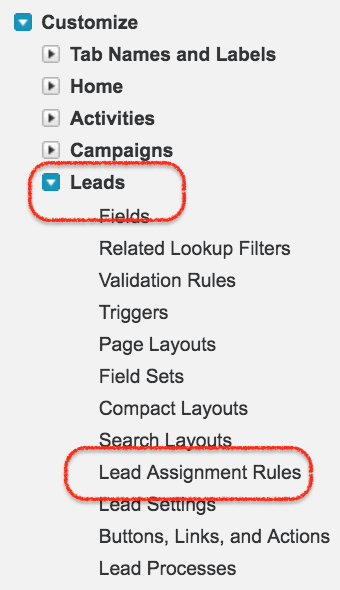
Creating and managing Salesforce lead assignment rules helps keep lead ownership consistent. To create assignment rules, login Salesforce, open Setup, enter Assignment Rules or Lead Assignment Rules in the Quick Find box, and select Lead Assignment Rules. In Salesforce Classic, the older navigation path is Setup | Build | Customize | Lead | Lead Assignment Rules.
- Click on Lead assignment rules as shown above.
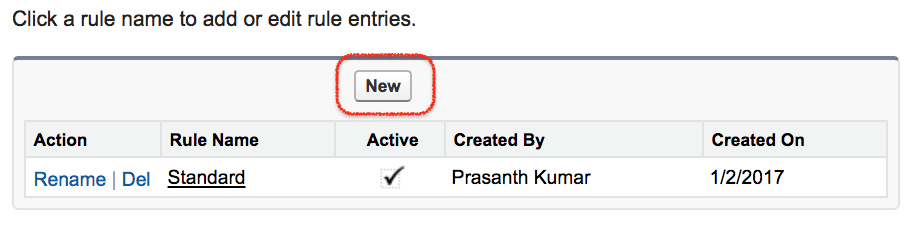
Click on New to create a new Salesforce lead assignment rule. Give the rule a clear name that describes the routing purpose, such as Standard Lead Routing, Country Based Lead Routing, or Partner Lead Assignment.
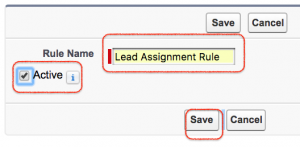
- Enter Rule name.
- Select the active option if this rule should become the active lead assignment rule.
- Click on Save button.
At a single point of time, only one lead assignment rule can be active for the Lead object. If another lead assignment rule is activated, the earlier active lead assignment rule is no longer the active one. A single active rule can still contain multiple rule entries, and each entry can define a different routing condition.
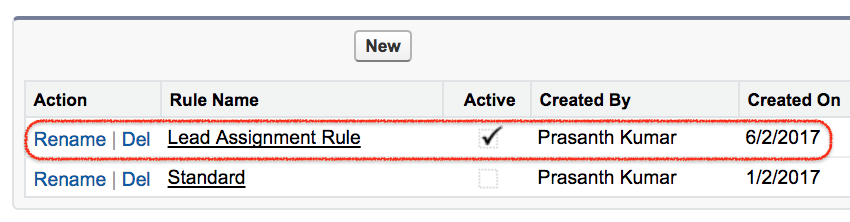
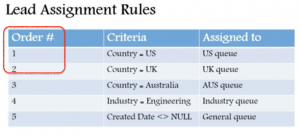
- When creating a rule entry, understand these three fields carefully: Order, Criteria, and Assigned To.
Order decides the sequence in which Salesforce checks rule entries. Criteria decides whether a Lead matches the entry. Assigned To decides whether the matching Lead is assigned to a user or a queue. Keep the most specific criteria above broad criteria so that a general rule does not catch a lead before the correct specific rule is evaluated.
- Click on Save button.
How to create new rule entries in Salesforce Lead Assignment Rules
In Salesforce, we can create many rule entries for a single assignment rule. Rule entries are the actual routing conditions inside the assignment rule. A rule entry can use field criteria or a formula, depending on the requirement.
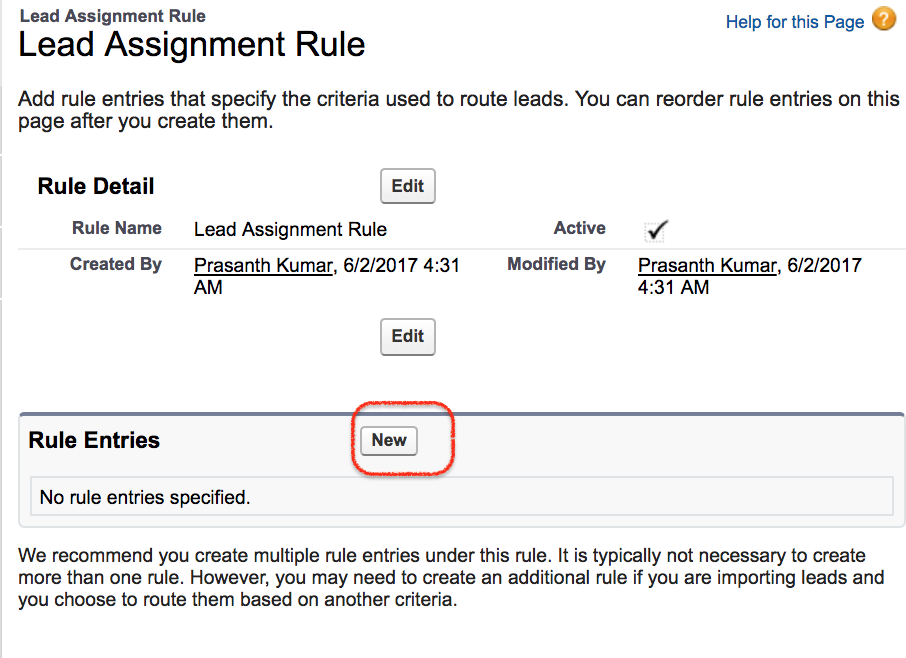
- Click on New Button to create new Rule entry.
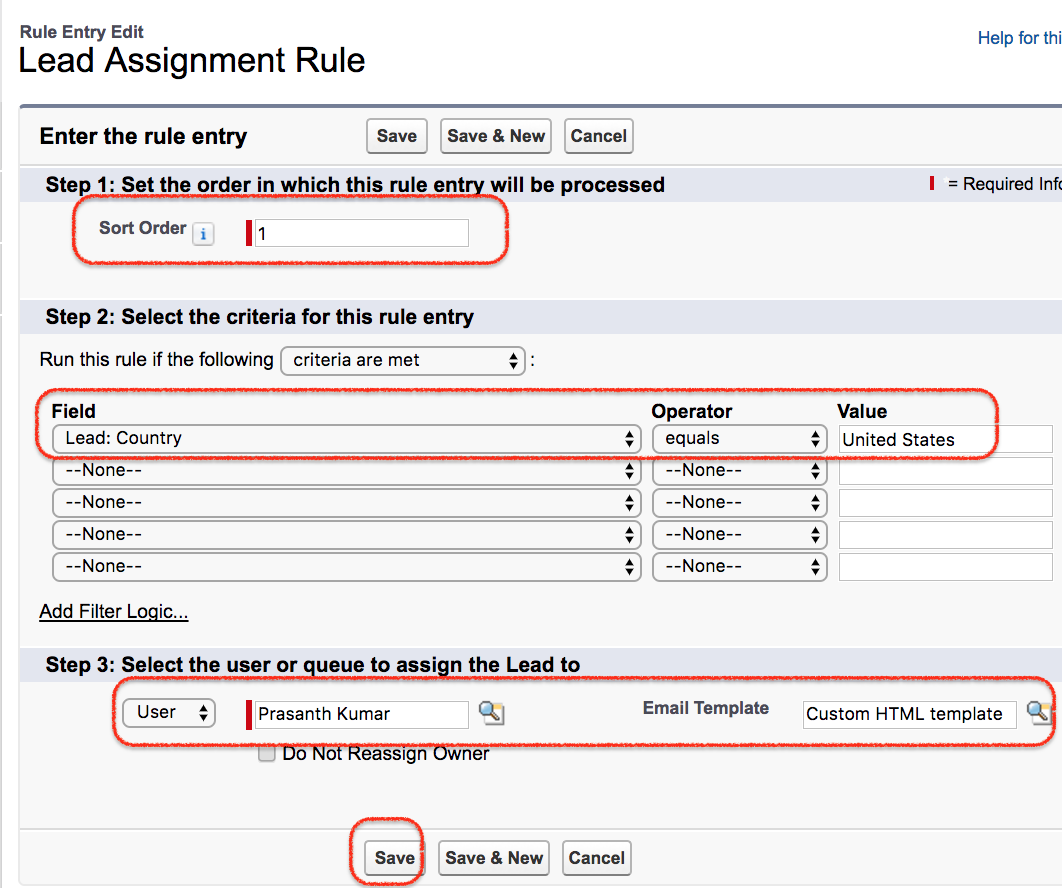
- In step 1 :- Enter Sort order as #1.
- In Step 2 :- Enter rule criteria as shown above.
- In Step 3 :- Select the user or queue to assign the lead.
- Select user and Email template as shown above.
- Click on Save button.
Learn how to create Email template in Salesforce.
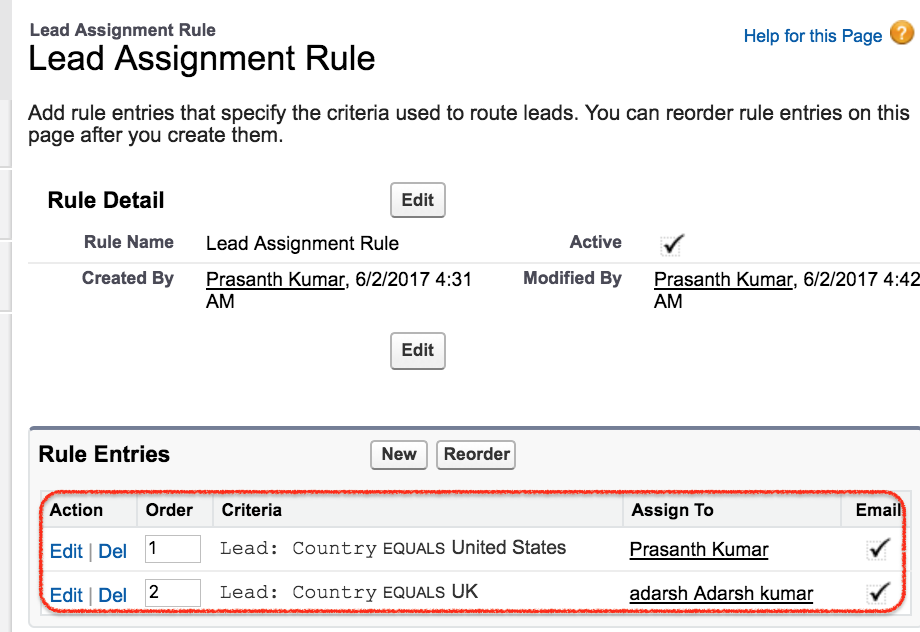
In this example, two rule entries are created with order 1 and order 2. Leads that match the first country condition are assigned according to the first entry. Leads that do not match the first entry are checked against the second entry. This is why the sort order must be planned carefully before activating the rule.
Salesforce lead assignment rule criteria examples
Lead assignment rule criteria should be based on fields that are reliably populated when the Lead is created. If a rule depends on a field that is blank or updated later, the Lead may not be assigned as expected when the assignment rule runs.
| Lead routing need | Possible rule criteria | Assigned to |
|---|---|---|
| Route leads by country | Country equals United States, United Kingdom, India, or another supported country | Regional sales user or regional queue |
| Route partner leads | Lead Source equals Partner or Partner Account is populated | Partner sales queue |
| Route product enquiries | Product Interest equals a selected product line | Product specialist or product queue |
| Route high-value leads | Annual Revenue, Company Size, or Lead Score meets the defined threshold | Senior sales representative or enterprise queue |
When Salesforce lead assignment rules run
Lead assignment rules usually run when a Lead is created and the active assignment rule is applied. This can happen through Web-to-Lead and other lead creation channels, and users can also choose to assign a manually created lead using the active assignment rule when that option is available on the lead edit page. For data loads or integrations, confirm that the loading method or API logic is set to use the active assignment rule if automatic routing is required.
Lead assignment rules do not replace all lead routing automation. Some orgs use Flow, Apex, marketing automation tools, or routing applications for advanced needs such as round-robin distribution, account matching, territory balancing, service-level tracking, or reassignment after qualification. Use the standard assignment rule when the requirement can be handled by clear ordered criteria and assignment to users or queues.
Lead Assignment Rules and Queues in Salesforce
Queues are useful when a lead should be owned by a team before an individual user accepts or works on it. For example, all leads from a country, channel, event, or partner source can first go to a queue. Members of that queue can then take ownership based on the team process. Before assigning leads to a queue, make sure the queue supports the Lead object and has the correct members.
Testing Salesforce lead assignment rules before activation
Before using a lead assignment rule in production, test it with sample lead records that represent the main routing cases. Include at least one test lead for each rule entry and one lead that should not match any specific entry. Check the final owner, queue membership, email notification behavior, and whether any other automation changes the owner after the assignment rule runs.
- Create test leads for each country, source, or product condition used in the rule.
- Check whether the first matching rule entry assigns the correct owner.
- Verify that broader fallback entries are placed after specific entries.
- Confirm that users and queues are active and have the access needed to work on leads.
- Review Flow, Process Builder, Apex triggers, and integration logic that may update Lead Owner after assignment.
Salesforce Lead Assignment Rules Summary :
In this Salesforce Tutorial, we learned what assignment rules are and how to create Salesforce lead assignment rules. Lead assignment rules help assign new leads to users or queues based on ordered criteria. Case assignment rules follow a similar structure, but they are used for service cases instead of sales leads.
Salesforce lead assignment rules FAQs
How many Salesforce lead assignment rules can be active at one time?
Only one lead assignment rule can be active for the Lead object at one time. That active rule can contain many rule entries.
Can Salesforce lead assignment rules assign leads to queues?
Yes. A lead assignment rule entry can assign a matching lead to a user or to a queue, provided the queue is configured for the Lead object.
Why is sort order important in Salesforce lead assignment rules?
Salesforce checks rule entries in sort order. If a broad rule is placed above a specific rule, the broad rule may assign the lead before the specific rule is reached.
Do lead assignment rules run for manually created leads?
They can run for manually created leads when the active assignment rule is selected during lead creation. For imports and integrations, the data load or API process must be configured to apply the active assignment rule if automatic routing is required.
What should be checked when a lead is assigned to the wrong owner?
Check the active lead assignment rule, rule entry order, field values on the lead, queue setup, duplicate or missing criteria, and any Flow, Apex, or integration automation that may update the Lead Owner after the assignment rule runs.
Salesforce lead assignment rules editorial QA checklist
- Verify that the tutorial explains both Lead Assignment Rules and Case Assignment Rules without mixing their purposes.
- Confirm that the Setup path uses Quick Find and that the older Salesforce Classic path is clearly identified as older navigation.
- Check that the article states only one lead assignment rule can be active at a time.
- Ensure the rule entry explanation covers order, criteria, assigned user or queue, and optional email template use.
- Review the testing section to make sure lead owner changes caused by Flow, Apex, integrations, or other automation are considered.