 TutorialKart.com
Creating New Salesforce email templates
In this Salesforce Tutorial, we learn how to create Salesforce email templates, where they are used, how template folders work, how to add merge fields, and how to test a template before sending it to users, contacts, leads, or customers.
Salesforce email templates help users send consistent email content without typing the same subject, greeting, body, and signature repeatedly. They are also useful in automation, such as workflow email alerts, approval notifications, case responses, lead follow-up emails, and other business processes in SFDC.
This tutorial focuses on the Classic email template creation flow shown in the screenshots. In newer Salesforce orgs, you may also see Lightning Email Templates and the Email Template Builder, depending on your Salesforce edition, permissions, and enabled features.
What are Salesforce email templates?
Salesforce email templates are reusable email formats that can include fixed text, merge fields, HTML formatting, letterheads, or Visualforce markup. A template can be used when sending one-to-one emails, mass emails, email alerts, approval process notifications, and service-related emails, based on the Salesforce feature being used.
For example, instead of manually writing “Dear customer” and entering account or contact details each time, a Salesforce template can use merge fields such as {!Contact.Name} or {!User.Name}. When the email is sent, Salesforce replaces those fields with the actual record data.
What is the need of Salesforce Email Templates?
Salesforce Email Templates are used in the following automation and communication processes.
- Sending out mass Emails.
- Used in Workflow rules.
- We us in Approval process.
- Assignment Rules.
- Used in Web to Lead Forms.
- Used in Web to Cases and so on.
Using templates also improves consistency. A sales team can use the same follow-up format, a support team can use approved case response language, and administrators can maintain standard notification wording in one place.
Types of Salesforce Email Templates
In Classic Salesforce email templates, the commonly available template types are listed below.
- Text.
- HTML with letterhead.
- Custom HTML.
- Visualforce.
Among these four template types, Text templates are simple and easy to maintain, while Visualforce templates are used when the email content needs more advanced logic or formatting. HTML with Letterhead and Custom HTML templates are useful when the email requires branding, layout, and styled content.
| Salesforce email template type | Best used for | Main point to remember |
|---|---|---|
| Text | Plain notifications, simple reminders, and basic automation emails | No rich formatting; easy to read and maintain |
| HTML with Letterhead | Branded emails with header, footer, logo, and standard layout | Requires a letterhead |
| Custom HTML | Emails where you want to write your own HTML layout | Useful when the letterhead layout is not enough |
| Visualforce | Advanced templates with related record data and custom logic | Requires Visualforce knowledge |
| Lightning Email Template | Modern Lightning Experience emails using the email template builder | Availability depends on Lightning features and permissions |
Before creating Salesforce email templates: folders, access, and permissions
Before creating a new Salesforce email template, decide where the template should be stored and who should be able to use it. Templates are stored in folders. Folder access controls whether users can view, edit, or use templates from that folder.
- Use a separate folder for custom business templates instead of mixing them with standard templates.
- Give access only to users or groups that need the templates.
- Select Available For Use when the template is ready to be used in emails or automation.
- Use a clear template name, such as Lead Follow Up – First Response or Case Closed Confirmation.
- Test merge fields before using the template in production automation.
Creating Text Email Template folder in Salesforce.com
To create Text Email templates in Salesforce navigate to Administer | Communication Templates | Email Templates.
We have standard email templates created in folder called Unfiled Public Email Template by default. We can create any number of Salesforce Email Template.
- Login Salesforce to create new email templates
- Click on Email Templates as shown below
- Before creating new template create a new email template folder to Save all custom email templates.
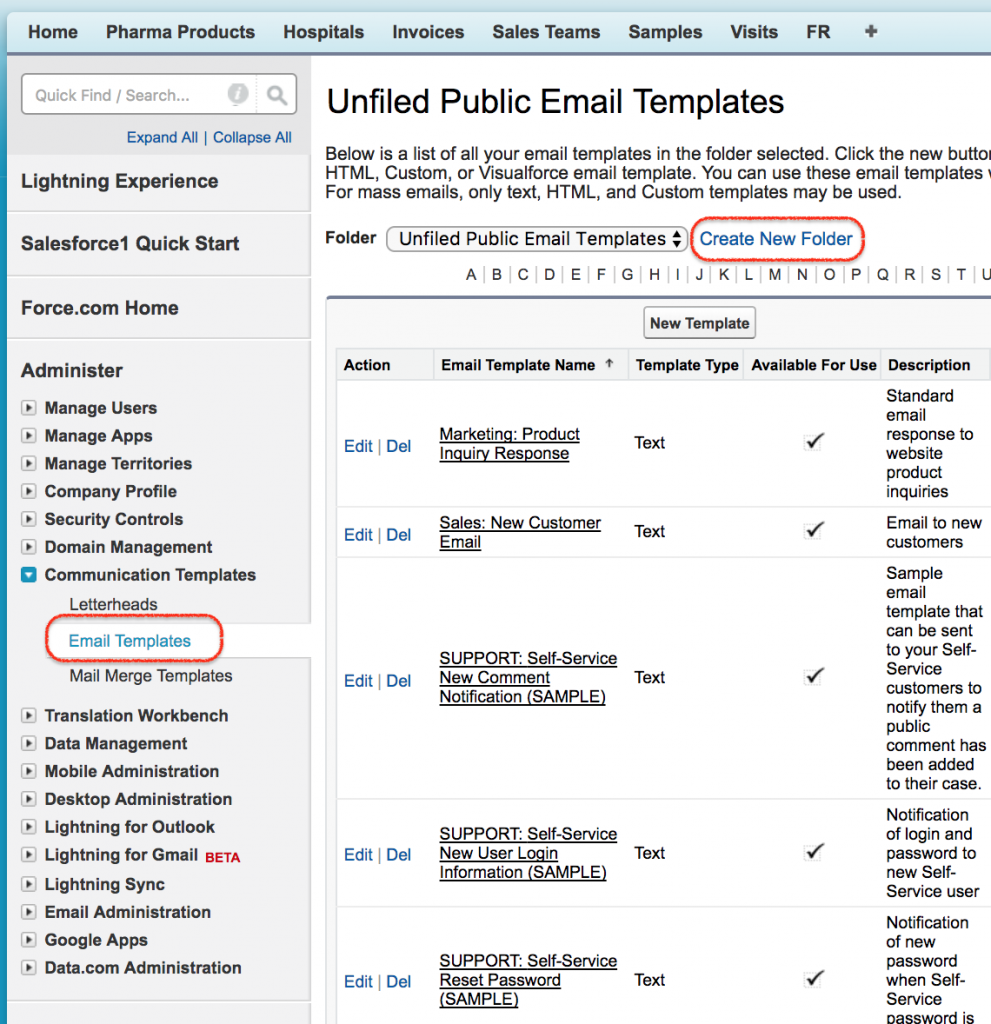
- Click on Create New folder.
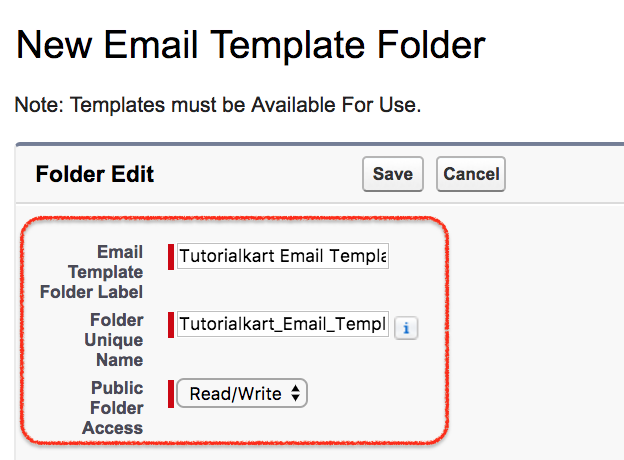
- Enter Email template folder name.
- Select public folder access type.
- Click on Save.
As shown above we have created Email template folder successfully.
Creating Text Email Template in Salesforce
Text email templates are the simplest Salesforce email templates. They are useful for plain messages where formatting, logos, colours, and layouts are not required. Text templates are also easier to maintain because the message body is clear and does not depend on HTML design.
In the first step we have to select email template type. As shown below we have four option click on Text button.
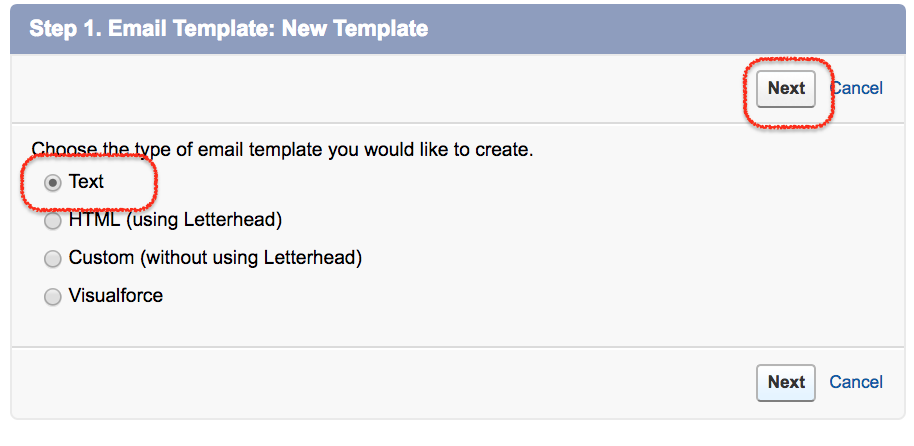
- Select text.
- Now click on Next button.
Here the email template type is text. In this type we don’t have different styles, fonts and have only some text information. Now we have to enter required details to create salesforce email template.
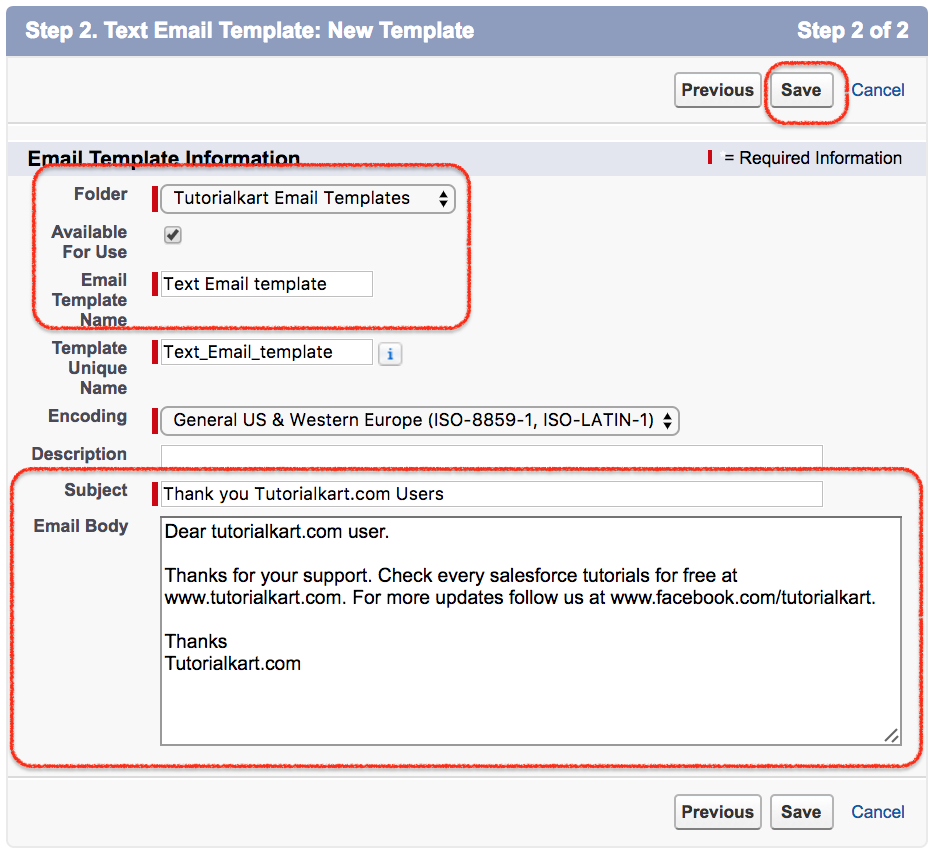
- Select Template folder.
- Select available for use if this is only we can use this email template anywhere if not enabled we can not use this email template in Salesforce.
- Enter Email template name.
- Enter description, subject and Email Body.
- Finally click on Save button to save all the settings.
We have successfully creates Salesforce Email template. We can attach files to the template at attachements.
A simple text template body can be written like this:
Dear {!Contact.Name},

Thank you for contacting us. We will review your request and get back to you soon.

Regards,
{!User.Name}
This is only a sample structure. Use merge fields that match the object and email context. For example, a Contact merge field works when the recipient or related record supports Contact data.
Mass Email Test in Salesforce
Now we have to test email template that we created. For mass email test in salesforce go to Contacts detail page and select Mass Email test. Here we have renamed contacts as My SP Sales Teams so we selected mass email SP Sales team.
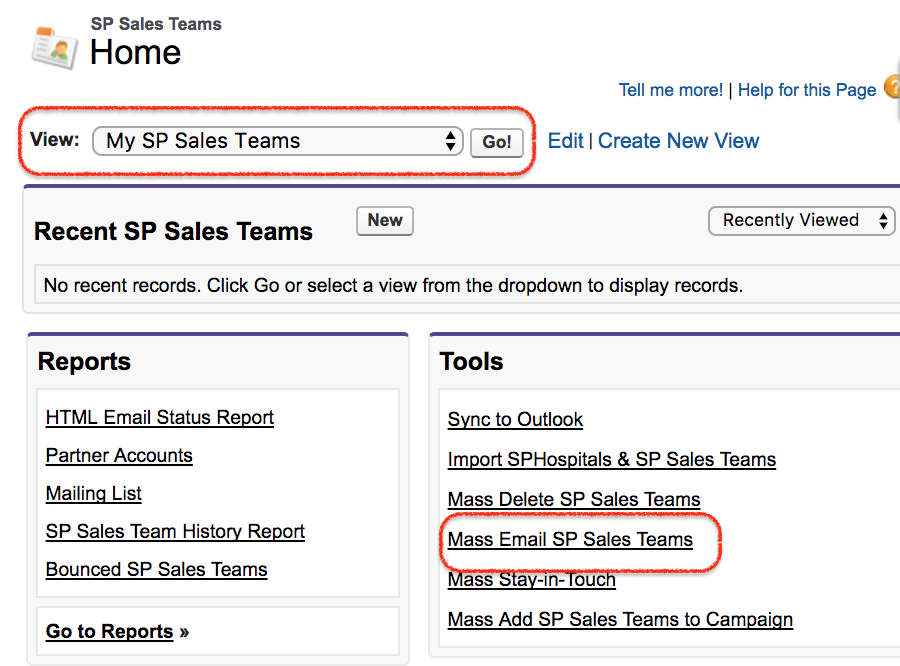
- Select My Sp Sales Teams in View.
- Click on go button.
- Now select mass email SP Sales Teams.
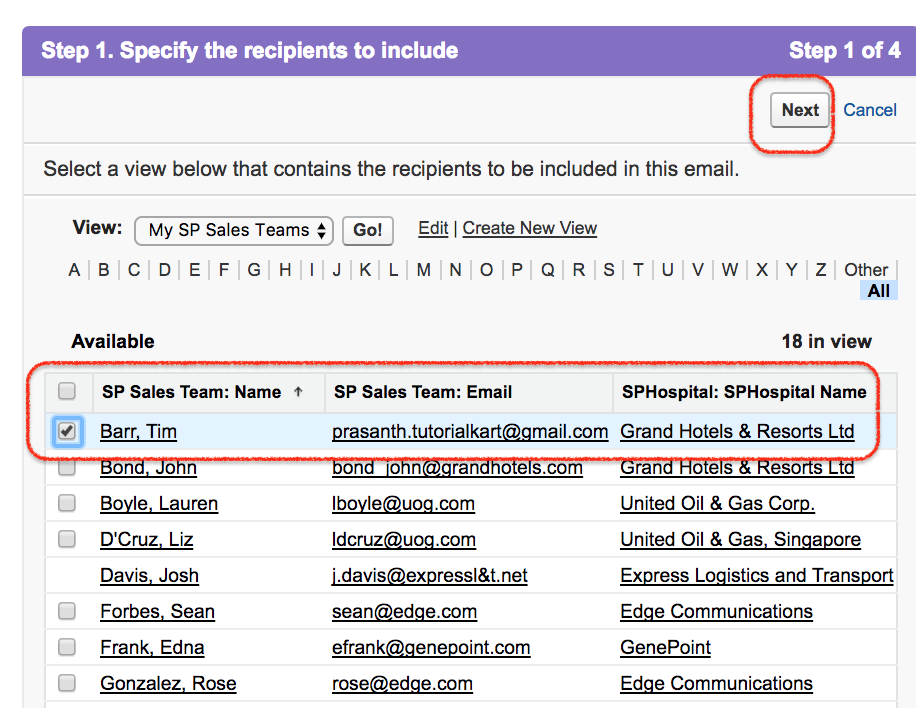
Before sending mass email test in salesforce rename the user email address so that the test email will be sent to the user.
- Click on Next button.
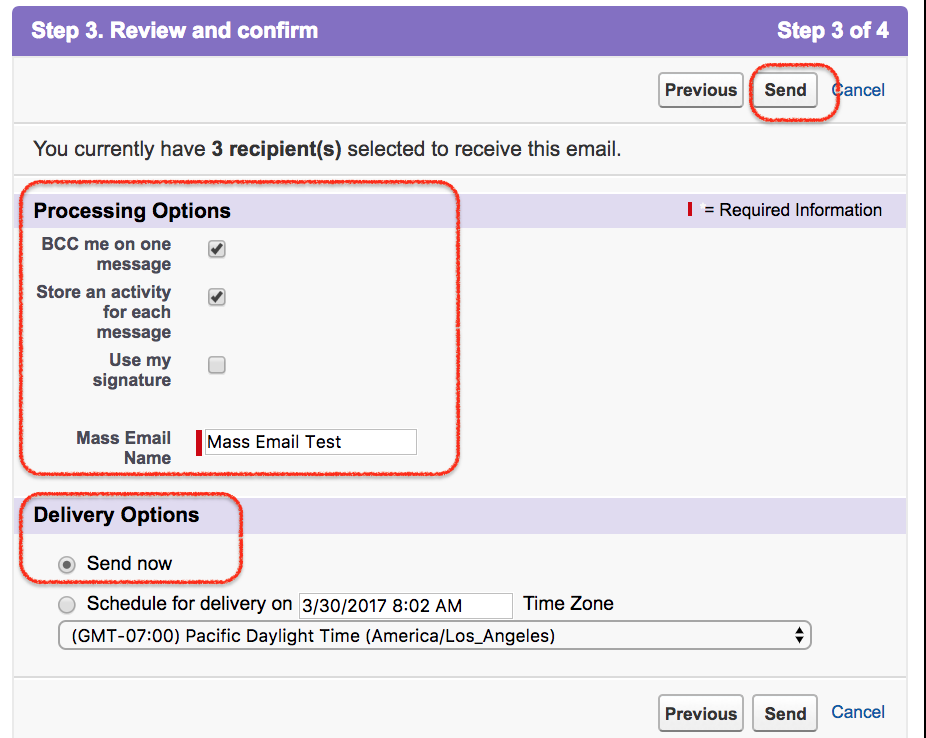
- Enter all the details as shown above.
- Select Send now in delivery options.
- Click on Send button.
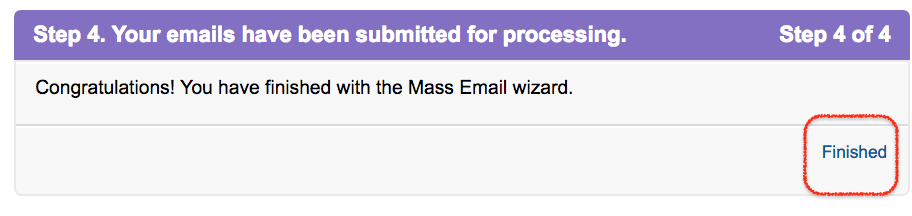
We have successfully sent mass email test. Now go to your email address and check your inbox as shown below.
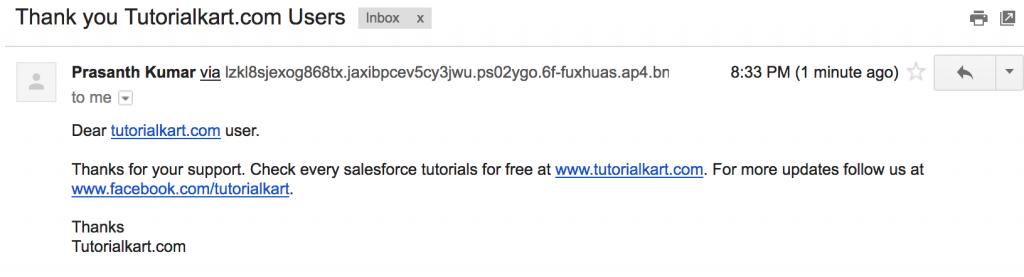
This is the Text Email received.
Testing Salesforce email templates before using them in automation
Always test a Salesforce email template before using it in workflow rules, approval processes, assignment rules, or customer-facing communication. Testing helps you confirm that the subject line, merge fields, sender details, and body content appear correctly.
- Send the template to a test email address first.
- Check whether merge fields are replaced with the expected values.
- Confirm that blank fields do not make the email look incomplete.
- Review spelling, spacing, and the signature.
- For HTML templates, check the email on desktop and mobile screens.
Adding merge fields to Salesforce Email templates
We have successfully create text email template in Salesforce.com. Now we are going to edit and add available merge fields. Using merge fields we can bring data from Salesforce.com.
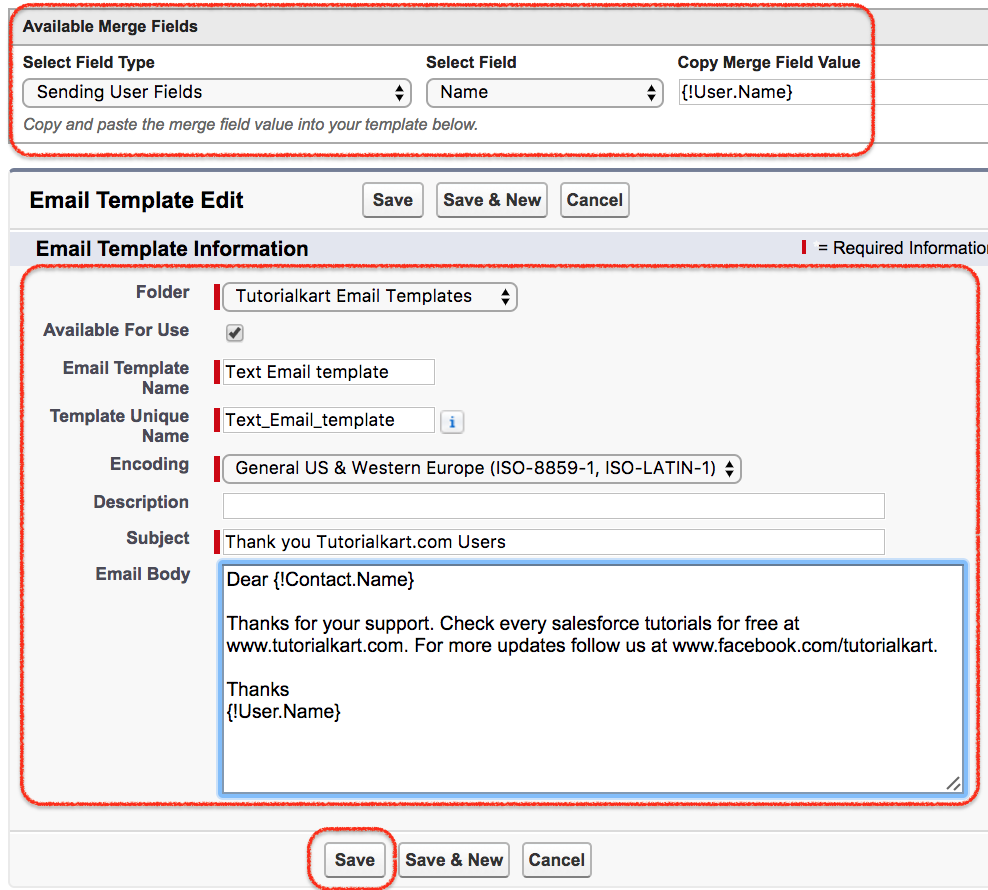
- In the Email body we are going to add {!Contact.Name} and {!User.Name} merge field as shown above.
- Click on Save button.

In text email template we have defined dear customer but when we insert merge fields we can specify customer name in the email template. Select the merge field and replace the text as shown below.
This is Email template when merge fields are added in the email body. Contact name and Username are automatically inserted as shown above.
Merge fields are powerful, but they should be used carefully. If the field is empty on the record, the email may contain a blank space. For important customer emails, use fields that are reliably populated, such as name, owner, company, case number, or opportunity name, depending on the object.
Creating HTML with Letterhead Template
In this Salesforce Email Templates we can use HTML with Letterhead to send description, company logo, header, footer, body and different information to the customer. To create email template with HTML with Letterhead first we have to create letterhead so that this letter head is used in HTML with Letterhead templates.
Creating LetterHead in Salesforce
Before creating HTML with Letterhead first we have to create letterhead in Salesforce. We have many options in letterhead. We can insert logo in the header and footer, we can change the header, body and footer background colour.
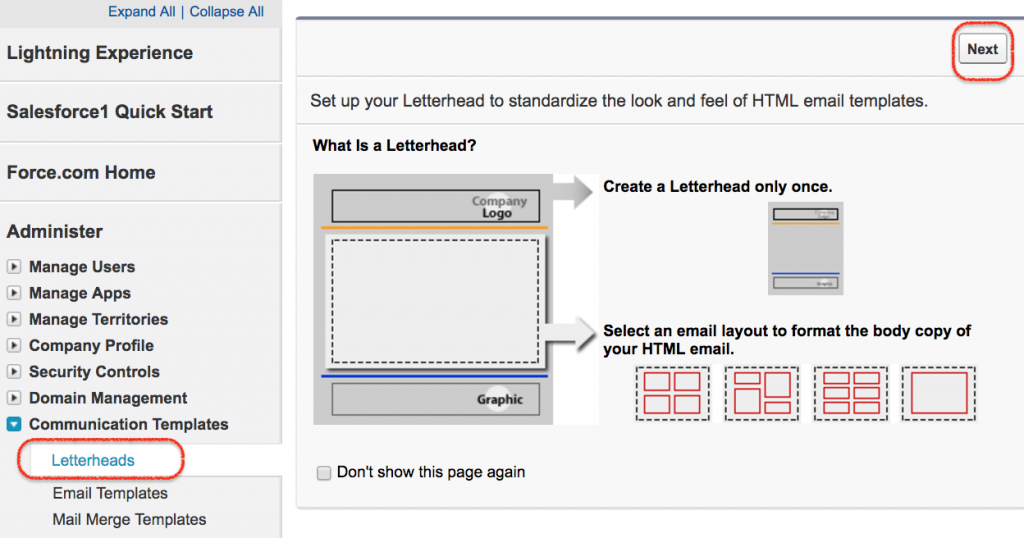
Finally click on Save button.
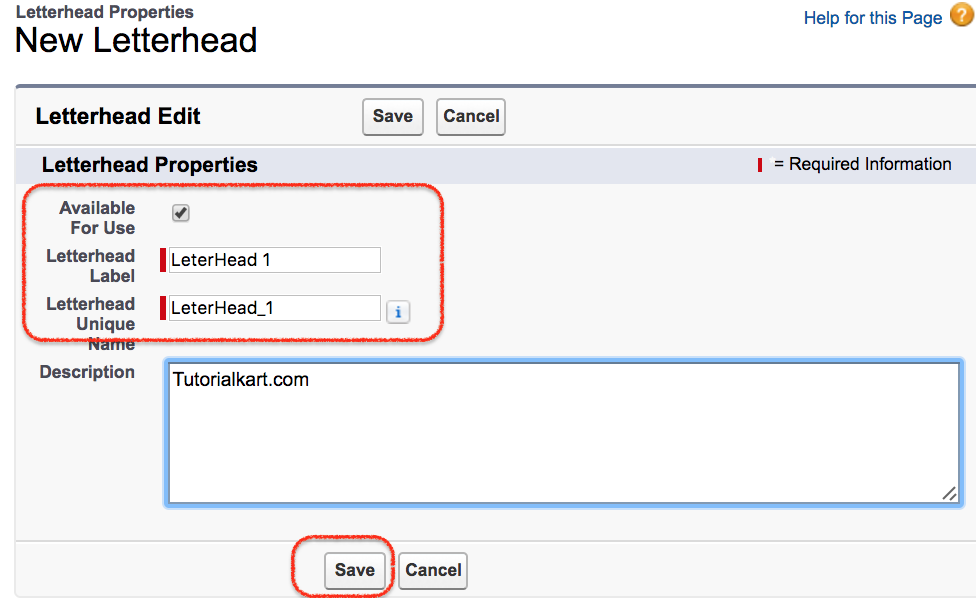
- Select available for use.
- Enter letterhead label and description.
- Click on Save.
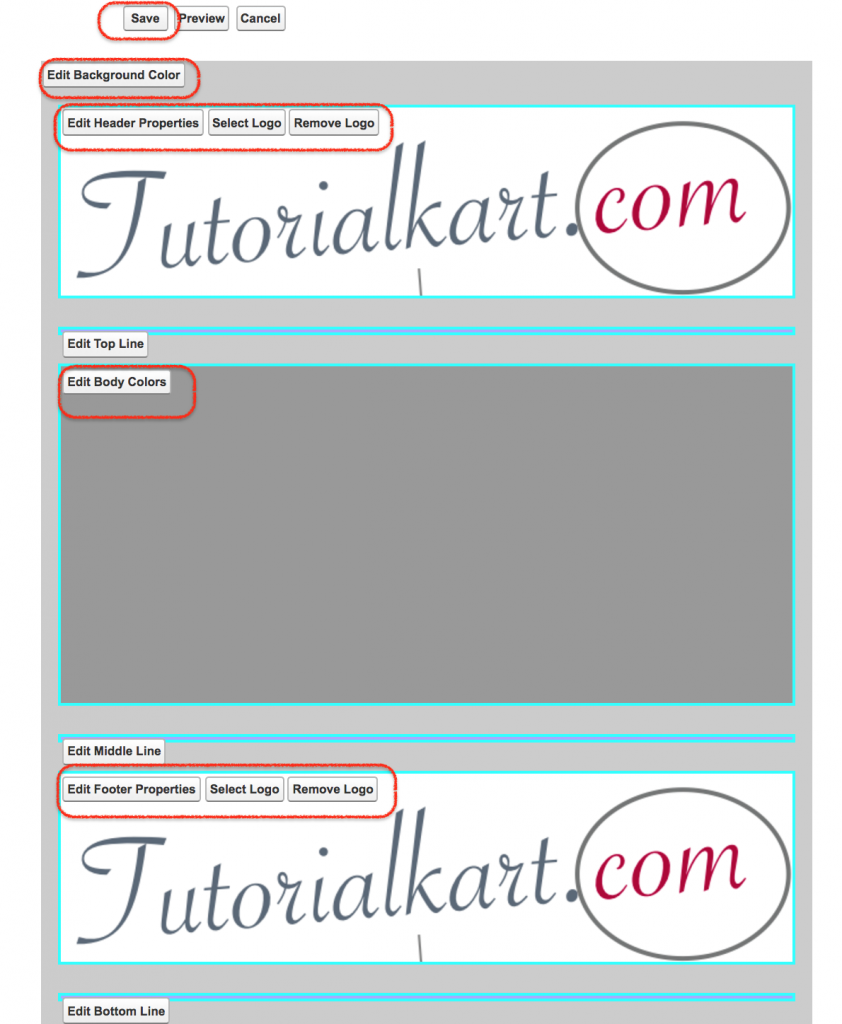
As shown above we have added log in the header and footer. We changed background colour and body colour. Click on Save button to save Letterhead in Salesforce.com.
Creating HTML with Letterhead Template
HTML with letterhead is the second type in Salesforce Email templates. In this type we can find many customization tools, merge fields, colours, footers and headers.
Now navigate to Setup | Administer | Communication Templates | Email Templates | Html using letterhead.
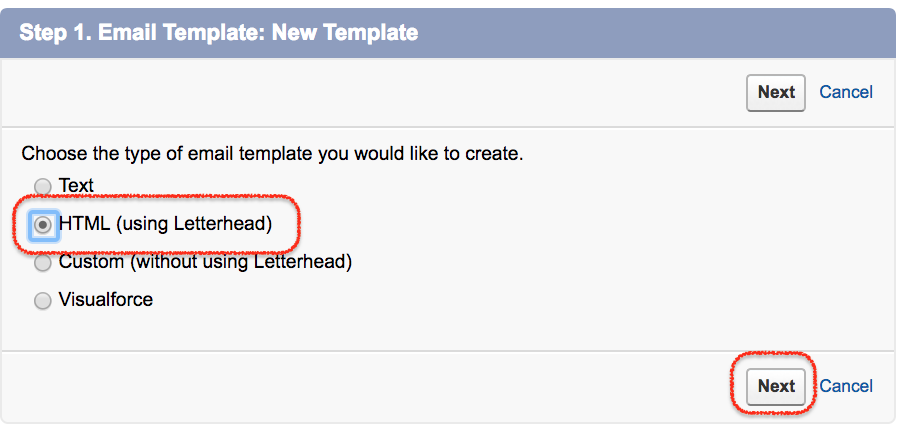
- Click on HTML(using Letterhead).
- Click on Next button.
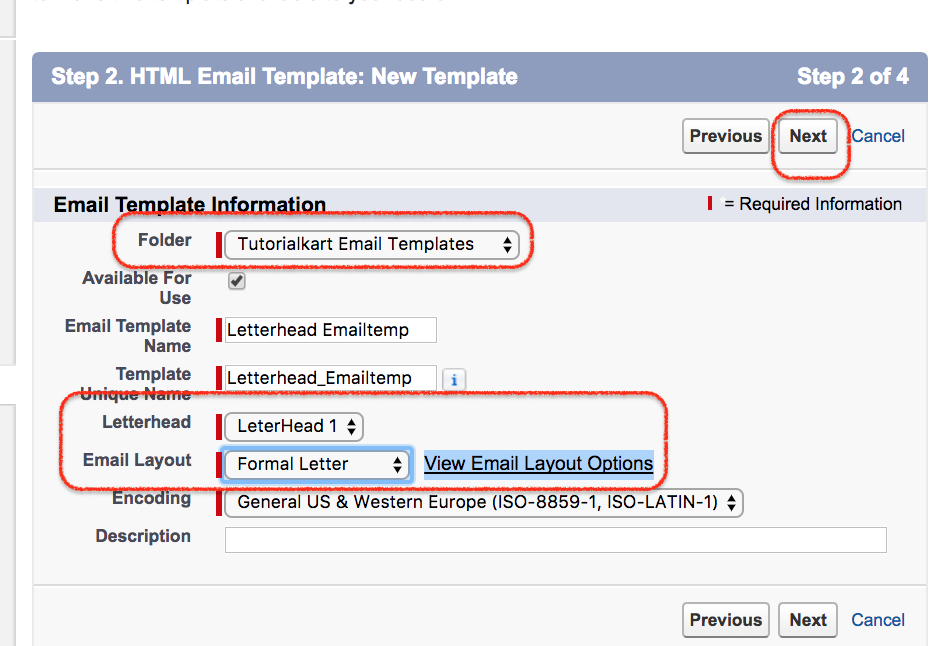
- Select folder.
- Available for use.
- In this email template type we have to select LetterHead and it is mandatory.
- Select email layout.
- Enter Description.
When selecting Email layout we have six email layout in the dropdown. Select any one from the list. Click on View Email Layout Options to view the layouts.
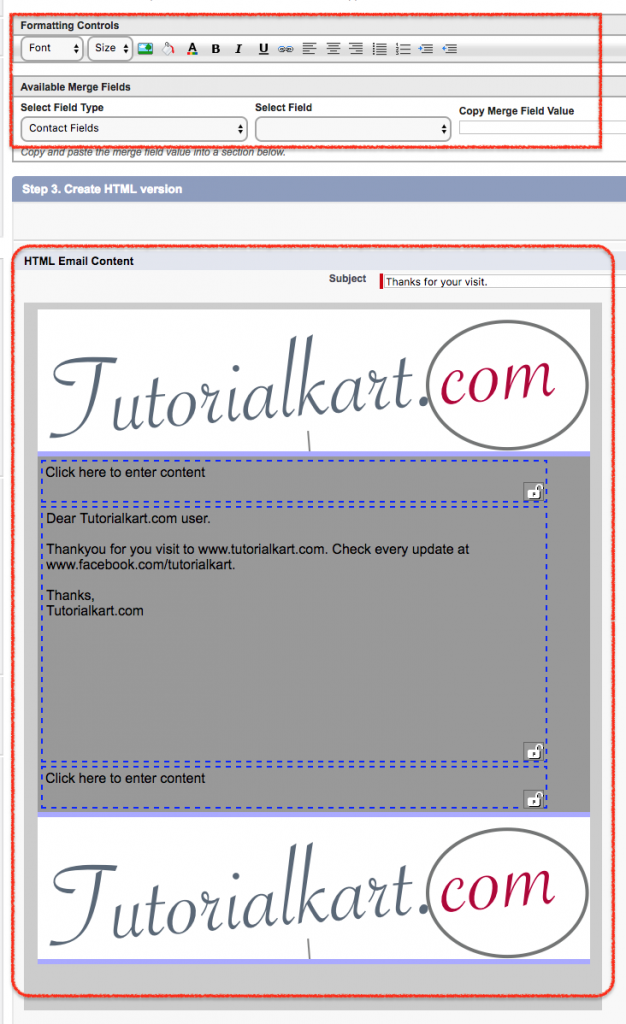
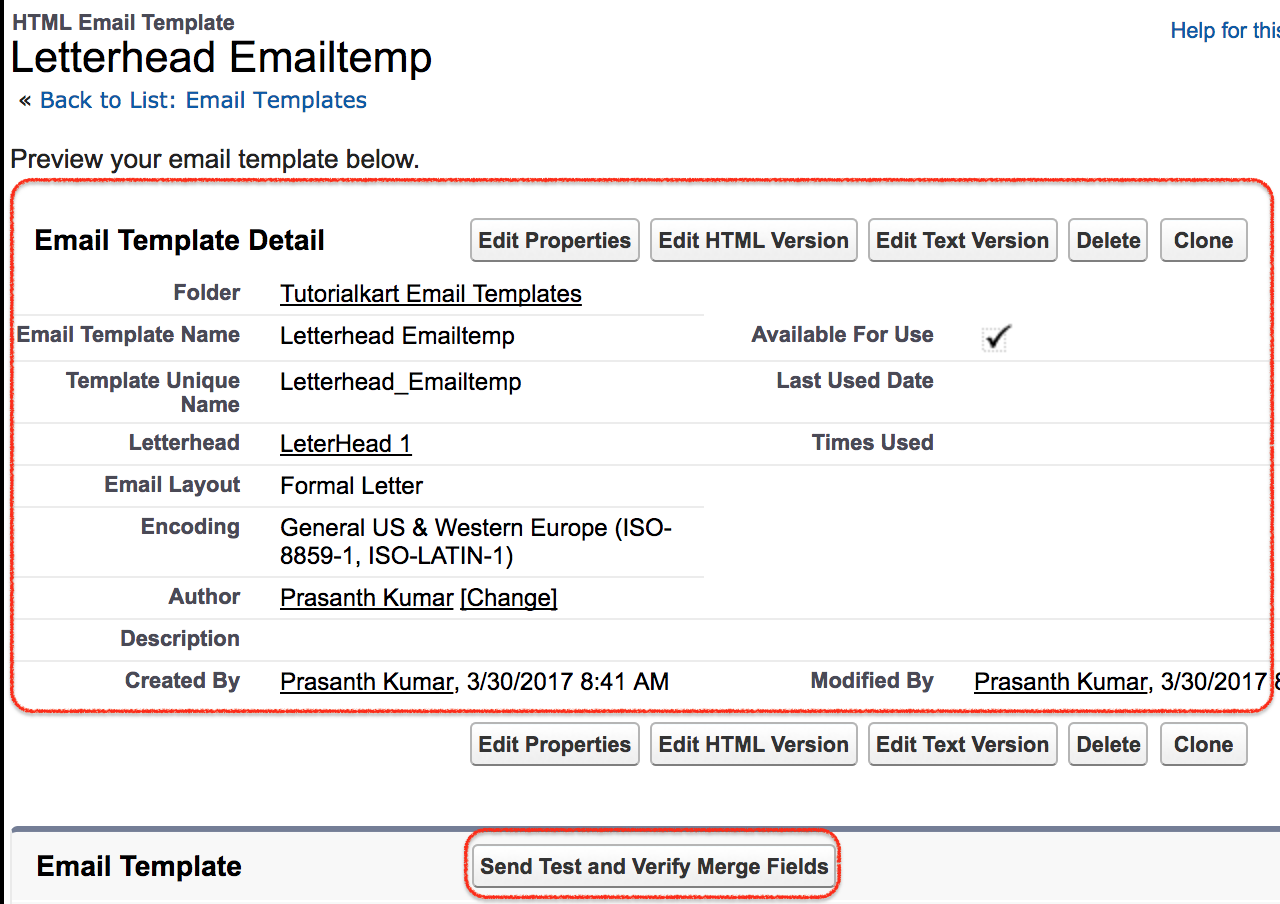
Click on Send Test and Verify Merge fields. So what we have to do is we have to update the email of a contact with our email template.
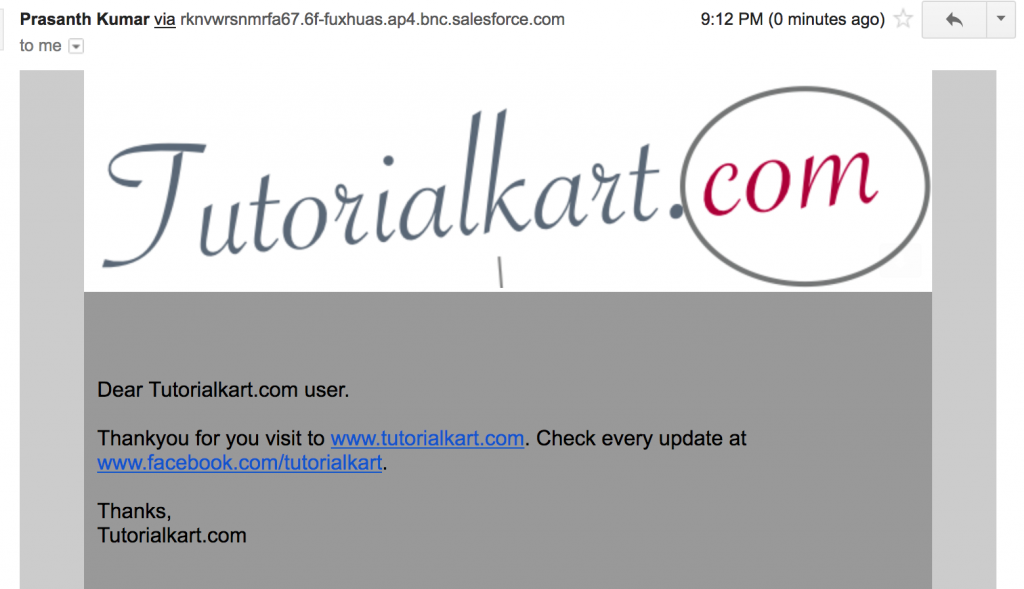
- A test email has been sent with HTML using letterhead as shown above.
When to use HTML with Letterhead Salesforce templates
Use an HTML with Letterhead template when the email must follow a standard company layout. The letterhead can hold brand elements such as a logo, header, footer, and colour scheme, while the template body contains the message and merge fields.
- Use it for customer-facing emails that need a consistent header and footer.
- Avoid unnecessary colours and large images that may not display well in all email clients.
- Keep the main message readable even if images are blocked by the recipient email client.
- Send a test email to confirm that the letterhead and merge fields render correctly.
Creating Custom HTML Template in Salesforce
Custom HTML Template is the third type in Salesforce email templates which is used with out letterhead. We can use custom html code in this email type. Let us create Custom HTML Template.
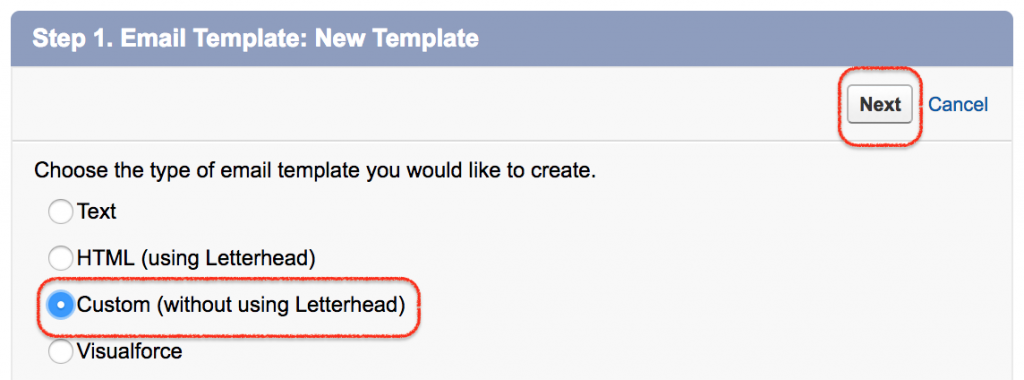
- Enter Subject.
- Enter HTML code in the HTML body to design Salesforce Email templates with our custom html code.
- We can also add merge fields in this template.
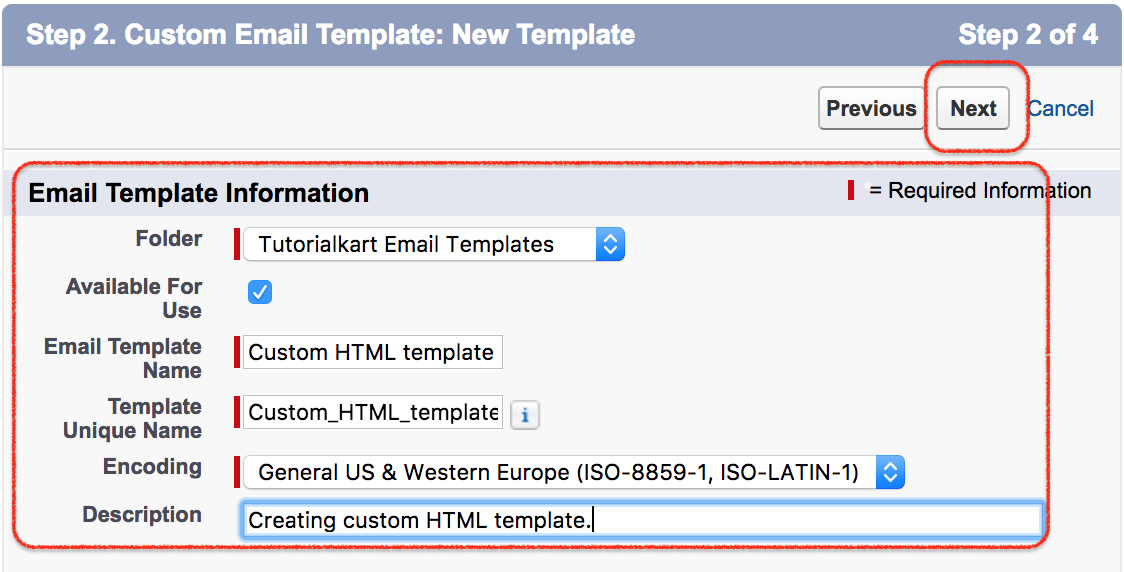
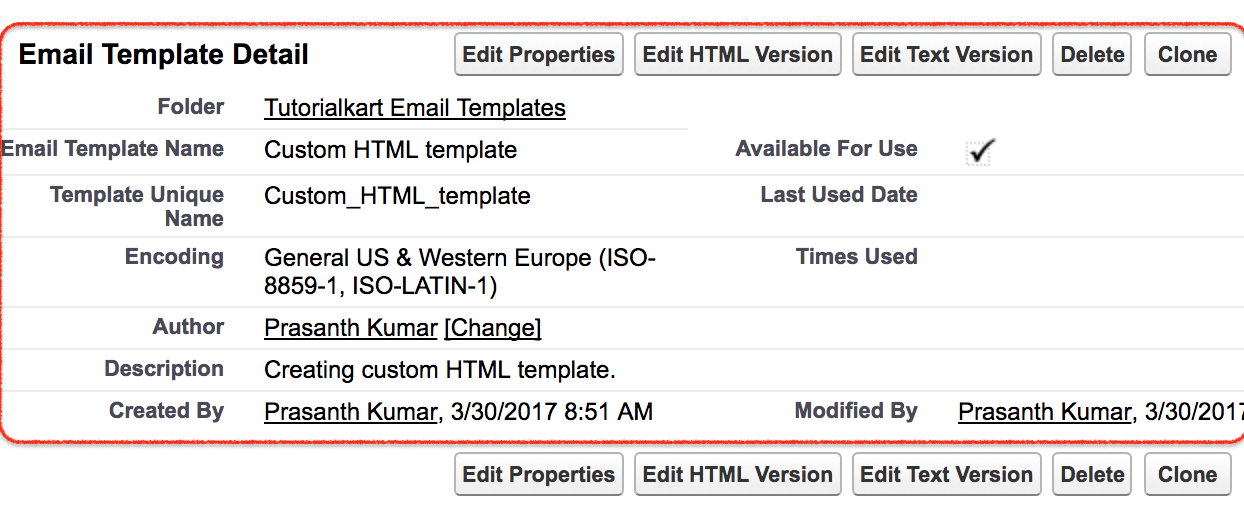
Successfully we have created Custom HTML template in salesforce.com.
A Custom HTML template gives more control over the email body than an HTML with Letterhead template. However, the HTML should be simple and email-safe. Many email clients do not support all modern CSS properties, so inline styles and table-based layouts are often safer for complex email designs.
<p>Dear {!Contact.Name},</p>
<p>Thank you for your interest. Your account owner is {!User.Name}.</p>
<p>Regards,<br>Sales Team</p>
The example above shows a basic HTML body with Salesforce merge fields. In a real template, use merge fields that match the selected recipient type and related object.
Creating Lightning Email Templates in Salesforce
In Lightning Experience, Salesforce also supports Lightning Email Templates. These templates are created from the App Launcher or from the Email Templates area, depending on the org setup. Lightning templates are commonly used with modern Salesforce email features and can be organized in folders.
The exact steps can vary by Salesforce org, but the general process is:
- Open App Launcher in Lightning Experience.
- Search for and open Email Templates.
- Click New Email Template.
- Enter the template name, description, subject, and folder.
- Write the email body and insert merge fields where required.
- Save the template and test it before using it with users or automation.
If your org uses the Lightning Email Template Builder, you may be able to create a more structured email layout with components. Access depends on permissions and enabled Salesforce features.
Managing Salesforce email templates after creation
Creating the template is only the first part. Salesforce administrators should also manage template names, folder access, active usage, and old versions. Poorly named templates can confuse users, especially when several departments create similar emails.
- Use naming standards: Include the department, purpose, and stage, such as Support – Case Created.
- Keep folder permissions clean: Give edit access only to users who maintain templates.
- Review old templates: Remove or archive templates that are no longer used.
- Check automation dependencies: Before deleting a template, verify whether it is used in email alerts, workflow rules, approval processes, flows, or other automation.
- Test after changes: Any change to merge fields, subject lines, or HTML should be tested before users rely on it.
Common mistakes while creating Salesforce email templates
- Using the wrong merge field: A field from the wrong object may not populate when the email is sent.
- Not selecting Available For Use: The template may be saved but unavailable to users or automation.
- Saving templates in the wrong folder: Users may not find the template or may not have access to it.
- Skipping test emails: Formatting and merge field issues are easier to fix before the template is used in production.
- Over-designing HTML emails: Complex HTML may display differently across email clients.
- Leaving old template copies active: Users may select an outdated version by mistake.
Salesforce email template editorial QA checklist
Use this checklist before publishing or assigning a Salesforce email template to a live process.
- The template name clearly explains the purpose of the email.
- The correct template folder is selected.
- Available For Use is selected only when the template is ready.
- The subject line is clear and does not contain broken merge fields.
- All merge fields are tested with real sample records.
- The email body has a greeting, useful message, and proper closing.
- HTML templates display correctly in a test email.
- Any attached file is current and necessary.
- The template is not a duplicate of an older active template.
- Automation using this template has been tested separately.
FAQs on Creating Salesforce Email Templates
What are email templates in Salesforce?
Email templates in Salesforce are reusable email formats used to send standard messages. They can include subject lines, body text, merge fields, HTML formatting, letterheads, and in advanced cases Visualforce markup.
How do I create a new email template in Salesforce?
In Classic, go to Setup | Administer | Communication Templates | Email Templates, select a template type, choose a folder, enter the template details, and save it. In Lightning Experience, open Email Templates, click New Email Template, enter the details, add content and merge fields, then save and test it.
How many email templates can be created in Salesforce?
The number of email templates that can be created depends on Salesforce limits for the org and template type. Since limits can vary by edition and Salesforce updates, administrators should check the current Salesforce limits page or Salesforce Help for the exact limit in their org.
How do I manage email templates in Salesforce?
Manage Salesforce email templates by using clear folders, controlling folder access, following naming standards, testing merge fields, reviewing old templates, and checking whether templates are used in automation before editing or deleting them.
What is the difference between Text and HTML Salesforce email templates?
A Text email template contains plain text without rich formatting. An HTML email template supports formatting, layout, links, images, and branding. Text templates are simpler, while HTML templates are better when the email needs a designed layout.